TL;DR
- Google Meet is free for personal Google accounts, but group calls cap at 60 minutes and 100 participants.
- Paid Meet features come through Google Workspace (Business/Enterprise), which is where recording, transcripts, breakout rooms, higher participant caps, and admin controls show up.
- If you’re asking “how much is a Google Workspace account?” The common business tiers start at $7 / $14 / $22 per user/month (annual commitment) for Starter/Standard/Plus.
- Biggest upgrade triggers: you need longer group meetings, recordings, larger rooms (150–500+), or stronger compliance/security.
- No matter what plan you pick, scheduling is usually the real time-sink—Koalendar auto-creates Meet links, syncs Google Calendar, and sends reminders so meetings actually happen on time.
Google meet pricing: plans, limits, and what you actually need in 2026
If you’ve ever started a call thinking it’ll be “a quick 15 minutes” and then suddenly you’re racing the clock toward a hard stop, you already know the most frustrating part of Google Meet isn’t the video, it’s the limits you didn’t realize you had. This guide breaks down Google Meet pricing in plain English—what’s free, what’s paid, what you get at each tier, and when upgrading is actually worth it.
We’ll also cover the stuff people really care about: the Google Meet free time limit, recording, transcripts, participant caps, and how to stop wasting time on back-and-forth scheduling.
What you should know about Google Meet
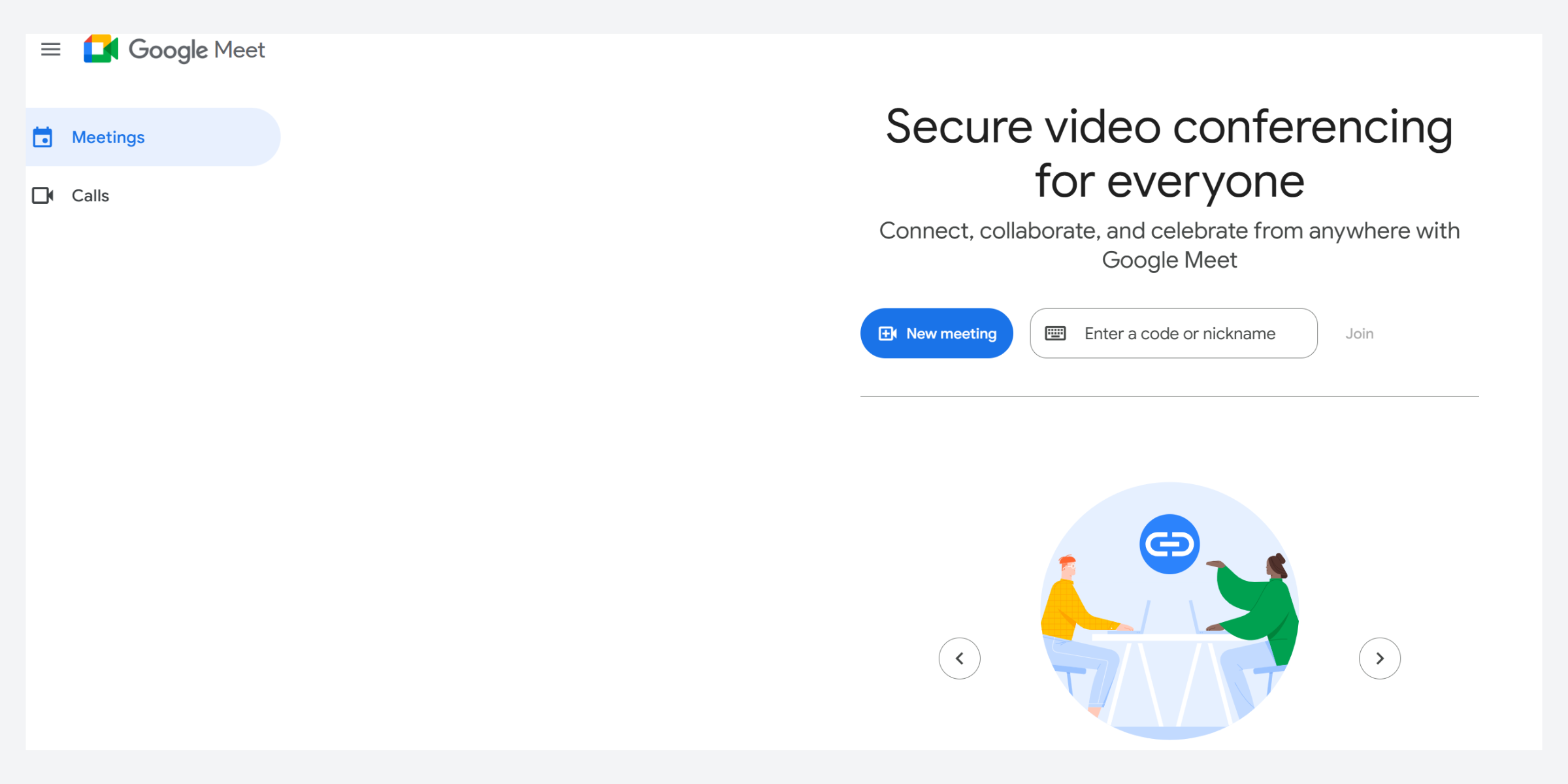
Google Meet is Google’s video conferencing tool for online meetings, classes, interviews, and team calls. It’s designed to be simple: click a link, join in the browser, and go.
.png?w=2000&fit=max&auto=format)
What Google Meet is (in real life)
Most people use Meet in one of two ways:
- Personal Google account (Gmail): free meetings, quick calls, lightweight collaboration.
- Google Workspace account (work/school): Meet as part of a bigger toolkit (Gmail, Calendar, Drive, Docs, admin controls).
How it fits within Google Workspace
Google Meet isn’t typically sold “by itself” for businesses. Instead, it’s included in Google Workspace pricing plans, and your Workspace edition determines things like:
- Participant limits
- Recording/transcripts
- Breakout rooms/polls/Q&A
- Security and compliance features
Google Meet pricing overview
Here’s the key idea: Google Meet can be free, but advanced features come from subscriptions (mostly Google Workspace).
How Google Meet pricing is structured
- Free version: available to anyone with a Google Account; 100 participants; 60 minutes per meeting for group calls. For mobile calls and 1:1s, there’s no time limit.
- Paid version: packaged inside Workspace tiers (Business/Enterprise), where meeting limits and premium features expand.
Cost of a Google Workspace account
As of the latest Workspace pricing page, common business tiers (USD) are:
- Business Starter: $7/user/month (1-year commitment) or $8.40 billed monthly
- Business Standard: $14/user/month (1-year commitment) or $16.80 billed monthly
- Business Plus: $22/user/month (1-year commitment) or $26.40 billed monthly
- Enterprise: typically custom pricing, and meeting features scale further (e.g., up to 1000 participants listed).
That’s the simplest answer to “how much is a Google Workspace account?”—but your real cost depends on whether you pay monthly vs annually, your region/currency, and which add-ons you turn on.
Key factors that influence pricing (and whether you’ll overpay)
Google Meet pricing looks straightforward at first—until you realize you’re not really paying for “video calls.” You’re paying for how you run meetings: how long they last, how many people show up, what needs to happen after (recordings, notes, follow-ups), and how tightly your org needs to control access and data.
That’s why it’s easy to overbuy. A lot of teams jump to a higher plan because they assume they’ll “probably need it someday,” when actually they only need one premium capability (like recording) or a slightly higher participant cap. On the flip side, sticking with the free version can be a false economy if you’re constantly hitting time limits, restarting calls, or losing decisions because nothing was captured.
If you want the cheapest plan that still “feels pro,” focus on:
- Meeting duration needs (do you regularly go past an hour?)
- Recording and transcripts (must-have for client calls, training, classes)
- Participant limits (100 vs 150 vs 500+)
- Security/compliance (Vault, DLP, retention, admin controls)
- Support level (basic vs enhanced)
Google Meet plans
Free Plan (personal Google account)
What you get
- Create meetings with a Google Account
- Up to 100 participants
- Group meetings up to 60 minutes
- Basic Meet experience for quick calls
- For mobile calls and 1:1s, there’s no time limit
Main limitations
- The google meet free time limit applies to group calls (and it’s disruptive mid-workshop).
- Many “meeting management” features live in paid tiers (recording, certain admin controls, etc.).
Business Starter
What you get
- Workspace suite + Meet
- 100 participant meetings
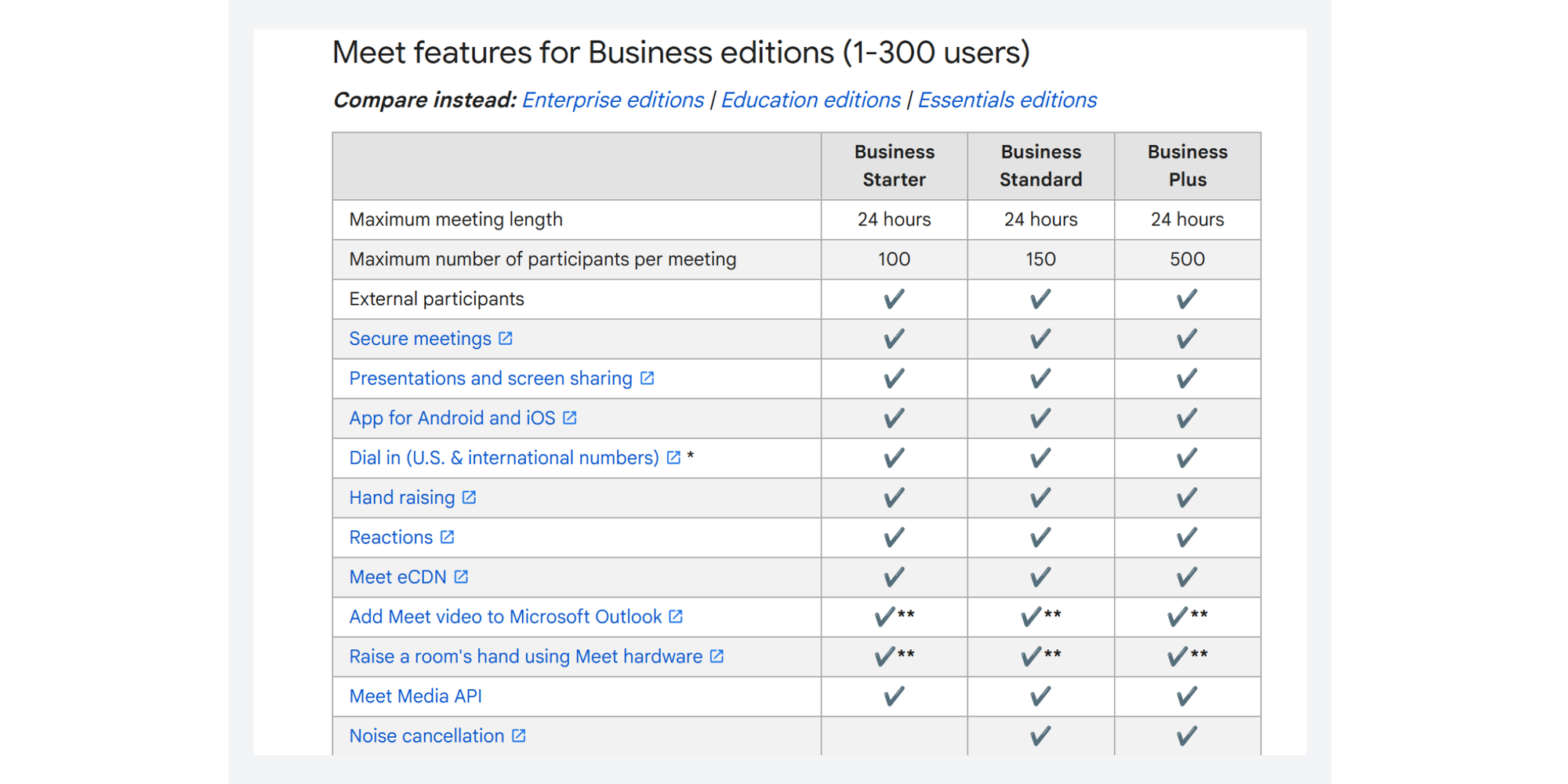
- “Maximum meeting length 24 hours” listed for Business editions
Main limitations
- You don’t get the same depth of Meet features as Standard/Plus (think: recordings/transcripts/breakout rooms).
Best for: Small teams who mainly need professional email + calendar + basic Meet, and rarely need recordings.
Business Standard
What you get
- 150 maximum participants
- Recording saved to Drive
- Breakout rooms, polls, Q&A, noise cancellation
- Transcripts (availability depends on settings and rollout, but it’s listed as available for Standard/Plus in the business comparison)
Main limitations
- If you host very large all-hands or trainings, 150 participants can feel tight.
- Compliance/security is solid, but not “maxed out” like Enterprise.
Best for: Teams who want recording + structured meeting features without jumping to the higher tier.
Business Plus
What you get
- 500 maximum participants
- Recording + attendance tracking (listed)
- Enhanced security/management controls (Vault and more are highlighted on the pricing page)
Main limitations
- Cost jumps up—so it’s only worth it if you truly need bigger rooms, tracking, or tighter governance.
Best for: Growing orgs doing big client trainings, internal town halls, or regulated workflows.
Enterprise plans
What you get
- Enterprise tiers vary, but Workspace pricing highlights:
- Up to 1000 participant video meetings
- Advanced security, compliance controls, and enhanced support
Main limitations
- Pricing is custom, and rollout/availability can depend on your contract and admin setup.
Best for: Large orgs that need serious compliance, data controls, and scale.
Free vs paid Google Meet plans
This is the “Google Meet free vs paid” question most people actually mean: Will my meetings get cut off? Can I record? How big can my calls be?
Meeting time limits (meeting duration)
- Free personal accounts: per Google’s Meet product page, up to 60 minutes per meeting for group calls, and no time limit for mobile calls and 1:1s
- Workspace Business editions: maximum meeting length 24 hours listed for Business Starter/Standard/Plus.
If you routinely run workshops, tutoring, client reviews, or team retros longer than an hour, that alone can justify upgrading.
Participant capacity and maximum participants
If you’re asking “how many people can join a Google Meet?” the answer depends on your account:
- Free personal: up to 100 participants
- Business Starter: 100
- Business Standard: 150
- Business Plus: 500
- Enterprise: pricing page shows 1000 participant meetings
That’s also your practical answer to Google Meet maximum participants.
.png?w=2000&fit=max&auto=format)
Meeting recordings
Recording is one of the most common “oh, we need to upgrade” moments.
Recording is supported on Business Standard/Plus and various Enterprise/Education/other eligible subscriptions.
AI and productivity features (summaries, transcripts, enhancements)
Google is leaning hard into AI across Workspace (Gemini and related features), and Meet is part of that story in paid tiers. The Business comparison shows Gemini AI features in Meet for Standard/Plus.
Security and admin controls
The jump from free to paid isn’t only about longer meetings or more participants, it’s about control: who can create meetings, who can join them, what gets saved, and how your organization stays compliant when meetings include sensitive information.
You’ll see the biggest jump in:
- Admin management: Instead of each user managing Meet settings individually, Workspace gives admins centralized controls—so you can standardize policies across the whole organization. That includes managing users, enforcing meeting rules, controlling sharing behavior, and reducing risk from “one person clicking the wrong setting.
- Data retention/eDiscovery: Once meetings become business records—training sessions, HR conversations, customer calls, legal reviews—you often need the ability to retain data and retrieve it later. Retention and eDiscovery capabilities help you stay prepared for audits, disputes, or internal reviews without scrambling through personal drives and inboxes.
- Compliance controls (more prominent in Plus/Enterprise): Higher tiers are where governance gets serious: stronger compliance tooling, more advanced security policies, and better alignment with industry requirements. If you’re handling confidential client data, student information, contracts, financial details, or anything that carries legal risk, these controls can matter as much as the meeting features themselves.
Support availability
Workspace tiers list Standard Support for Business plans, with enhanced support at higher tiers.
Integrations and collaboration tools
Google Meet is perfectly usable on its own, but it really clicks when it’s part of the wider Google ecosystem. That’s when meetings stop feeling like isolated events and start feeling like a smooth workflow: invite → prep → meet → follow-up, all without switching tools or hunting for links.
Meet shines when you’re already living in:
- Google Calendar scheduling
- Drive storage for recordings
- Docs/Sheets for agendas and meeting notes
Key features to consider when choosing a plan
If you want to pick the right tier without spreadsheet pain, prioritize these.
Meeting management tools
Ask yourself:
- Do you need recording and easy access later?
- Do you run interactive sessions that benefit from breakout rooms, polls, Q&A?
- Is noise cancellation important for hybrid/remote teams?
Google also offers a guide with tips to set up business meetings for greater meeting productivity.
Integrations with Workspace apps
If your meeting workflow already includes Calendar + Drive + Docs, Workspace plans feel “native” (and save admin time).
AI and automation features
If your team depends on meeting artifacts—notes, transcripts, summaries—paid tiers can reduce the “what did we decide?” follow-ups.
Security and compliance requirements
If you’re in finance, healthcare, legal, or education, admin and compliance features can matter as much as video quality. Workspace higher tiers call out advanced governance explicitly.
How to choose the right Google Meet plan
Best options for individuals or freelancers
If you’re mostly doing 1:1 calls, the free version may be enough—especially since mobile and 1:1 calls don’t have the same time pressure. Upgrade when you need recordings, structured meeting tools, or longer group sessions.
Best options for small teams or start-ups
- Business Starter is the “get professional fast” tier if you want Workspace basics and reliable Meet.
- If you run lots of collaborative sessions, Business Standard is usually the first “serious meetings” tier (recording + breakout rooms + more).
Best options for growing businesses
If you’re running trainings, onboarding cohorts, sales enablement, or big demos:
- Business Plus gives breathing room (500 participants) and stronger governance.
Best options for large teams or enterprises
If you need scale + compliance + support:
- Enterprise plans exist for that (and Workspace lists 1000 participant meetings plus compliance controls).
Key factors to consider (quick checklist)
- Meeting duration: Do your group meetings regularly exceed 60 minutes?
- Participant needs: 100 vs 150 vs 500 vs 1000+ is a real jump.
- Security/compliance: Do you need retention, eDiscovery, data governance?
Advanced features for managing administrative tasks
Recording management
If recording matters, make sure you also plan for:
- Where recordings are stored (often Drive)
- Who can start/stop recording (admin policies)
- Retention rules (especially for regulated orgs)
Notifications before meeting time limits
On free group calls, your best “fix” is prevention:
- Add an agenda
- Keep a visible timer
- Plan a clean wrap-up or break before the cut-off
Extending meeting duration (without chaos)
If your team keeps hitting the free limit, you have two realistic options:
- Upgrade (cleanest, no interruptions)
- Restart the meeting right before the cut-off (works, but it’s clunky and breaks momentum)
Using Google Meet hardware
If you’re moving into hybrid rooms (conference rooms, classrooms, training spaces), Google Meet hardware basically means setting up a reliable “room kit” (camera, mic/speaker, and a dedicated device/controller) so people can join with one tap and be heard clearly—without relying on someone’s laptop and a messy cable setup. Before you buy anything, it’s worth checking Google’s official Meet requirements to confirm supported browsers, operating systems, and device basics so your room setup doesn’t fall over on day one.
Admin controls in Workspace
Workspace editions give admins more control over:
- Meeting policies
- Access settings
- Security and compliance configuration
Google Meet vs other video conferencing tools
Google Meet isn’t the only option, so here’s the clean comparison when pricing and limits matter.
- Zoom free plan: group meetings usually cap at 40 minutes
- Google Meet free plan: group meetings cap at 60 minutes
- Zoom’s paid plans are priced separately from your email/docs suite; Workspace bundles Meet + productivity apps. (Zoom pricing varies, but Zoom lists paid tiers like Pro/Business; many plans show ~$13/user/month billed annually on Zoom’s site.)
Choose Meet if your team already lives in Google Calendar/Drive/Docs and you want fewer tools to manage.Choose Zoom if you rely on Zoom-specific meeting features, webinar-style controls, or have a Zoom-first organization.
Google Meet vs Microsoft Teams
- Teams Free lists up to 60 minutes and 100 participants for group calling.
- Meet Free is 60 minutes for group meetings and up to 100 participants (and no time limit for mobile/1:1 calls).
Choose Meet if Google Workspace is your collaboration hub. Choose Teams if you’re deep in Microsoft 365 and want chat/files/meetings tightly tied to that ecosystem.
| Google Meet | Zoom | Microsoft Teams | |
| Free plan (price + key limits) | $0 (personal Google account). 60 min for meetings with 3+ people, 100 participants. | $0 (Basic). Group meetings typically 40 minutes, up to 100 participants. | $0 (Teams Free). Group meetings 60 minutes, 100 participants. |
| Entry paid plan (starting price) | Google Workspace Business Starter: $7/user/mo paid yearly. | Pro: about $13.33/user/mo billed annually (or $16.99 monthly). | Teams Essentials: $4/user/mo paid yearly. |
| Meeting duration (free → entry paid) | 60 min (group) → 24 hours | 40 min → up to 30 hours | 60 min → up to 30 hours |
| Participants (free → entry paid) | 100 → 100 (Starter). (Standard 150, Plus 500, Enterprise shown at 1000.) | 100 → 100 (Pro). (Business 300, Enterprise 500.) | 100 → 300 |
| Recording | Recording starts at Business Standard / Plus (and certain Enterprise/Edu/Essentials). | Local recording can be available on a free desktop; cloud recording is for paid plans. | Recording availability depends on plan/policy (often tied to certain Microsoft 365 subscriptions). |
| Transcripts / AI notes | Varies by tier; higher Workspace tiers highlight Gemini features in Meet. | AI Companion included with eligible paid plans (per Zoom). | Varies by license; transcription is covered in Teams recording/transcription guidance (Copilot often add-on). |
| Best fit / ecosystem | Best if you already use Google Calendar/Drive/Docs and want one suite. | Best for a meeting-first tool + webinars/events add-ons. | Best if you’re in Microsoft 365 and want chat + files + meetings together. |
How Koalendar helps you organize Google Meet sessions
Even with the “perfect” plan, most teams lose time before the meeting starts: chasing availability, rescheduling, no-shows, and messy calendars.
Koalendar fixes that part of the workflow, so Meet can just be the call, not the coordination headache.
Smart booking pages for easy scheduling
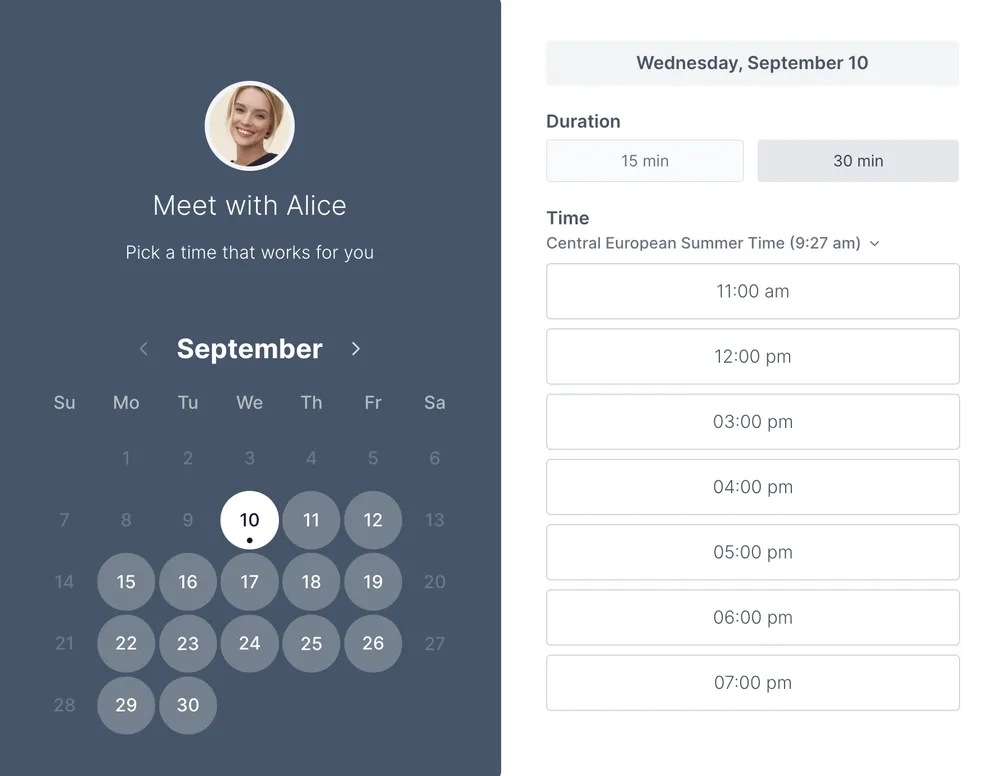
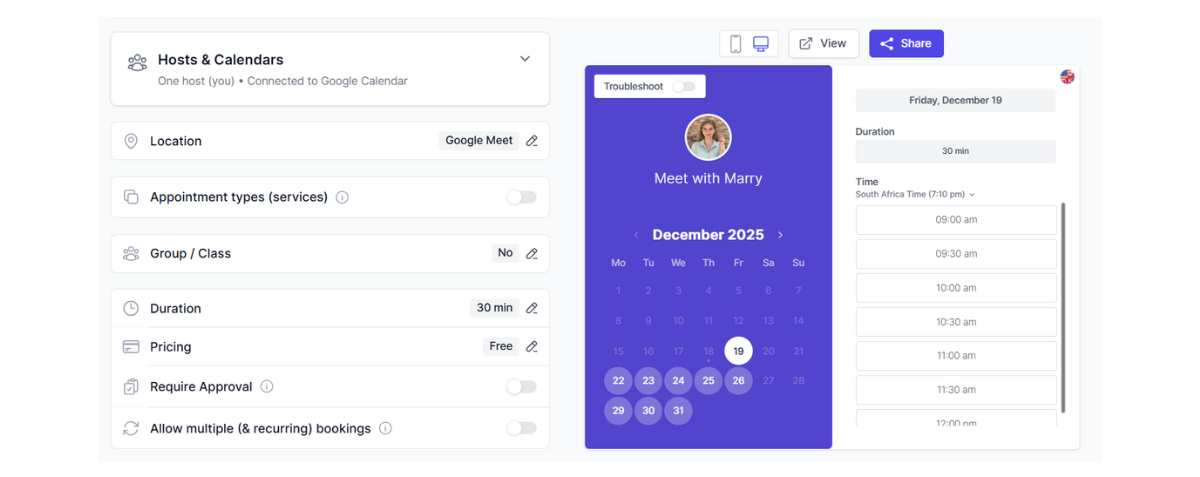
Instead of “Does Tuesday at 2 work?” x 6, you share a booking page and let people pick an open time.
Automated Google Meet link creation
When someone books you, Koalendar can automatically generate the Meet link: no manual setup, no copy/paste mistakes.
Result: Every invite has the right video link, every time.
Seamless Google Calendar sync
Koalendar syncs with Google Calendar so availability stays accurate and double-bookings don’t sneak in.
Result: You stop playing calendar Tetris.
.png?w=2000&fit=max&auto=format)
Automated Confirmations and Reminders
Reminders reduce no-shows—especially for educators, consultants, and teams running lots of client calls.
Koalendar sends email reminders and SMS reminders to help you reduce no-shows and keep your calendar full.
Team availability and time zone management
For team leads, Koalendar helps route bookings to the right person and handle time zones without mental math.
Integrations that support a smooth Google Meet workflow
Koalendar fits best when you want:
- Automated meeting scheduling
- Calendar sync
- Embeddable booking pages
- Reminders
- Custom scheduling rules
And if you’re budget-conscious, Koalendar also offers a free forever plan so you can start without committing.
Conclusion
Google Meet is easy to start with, but the “right” plan depends on a few simple things: meeting duration, recording needs, and maximum participants for your typical sessions. If you’re constantly hitting the Google Meet free time limit, or you need recordings, transcripts, breakout rooms, and stronger controls, moving into Google Workspace tiers (Standard/Plus or Enterprise) is where the value lives.
And once you’ve picked the tier that fits, the fastest win is making scheduling painless—because even the best video conferencing tool can’t save you from the email ping-pong.