
If you’re reading this, you’ve likely experienced that sudden dread when a client or patient doesn’t show up. You double-check your calendar, email outbox, the time zone, and wonder, “I sent the invite… what happened?”
As it currently stands, Google Calendar does not support native SMS notifications for your clients or yourself. It depends on email and push notifications, which often get lost in a crowded inbox or are easily overlooked.
In this guide, we’ll take you through exactly how to set up reliable SMS reminders for Google Calendar using a straightforward, no-code third-party text reminder solution with Koalendar. Are you ready to say goodbye to the days of missed appointments?
Can Google Calendar send text reminders?
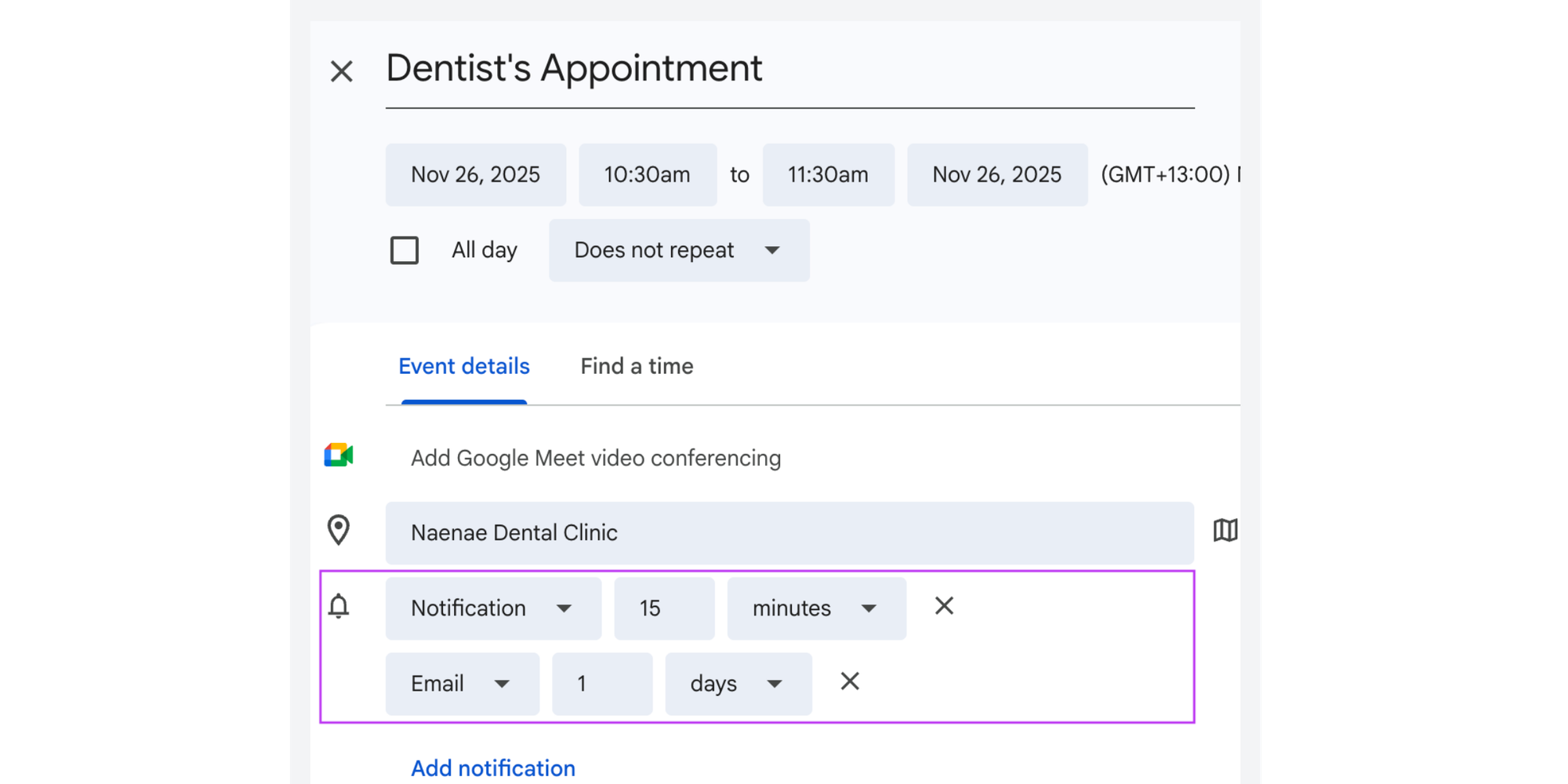
Once an event is created in your Google Calendar, you can go to “Edit event” to customize the reminder alerts you would like to receive for it. You can choose either a push notification, an email reminder, or both. But Google Calendar lacks SMS capability.
Google Calendar SMS integration: What to look for in a third-party tool
Not every third-party text message reminder solution is the same. For the best setup, keep the following features in mind:
Seamless integration with Google Calendar
The solution should be able to sync up directly with your Google Calendar without the need to manually import or export data. You shouldn’t have to worry about leaving your existing workflow.
Customizable templates and dynamic fields
Generic texts like “You have an appointment” are not ideal. You should have the option to customize the message with specific details unique to your event. Look for a solution that supports dynamic fields such as {Date}, {Event Title}, {Location}, and {Time} that auto-populate for every reminder.
Multi-time zone and international SMS support
If you work with an international clientele, this is a must-have. To prevent your Google Calendar appointment text reminder from accidentally waking up one of your attendees at 2 AM, the system should automatically keep track of the correct local time for your recipients.
Confirmation / cancellation tracking
The best part is when your reminder becomes a helpful, brief conversation. Your ideal solutions enable recipients to reply right away (either with “confirm” or “cancel”), and automatically update your Google Calendar accordingly. This feature alone can be a major time saver, earning you back hours of administrative follow-up.
The Koalendar advantage: Your all-in-one SMS reminder solution
You don’t need to search far for a tool that meets all these criteria. Koalendar provides seamless, no-code Google Calendar integration for SMS.
Here’s how it stacks up against the essential criteria:
- Seamless Google Calendar integration: Koalendar syncs directly with your calendar in just a few clicks using secure OAuth. Once connected, it works automatically in the background, requiring no manual import or export of event data.
- Customizable templates and dynamic fields: Easily craft personalized messages in Koalendar’s notification settings. Use dynamic fields like {Invitee_Name}, {Date}, {Time}, and {Event_Title} to auto-populate details for every reminder, ensuring clarity and a personal touch.
- Multi-time zone and international SMS: Koalendar automatically detects the time zone of each event from your Google Calendar and calculates the correct local send time for every attendee. This ensures your scheduled reminders always arrive when you need them to.
But Koalendar doesn’t stop at the essentials. It offers powerful additional features to streamline your entire scheduling workflow, including custom booking pages to collect phone numbers upfront, team calendar support, and branding options to make every interaction feel both professional and personalized.
How to send text reminders from Google Calendar with Koalendar
Are you ready to see less missed appointments and save valuable time? This is how you can start using Google Calendar SMS notification reminders with Koalendar. It takes only a few minutes and requires no technical skills.
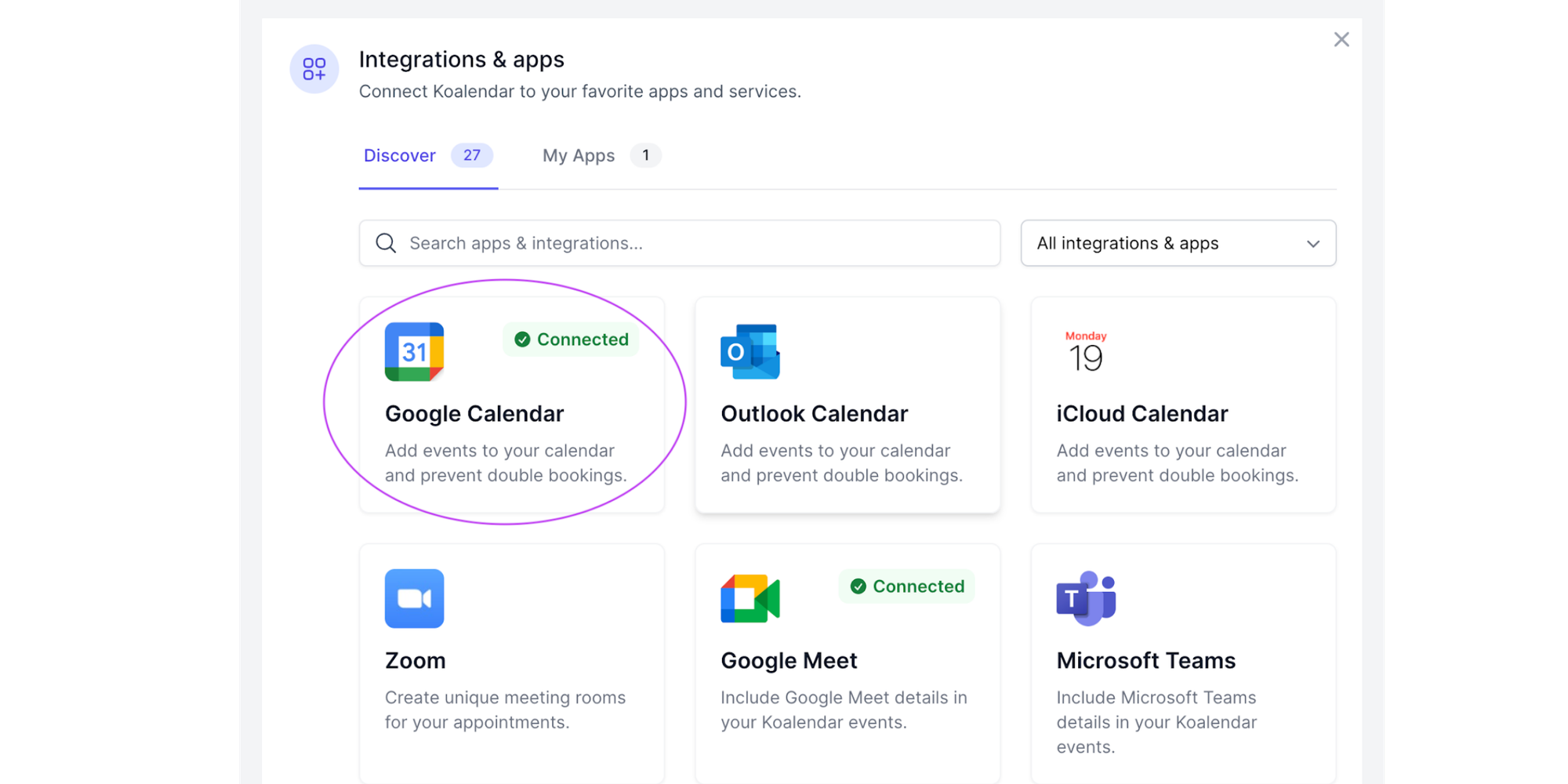
Step 1: Connect your Google Calendar
- Get started by signing up for a Koalendar trial.
- Once you’re logged in, click on your profile at the top-right to open a dropdown menu.
- From there, navigate to the “Integrations & apps” page.
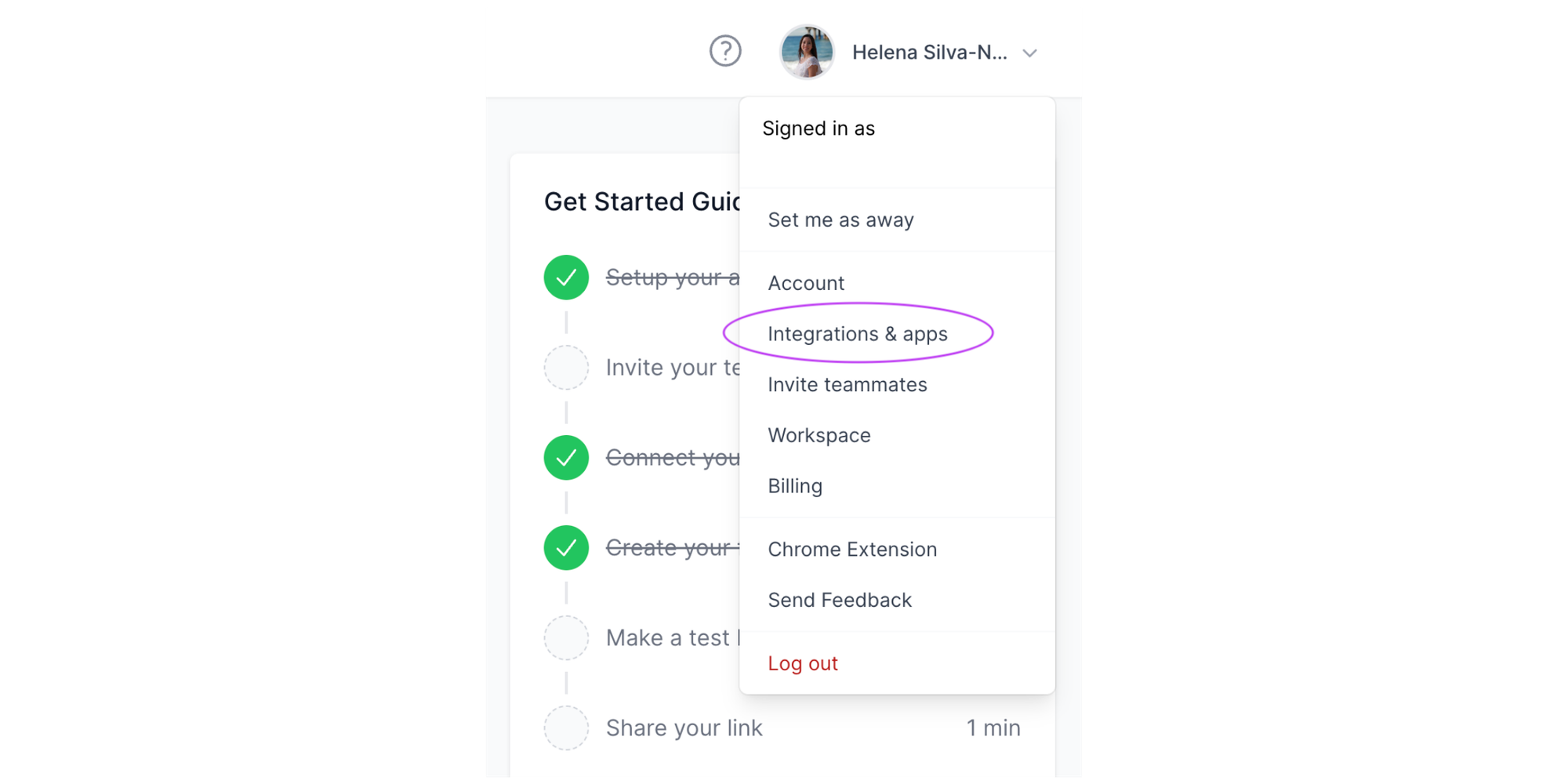
- Click on “Google Calendar.” You’ll then be taken through Google’s secure OAuth process to allow Koalendar read-only access to your calendar events. This is a standard and safe practice.
Step 2: Create a message template
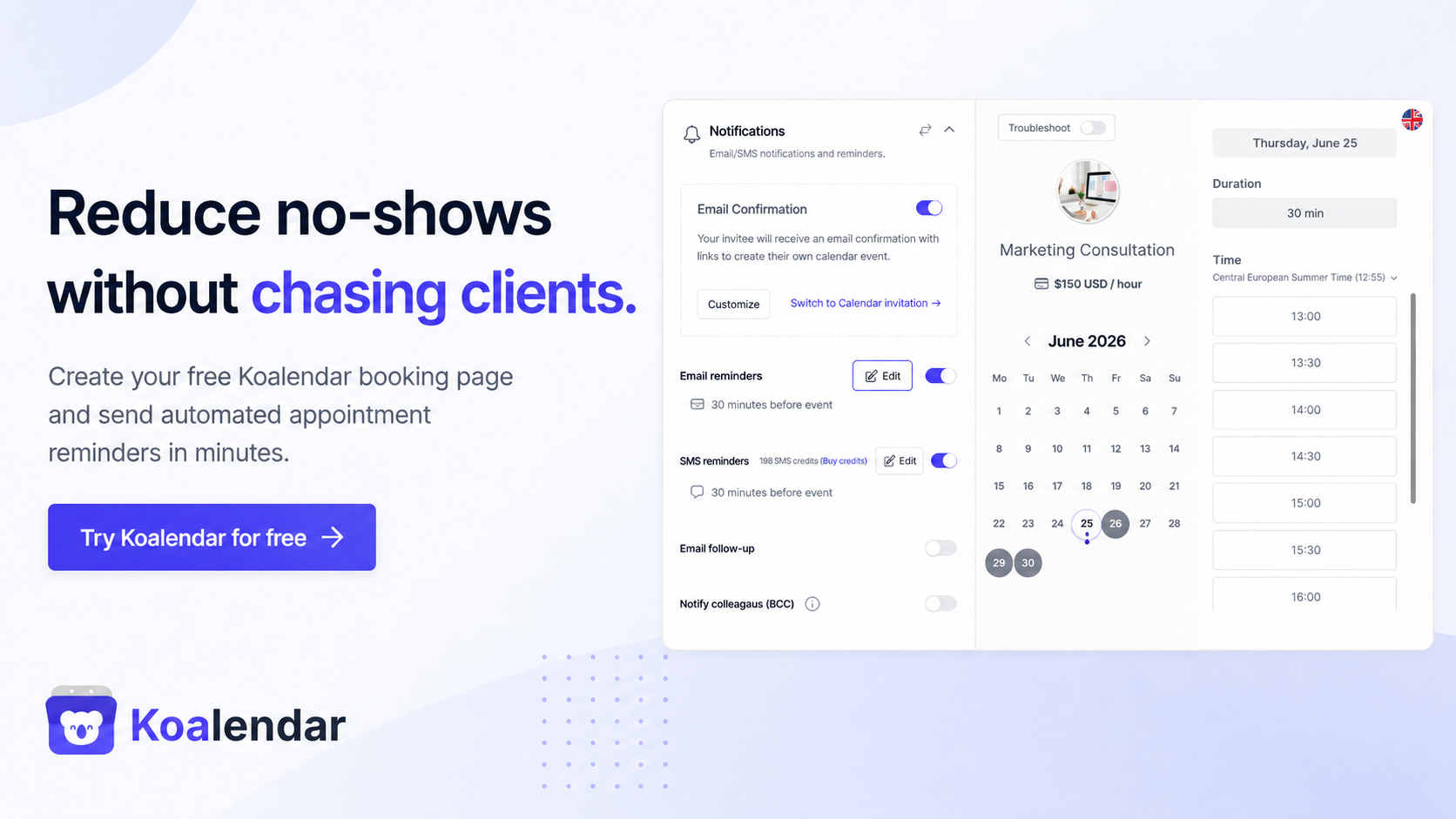
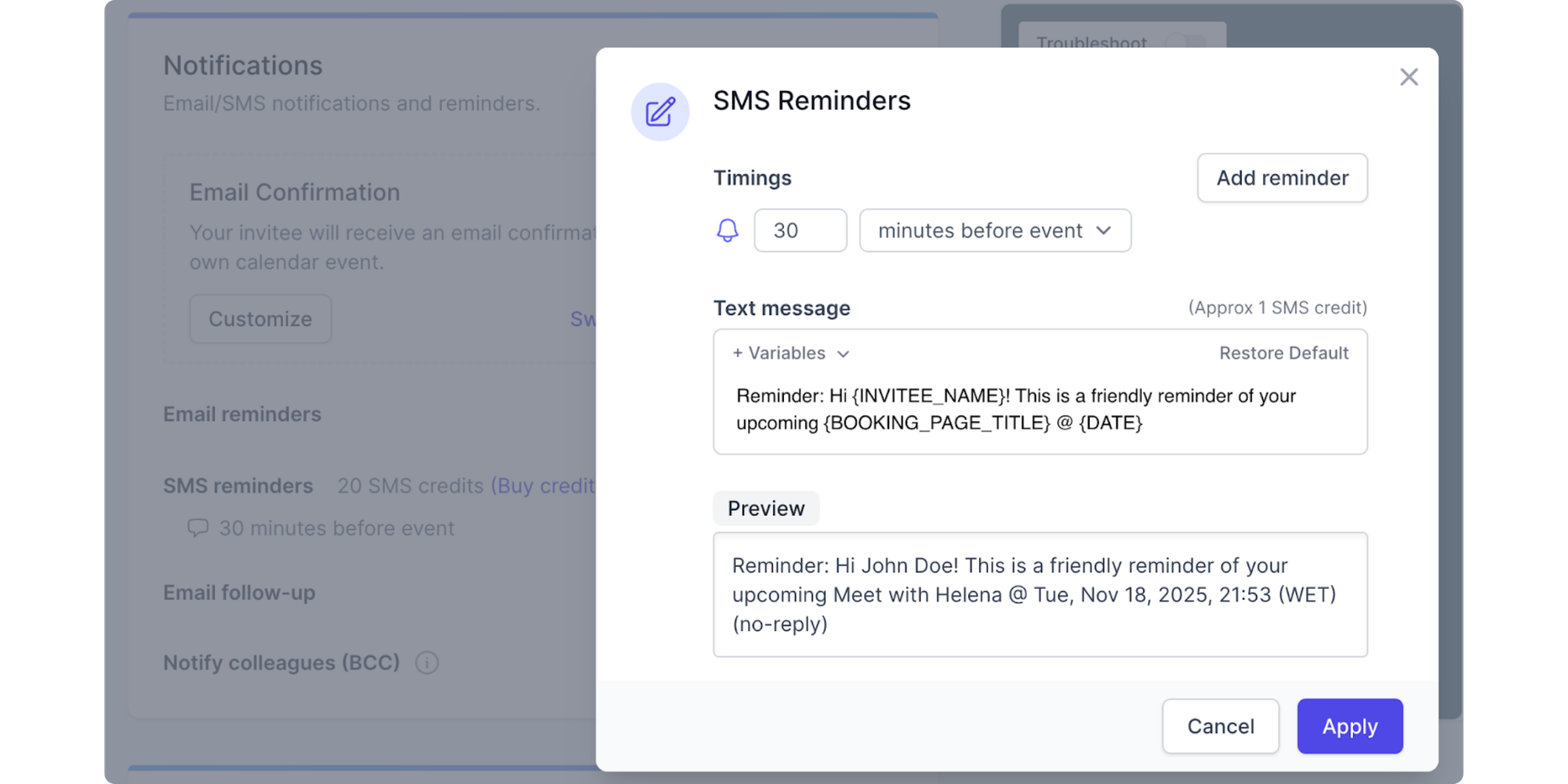
Next, draft the perfect text reminder Google Calendar message. In your meeting page, scroll down to the “Notifications” section. Koalendar supports message template customization using dynamic fields.
- You can begin with a personalized greeting by adding in variables from the dropdown menu: “Hi {Invitee_Name}! This is a friendly reminder…”
- Use dynamic fields by inserting placeholders for the event time, date, and title. For instance: “...about {Booking_Page_Title} on {Date}.”
- Include a call-to-action like: “Please reschedule if you won’t be able to make it. See you soon!”
This template can now be used automatically for all events in this meeting type.
Step 3: Choose your reminder timing and frequency
Timing is key. You’ll notice it’s preset to send a single alert 30 minutes before your scheduled meeting time. But you can easily change this and click on the “Add reminder” button to schedule multiple reminders.
- Reminders are typically:
- 48 hours before. This gives attendees plenty of advance notice and allows them to reschedule if needed
- 24 hours before. The classic day-before
- 2 hours before. A well-timed “see you soon”
Of course, tweak these to work best for you and your clients.
Step 4: Add recipients / link to attendees
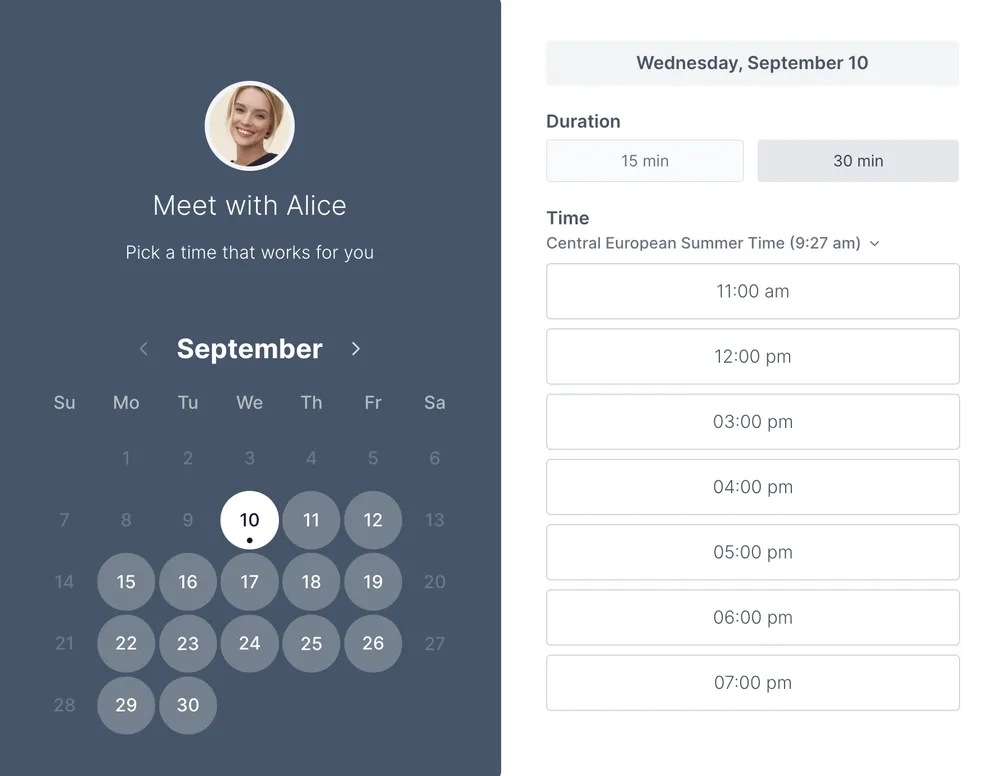
When it comes to sending SMS reminders with Koalendar for Google Calendar, you need to purchase credits and the system will need a phone number. Koalendar can automatically use the phone number your attendees add when they go through the booking process. And for team setups, Koalendar’s multi-calendar support ensures the right reminders get to the right folks.
Step 5: Test your first reminder
Before going live, try sending a test reminder to yourself. This way, you can be sure the message looks exactly how you intended, the timing works, and the dynamic fields (or variables) are populating correctly. With Koalendar, you can relax knowing your Google Calendar text message reminders will go out exactly when they should.
Best Practices for automating Google Calendar reminders via SMS
Getting your system set up and running is just step one. Now that you’ve got them going, let’s go over a few ways to get you the best results.
Timing and frequency of reminders
- The two-reminder rule of thumb: The 24-hour and 2-hour before duo usually works well for most sectors. The first allows your attendees to confirm or reschedule, while the second helps prevent any last-minute forgetfulness. In a healthcare context, however, research indicates that the combination of a 3 day and 24 hour reminder may be the best way to reduce no-shows. For those in the healthcare sector looking to streamline vaccine appointments, we’ve covered how to do it in another recent article.
- Know your clients: Imagine, for legal or service-based appointments, 48 hours and 24 hours may be most appropriate. For a hair styling appointment, a single reminder 3 hours before could be enough.
Message content: What to include
Your Google Calendar text message reminder should be concise, helpful, and clear.
- Identify yourself: “Hi {Name}, this is {Your Name} from {Your Business Name}...”
- State the purpose: "...reminding you of your {Meeting Type}...”
- Provide key details: “on {Date} at {Time} at/via {Location/Online Meeting Link}.”
- Clear instructions: “Please reply CONFIRM to confirm or CANCEL to reschedule.”
- Add a warm, personal touch: “We look forward to seeing you soon!”
Handling replies and confirmations
With a system that keeps track of your attendees’ replies, you can easily:
- Automate calendar updates: When an attendee texts back “Cancel,” the meeting can automatically be removed from your calendar, freeing up the slot for another client.
- Carry out follow-up actions: A cancellation can automatically prompt an email with a reschedule link to be sent.

Compliance and opt-in considerations
It’s important and necessary to respect privacy regulations like GDPR and TCPA. Be sure to do the following:
- Get explicit consent: Make sure you get permission from your clients to send SMS messages to their cellphones. You can do this during the booking process.
- Provide opt-out instructions: Each message should include a simple way to opt-out: like, “Text STOP to unsubscribe.”
- Be transparent: Clearly communicate with attendees what kind of messages they can expect to receive and how often.
Why Google Calendar reminders alone aren’t enough
You may be thinking, “But my calendar alerts work for me… they’re great at helping me plan my day out and stay on track.” And this may very well be the case… for you. But, for those on the other side of the meeting, the experience can be quite different.
The limitation of built-in notifications
Google Calendar’s built-in reminders can be great for keeping some folks on track. But for your students, clients, or patients, they come with major limitations:
- Email overload: Calendar invites arrive in already overloaded email inboxes, sometimes even directly filtered to spam folders. It’s simply too easy for an invite to be lost.
- App over-dependency: Push notifications are only helpful if the recipient consistently uses Google Calendar and has notifications for it turned on. Most people either don’t, or rely on a different calendar app altogether.
- No confirmation loop: There’s no easy way for an attendee to confirm, cancel, or reschedule directly from the reminder. This can leave you wondering if they’ll actually make it.
Why SMS still outperforms email or push notifications
SMS is one of the best ways to communicate with folks when it comes to anything time-sensitive. Why? Because people read their text messages.
- High ‘open’ rates: SMS messages have an average open rate of 98%, compared to just 20% for email. People usually open their text messages as soon as they see the notification pop-up.
- Universal access: You don’t need a specific app, an email account, or even a smartphone to receive text messages. Universal access, virtually anywhere.
- Immediate engagement: Text messages feel personal and carry urgency, making them way more effective in getting a quick response, like replying “C” to confirm.
Automating a Google Calendar text message reminder system can mean better integration between your busy schedule and those of your clients.
Wrapping up
Sending out individual appointment reminders is a chore of the past. By using a powerful third-party text reminder solution like Koalendar, you’ll enjoy fewer missed events and less no-shows—making your scheduling flow feel easier and more reliable.
Summary of benefits
- Significantly reduce no-shows: Timely SMS alerts for Google Calendar events helps ensure your attendees don’t forget and show up on time.
- Earn back time: Automate the entire meeting reminder and confirmation process, saving you hours of administrative work every month.
- Improve client experience: Professional, personalized, and helpful reminders make your clients feel cared for and valued.
- Scale globally: Easily manage appointments across different time zones with reliable SMS reminders for Google Calendar integration.
- Customized booking forms: Collect the information you need up-front with booking forms tailored to your service, so you can go into every meeting prepared.
- Self-booking: Allow your attendees to book their preferred appointment times according to your availability.
- Automatic sync with your calendar: Koalendar works seamlessly with your Google Calendar to always display your real-time availability, preventing double-bookings and scheduling conflicts effortlessly.
Get started today with Koalendar
You don’t need to be tech savvy to enjoy the benefits of automated SMS reminders for Google Calendar. Koalendar is designed for small businesses, busy professionals, and freelancers who need a hassle-free solution.
Get started with a free trial now — sync calendars and send your first automated SMS reminder for Google Calendar in less than 5 minutes.