
TL;DR
- The easiest way to coordinate a group is to create one shared calendar, name it clearly, and share it with the right permission level (view vs edit vs manage).
- For teams, sharing via Google Groups keeps access tidy as people join/leave.
- For friends and casual planning, inviting individuals is usually enough.
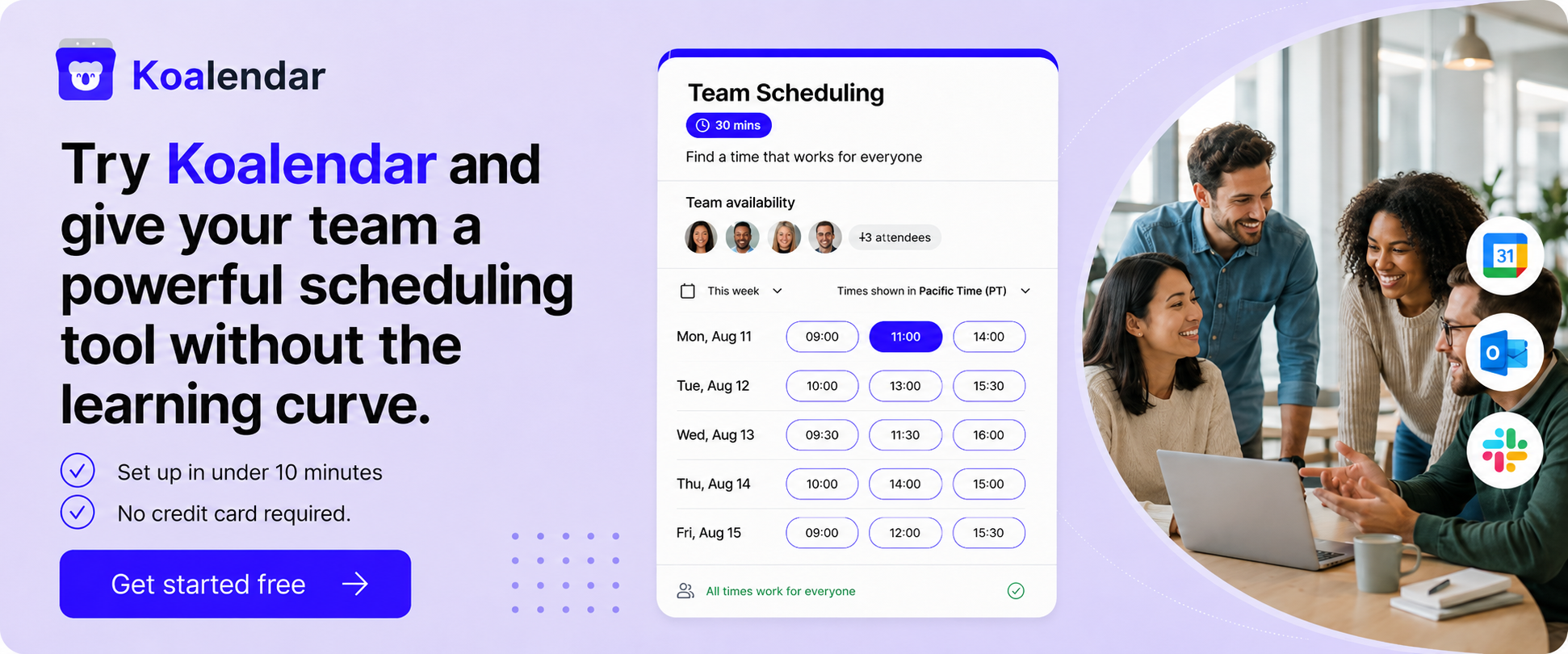
- Shared calendars are great for visibility, but they’re not great at “finding a time that works for everyone” without back-and-forth. For that, availability-based scheduling (like Koalendar) is faster.
Coordinating schedules shouldn’t feel like playing email ping-pong. But when you’ve got a team lead trying to land a weekly sync, friends planning a trip, or volunteers organizing a community event, it’s easy to miss things, especially when everyone’s working from different calendars and time zones.
In this guide, you’ll learn how to create a Google Calendar for a group, set the right sharing permissions, and keep events organized without the usual “wait, which day was that?” confusion. We’ll also cover how to make a Google Calendar for a group that scales as your group grows, and what to do when a shared calendar still isn’t enough.
Overview: what Google Calendar is (and when it’s enough)
Google Calendar is a shared scheduling app that lets you create calendars, add events, invite others, and control who can see or edit what. It’s included in personal Google accounts and Google Workspace, and it’s designed to help people stay aligned across devices.
Google Calendar is enough when you need:
- A single place everyone can see key dates and events
- A simple way to add events and send invites
- Shared visibility for a team, family members, or a community timeline
Google Calendar isn’t enough when you need:
- A fast way to pick a time that fits multiple people’s real availability
- Less back-and-forth for meeting scheduling
- Client-facing or public booking rules (buffers, limits, questions, reminders)
Google does offer appointment scheduling in Calendar for availability-style booking, which can help in some cases, but it lacks features like SMS reminders, which can be key to ensure people turn up.
What are group calendars in Google?
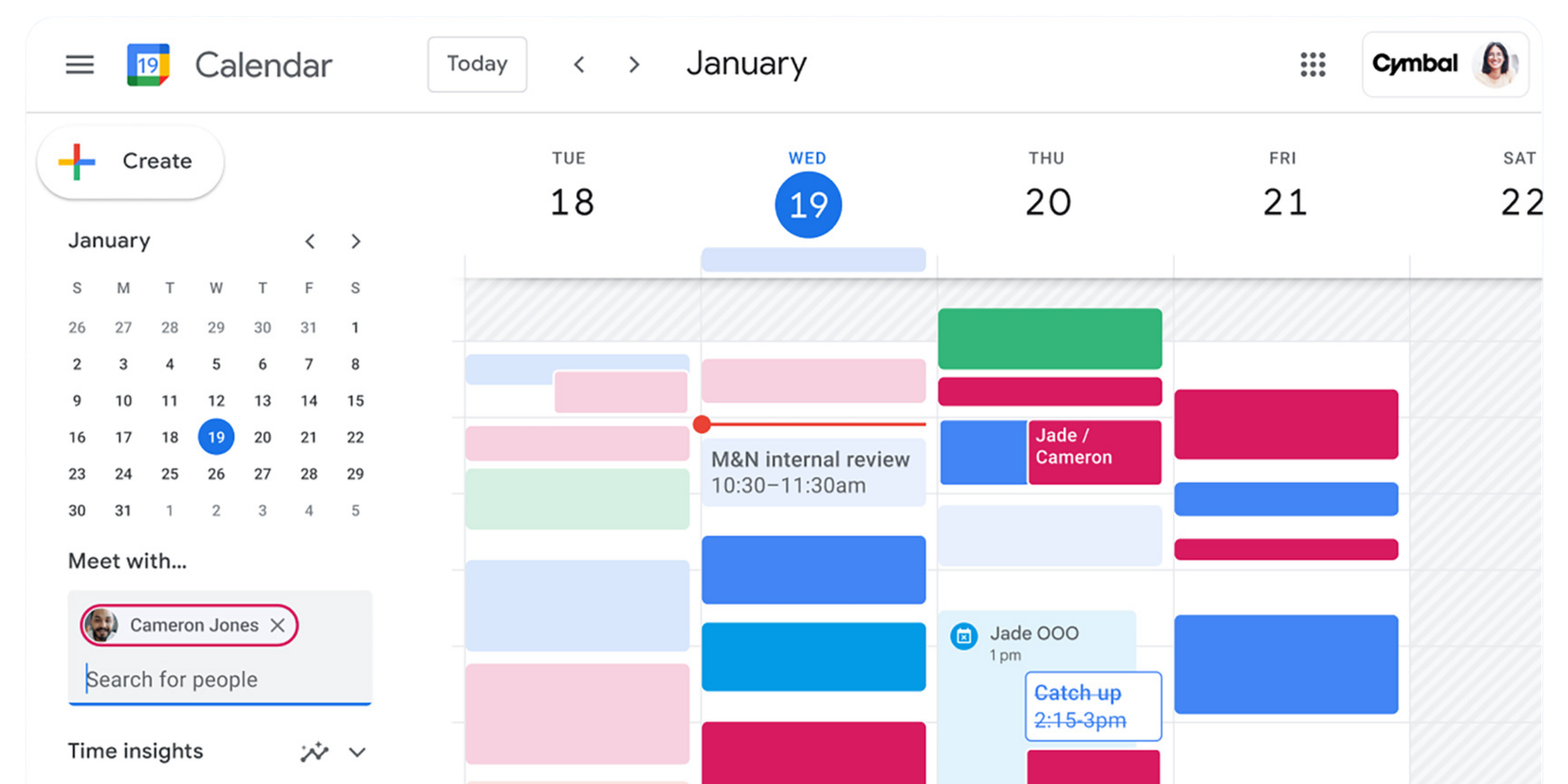
A “group calendar” in Google usually means one calendar that multiple people can access.
Shared calendar vs personal calendar
- Personal calendar: yours by default; you can share it, but it’s still “your” calendar.
- Shared calendar: a separate calendar created specifically for a group (e.g., “Marketing Team,” “Trip to Lisbon,” “Volunteer Shifts”).
Common use cases
- Teams: project deadlines, rotations, recurring meetings, shared resources
- Families: school events, travel, appointments
- Communities/volunteers: shifts, event planning, public happenings
How to create a Google Calendar for a group
Here’s the cleanest setup: create a brand-new calendar that exists just for the group.
1) Create a new calendar
On desktop, you can create a new calendar under “My calendars,” then give it a name and description. (Google’s admin help also outlines the creation + sharing flow for organizations.)
Naming tip: make it obvious at a glance
- “Team: Customer Success (Shared)”
- “Friends: Summer Trip 2026”
- “Org: Volunteer Shifts”
2) Choose a clear description
Add a short description that explains:
- What belongs on this calendar (and what doesn’t)
- Who’s responsible for maintaining it
- Any rules (like color tags or naming formats)
3) Set the calendar owner (this matters)
A shared calendar always has an “owner” who controls sharing and settings.
Personal account vs Workspace account
- Personal Gmail: fine for friends and informal groups, but ownership is tied to one person.
- Google Workspace: better for companies and non-profits because admin settings and org sharing can be managed centrally.
What happens if the owner leaves? In Google Calendar, every shared calendar has an owner (the account that created it). If that person leaves the team (or just stops maintaining the calendar) you can run into annoying issues fast:
- No one can update sharing settings (who can view, edit, or manage the calendar)
- Access gets messy as new people join and others leave
- The calendar can become a “we can see it, but we can’t manage it” situation
- If the owner’s account is disabled, recovering control often depends on admin help (and it’s rarely fun)
That’s why it’s smarter to set up group calendars so they don’t rely on one person.
Two reliable ownership setups:
1) A role-based account (like ops@ or team@) A shared, job-based email owns the calendar, so ownership stays stable even as people change roles.
2) A Workspace-managed calendar (with admin policies)If you’re on Google Workspace, admin controls help keep calendars governed properly across the organization.
Once ownership is stable, the next step is choosing the right sharing method and permission level, so the right people can see and update the calendar without creating accidental chaos.
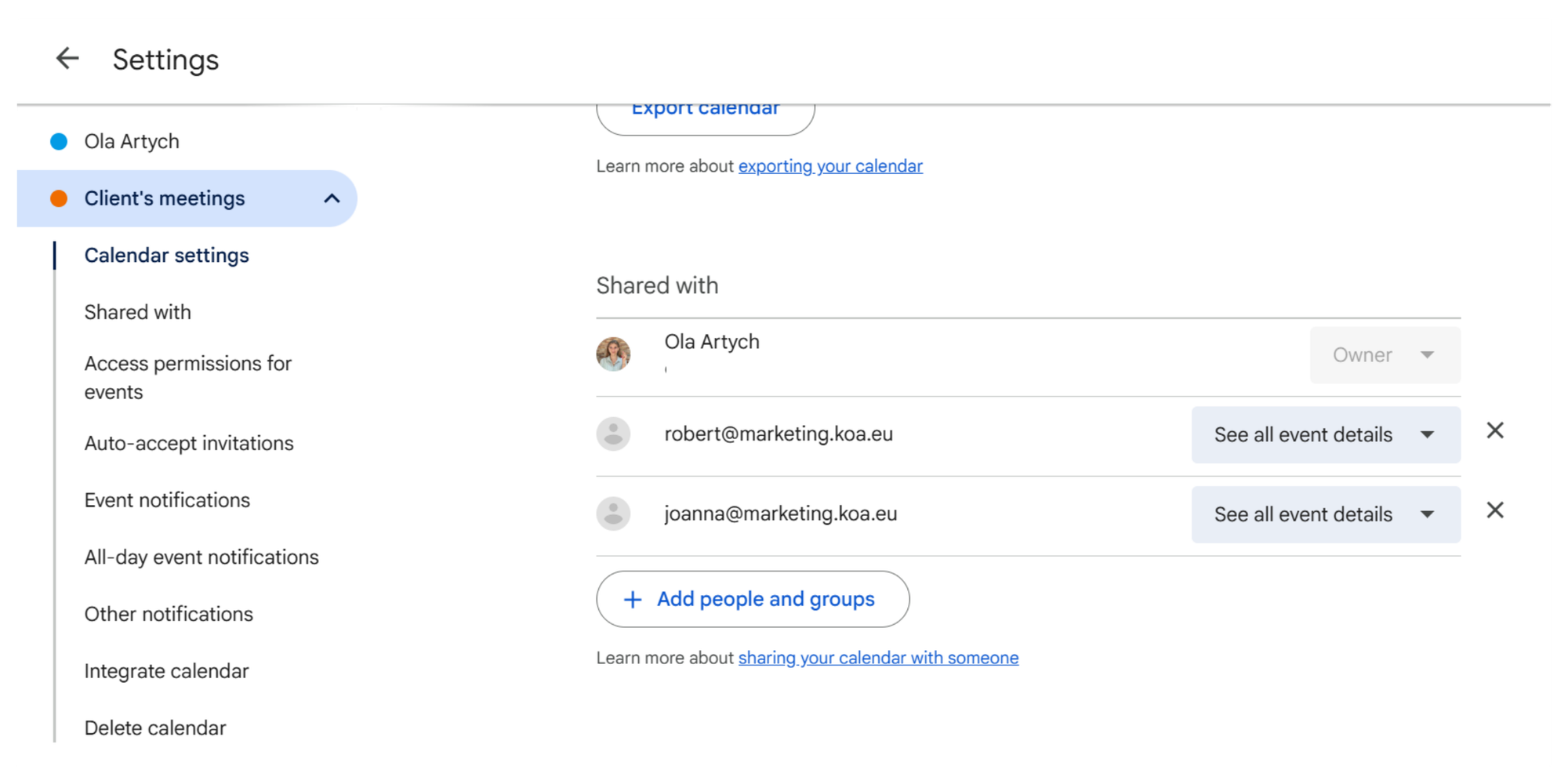
Add people and control access
Once the calendar exists, the next step is deciding who needs access and how much control they should have. The goal is simple: give people enough visibility to stay aligned, without giving everyone the power to accidentally change (or delete) important calendar events.
Share with a Google Group email
If you’re managing a Google Calendar team calendar, sharing with a Google Group is the cleanest way to give access to a whole team at once.
Why it’s useful
- You share the calendar to one email address (the Group), not a long list of individuals
- Everyone gets consistent permissions (same rules for the whole team)
- It’s easier to keep things organized as the calendar grows
Permission levels (quick guide)
- See only free/busy: best for broad visibility without details
- See all event details: best for most teammates who just need clarity
- Make changes to events: best for trusted editors who will add/edit events
- Manage sharing: keep this to 1–2 owners to avoid permission chaos
Share with individuals
For Google Calendar for friends or small groups, inviting individuals is usually faster.
Best for
- Trips, social plans, small teams, family members
- Groups where only a couple of people will actually create or edit event(s)
Suggested setup
- 1–2 people get edit access
- Everyone else gets view access (details or free/busy depending on privacy)
Share across an organization
For Google Calendar for organizations, the best approach is usually internal sharing—so people in the org can see what they need without making it a public calendar.
Common setups
- Department visibility (view-only for most, edit for coordinators)
- Organization-wide calendars (holidays, events, shared resources)
Internal privacy settings to consider
- Share free/busy widely to reduce scheduling conflicts
- Share full details only with the teams who need them
How to make a Google Calendar for a team
A team calendar needs a few lightweight rules so it doesn’t become a landfill of half-finished events.
Set basic edit rules (so chaos doesn’t win)
Try a simple policy like:
- Only leads/ops can delete events
- Everyone can add events, but must include an owner in the title (e.g., “[Alex] Client Onboarding”)
- Use consistent locations + meeting links
Avoid duplicate or conflicting events
This is where shared calendars help with visibility but they don’t automatically “negotiate” for you.
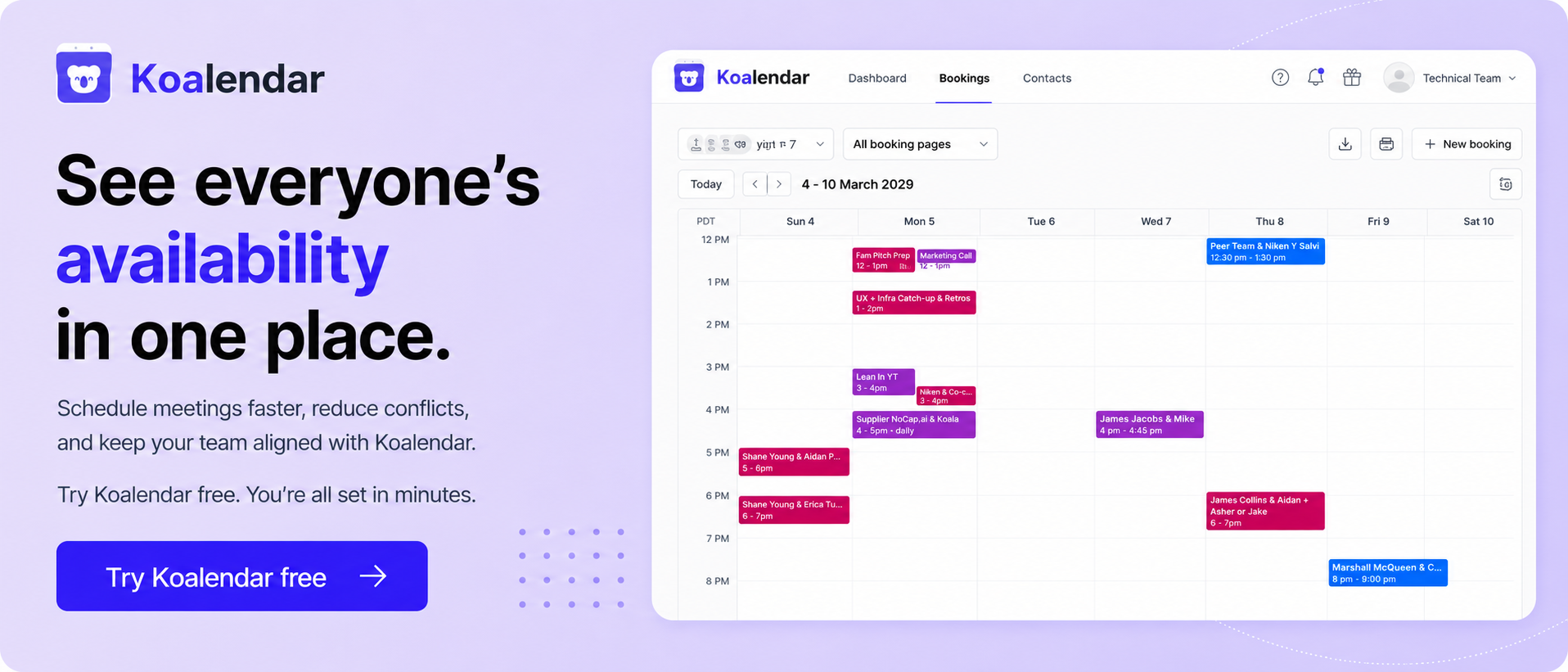
If your team is constantly bumping into scheduling conflicts, it helps to combine Google shared calendars with scheduling automation that checks real availability before anything gets booked.
.png?w=2000&fit=max&auto=format)
Use recurring events for routine work
Weekly stand-ups, shift rotations, office hours—recurring events cut admin effort and reduce “did we schedule it?” moments.
Organizing events
Adding and editing events (without missing details)
Encourage everyone to include:
- A clear title
- The right time zone (especially for remote groups)
- A location or meeting link
- Notes / agenda when relevant
Color coding for different work streams
Color categories keep scanning easy:
- Operations
- Customer calls
- Campaign milestones
- Volunteer shifts
Notifications and reminders
Reminders are the difference between “we planned it” and “we actually showed up.” Google Calendar supports notifications, and reminder behavior varies by platform and user settings—so it’s worth aligning as a group.
Google Calendar for organizations and workspaces
For larger groups, consider creating:
- Team calendars (execution + internal planning)
- Department calendars (higher-level coordination)
- Central calendars (company holidays, all-hands, shared resources)
The bigger the org, the more you’ll care about access control and defaults. Workspace admin settings exist specifically to manage sharing behavior at scale.
Access and sync across devices
Most groups work across desktop + mobile, and Google Calendar supports both.
- Android has an official Google Calendar app.
- iOS also has an official app.
Tips that prevent confusion
- Turn on the shared calendar on mobile (so events actually display)
- View multiple calendars together to spot collisions early
- If you use other tools (project apps, CRMs), keep an eye on syncing behavior so you don’t duplicate events
Common issues with group calendars
1) Scheduling conflicts still happen
A shared calendar shows what’s planned, but it doesn’t automatically find a time that works for everyone.
2) Limited coordination options
You can share visibility, but you can’t easily enforce rules like:
- only book within working hours
- add buffer time
- limit how many meetings per day
- collect details before booking
Google’s appointment schedules help with some of this, but they’re still not a full coordination system for teams or multi-person scheduling.
3) Manual updates and follow-ups
Someone still ends up:
- chasing responses
- suggesting times
- sending reminders
- rescheduling when things change
That’s where a dedicated tool for scheduling can be a relief.
Google Calendar for friends and personal groups
Shared calendars are perfect for:
- trip planning
- shared activity schedules
- birthdays and group milestones
- “who’s bringing what” events
Keep it light
- Use view-only access for most people
- Avoid over-sharing personal details (free/busy or details-only can be enough)
- Make a “Trip” calendar separate from personal calendars to keep clutter down
When shared calendars are not enough
You’ll feel the limit when:
- you’re scheduling meetings with availability rules
- you need client-facing or public scheduling
- you’re coordinating across multiple time zones
- you’re booking interviews with multiple interviewers
Availability-based scheduling is built for this. As we mentioned above, Google has appointment schedules, but many teams prefer dedicated scheduling tools because they’re designed for high-volume coordination and automation.
Smarter options for group scheduling
Shared calendars vs scheduling tools
Shared calendars are best for: visibility + planning. Scheduling tools are best for: booking + automation.
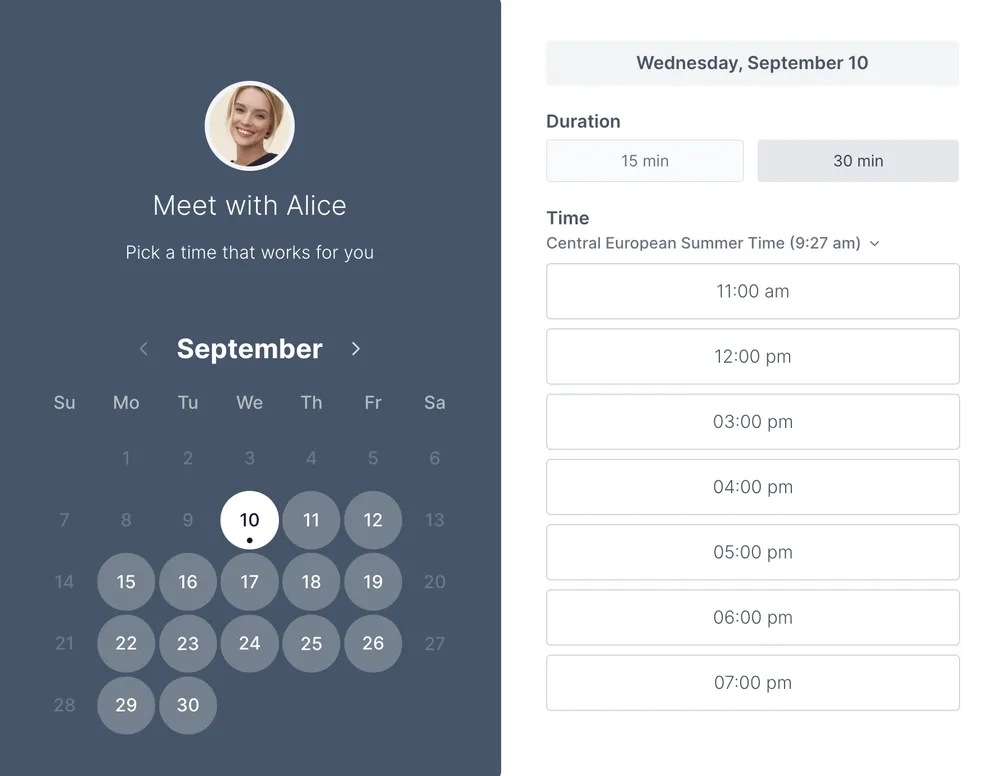
When booking links save time: Instead of offering 8 time options in a thread, you send one link and let people pick from what’s actually available.
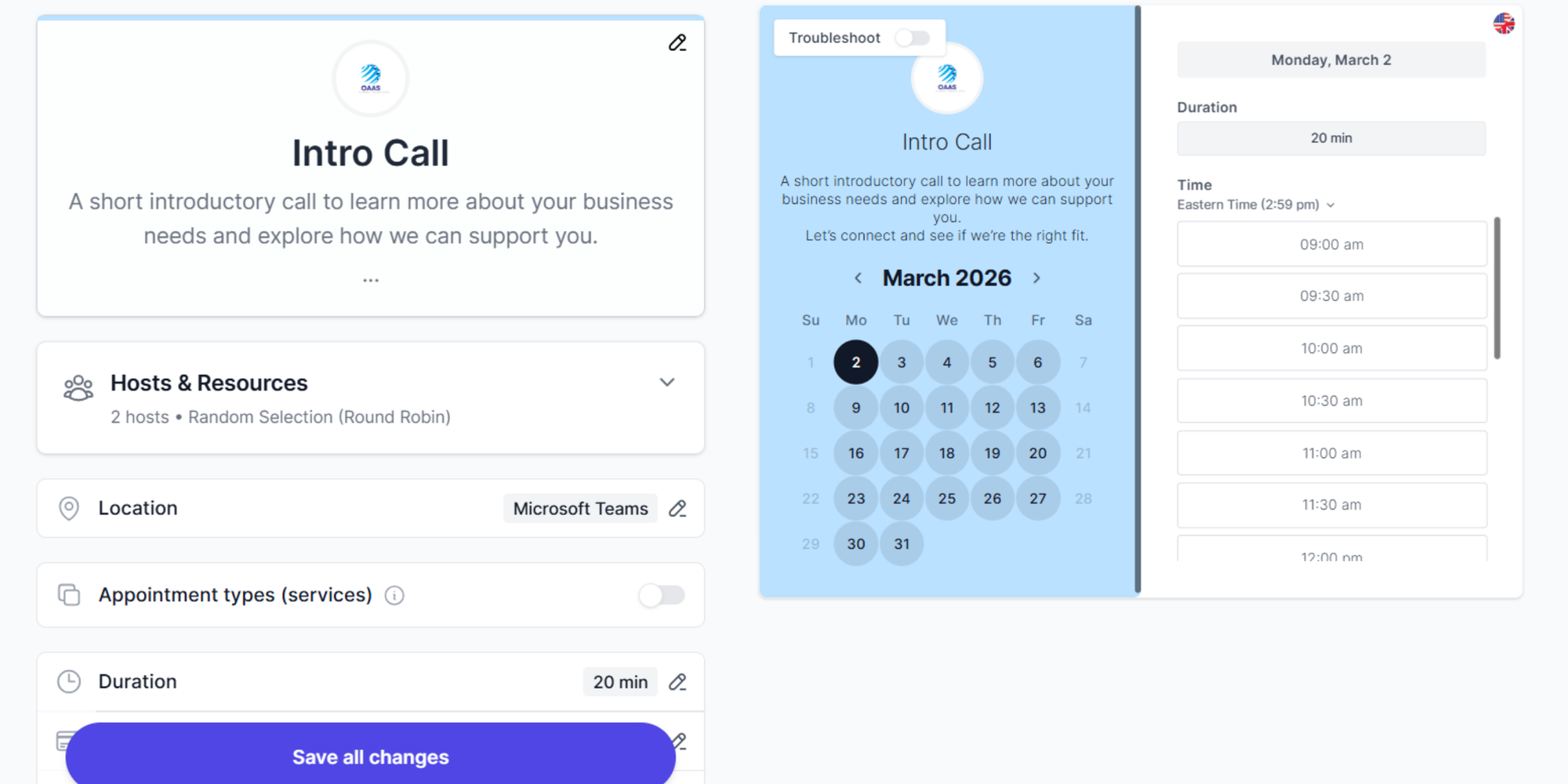
How automation improves coordination A tool like Koalendar can help you:
- Generate shareable scheduling links
- Sync real-time availability with Google Calendar
- Add automated reminders (including SMS options)
- Support team and multi-interviewer scheduling
- Manage bookings with centralized management
- Embed booking pages on sites for easy self-scheduling
Final thoughts
A shared Google calendar can be a genuinely simple win, as long as you pick the right ownership model, permissions, and a few basic rules. For teams, Google Groups sharing is your best friend. For casual planning, sharing with individuals keeps things easy.
And if you’re hitting the ceiling (constant scheduling conflicts, too much back-and-forth, or meetings that need rules), that’s your cue to add scheduling automation.
Skip manual coordination and let Koalendar schedule meetings directly from your Google Calendar. When you’re ready to go beyond “visibility” and into “everyone can book the right time instantly,” how to create a Google Calendar for a group becomes the foundation, not the whole system.
Ready to get a scheduling software that gives you full visibility and control of how time and resources are being used?