
Remote work can feel like freedom…until your day gets chopped into 5-minute slices by chat pings, emails, and “quick” calls. I’ve been working remotely for over 5 years, and the pattern is always the same: The work isn’t the problem, coordination and interruptions are.
Sadly, they’re more common than you might think. Microsoft’s research on the “infinite workday” points to rising after-hours and constant interruptions as a real productivity killer. In this guide, you’ll get practical remote work productivity tips you can actually stick to, plus working remotely tips and tools for protecting focus, improving team execution, and keeping boundaries intact (without turning into a calendar robot).
Self-check: Your remote productivity bottlenecks
Before making an action plan or changing anything, look at the one thing that’s actually slowing you down:
1. Coordination drag:
You’re doing work… but progress is stuck in back-and-forth. If any of these sound familiar, you’ve got your bottleneck:
- Unclear ownership
- Too many approvals
- Meetings with no decisions
- Scheduling ping-pong just to find a time
2. Context switching overload (messages/meetings fragmenting focus)
Multitasking doesn’t make you more productive. In fact, you can’t get traction because your attention keeps resetting. Harvard Business Review has reported that workers toggle between apps constantly, and that “reorientating” time adds up fast.
3. Energy and sustainability issues (fatigue, burnout signals, inconsistent output)
This one sneaks up on you because it doesn’t always look like “stress”. You’re technically working all day: tabs open, Slack active, calendar full… but your output swings wildly. Here’s what usually happens under the hood:
- You’re spending energy just staying “available”: You might sometimes feel the need to “show you’re there”. If you’re always half-watching messages “just in case”, your brain never fully drops into focus or fully rests. That constant low-level vigilance is exhausting.
- Meeting fatigue: A packed meeting calendar doesn’t just steal time, it steals cognitive recovery. You reach the end of the day with lots of conversations… and not much to show for it.
- Blurry start/stop times: When your commute is “open laptop”, it’s easy to drift into work and drift out of it. Start checking messages before choosing your priorities, keep working because there’s no natural stopping point… That can lead to a weird mix of guilt and restlessness, like you’re never fully working or fully off.
- Burn out signals (the early ones people ignore): Burn out isn’t always dramatic. Often it starts as:
- Irritability: Tiny requests feel huge
- Brain fog: Reading the same sentence three times
- Decision fatigue: Everything feels harder than it should
- “Never caught up” feeling: even on a productive day
If this is you, the solution usually isn’t “push harder”. It’s designing a sustainable system

What to fix first
Don’t try to overhaul your whole routine in one go. Pick one bottleneck to tackle this week based on the symptom you feel most often:
- If you’re missing deadlines → fix priorities + time blocks
- If you’re “busy” but not finishing things → fix focus + context switching
- If you’re drained → fix boundaries and recovery
A simple rule: Fix the thing that creates the most friction every single day. That’s where you’ll see results faster.
Choose 3 productivity quick wins for today
Pick any three (seriously, three is enough). These are designed to take minutes, not hours:
- Set your “Top 3” for today (1 must finish, 1 should-finish, 1 nice-to-finish)
- Block one 60-90 minute focus session in your best energy window
- Turn on Do Not Disturb during that block (and mute non-essential notifications)
- Batch messages twice (e.g., 11:30 and 16:30) instead of staying “always on”
- Decline or shorten one low-value meeting (or ask for an agenda first)
- Write one “next action” for your biggest task (so you can start instantly)
- Do a 10-min admin sweep (inbox/tickets) and stop when the timer ends
- End the day with a shutdown ritual: Capture loose ends + write tomorrow’s top three
If you’re not sure what to choose (or what your symptoms are): Go with Top 3 + one focus block + message batching: That combo fixes a surprising amount, fast.
What “productive” means in remote work
Productivity in remote work gets misunderstood fast. It’s easy to confuse being online with being effective, especially when your day is full of pings, calls, and quick updates. But real productivity isn’t “I was busy all day.” It’s “I moved the work forward.”
In this section, we’ll define what “productive” actually looks like when you’re working from home (or anywhere): clear outcomes, visible progress, and fewer false urgencies. Once you have that definition, planning gets simpler, focus gets easier, and you stop measuring your day by how exhausted you feel at 6pm.
Define outcomes for the week (from objectives to deliverables)
Start with: By Friday, what will be true?
Examples:
- Draft sent
- PR merged
- Client decision made
- OKR milestone hit (Objectives and key results)
Stanford researchers have found remote and hybrid work can support performance, when the work is structured well. Hybrid setups, in particular, can be a win-win-win for productivity, performance, and retention.

The daily priority rule
We’ve mentioned it above. This is your “Top 3” for the day. Every day, decide:
- One must-finish task
- One should-finish
- One nice-to-finish
And don’t be too harsh on yourself. If you only do the first one (and it’s a biggie), your day still counts.
Anti “catch-up” planning (how to stop backlog spiral)
Catch up is a trap because it’s undefined. Instead, replace it with:
- Timeboxed triage (20 minutes). Set a timer for 20 minutes and do one thing only: scan and sort. No deep work, no rewriting docs, no “quick fixes”. You’re just getting clarity on what’s actually on your plate so the backlog stops living in your head.
Pro tip: If 20 minutes isn’t enough, schedule another triage block later, don’t let it bleed into your whole afternoon. - Decide: do/defer/delegate/delete. For each item, make a fast decision:
- Do: It’s small and meaningful: Finish it now or put it in a specific time block.
- Defer: It matters, but not today: Assign it a date/time (otherwise it’s not deferred, it’s just ignored).
- Delegate: Someone else is the best owner: Send a clear handoff with context and desired outcome.
- Delete: It’s noise, outdated, or “nice to have”, remove it so it stops stealing attention.
This is how you reduce workload without needing superhuman discipline.
3. Schedule the next concrete action. Don’t schedule “work on project”. Schedule the next visible step. For example: “Draft outline for proposal”, “Reply with decision options”, “Fix bug in checkout flows”, “Book 30-min review call”.
If it takes more than a few minutes, put it on your calendar or task list with a time estimate. Clarity creates momentum, and momentum kills backlog spirals.
Time architecture: How your day and week are shaped
Your time is the “invisible system” behind your productivity. Even with great intentions, a week filled with scattered meetings, constant messaging, and no protected focus time will quietly shape your output (and your stress levels).
That’s why time architecture matters: It’s how you design your day and week so that the right work has space to happen, without relying on willpower or working late to catch up.
Fixed work windows (start/stop + availability expectations)
Your calendar is your remote work environment’s “front door”. Make expectations visible:
- Start/stop times
- When you’re available for calls
- When you’re heads-down
This protects work-life balance and makes you easier to work with.
How to find your peak hours for deep work
For five days, note:
- When you feel sharpest (often late morning for many people)
- When you slump
- When meetings usually land
Then reserve peak hours for deep work 3-4 days a week.
Batch work by type
Try three lanes:
- Deep work: building, writing, solving problems
- Admin: inbox, documentation, updating tickets
- Communication: replies, calls, collaboration
Email and messaging batching
Create two windows:
- Inbound window: check/respond
- Outbound window: send updates, ask questions, hand off work
Also set response expectations (This reduces anxiety on both sides):
- Urgent? Phone/call/videocall/email (define what “urgent” means)
- Normal? Async (same day), typically via chat/email
- Low priority? 24–48 hours. Typically via email.

Focus protection to prevent distraction and fragmentation
Distraction controls that actually work
The goal isn’t creating zero distractions, it’s creating a few simple guardrails so focus becomes the default. Try these:
- Do Not Disturb blocks: 45–90 minutes, 1–2x/day
- Site/app limits: Block your top distractors during deep work
- Notification rules: Keep notifications for people, not platforms, then only check them in set windows.
Digital separation (tiny change, big payoff)
Small boundaries between “work mode” and “life mode” prevent work from leaking everywhere. Here’s how to do it:
- Separate work profile in your browser
- Separate “work apps” folder on your phone
- If possible: One device rule (work laptop = work, phone = life)
Context switching limits
Every interruption has a hidden restart cost, so the aim is to respond without derailing your flow.
If someone messages you mid-focus:
- Capture it in a task list
- Reply in your next batching window
- If it truly must be solved now, push for clarity: What decision do you need from me right now? Beats vague “thoughts?”
Tools that support output (minimal stack, maximum leverage)
Working remotely tips and tools: Build a minimal stack
The fastest way to lose momentum in remote work is tool sprawl: tasks in one app, meeting notes in another, decisions stuck in chat, and your calendar doing its own thing. Instead, aim for a simple stack where each tool has a clear role—and you always know where to put things.
Tasks (what to do)
Pick a task tool that matches how complex your work is:
- Todoist (best for individuals + lightweight teams): Quick capture, natural-language due dates, and clean daily planning.
- Asana (best for cross-team project visibility): Great for tracking work from start to finish and keeping projects moving.
- ClickUp (best if you want “everything in one place”): Combines tasks + docs + collaboration in a single workspace.
Quick rule: if you’re mostly managing your own work → Todoist. If you’re coordinating projects → Asana/ClickUp.
Calendar (when to do it)
Your calendar should handle both meetings and focus time.
- Google Calendar / Outlook Calendar (best for most teams): Reliable scheduling backbone, easy sharing, and integrations.
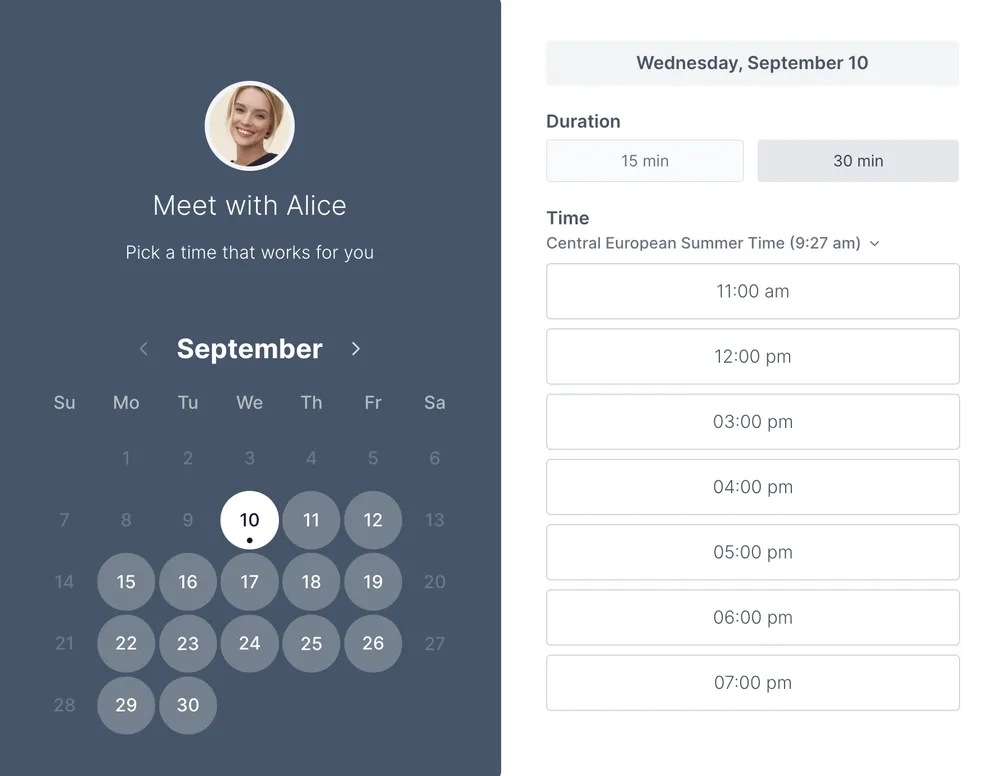
- Koalendar (best for eliminating scheduling ping-pong): Share availability with a link, sync calendars to prevent double-bookings, and automate booking workflows. It connects to Google Calendar, Outlook, iCal and it has a free forever plan.
If scheduling is a bottleneck (client calls, interviews, weekly check-ins), Koalendar becomes the layer that keeps your calendar clean and your time protected.
Notes (what you know)
This is where decisions, documentation, and reusable templates live, so you’re not reinventing the wheel every week.
- Notion (best for team knowledge + meeting templates):Flexible notes/docs/databases that are easy to standardize across a team.
- Confluence (best for structured team documentation): Great when you need formal, searchable internal docs.
- Obsidian / OneNote (best for personal knowledge management): Strong options if your notes are mostly for you.
Tip: Keep meeting notes in a consistent template: decision → owner → deadline.
Comms (how you coordinate)
Choose a comms tool that fits your team’s style, and define what’s async vs urgent.
- Slack (best for async teamwork): Channels + threads, plus lightweight real-time huddles when needed.
- Microsoft Teams (best for Microsoft 365 orgs): Chat + meetings + collaboration in one place.
- Zoom / Google Meet (best for calls): Reliable video for client-facing or team meetings (use the one your clients already use).
Suggested “minimal stacks”
- Solo / freelancer: Todoist + Google Calendar + Notion + Slack (optional) + Koalendar for booking calls
- Small remote team: Asana + Google Calendar/Outlook + Notion + Slack/Teams + Koalendar for team scheduling
- Bigger org: Asana/ClickUp + Outlook + Confluence + Teams + Koalendar for external meetings and internal booking workflows
Use analytics appropriately (ethical remote performance)
Track what helps you improve productivity, without turning work into surveillance.
Track:
- Output shipped (deliverables)
- Cycle time (start → done)
- Blockers (what slowed things down)
- Meeting load (hours/week)
Avoid tracking:
- Mouse movement
- Keystrokes
- Webcam time
Practical setup tips (simple but underrated)
- Headphones + decent mic (less fatigue)
- Camera at eye level
- Comfortable chair/desk height
- Reliable video conferencing tools (test once, save pain later)
Workspace and boundaries (environment + shutdown)
Dedicated workspace rules (even if space is limited)
If you don’t have a separate home office, use micro-boundaries:
- Same seat = work seat
- Same lighting = work lighting
- Headphones on = “I’m working” signal
Physical cues to start/stop work
- Start cue: coffee + open task list + 5-minute plan
- Stop cue: write tomorrow’s top 3 + close tabs + quick tidy
Full disconnect protocol (end-of-day routine)
Close loops so your brain stops reopening them at dinner:
- Capture open tasks
- Schedule time for the next action
- Send any “waiting on” pings
- Shut down work apps
This is how you protect motivation long-term.
Energy management (sleep, breaks, movement, wellbeing)
Sleep as a productivity lever
Sleep is the “silent productivity tool.” If your sleep is shaky, everything else wobbles.
Quick wins:
- Same wake time most days
- 10 minutes daylight early
- No heavy work in bed
Break strategy (and why it’s not lazy)
The Pomodoro® Technique popularized focused intervals with planned breaks, helpful for people who struggle with attention or procrastination. We covered that technique and more time management hacks in the past.
Try:
- 25–50 minutes focus
- 5–10 minutes break
- One longer break mid-day (walk outside if you can)
Sustainable pace beats heroic sprints
If you need to “cram” every week, the system is broken. Fix the system, not your willpower.

Team productivity (check-ins, face time, meetings, connection)
Check-in cadence (team rhythm)
For remote team members, cadence creates clarity without micromanagement.
A simple rhythm:
- Daily async update: yesterday / today / blockers
- Weekly planning: priorities + risks
- Monthly retro: what to keep, stop, start
What belongs async vs sync
Async is great for:
- Status updates
- Docs, specs, decision proposals
Sync is best for:
- Conflicts
- High-stakes decisions
- Sensitive feedback
- Fast problem-solving
Meetings that produce decisions and next steps
Every team meeting should have:
- A purpose (“decide X”, “plan Y”, “solve Z”)
- A pre-read (optional, but powerful)
- An owner
- A written output: decision + next steps + owner + deadline
If your calendar is doing more damage than good, it’s worth tightening up your meeting habits as a team: fewer calls, clearer agendas, and decisions captured in writing. These effective meeting strategies are a solid playbook for making face time count without filling the week with calls.
Feedback, trust, and accountability (performance without micromanagement)
What “verify” means in practice
“Trust” doesn’t mean “hope.” It means:
- Clear outcomes
- Visible progress
- Support when blocked
Feedback loops that don’t feel scary
Ask weekly:
- What shipped?
- What’s stuck?
- What would make this easier?
- Are we overloading the team?
Then act on what you learn. That’s how team performance improves without drama.
Support mechanisms
When work stalls, don’t escalate into pressure. Escalate into help:
- Remove blockers
- Clarify priorities
- Provide standard operating procedures
- Offer pairing time for tough tasks
If you want to dig deeper into the performance topic, we’ve already covered 8 practical methods to improve your sales teams’ performance.

Skill-building and systemization (training + automation)
Ongoing learning that improves output
Pick one skill per quarter that increases efficiency:
- Writing
- Project planning
- Deep work habits
- Communication
Automation targets (save time every week)
Look for repeatable admin:
- Recurring check-ins
- Client calls
- Interviews
- Onboarding sessions
If scheduling is a bottleneck, don’t solve it manually, automate it.
Schedule problem-solving blocks
Put “solve problems” time on the calendar like a real meeting. Because it is.
One-week implementation plan (example)
Days 1–2: outcomes + time blocks + comms batching
- Define weekly deliverables + OKR alignment
- Block 1 deep-work session in peak hours
- Set message batching windows + response expectations
Days 3–4: distraction controls + focus system + shutdown
- Add DND (Do-not-disturb) rules
- Trim notifications
- Create end-of-day shutdown routine
Days 5–7: team cadence + feedback loop + one automation
- Introduce structured check-ins
- Fix your worst recurring team meeting (agenda + decisions)
- Automate one workflow (usually scheduling)
Remote work security basics (productivity without risk)
Remote work productivity hacks don’t help if your device gets compromised.
Common remote risks:
- Unsecured Wi-Fi
- Phishing
- Shared devices
- Weak passwords
CISA’s guidance on recognizing and reporting phishing is a solid baseline for teams.
Simple checklist (fast, not annoying):
- Use a password manager + MFA
- Update OS and browser
- Lock your screen when you step away
- Don’t click links in unexpected messages, verify first
Conclusion: Turn ideas into a system you can repeat
You don’t need more apps or longer hours. You need a simple system: Clear outcomes, protected focus time, better team rhythms, and boundaries that keep you steady. When you apply these remote work productivity tips consistently, output becomes predictable—and your work-life balance stops feeling like a myth.
You can start by simplifying scheduling with Koalendar: Share availability and keep calendars synced. Use Koalendar to cut the back-and-forth, shareable scheduling links, real-time availability sync, embeddable booking pages, automated reminders, and team scheduling for check-ins, interviews, and recurring team meetings.
Simplify remote scheduling with Koalendar - share availability and keep calendars synced.