
TL;DR
You can use Google Forms to collect booking requests, but that's not the same as scheduling them. It works fine if you're handling a handful of bookings per month. Beyond that, you're spending hours on manual work that should be automated. This guide shows you how to set it up, where it falls short, and when moving to real scheduling software will actually save you time.
What is a Google Forms booking system?
A Google Forms appointment booking system is a DIY approach to handling appointments. You set up a form with time slot options, clients fill it out, and responses land in a Google Sheet. It sounds simple in theory, but here's the reality: you're collecting information, not automating scheduling.
How it actually works
To create a reservation system with Google Sheets and Google Forms:
- Create a Google Form with your available time slots
- Clients select their preferred time and submit details
- Responses pile up in a Google Sheet
- You manually check each one
- You manually verify your calendar for conflicts
- You manually send confirmations to clients
- You manually send reminders before appointments
It's free, and quick to set up. But as a scheduling system? It stops short.
Who uses it?
Solo consultants building their first booking system. Freelance coaches thinking, "Do I really need to pay for scheduling software?" Small agencies watching costs carefully.
We get it. When you're just starting, spending $10–50/month feels unnecessary. But here's the thing: manual scheduling costs you time, and time is money. This guide helps you decide if Google Forms is enough, or if it's time to graduate to something smarter.
And there are free scheduling options, too, which is great when you’re assessing options and not quite ready to take the plunge on a premium product.
How to create a Google Forms booking system (step-by-step)
Here’s a quick guide on how to use Google Forms for appointment scheduling.
Step 1: Create your form
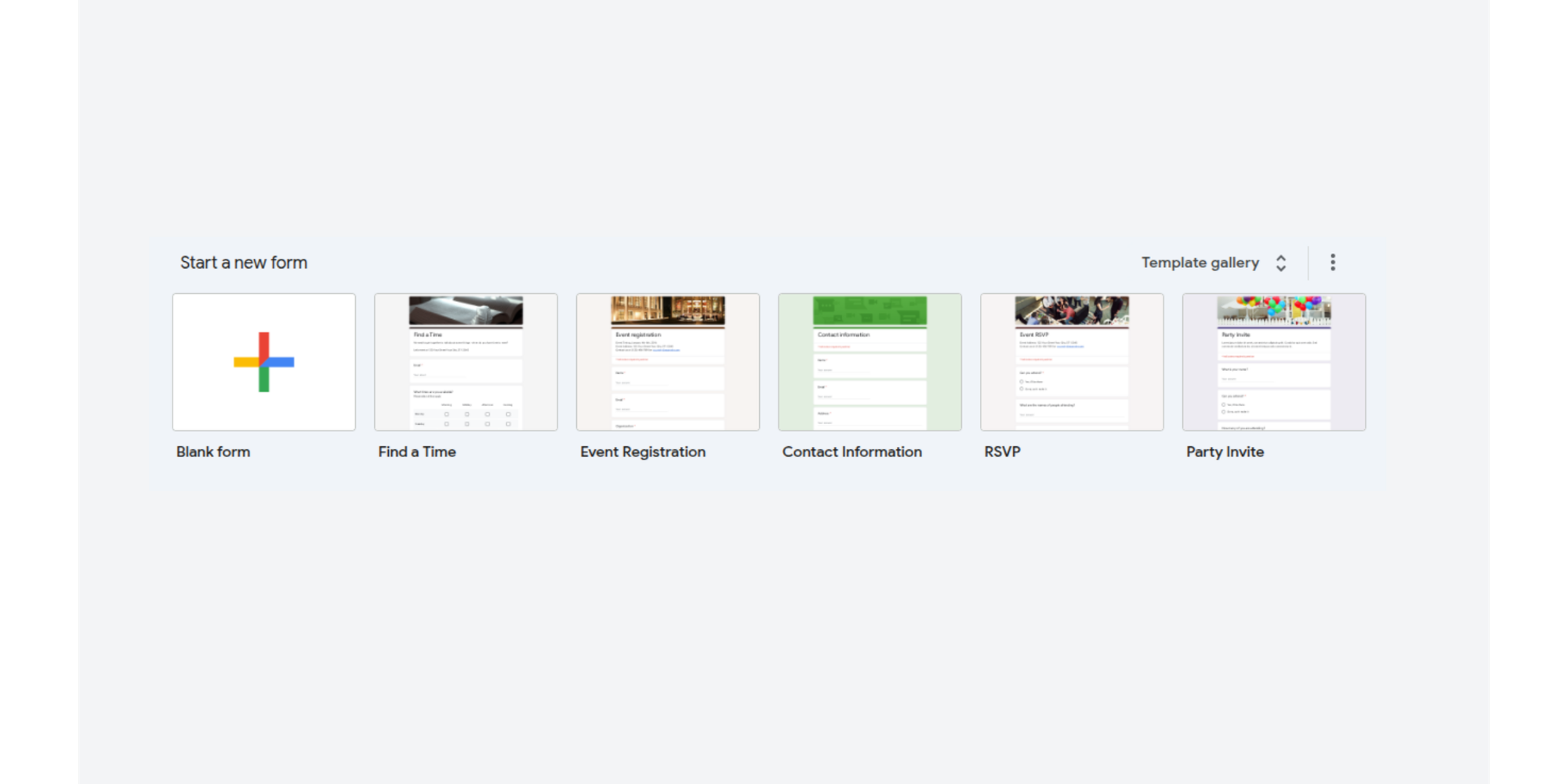
Head to forms.google.com and click "Blank form" under the “Start a new form” section. (Alternatively, use one of the pre-existing templates and edit to suit your needs).
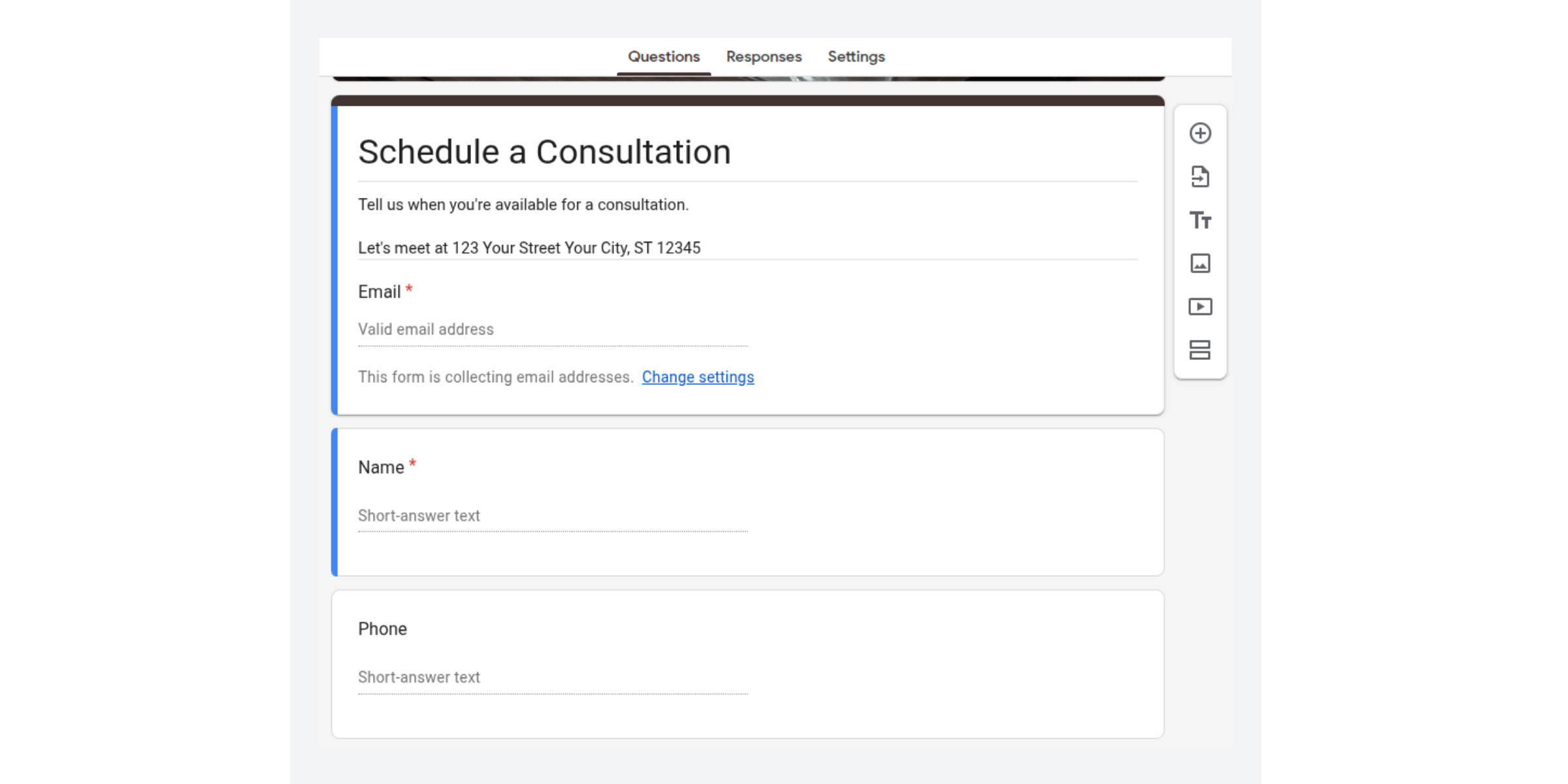
Give it a name that tells clients what they're booking: "Schedule a Consultation," "Book Your Session," or "Reserve Your Spot." Keep it professional—this is your first impression.
Step 2: Add client details
Add short-answer fields for the essentials:
- Name (required)
- Email (required)
- Phone (optional but helpful)
- Notes (optional; use for special requests or questions)
.png?w=2000&fit=max&auto=format)
Mark essential fields as required so you actually get usable information back.
Step 3: Add time slot options
This is the core of your "booking system." Add a multiple-choice or checkbox grid with your available times, for example:
- Monday 2:00 PM – 3:00 PM
- Monday 3:00 PM – 4:00 PM
- Tuesday 10:00 AM – 11:00 AM
- Tuesday 2:00 PM – 3:00 PM
- Wednesday 10:00 AM – 11:00 AM
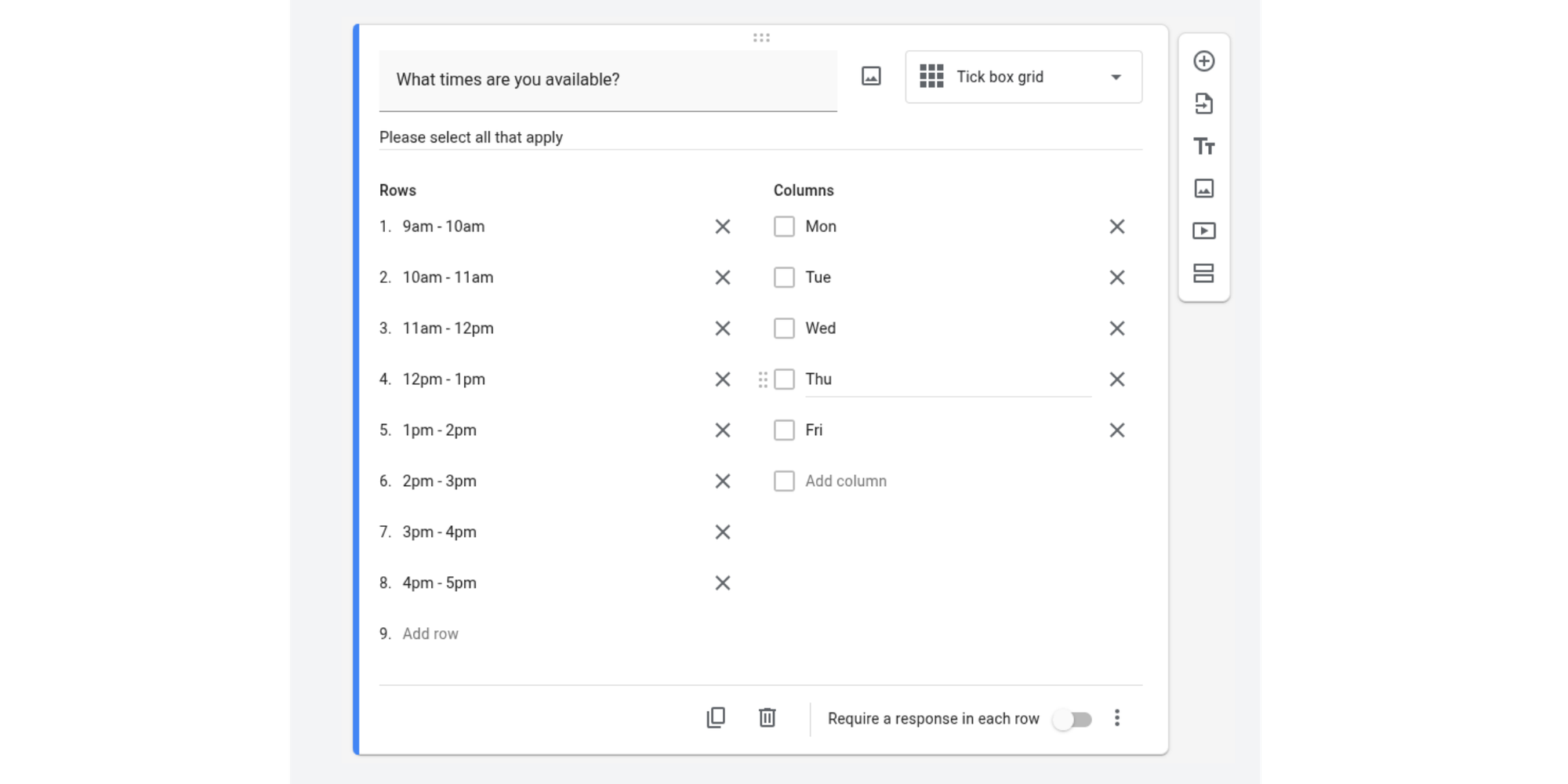
Mark this as required so clients have to pick a time.
Pro tip: Use conditional logic to show different time slots based on the day selected. Ask "What day works for you?" first, then show only the available times for that day.
Step 4: Collect relevant details
Add custom questions that matter for your business:
- What's this meeting about?
- Have you worked with us before?
- What's your time zone?
- Any accessibility needs we should know about?
Use short answers, multiple choice, or checkboxes depending on what makes sense.
Step 5: Manage responses (the manual part)
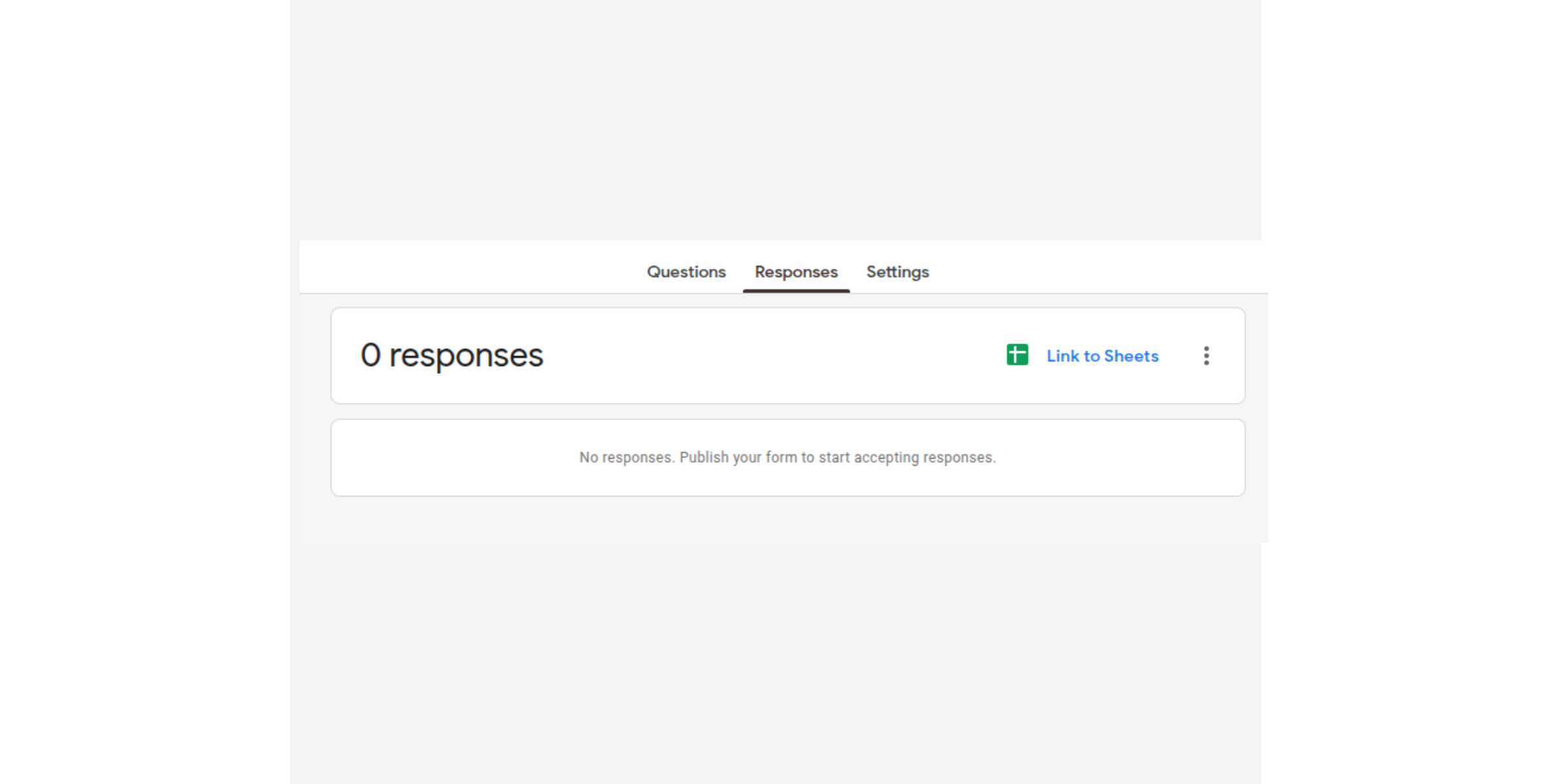
Click the Responses tab to see submissions.
.png?w=2000&fit=max&auto=format)
Google Forms creates a linked Google Sheet automatically; check the Sheet icon to view everything in a table.
Now here's where the manual work kicks in:
- Check each response
- Look at your personal calendar to verify that time slot is actually free
- Send a confirmation (if available) or apology email (if it's taken)
- Manually add the booking to your calendar
- Set a reminder to send appointment reminders yourself
Limitations of using Google Forms for appointment scheduling
This is where the DIY nature of using Google Forms to run your business schedule hits reality. Here are some of the scheduling and booking limits you’ll come across.
No real-time availability
Google Forms has no idea what your actual availability is. You list 10 time slots on your form. Client A books slot #3. Client B books slot #3. You've now got a double booking, and you're explaining via email why they can't both have the same time.
Real scheduling software shows clients only the times you're actually free. Google Forms shows all your pre-written slots, every time, regardless of what's already booked. Nielsen Norman Group research shows that response time matters; users expect systems to be responsive within seconds, not hours. With Google Forms, you're always hours behind.
No calendar sync
Here's the biggest pain point: Google Forms doesn't talk to Google Calendar. When someone books through your form, it doesn't automatically appear on your calendar. You're manually copying information from Google Sheets into your calendar, every single booking.
Forget once (it happens), and your calendar gets out of sync with your actual commitments. You double-book. You miss calls.
While there are add-ons like "Calendar Event Booking," they require users to manually copy submissions or rely on complex Apps Script, neither of which is built-in. It's extra steps that shouldn't exist.
No automated reminders
Your client books a call. Nothing happens automatically. You have to manually send them a confirmation. The day before, you manually send a reminder. The day of, another reminder. If you're handling 30+ bookings a month, that's hours of manual work.
Real scheduling software sends reminders automatically, and research shows automated reminders cut no-shows by 40% or more. Google Forms sends nothing.
Risk of double bookings
Without real-time availability, double bookings aren't a question of "if"; it’s more about "when." Two clients pick the same slot seconds apart. Both confirmations go out. You're now having uncomfortable conversations about rescheduling.
Professional scheduling software prevents this entirely whereas Google Forms invites it.
Poor client experience
A client books through your form and... nothing. No instant confirmation. No calendar invite to add to their calendar. They're wondering: Did that go through? Should I send a follow-up email?
Compare this to actual scheduling software, which lets your client pick a time, sends instant confirmation, a calendar invite to their inbox, done.
Limited customization
Your Google Forms booking page looks like a survey. Generic blue buttons. Generic layout. No brand colors. No logo. No custom messaging about what to expect.
If you've invested in building a professional business, a Google Forms booking system undermines that. Clients might see it and think, "How established is this operation, really?" Your booking page is part of your brand experience. Make it count.
You also have to rely on manual time slot selection, making it difficult to have buffers between slots, and there’s no in-built round robin function to automatically schedule multiple calendars.
No payment or deposit collection
You can't collect deposits or payments through Google Forms. That means:
- No-shows aren't protected by deposits
- Clients don't feel committed to the booking
- You're losing revenue to people who cancel last-minute
For high-value services, this gets expensive fast.
Manual admin becomes unscalable
Let's do the math on your time:
- 10 bookings/month: ~20 minutes of admin (confirmations, calendar sync, reminders)
- 30 bookings/month: ~60 minutes of admin
- 60 bookings/month: 2+ hours of admin every week
At 60 bookings per month, you're spending 8+ hours every month on work that should be fully automated. That's billable time gone. That's time you could spend on clients, on growing your business, on literally anything else.
Google Forms booking system vs. scheduling software
| Feature | Google Forms booking system | Dedicated scheduling software |
| Setup time | 10–15 minutes | 5–10 minutes |
| Availability display | Manual slots (all shown, booked or not) | Real-time, only available slots |
| Calendar sync | None (manual workarounds) | Automatic, real-time |
| Double booking prevention | None | Built-in conflict detection |
| Automated reminders | None | Email, SMS, customizable |
| Payment collection | Not available | Stripe, PayPal, deposits, recurring |
| Client experience | Generic, manual, slow | Instant, polished, professional |
| Customization | Limited (colors, text) | Full branding, custom pages |
| Client profiles | No history tracked | Full booking history, notes, preferences |
| Integrations | Google Suite only | Zoom, Meet, CRM, Slack, 50+ tools |
| Scalability | Low (manual work grows) | High (fully automated at scale) |
| Cost | Free | Free to $50+/month |
What this means in practice
- If you have 5–10 bookings per month: Google Forms works. Barely. The manual admin is manageable.
- If you have 20+ bookings per month: Google Forms becomes a time sink. Each booking triggers multiple manual actions—confirmation, calendar sync, reminder, follow-up. You're spending hours every month on work that should be automated. Here's where you start losing money.
- If you care about looking professional: Google Forms looks like you bootstrapped it. Scheduling software looks like you run a real business. Clients notice the difference.
- If you want to prevent no-shows: Automated reminders make a real difference. Google Forms sends zero reminders automatically.
Best alternative to a Google Forms booking system
Here's the good news: you don't have to abandon Google Calendar or start from scratch with a Google Calendar alternative. The best scheduling tools integrate with Google Calendar, and stay in sync automatically.
What you're looking for:
- Real-time availability syncing (zero double bookings)
- Automatic calendar integration (no manual copying)
- Customizable booking pages (look professional)
- Automated reminders (reduce no-shows)
- Payment integration (collect deposits and client commitment)
- Centralized dashboard (save time scheduling manually)
- Embed options (share your booking page link on your website and social media)
- Free plan to test before committing
Koalendar checks all the boxes.
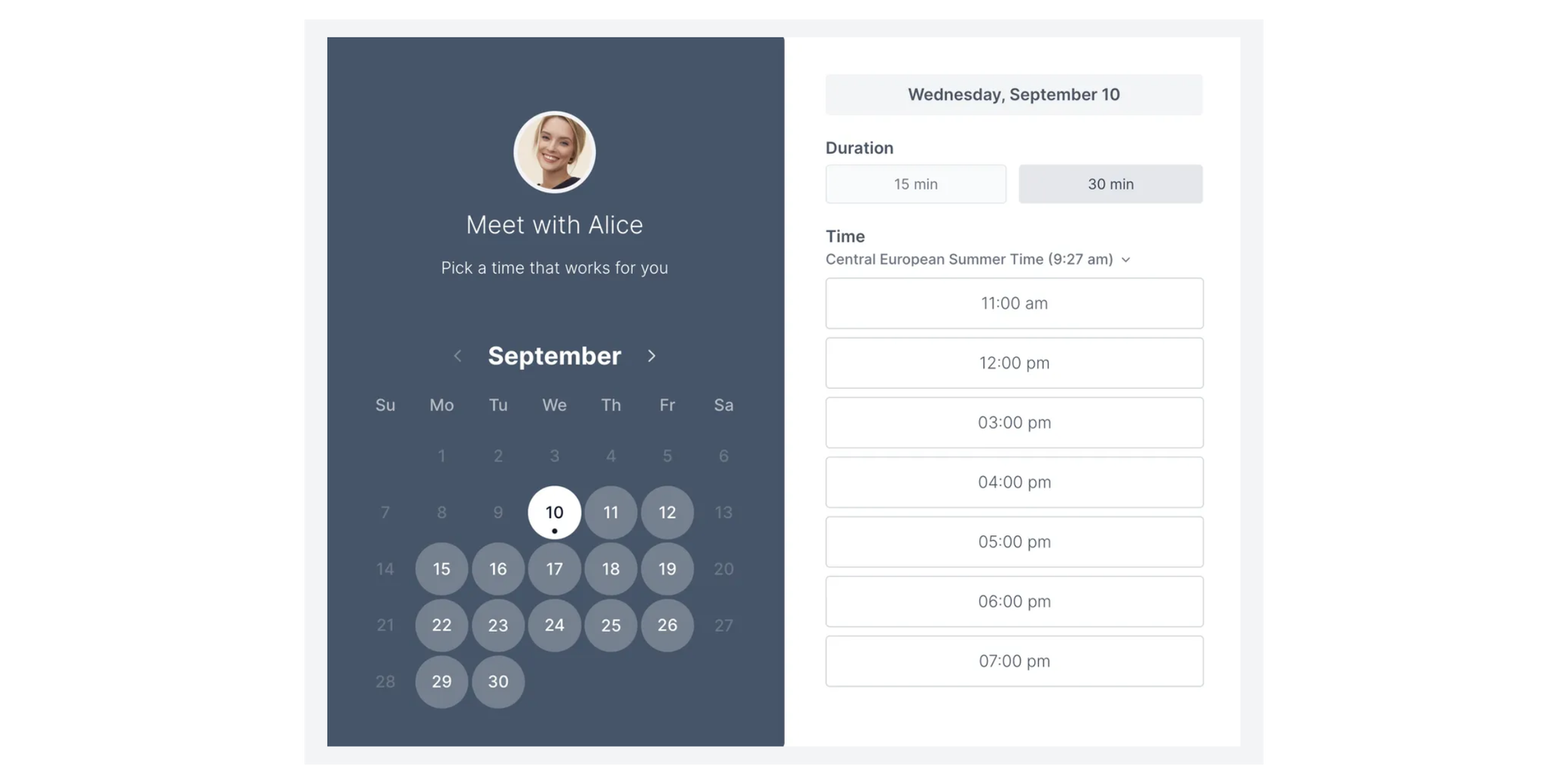
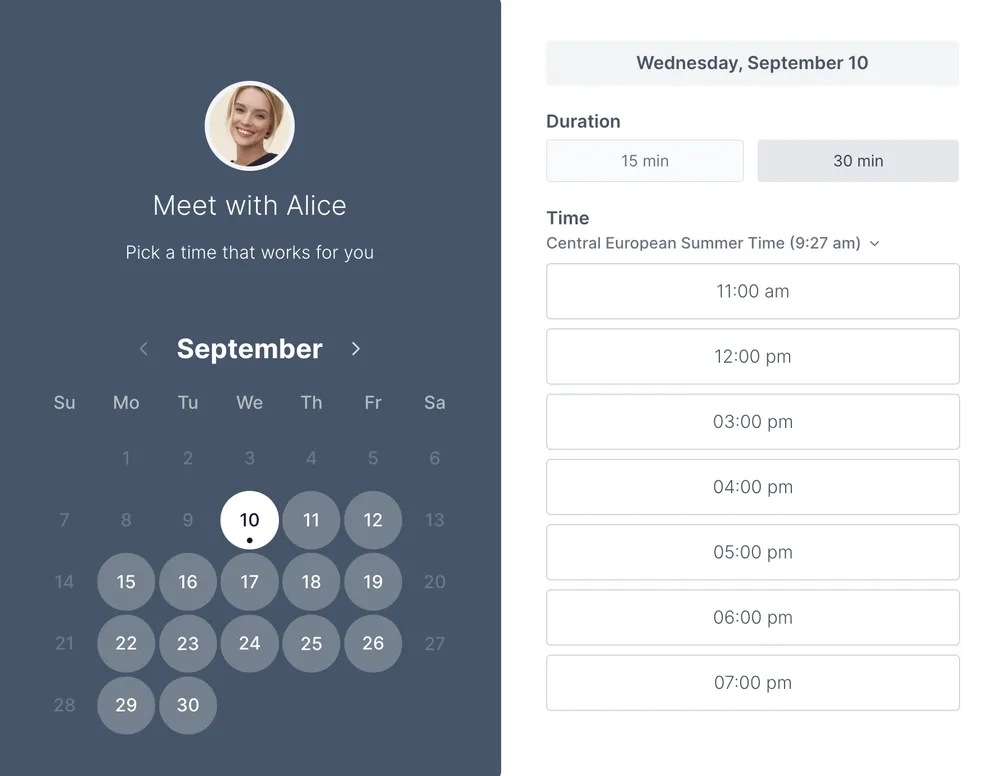
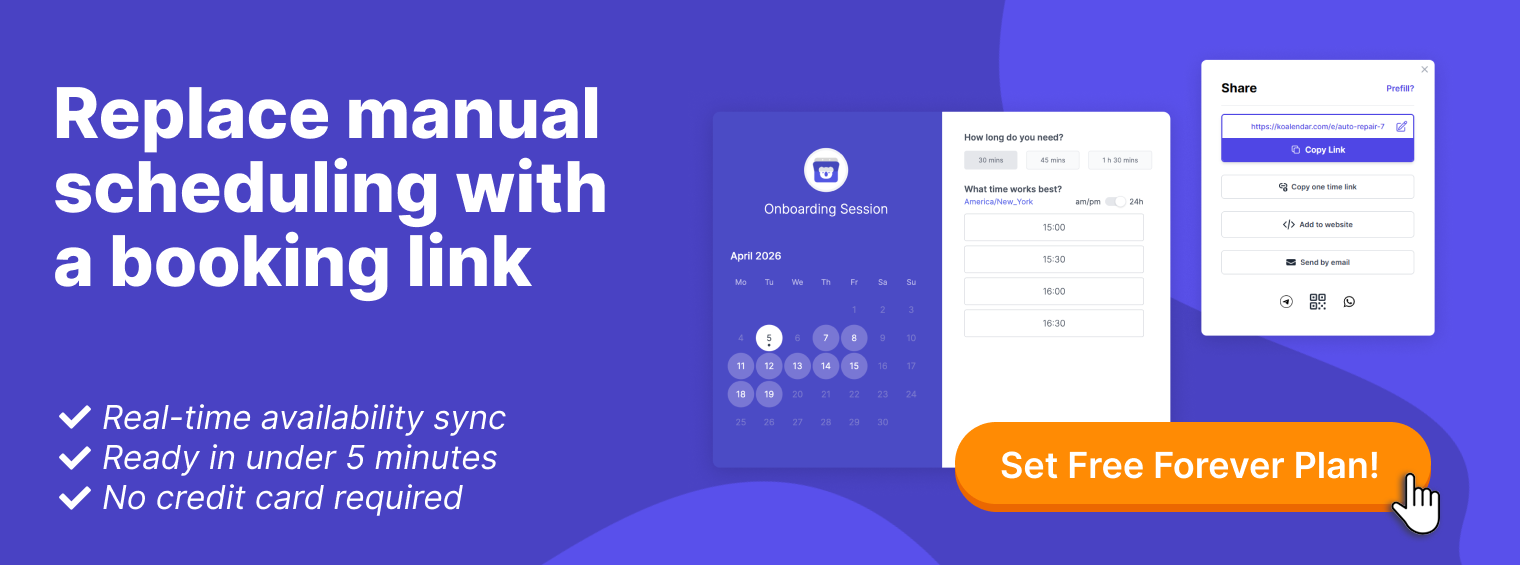
Set up your booking page in 5 minutes. Share one link. Let clients book instantly. Your Google Calendar stays as your central hub, and Koalendar syncs with it in real time, so you never need to manually copy bookings into your calendar again.
You get the freedom of a form with the power of a scheduling system. And there’s a Free Forever plan so you can see how much it improves your business without spending a dime. If you need more automation or additional features, the Pro plan starts at a very reasonable $6.99 per month, per seat.
When should you stop using Google Forms for scheduling?
Your operation is growing. That's the signal that Google Forms might be holding you back. These are the triggers that mean something more robust might be necessary.
Growth triggers
- You're spending 30+ minutes per week on scheduling admin. If you're manually confirming bookings, syncing calendars, and sending reminders, your time cost is too high. Automation pretty much pays for itself in the first month.
- Clients are booking the same time slot. Double bookings mean rescheduling conversations, cancellations, lost revenue, and frustration all around. Scheduling software prevents this completely.
- Your form doesn't reflect your brand. You've invested in a professional website, logo, and marketing. Your booking form should look like you—not like a school survey.
- You need deposit collection. High-value services need deposits to prevent no-shows. Google Forms can't do this. Scheduling software can.
- You're losing clients to the experience. If potential clients think "this looks unprofessional" when they see your Google Form, you're losing sales. A polished booking page builds trust.
- You want SMS reminders. Text reminders cut no-shows more than email. Google Forms can't send SMS. Scheduling software can.
Business scenarios where you'll feel the difference
- Coaches and consultants: You charge $200+ per hour. Every no-show costs real money. Automated reminders and deposits protect that revenue.
- Service providers (therapists, trainers, salons): High-touch, appointment-based work. Clients expect a smooth booking experience. Your booking page is part of your brand promise.
- Sales teams: Multiple reps, multiple calendars, round-robin assignments. Google Forms creates coordination chaos. Scheduling software with team features fixes this in minutes.
- Freelancers scaling up: You're growing from 10 bookings/month to 50. Manual systems break here. Automation becomes essential.
Conclusion: Is Google Forms enough for your business?
Google Forms can collect booking requests. That's not the same as scheduling them.
Real scheduling means:
- Real-time availability
- Automatic calendar sync
- Preventing double bookings
- Automated reminders
- Professional experience
- Zero manual admin
Google Forms delivers none of these. It just a way to collect data.
The hidden cost of Google Forms isn't money, it's time. Hours every month spent on manual work that should be automated. For a solo freelancer with five bookings per month, that's tolerable (if a little annoying). But for a business processing 20+ bookings per month, it's unsustainable.
Thankfully, you don't have to choose between free and powerful. You don't even have to abandon Google Calendar if that’s how you manage your time. You just need a scheduling system that actually schedules the calendar for you.
Still managing bookings manually? Try a smarter way
Stop hunting for available times. Stop manually syncing calendars. Stop sending reminder emails. With Koalendar’s smart scheduling, you can share one link and let clients book you instantly, without the back-and-forth.
Your Google Calendar stays your central hub. Koalendar syncs with it automatically, prevents double bookings, sends reminders, and even collects deposits if you need them.
Ready to move beyond a Google Forms booking system? Try Koalendar free. Set up your scheduling page in minutes, and let your calendar run itself.