
TL;DR
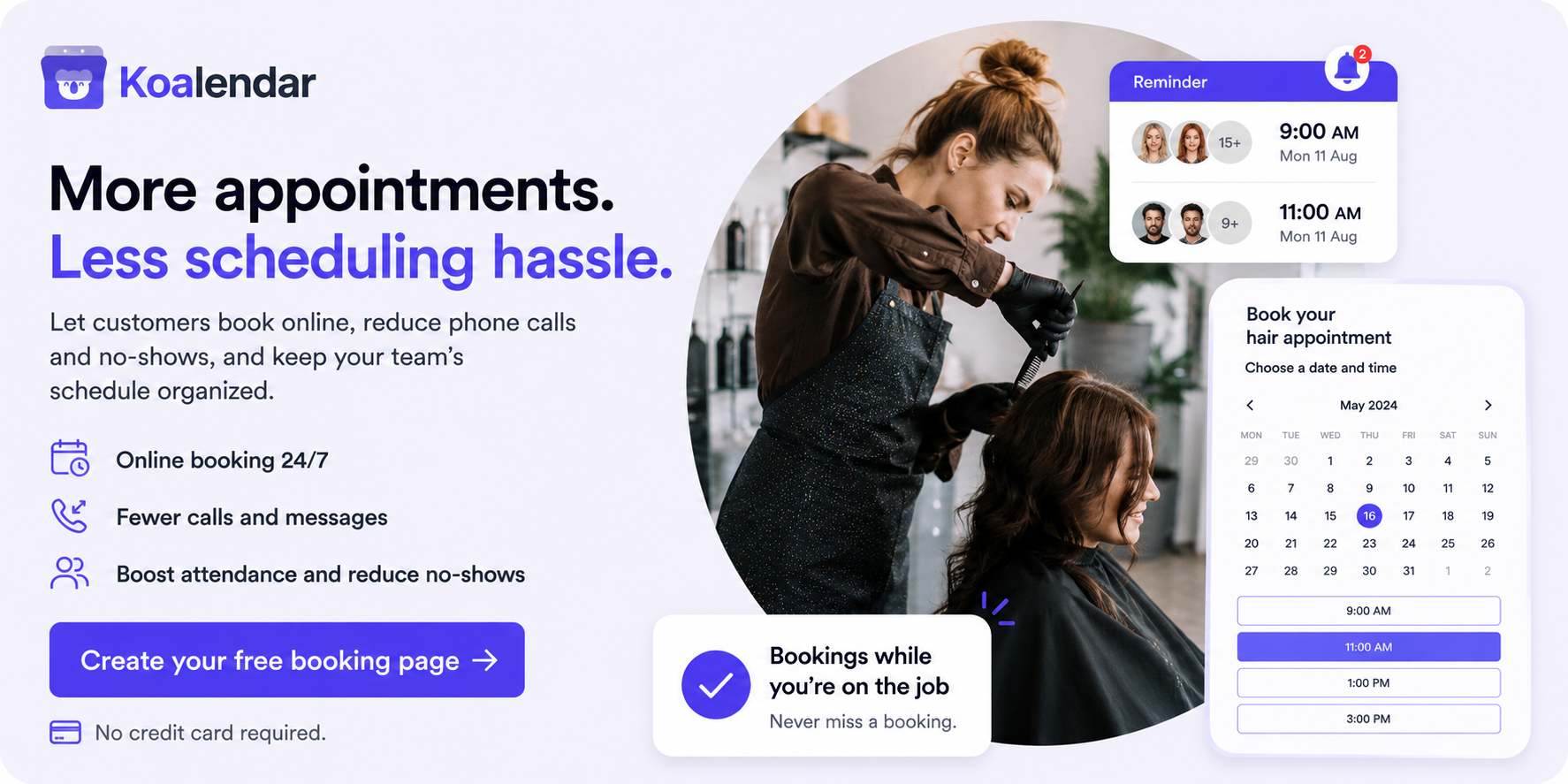
You don’t need to rebuild your site to take bookings online. With Koalendar, you can create a booking page, set your availability, sync your calendar, and add appointment booking to website pages using an inline embed, popup widget, popup text, or simple booking link. Koalendar’s Free Forever plan includes unlimited bookings, unlimited event types, unlimited scheduling links, calendar sync, and website embeds.
Why a contact form is not a booking system
A contact form collects details. A booking system confirms a time.
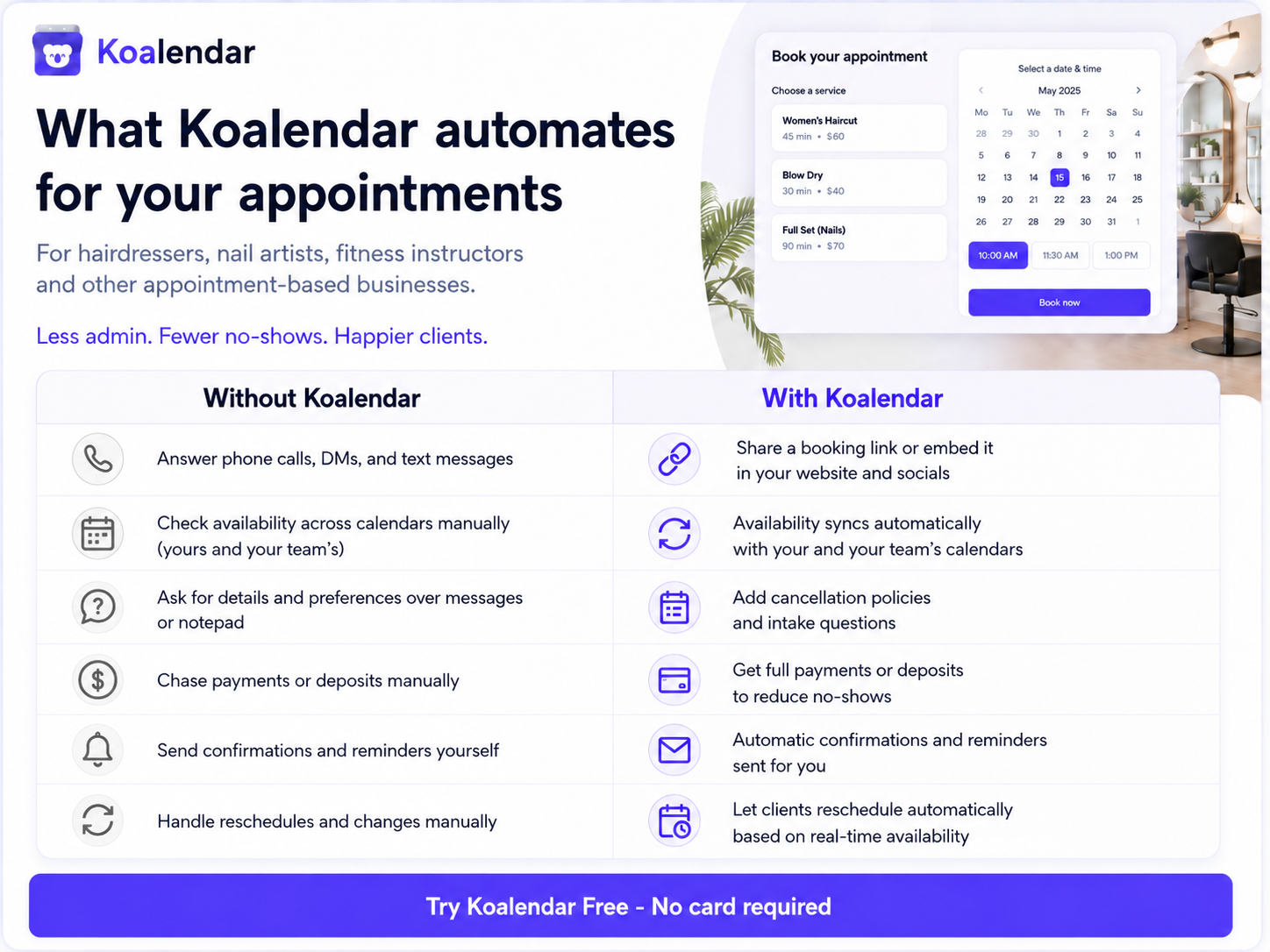
That difference matters. When someone fills out a form, you still need to reply, suggest times, wait for an answer, check your calendar, and send a confirmation email. That is the back-and-forth most small business owners are trying to escape.
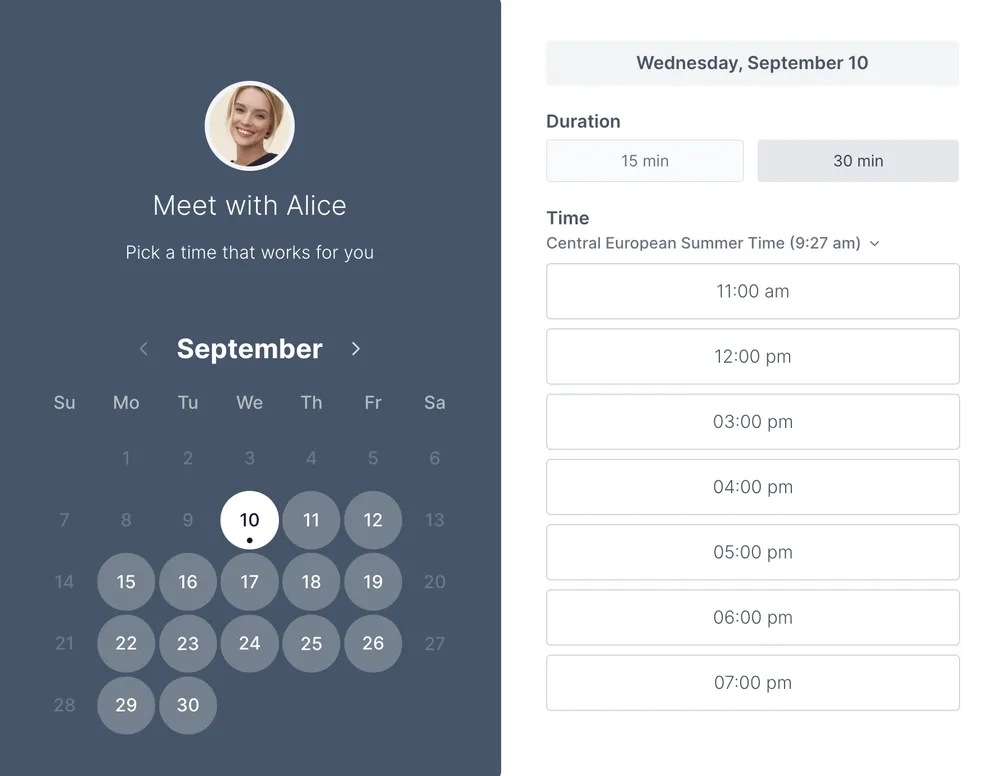
A booking calendar does the work for you. Visitors see your real availability, choose a time, answer your intake questions, and get confirmation automatically. Nice and simple.
Why Koalendar works well for all websites
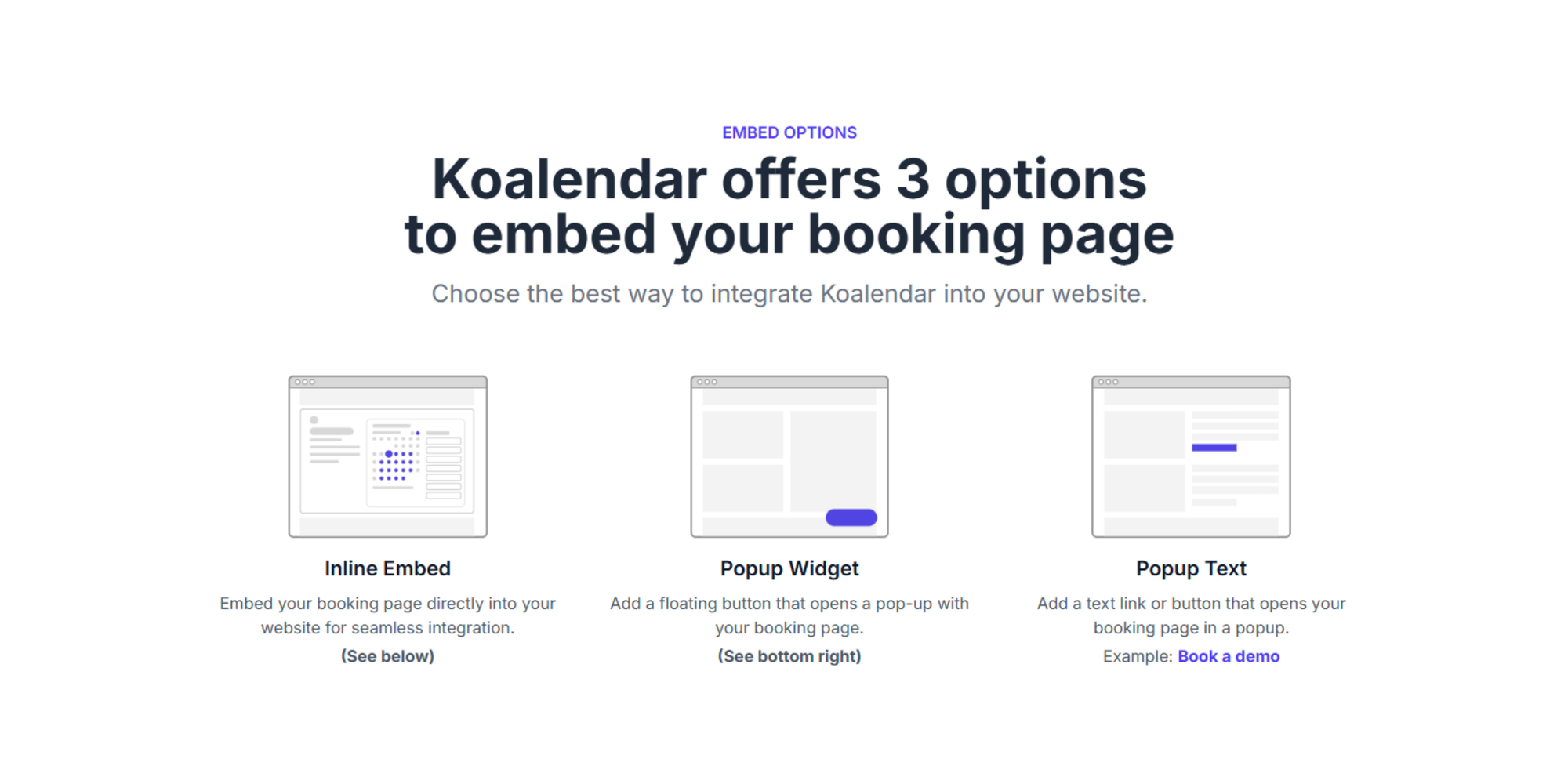
Koalendar is made for people who already have a website and do not want a rebuild. You can embed it in 3 different ways: share a branded booking link, embed the calendar directly on a page, or open it from a popup.
Calendar sync that prevents double bookings
Koalendar syncs with Google Calendar, Outlook, and iCloud, so your availability stays up to date across your tools. It also helps prevent double bookings automatically as both your calendar and the booking page block out the busy times as soon as they aren’t available.
No-code embed options for any CMS
You can add a booking calendar to any website with Koalendar’s inline embed, popup widget, or popup text. WordPress users can also use the Koalendar plugin, shortcode, blocks, or widgets.
A branded booking page without rebuilding your site
Your booking page can match your business with your logo, colors, service details, and language preferences. Koalendar supports 30+ languages on the Free Forever plan, with deeper customization available on Pro.
Discover how Beany uses Koalendar to match their look and feel.
Payments, reminders, and scheduling controls in one place
Need to collect payment before a session? Koalendar Pro supports payments through Stripe, custom email and SMS reminders, follow-up emails, and booking form questions.
Step 1: Create your Koalendar booking page
Start with the booking page itself. This is where visitors choose a service, see your availability, and book a time.
Set your working hours, time zone, meeting length, buffer times, and days off. Then decide what you need to know before someone books. For example, a coach might ask about goals. A tutor might ask for the student’s subject. A salon might ask which service the client wants.
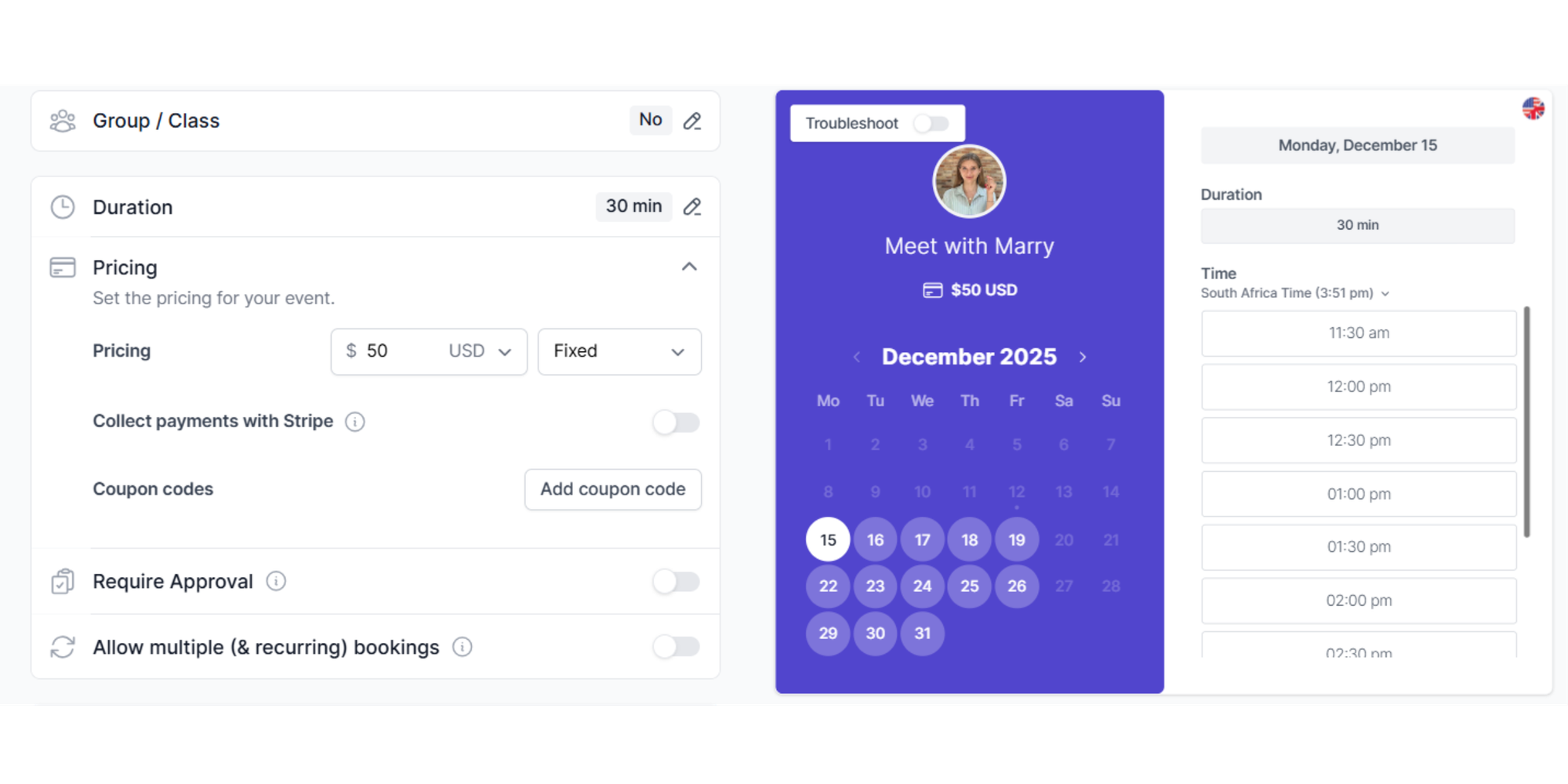
Add confirmation emails and reminders so clients know exactly when and where to show up. Fewer “just checking the time” emails for them. Less admin for you.
Step 2: Decide who should see the calendar
Not every business wants everyone to book instantly. That is okay. You have three easy options:
| Booking flow | Best for |
| Let anyone book right away | Consultations, calls, intro sessions, classes |
| Add a short pre-screening form first | High-ticket services, coaching, consulting |
| Redirect qualified leads to your calendar | Sales calls, applications, limited availability |
For more ways to turn website visitors into booked clients, see Koalendar’s guide on how to get more bookings online.
Step 3: Choose how booking appears on your site
Inline embed: a full calendar on the page
An inline embed shows the full booking calendar inside your page. This works well on pages like “Book a Consultation,” “Schedule a Call,” or “Book an Appointment.”
It feels seamless because visitors do not need to leave your website.
Popup widget: a floating button with minimal footprint
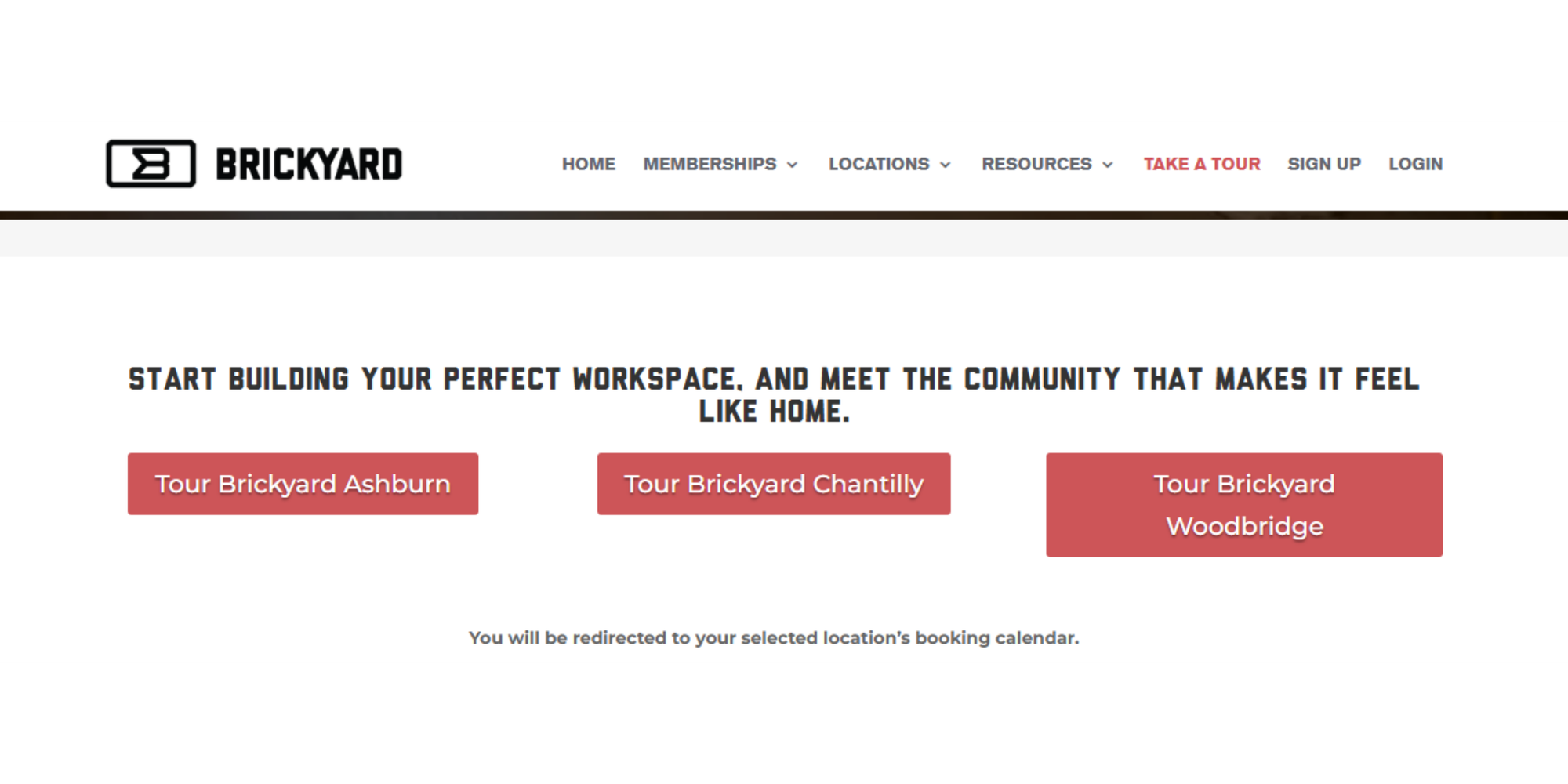
A popup widget is great when you want booking available everywhere without redesigning each page. It can sit in the corner of your site and open the calendar when clicked.
Popup text: booking from any link or CTA
Already have buttons like “Book now” or “Schedule a free call”? Turn them into booking triggers with popup text.
iframe: the no-script fallback
Some platforms restrict scripts. In that case, an iframe can be a handy fallback. Wix, for example, supports embedding a site or widget through its embed tools.
Step 4: Add Koalendar to your website platform
WordPress
WordPress users can install the Koalendar plugin from WordPress.org. The plugin supports appointment scheduling, booking pages, calendar sync, payments, reminders, and easy embedding with blocks, shortcodes, or widgets.
You can also skip extra plugins and paste Koalendar’s embed code into a custom HTML block.
For a deeper build-from-scratch option, see Koalendar’s guide on how to make a booking website.
For step-by-step instructions, check the help article how to add your Koalendar booking page to your Wordpress
Wix
Use Wix’s embed element to add a widget or iframe. Wix’s own Help Center explains that you can embed a site or widget directly in the Wix Editor, but Koalendar’s guide to add Koalendar to a Wix Website covers all the steps.
Squarespace
Squarespace pages can use an embed block. SquarePros notes that the Squarespace embed block lets you add third-party code or external content to a page. Koalendar also covers all the steps in the How to Add Koalendar to a Squarespace site article.

Shopify
Add your booking link to product pages, service pages, navigation, or buttons. For services, you can also place a booking button near your pricing or package details. The full instructions to add Koalendar to Shopify are also available.
Webflow and other builders
Webflow supports custom code embeds for adding third-party code to a page. Other builders usually offer a similar “embed,” “HTML,” or “custom code” block. Koalendar’s article covers all the steps to embed Koalendar in Webflow
What to check before you go live
Before sharing your booking calendar, test it like a real visitor.
Book a test appointment. Check that the right times appear. Confirm the calendar invite lands in your inbox. Make sure your reminders go out at the right time. Then check your connected calendar to confirm the slot is blocked.
Small test, big peace of mind.
Customize the booking page to fit your brand
Your booking page should feel like part of your business, not a random tool bolted onto your website.
Add your logo, brand colors, service description, and location details. Customize your questions and confirmation messages too. A friendly confirmation like “You’re booked — see you soon!” feels much better than a cold system message.
For more CTA ideas, see Koalendar’s guide on how to add a Book Now button to Instagram, Facebook, Google Business, and your website.
How to collect payment before the appointment starts
Taking payment upfront is useful when no-shows cost you time or money. It also works well for paid consultations, coaching sessions, classes, salon services, and deposits.
With Koalendar Pro, you can accept payments before the appointment is confirmed. Koalendar supports card payments, bank transfers, Apple Pay, Google Pay, and more through its payment features.
Add clear cancellation terms near the booking step. Keep it simple: when payment is due, whether it is refundable, and how rescheduling works.
Common embed problems and how to fix them
Setup gets too technical
Some WordPress booking tools can be powerful but heavy to configure. Amelia, for example, has detailed documentation across many setup areas, which may be more than a small business owner needs for a simple booking page.
Koalendar keeps the first step lighter: create the page, copy the embed or link, and publish.
Embed issues on the page
If your calendar does not display correctly, check whether your website platform blocks scripts. Try the iframe option, use a plugin, or place the calendar on a simpler page layout.
Missing settings before launch
The most common issue is not the embed. It is forgotten settings. Check your availability, calendar sync, reminders, payment rules, and intake questions before you send visitors to the page.
Is your booking setup actually working?
A good setup does more than look nice. It should help you get more confirmed appointments with less effort.
Track a few simple things:
- How many people visit the booking page
- How many complete a booking
- Which website pages drive the most bookings
- Whether reminders reduce no-shows
- Whether paid bookings improve attendance
For tool comparisons, see Koalendar’s guide to the best scheduling software for small business.
Conclusion
You do not need a new website to start taking bookings online. You just need a simple way to show availability, collect the right details, confirm the appointment, and keep your calendar in sync.
Add booking calendar to website pages with Koalendar, and you can go from “email me your availability” to “you’re booked” in minutes.
Add Koalendar to your site in minutes - inline embed, popup widget, or floating button, no code needed.