Free tool
Meeting time zone planner
Schedule international meetings across time zones with a built-in world clock. Add each participant's working hours, see the overlap, and copy a clean local-time summary.
How to schedule a meeting across multiple time zones
Choose a meeting date, add each participant's city, IANA timezone, or UTC offset, then set their normal working hours. The planner converts everything to one reference timeline so you can see which hours are comfortable, early, late, or outside normal working time.
Click a suggested time or pick any slot in the grid. The result shows the same meeting moment in every participant's local time, including the correct daylight saving offset for the selected date.
If you already know the meeting time and only need to convert it to other cities, use the timezone converter instead.
World clock meeting planner with overlapping hours
A world clock answers what time it is somewhere else. A meeting time zone planner answers a more useful question: when can everyone reasonably attend? That matters for remote sales calls, interviews, client meetings, classes, and distributed teams.
Daylight saving time makes fixed offset math unreliable. London is not always UTC, New York and Europe switch clocks on different weekends, and some regions do not switch at all.
Learn the foundations in our time zone scheduling guide, then use this planner to choose a practical slot.
How to run fair global meetings
- Use city or IANA time zones instead of abbreviations like CST, which can mean different regions.
- When the same team meets across the Americas, Europe, and APAC every week, rotate which region takes the inconvenient slot.
- Short meetings (30 or 45 minutes) work better when the overlap window is tight.
- Copy the full local-time summary into the invite so nobody has to convert manually.
Who this international meeting planner is for
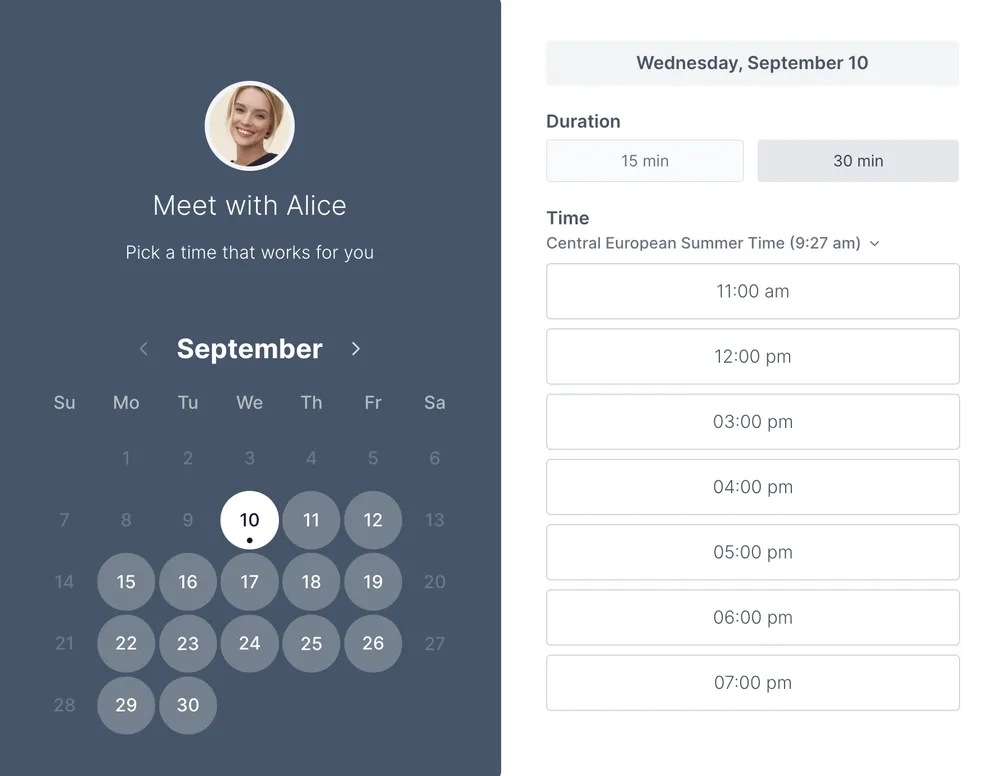
This multi time zone meeting planner is built for teams that schedule across regions every week. After you find a fair time, Koalendar can help you schedule meetings online and keep calendars accurate with calendar sync.
- Remote teams coordinating weekly calls across several countries
- Sales and success teams booking clients in other regions
- Recruiters scheduling interview loops with candidates and panels
- Coaches, consultants, and teachers meeting international clients
Free tools
Explore more free scheduling tools
Plan meetings, compare time zones, and make scheduling easier with Koalendar's free tools.
Productivity
Meeting poll
Free meeting poll and scheduling survey. Pick available times, share one link, and let the group vote on when to meet. No signup required.
Scheduling
Free booking page
Create a free Koalendar booking page, connect your calendar, and share one link so people can book time without email back-and-forth.
Time zones
Timezone converter
Convert times between cities and time zones with local dates, UTC offsets, day changes, and daylight saving time handling.
Productivity
Pomodoro timer
Start a free Pomodoro focus timer with custom work and break lengths, browser notifications, and private local stats.
Productivity
Meeting cost calculator
See what every meeting really costs. Add attendee groups, run a live cost timer, project the annual cost of recurring meetings, and rank the changes that save the most.
Productivity
Work schedule maker
Free work schedule maker and weekly schedule planner. Drag-and-drop visual schedule builder to plan your week, export to calendar, and print. No signup.
Frequently asked questions
Answers to common questions about planning meetings across time zones.
Add each participant's city or IANA time zone and set their normal working hours. The planner overlays everyone on one timeline and highlights the hours that fall inside working time for everyone.
Yes. The planner uses IANA time zones for the selected date, so offsets update for daylight saving time where your browser supports the current rules.
The planner uses the DST rules for the date you pick. If your meeting is set for a date after a DST switch in one of the participant's regions, the times shown already account for the change.
Add as many participants as your meeting realistically needs. Each gets their own city, IANA time zone, and working hour preferences, and they all appear on one shared timeline.
A good default is 9:00 AM to 5:00 PM in each participant's local time. If there is no overlap, try widening the window slightly or rotating early and late meeting times between regions.
Copy the local-time summary the planner generates and paste it into your calendar invite, email, or Slack. Each participant sees their own local time and date, so nobody has to convert manually.
Ready to dive in?Start your free account today.
When you let clients self-book their appointments on your Koalendar scheduling page, you'll save hours of time spent on unnecessary emails.
Sign up for free