
TL;DR
- Switch between Day, Week, Month, Year, Schedule, and 4-day views to match how you plan. Google lets you set the view from the top-right menu.
- Add multiple calendars for work, personal life, side projects, and shared plans so overlapping events stop blending together.
- Use custom event colors and color labels to make priorities easier to scan at a glance.
- Add regional holidays and turn on world clock/time zones if you coordinate across countries or teams.
- Clean up calendar clutter with recurring events and repeating tasks instead of manually recreating the same thing every week.
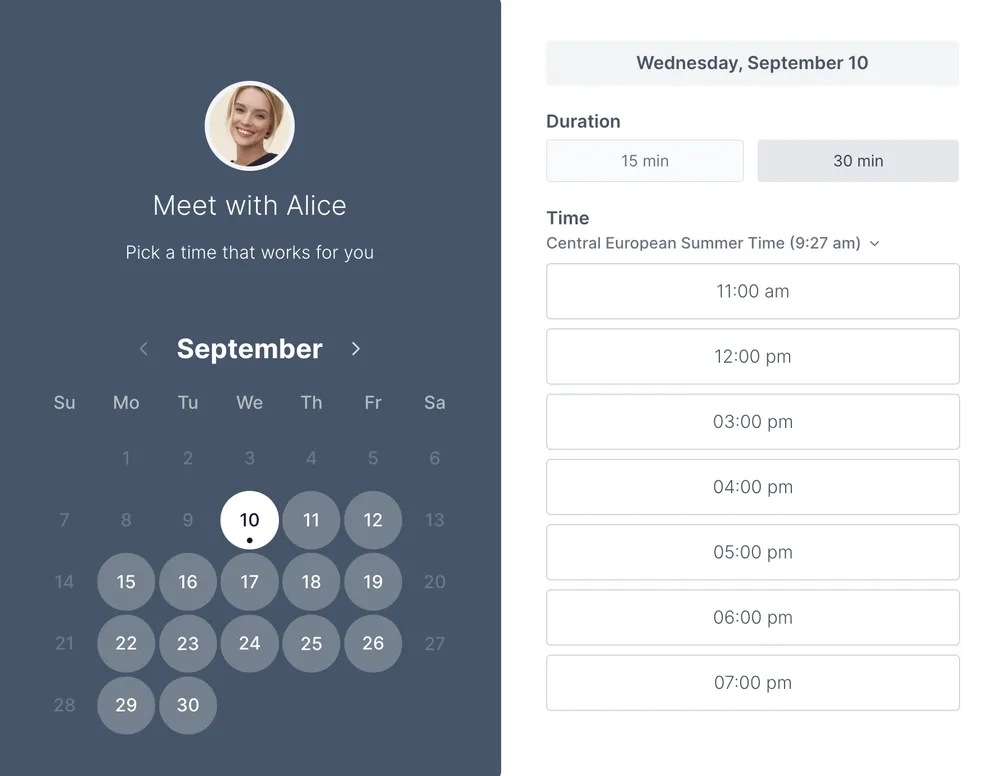
- If you want your calendar to do more than look nice, tools like Koalendar add booking pages, branding, reminders, and automatic calendar sync.
Google Calendar is useful, but the default setup can feel a little plain and harder to manage than it needs to be. And this isn’t just about making it look nicer. A cleaner, more personalized calendar is easier to scan, which can help you stay focused, manage your time better, and miss fewer meetings.
Small changes like separating calendars, using color labels, and improving reminders can make your schedule feel clearer and a lot less overwhelming. Google Calendar already gives you plenty of ways to do that. Once you know where to look, it becomes much easier to shape it around the way you work.
.png?w=2000&fit=max&auto=format)
Why Google Calendar customization matters
From basic scheduling to personalized workflows
Google Calendar is great for basic scheduling, but most days aren’t that simple. You’re probably balancing work calls, workouts, deadlines, family plans, travel, and shared calendars all at once.
A more personalized setup makes that easier. It gives you better visual clarity, cuts down on calendar clutter, and helps your schedule fit the way you actually work. And when your calendar is easier to scan, it’s easier to trust.
Common mistakes users make
One of the biggest mistakes is keeping everything in one calendar and one color. Instead of feeling organized, your schedule just starts to blur together.
Other common issues are vague event names, mixing work and personal plans, relying on memory instead of reminders, and missing time zone details when scheduling across locations.
It’s also best to ignore older tutorials that mention Google Calendar Labs. That feature is no longer around, and Google Workspace Experiments is something different.
How to customize Google Calendar step by step
Change calendar view (day, week, month, schedule)
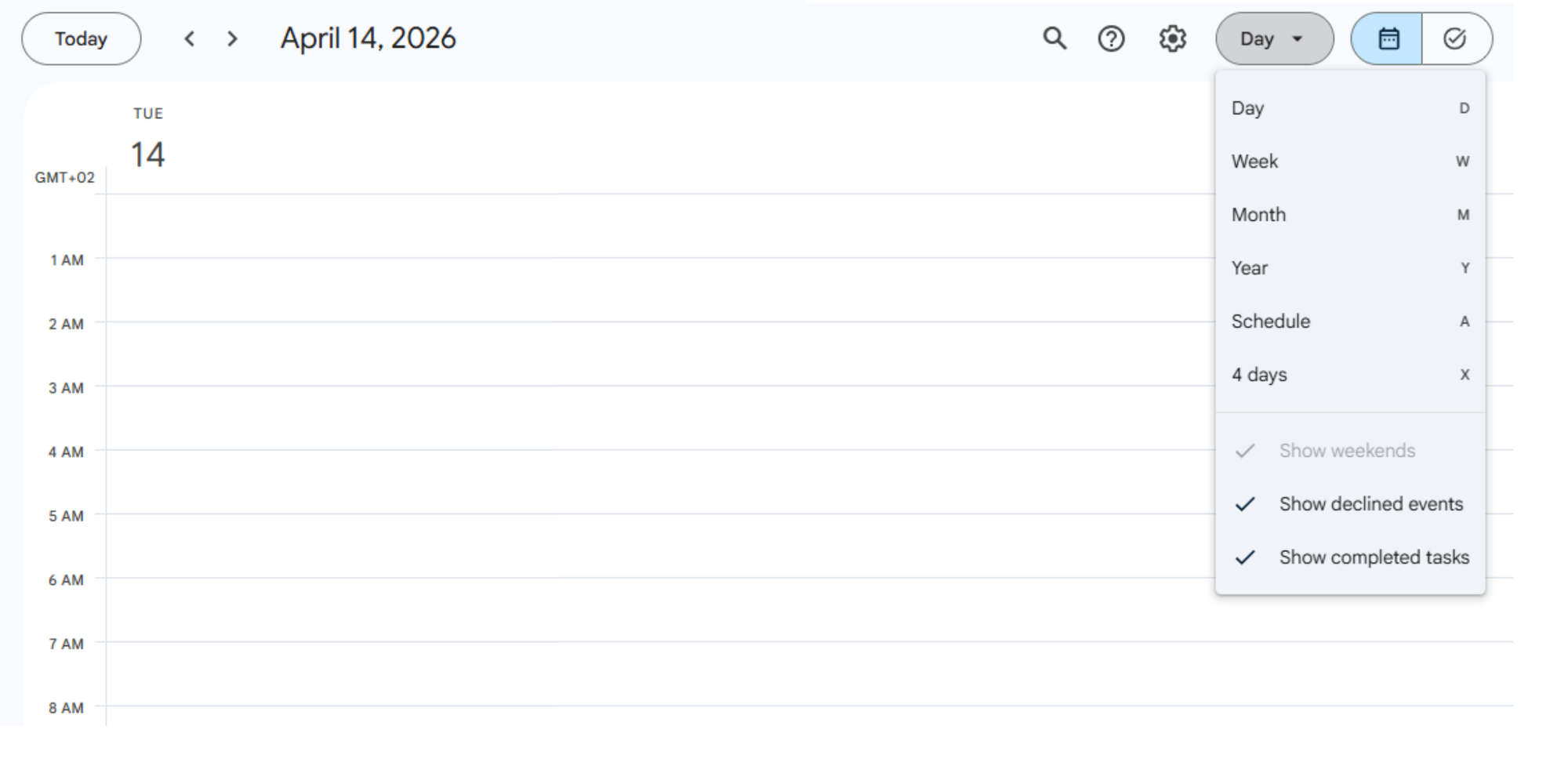
Start with the easiest win: your view. On desktop, Google Calendar lets you switch between Day, Week, Month, Year, Schedule, and 4 days. Whatever you choose becomes your default until you change it again.
A simple rule:
- Day view works best for packed meeting days
- Week view is ideal for balancing work and personal commitments
- Month view helps with long-range planning
- Schedule view is great if you prefer a clean list instead of boxes
If you’ve ever felt like your calendar is overwhelming, changing the layout is often the fastest fix.
How to do it: Go to the upper right hand-side of your calendar and click the drop-down arrow to change the view.
Add multiple calendars for better organization
This is one of the most useful Google Calendar personalization habits. Instead of stuffing everything into one stream, create separate calendars for:
- Work
- Personal
- Family
- Freelance or side projects
- Fitness
- Travel
- Shared team planning
Google lets you add other calendars, browse resources, and share calendars with specific people or groups. That makes it much easier to separate contexts without losing the big picture.
How to do it: Go to the left sidebar → “Other calendars” → “Create new calendar.”
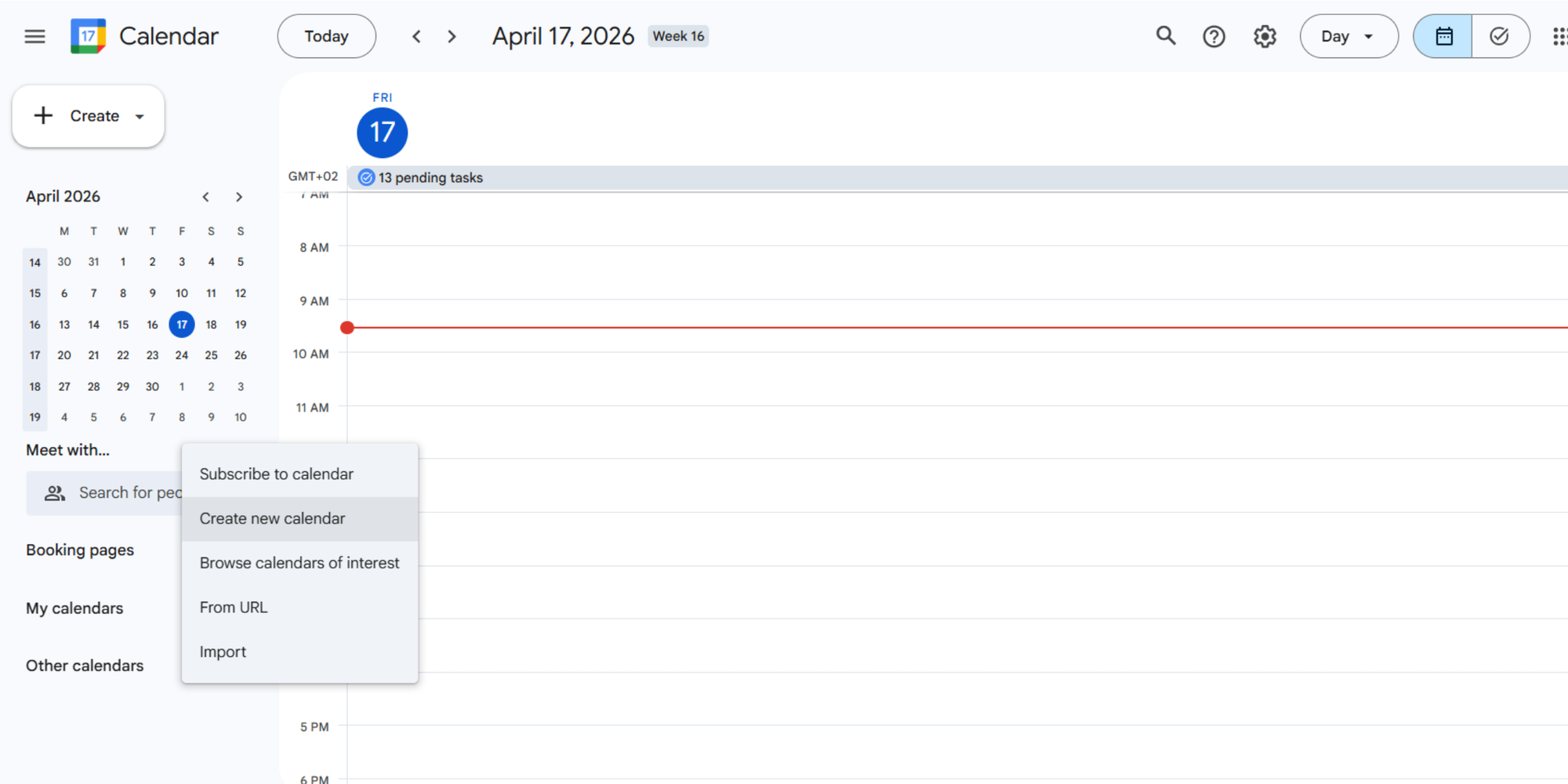
This is also the easiest way to reduce scheduling conflicts. When each part of your life has its own layer, you can toggle visibility on and off depending on what you need to focus on.
Customize event names and descriptions
This is where a lot of people miss easy wins. Naming matters.
Compare these two event titles:
- “Meeting”
- “Q2 budget review with ops team”
The second one tells you what the block is for before you even click. Better event names reduce hesitation and improve workflow, especially during a busy week.
You can also make labels easier to spot with light formatting choices like:
- Prefixes: “Prep:”, “Focus:”, “Call:”, “Deadline:”
- Emojis (see below too): “📞 Client call”, “✍️ Writing sprint”, “🏃 Gym”
- Clear descriptions with links, agendas, or notes
That kind of customized event habit makes your schedule feel more personal and more useful at the same time.
Customize reminders and notifications
Notifications are one of the most underrated parts of how to personalize Google Calendar. Google lets you manage notification settings from Calendar settings, including whether desktop notifications are on.
A simple setup might be:
- 10 minutes before for internal meetings
- 30 minutes before for calls that need prep
- 1 day before for deadlines or travel
- Stronger reminders for shared calendars or high-value events
Good reminders lead to fewer missed meetings. Great reminders reduce stress because you stop depending on memory alone.
How to do it: When you create or edit an event, you can add a notification and choose when you want to be reminded, like 10 minutes before, 30 minutes before, or even a day ahead.
Implement recurring tasks to declutter
If you keep recreating the same weekly items manually, stop. Google supports both recurring events and repeating tasks.
Use recurring events for fixed commitments like:
- Weekly team check-ins
- Friday planning
- Monthly reviews
Use repeating tasks for lighter to-dos like:
- Submit expense report
- Water plants
- Review pipeline
- Send invoices
How to do it: Just create the task or event, click more options, look for the repeat option, and choose how often you want it to show up.
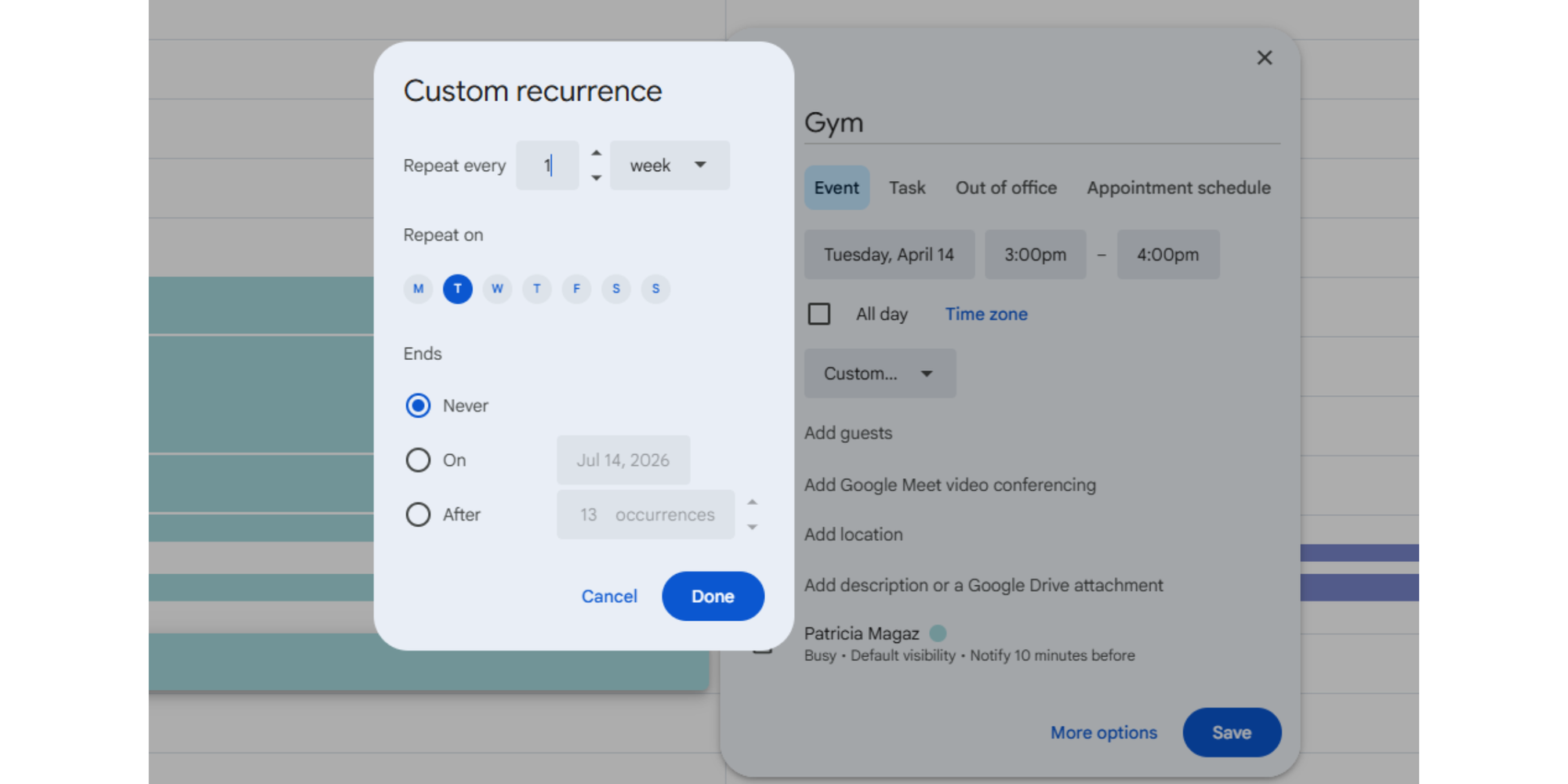
This reduces clutter and creates a more stable rhythm in your schedule. Not to mention that when you customize these with colors and emojis, contribute to the overall aesthetic of your calendar.
Add regional holidays and turn on world clock
Google Calendar can also help you plan around the details people often forget, like public holidays and time differences. That matters even more when you work with shared calendars, remote teams, or family in different places.
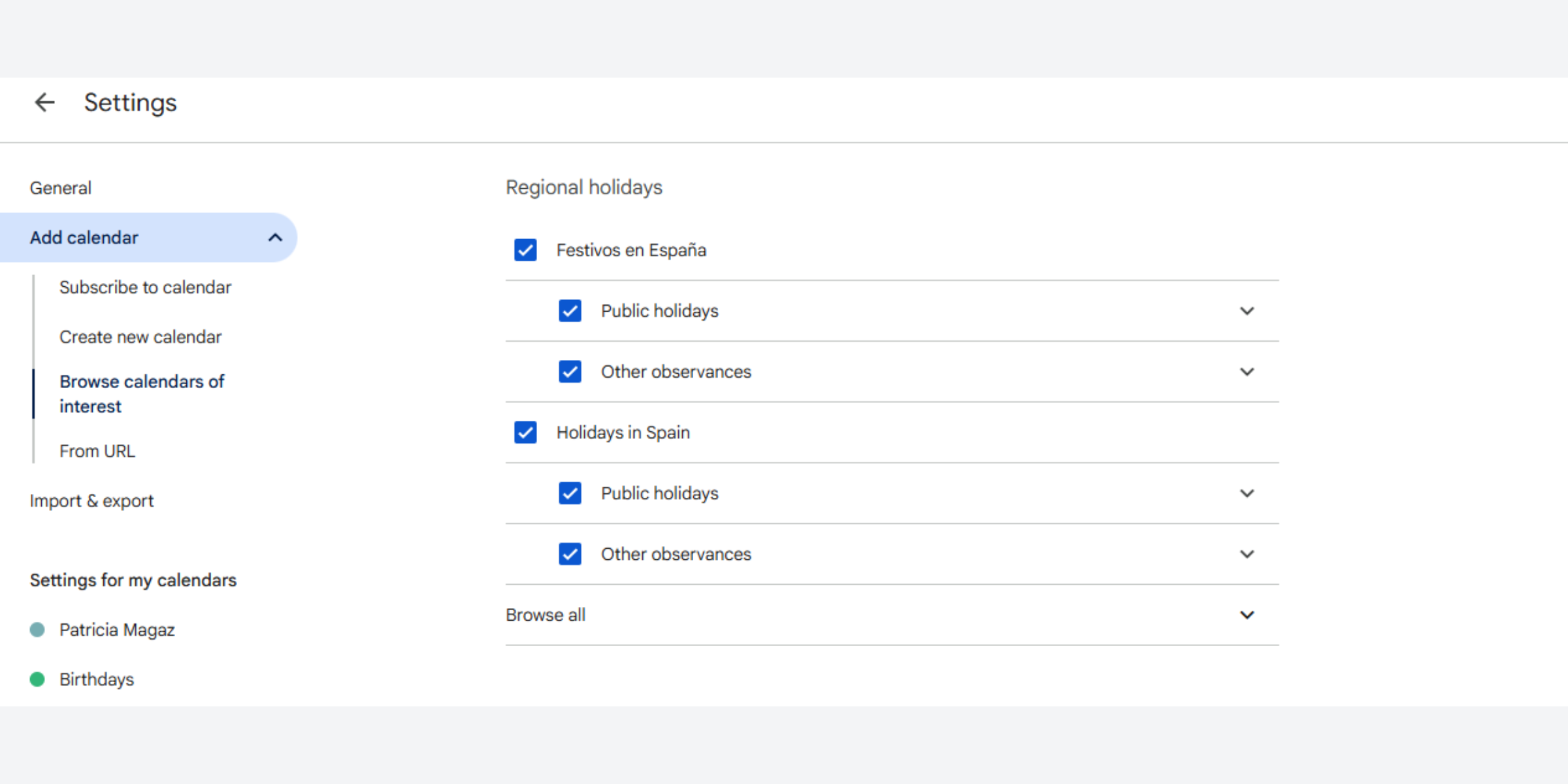
How to do add regional holidays: To add regional holidays, go to Settings, then Add calendar, and choose Browse calendars of interest. Under Regional holidays, you can add or remove holiday calendars by country or region. Google also lets you choose which holidays or observances you want to show.
.png?w=2000&fit=max&auto=format)
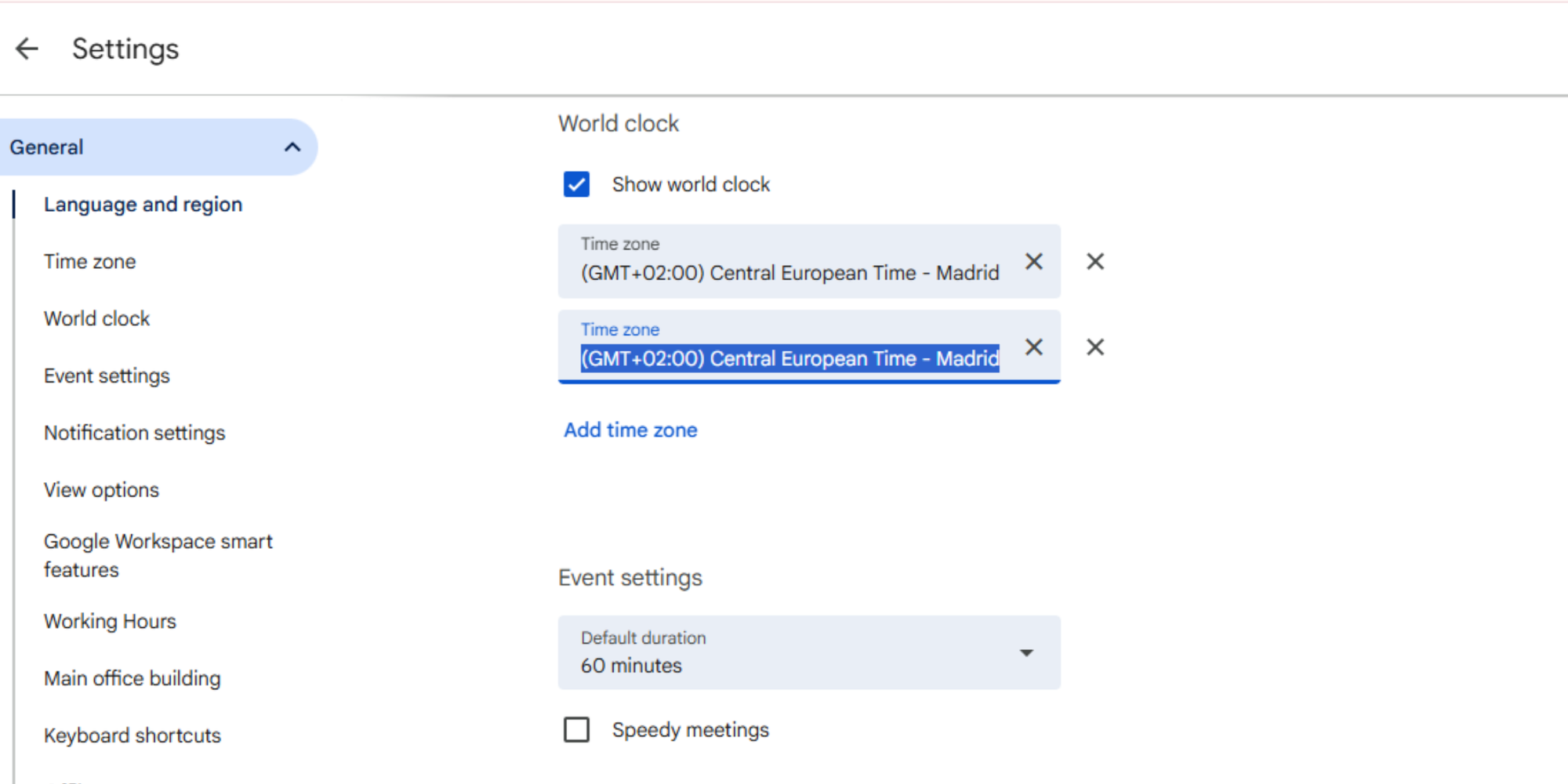
How to turn on World Clock: Open Settings, go to the World clock section, switch it on, and add the time zones you want to keep visible. You can also display a secondary time zone in your calendar settings, or set a different time zone for a specific event when needed. This is especially useful when you’re booking across locations and want to avoid timing mix-ups.
How to make Google Calendar pretty (aesthetic tips)
Add emojis to events and labels
Emojis are a small tweak, but they work surprisingly well. They add personality and make events easier to identify in crowded views.
A few useful examples:
- 💼 Work block
- 🧠 Focus time
- 🛒 Errands
- ✈️ Travel
- 🎓 Study session
- ❤️ Family time
Used sparingly, they make your schedule more scannable. Used everywhere, they can become noise. Keep them tied to recurring event types or calendar item labels.
How to do it: To add emojis in Google Calendar, open the event or calendar you want to edit and type an emoji into the title or description field. You can do this by using your device’s emoji keyboard or by copying and pasting an emoji.
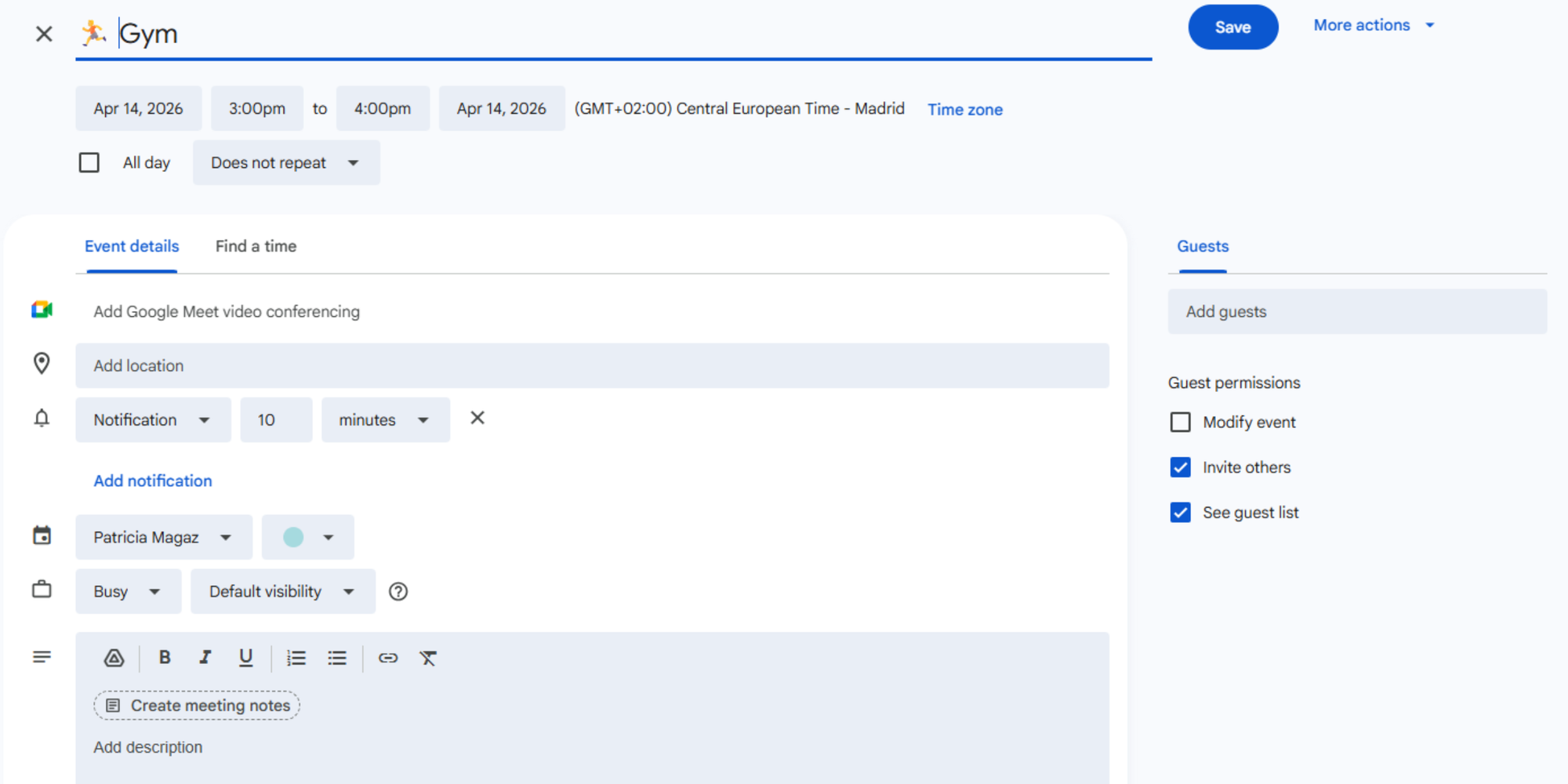
It’s a small change, but it makes your calendar easier to scan and a bit more enjoyable to use.
Use custom color labels for clarity
Colors are aesthetic, but also functional.
Google lets you assign event colors and also use color labels to track calendar entries. Those labels can even feed into Time Insights for a clearer view of how your time is spent.
How to do it: Click the three dots next to each calendar under “My calendars.” Choose from 24 standard colors, or you can click the + icon to pick a custom HEX color. The color you select will be applied to all events in the calendar. Here’s a nice resource with additional colors.
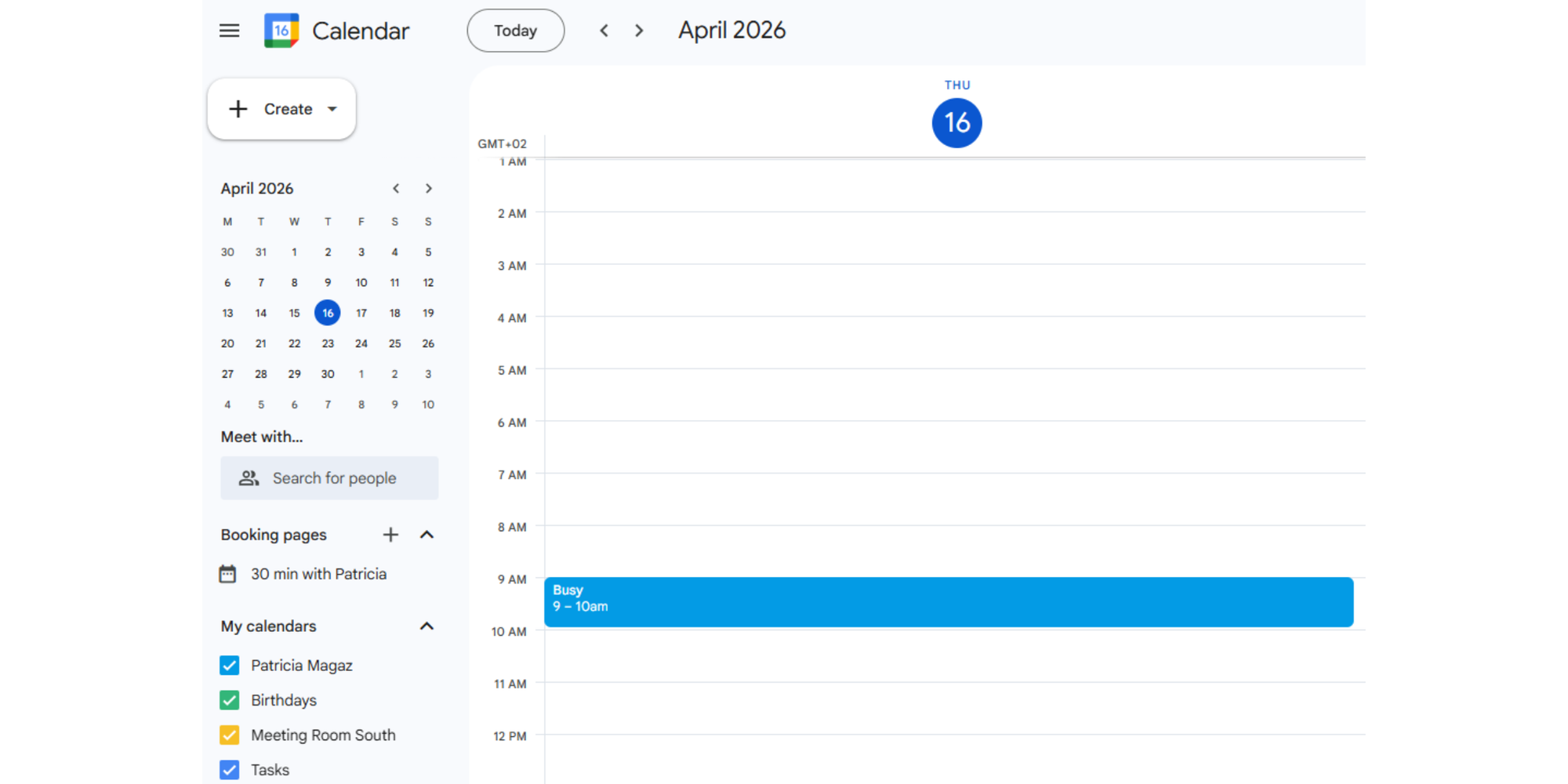
A clean system often looks like this:
- Blue = deep work
- Green = personal
- Yellow = admin
- Red = urgent deadlines
- Purple = meetings
- Gray = low-priority holds
Keep the palette limited. The goal is instant recognition, not a rainbow that becomes harder to decode over time.
Use Chrome extensions for backgrounds
If your goal is a more styled look, Google Calendar itself does not offer a built-in background customization option in current help resources. Many aesthetic guides point users to Chrome extensions instead, including Custom Calendar Backgrounds in the Chrome Web Store.
That can be fun, but it’s worth treating backgrounds as optional. They add personality, but too much visual decoration can hurt legibility. For most people, colors, labels, and layout changes do more for usability than a wallpaper ever will.
Create a minimalist calendar layout
A prettier calendar is usually a simpler calendar. Now that you’ve seen how many ways there are to customize Google Calendar, it’s worth remembering that more is not always better. Sometimes the best setup is the one that feels the easiest to read.
Try this:
- Hide calendars you do not need every day
- Shorten long event titles
- Use one naming pattern for recurring events
- Limit your colors
- Keep your default view aligned with how you plan
This is the part people often miss. Lack of personalization is not just about style. It is often about too much visual clutter. A minimalist setup can mean fewer distractions and a smoother workflow.
Pro tip: For more practical ways to improve your setup, take a look at these Google Calendar hacks that can help you stay more organized and save time.
Where Google Calendar falls short (and how to fix it)
Google Calendar is great for staying organized, but it can only take customization so far. As we’ve seen, you can clean up the layout, change colors, and make it feel more personal, but no amount of Google Calendar customization will fix its bigger limits.
It still falls short when you need smoother booking at scale, fully branded booking pages, or deeper automation. So while Google Calendar works well for planning, it’s not built to be a complete client-facing scheduling system. When you need that extra layer, you need a tool designed for it.
That’s where Koalendar fits naturally.
Koalendar syncs smoothly with Google Calendar and gives you much more than a nicer-looking calendar. It lets you customize the whole scheduling experience in a way Google Calendar simply can’t. When you synchronize Koalendar to your Google Calendar(s) you can:
- Set your availability around the way you actually work
- Add booking limits that protect your time
- Create professional-looking booking pages with your own colors, branding, and images
- Manage time zones easily with automatic time-zone recognition
- Send tailored email and SMS reminders
- Offer either group bookings or 1:1 sessions depending on what makes sense for you
The best part? It offers a Free Forever plan for up to 2 calendar syncs and it’s super simple to set up. There’s no steep learning curve and no need to do extra research just to make it work smoothly with Google Calendar.
Conclusion
A more personal calendar is not just prettier. It is easier to use, easier to trust, and easier to keep up with. Once you adjust your views, organize multiple calendars, clean up event names, use color labels, and fine-tune reminders, the whole experience feels lighter.
And if you reach the point where your needs go beyond layout and labels, that’s your sign to pair your setup with a smarter scheduling tool. How to customize Google Calendar is a great place to start. Koalendar is the next step when you want that same clarity to extend into bookings, automation, and branded scheduling that actually works for you.
Want to go beyond basic scheduling? Tools like Koalendar help you automate bookings, reduce no-shows, and create a calendar that actually works for you. Try it free and let your calendar do more of the heavy lifting.