.png?w=1200&fit=max&auto=format)
TL;DR
Google Appointments is Google Calendar's built-in booking feature that lets you block time and share links for basic appointment scheduling. But for businesses managing multiple bookings, client follow-ups, and team coordination, it hits a wall fast. This guide shows how to use Google Appointments, where it falls short, and when you'll need dedicated scheduling software instead.
If you’re already using Google Workspace, starting with their built-in booking tool is a no-brainer. It’s free, easy to set up, and saves you from the "when are you free?" email dance.
But as your business grows, you might find yourself needing a system that does more of the heavy lifting for you.
In this guide, we’ll run through the basics of Google Calendar appointment scheduling, and how you can use other tools like Koalendar to get more out of it and make your biz run that little bit more smoothly.
What is Google Calendar appointment scheduling?
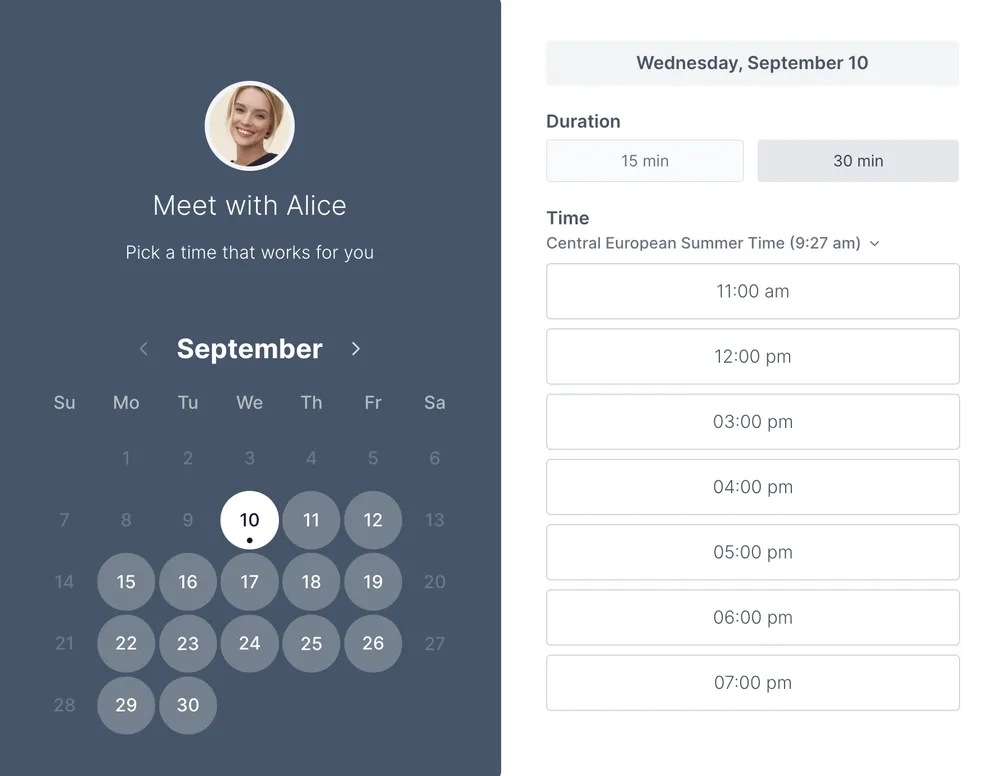
Google Appointments is a scheduling feature that lets you open time slots for clients to book directly using Google Calendar. Instead of back-and-forth emails about availability, clients visit your scheduling link, pick a time that works, and boom; it's on both your calendars.
It's as straightforward as it gets. You set your hours, build your own booking page, Google gives you a booking link, and clients pick a time. No new platforms to learn and no complicated setup.
- Who it's for: It’s ideal for solo consultants or recruiters who just need to book a few discovery calls or interviews a week. If you're running a high-volume studio or a team with complex shifts, you'll likely feel the limitations immediately.
- Who it's not for: Businesses managing high-volume client scheduling. Teams coordinating complex workflows. Studios, salons, and service-based businesses. Anyone who needs customized reminders, payment collection, or advanced reporting.
.png?w=2000&fit=max&auto=format)
How to create appointment slots in Google Calendar
Step-by-step setup
1. Open google calendar. Go to calendar.google.com and log in with your Google Workspace account.
2. Click the "+ create" button. In the left sidebar, you'll see "+ Create." Click it.
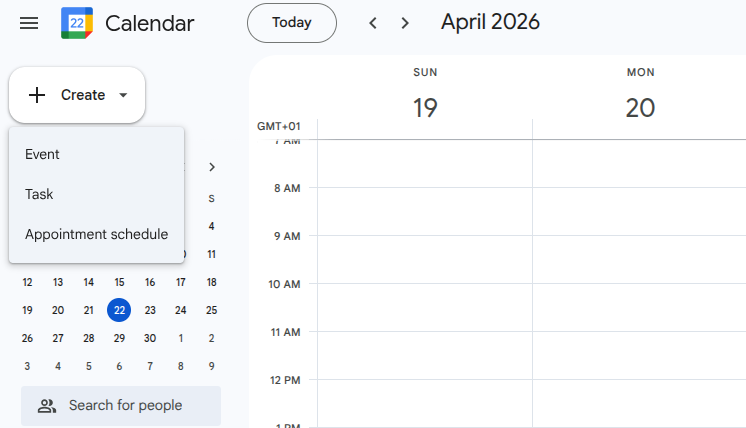
3. Select "appointment schedule". A dropdown will appear with options. Choose "Appointment Schedule."
4. Name your schedule. Give it a clear name. Examples: "Discovery Call," "Consultation Booking," "Coffee Chat." This is what clients will see, so keep it professional or friendly depending on your brand.

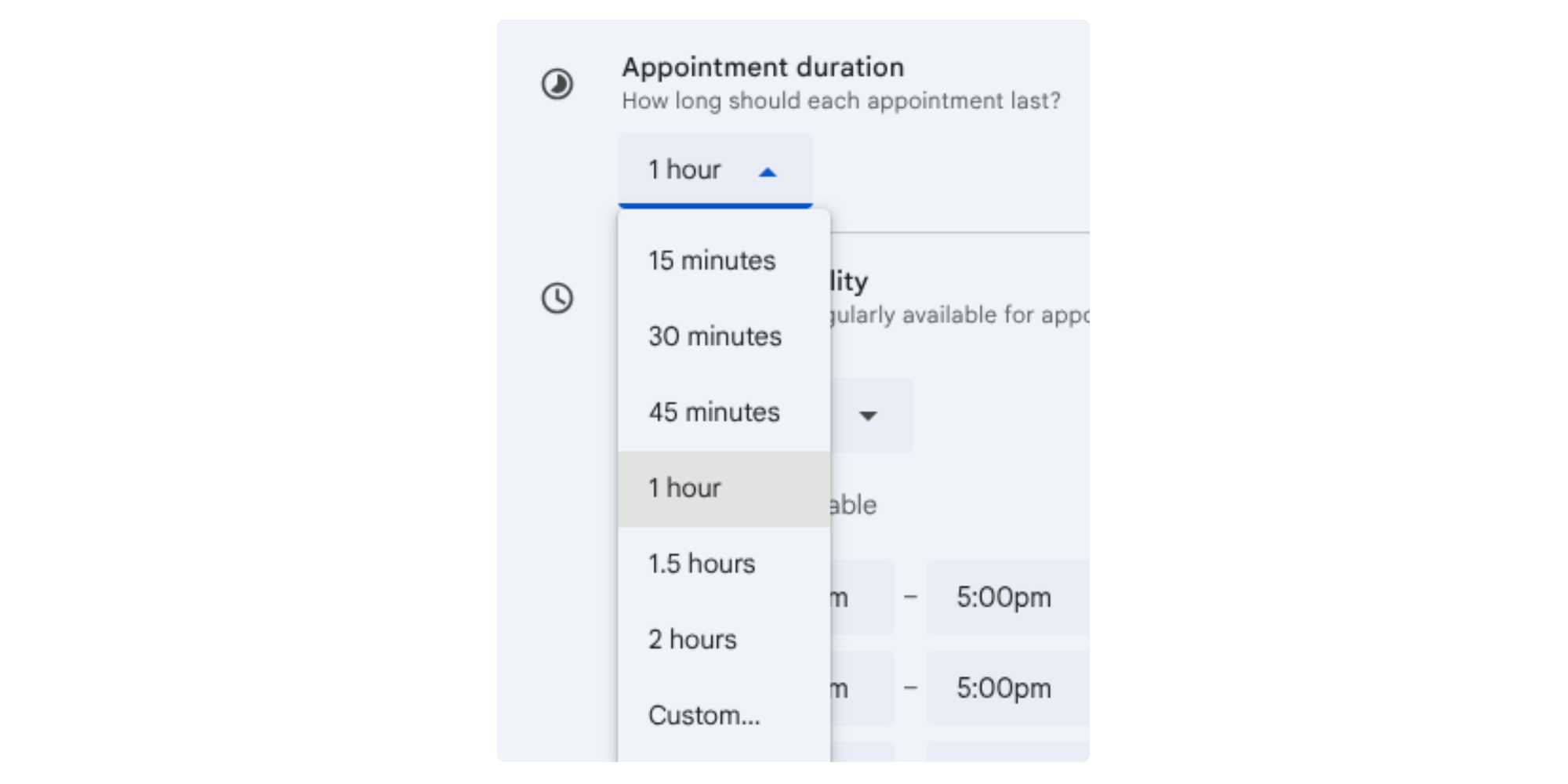
5. Set your duration. How long should each appointment be? 30 minutes for a quick call? 60 for a full consultation? Choose what works for your business.
6. Add your time slots. This is where you tell Google when you're available. You can set:
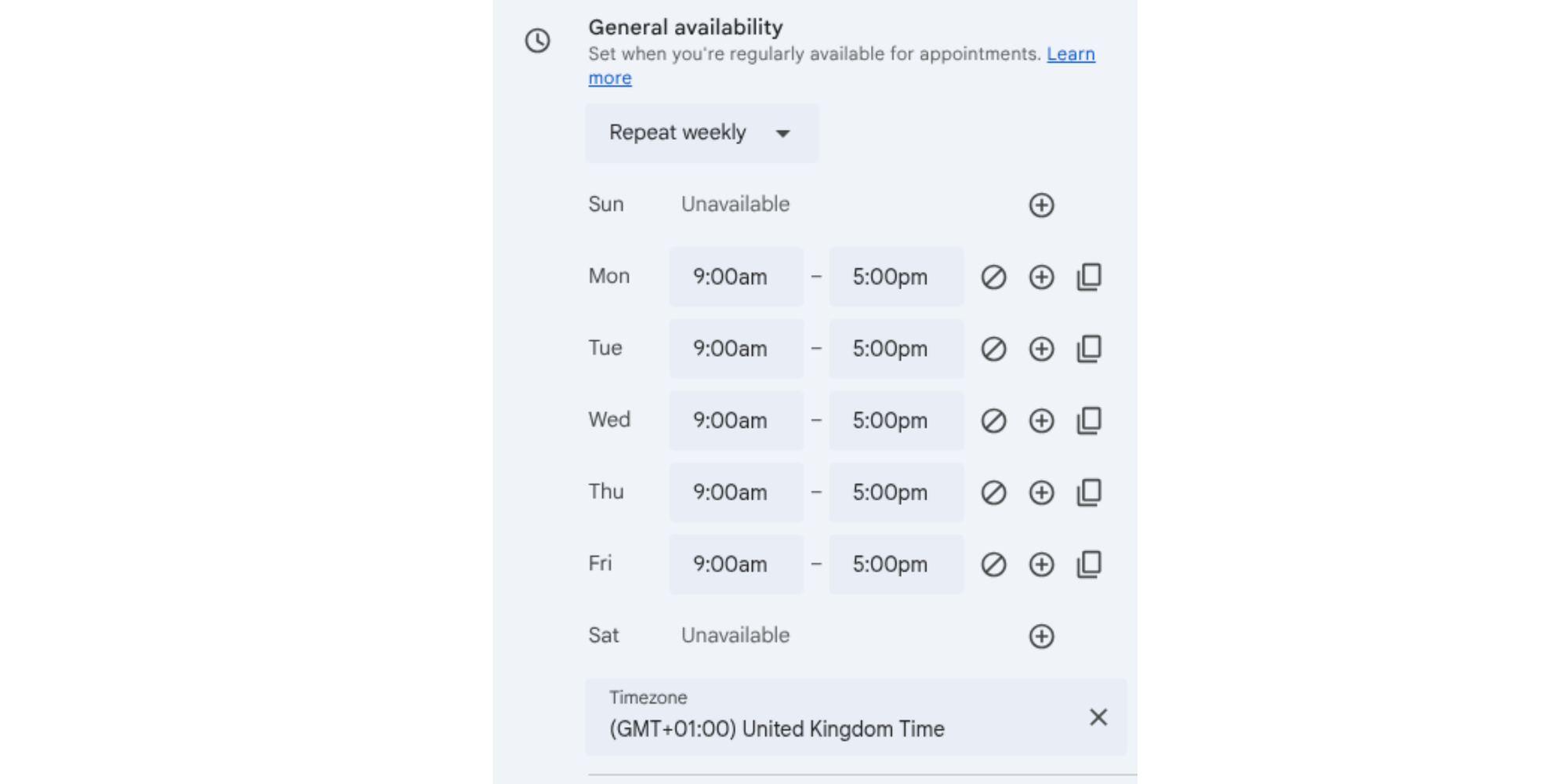
- Specific days and times (e.g., Tuesdays 2–5 PM)
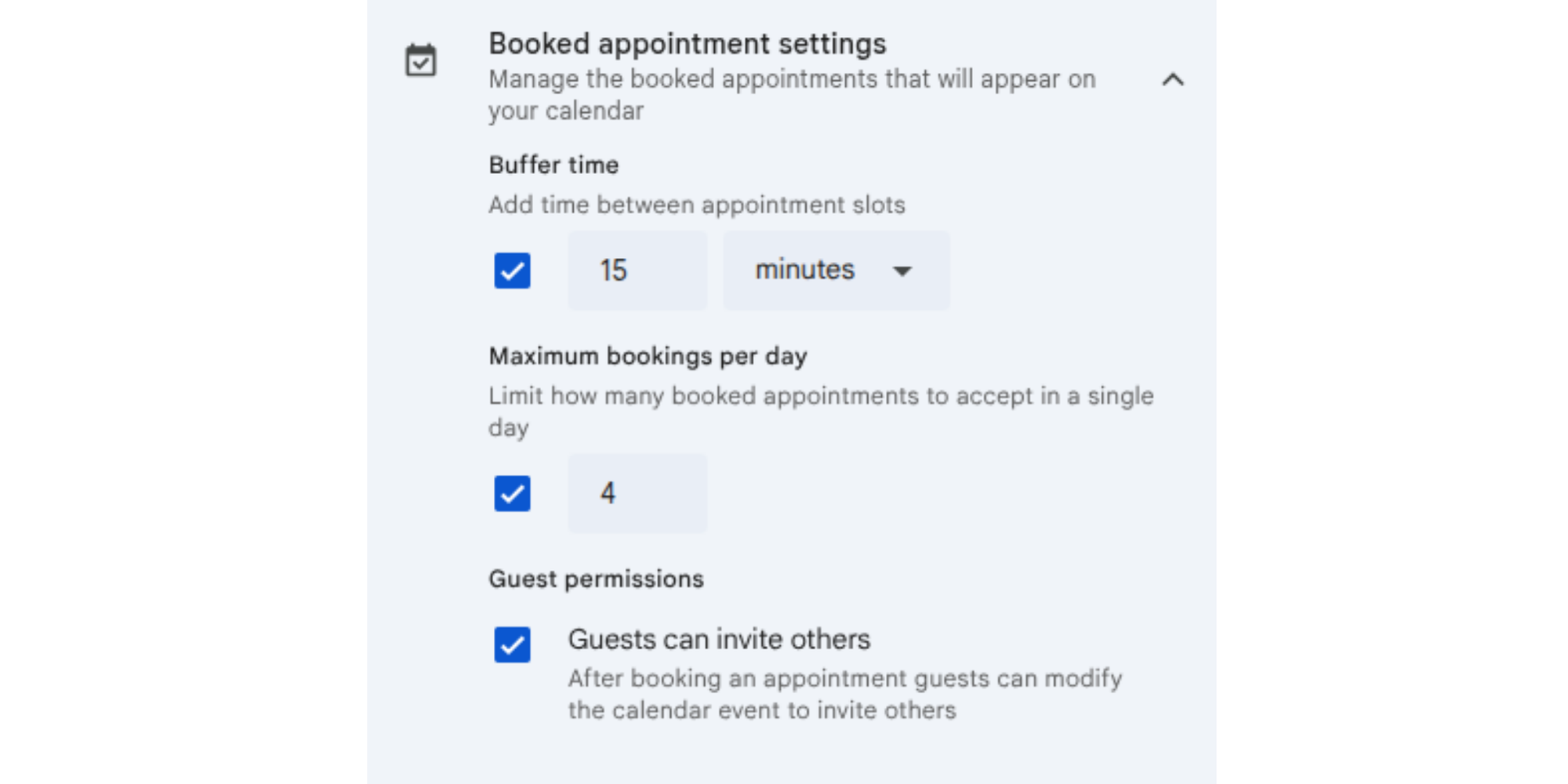
- Buffer time between appointments
- How many days ahead clients can book
- Time zone adjustments
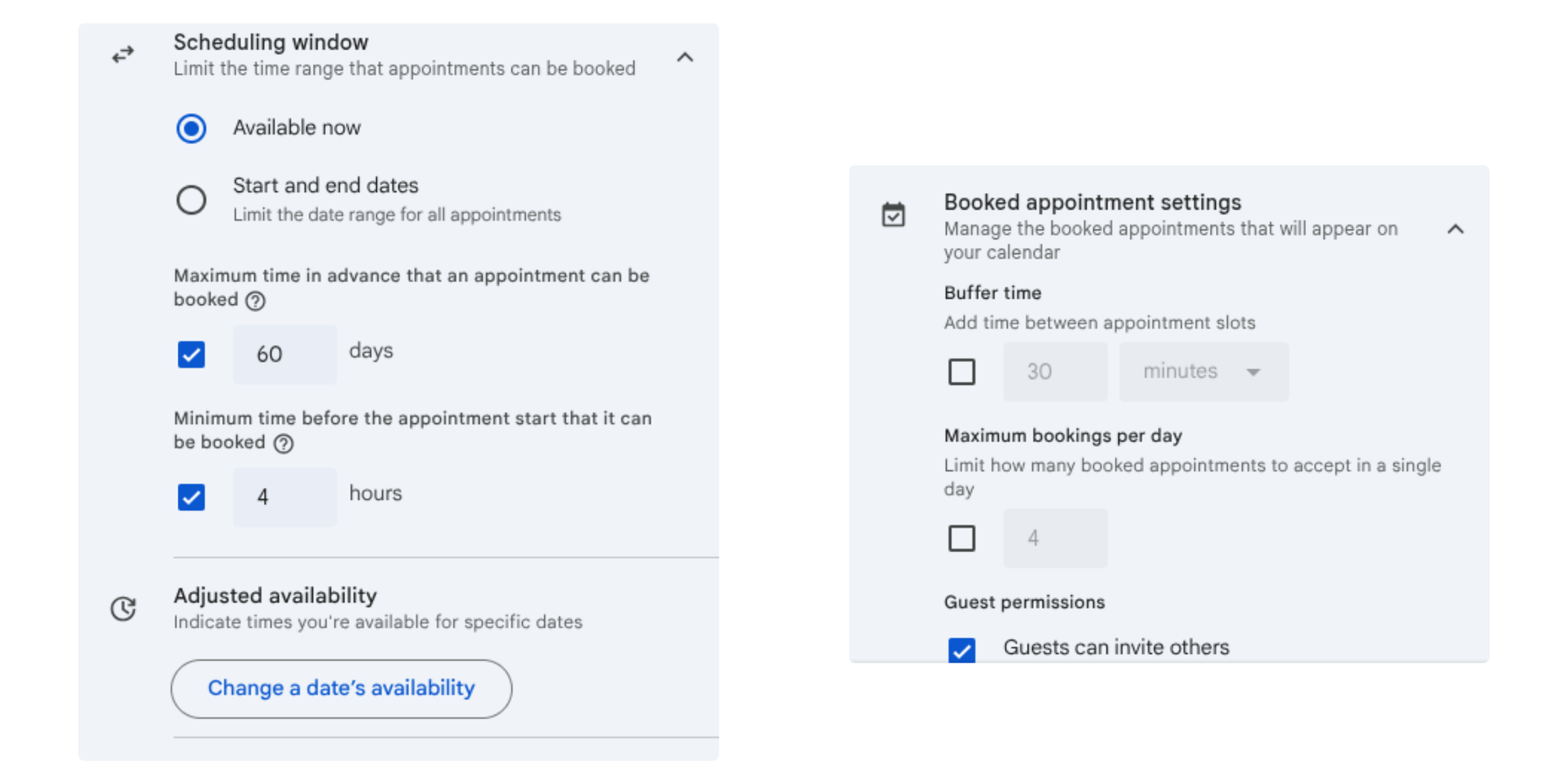
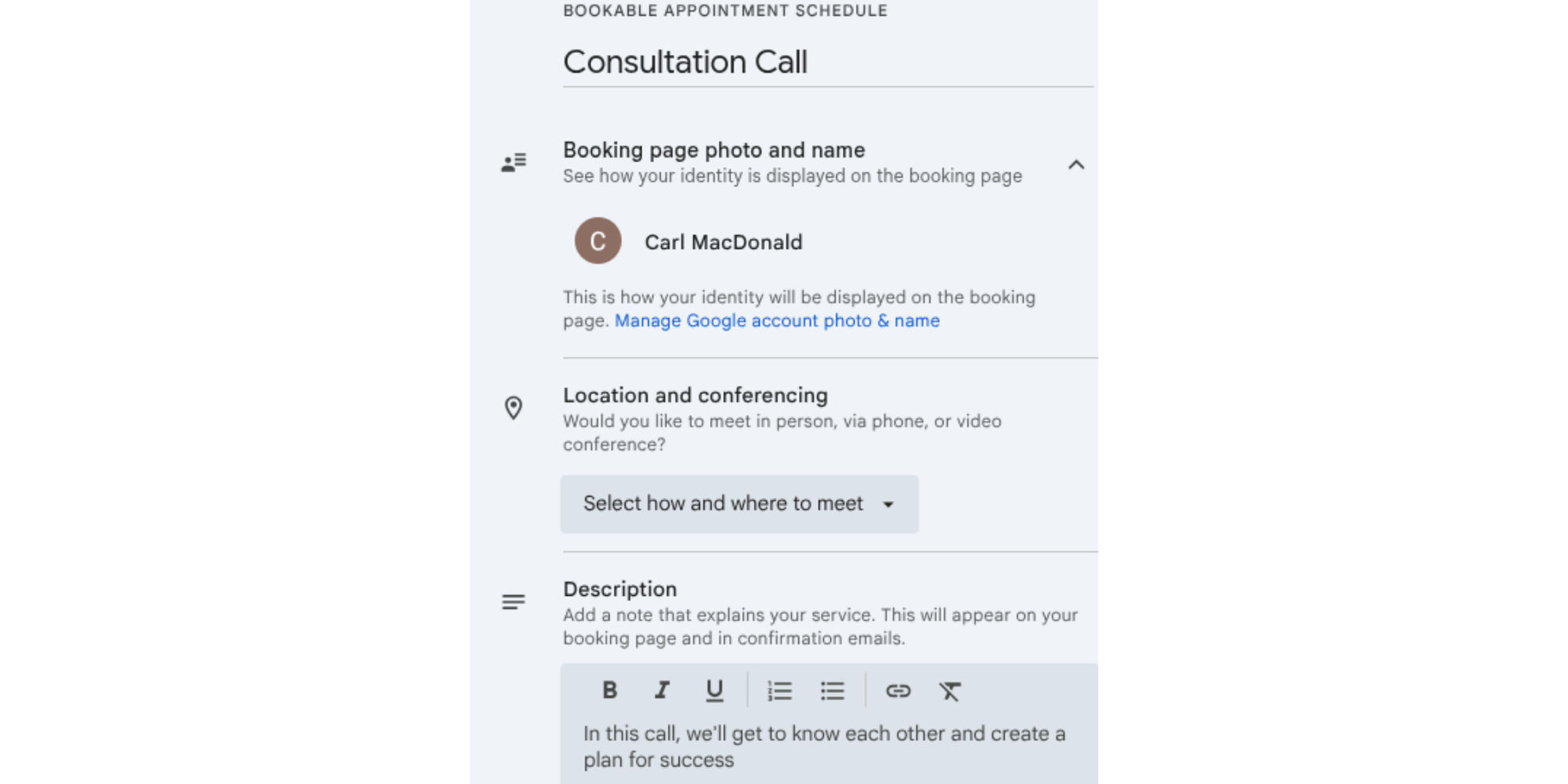
7. Customize your booking page (optional). Add a description, set a location or video meeting link (Zoom, Meet, etc.), and choose your color. Keep this professional but on-brand.
8. Save and share. Google generates a unique booking link. Copy it, and send it to clients via email, add it to your website, or drop it in your Instagram bio.

How to edit appointment schedule in Google Calendar
Once you've created an appointment schedule, you'll need to adjust it as your availability changes. Here's how:
Modify your availability
- Update time slots: Return to your Appointment Schedule, click "Edit," and adjust your availability. You can block off time for other commitments or open new slots when you're free.
- Change duration: If you realize 30 minutes isn't enough (or is too much), edit the appointment duration. This updates all future bookings automatically.
- Add buffer time: Got back-to-back clients all day? Add a 15-minute buffer between appointments so you can catch your breath and take notes.
Update existing bookings
- Reschedule a client: If a client needs to move their appointment, they can usually reschedule from their confirmation email. If they can't, you can manually reschedule in your calendar and notify them.
- Handle cancellations: If a client cancels, that time slot becomes available again. Google automatically re-opens it for other clients to book.
Limitations of Google Calendar appointment scheduling for businesses
Here's where it gets real: Google Appointments is free and straightforward, but it has hard walls. Remember, this is a built-in feature of Google Calendar, not a dedicated scheduling system. That creates limitations that specialized software addresses.
Limited customization
Google Calendar is a tool, but it isn't exactly a "branded experience." You can change a color or two, but you can’t fully customize the look to match your business. There’s also no way to customize questions or intake forms to match your business. If you need your booking page to reflect your brand (custom logo, color palette, messaging, etc.) you'll feel the limitation immediately.
Minimal automation
Appointment reminders? Google sends one or two automatic emails, and that's basically it. No SMS reminders. No custom follow-ups. No automated aftercare instructions or check-in messages. If you need to remind clients the day before, or send post-appointment follow-ups automatically, you're doing it manually or finding a workaround.
No team workflows
Google Calendar scheduling is solo-friendly. Managing a team is where it gets messy. Features like round-robin assignment aren't built-in, which leads to coordination chaos for sales or support teams. Different booking pages for different team members is doable, but messy, and admin controls for permissions are limited.
No client management beyond booking
Google Calendar doesn't build client profiles. You don't see booking history, notes, preferences, or communication history in one place. Everything is scattered across email, calendar, and notes. For a solo consultant handling five clients a month, that's fine. For a business managing dozens, it becomes chaotic fast.
Weak reporting
Want to see which time slots are most popular? Average booking time? Client conversion rates? Google Calendar doesn't provide any of this reporting. You'll have to manually track it (or not track it at all).
Google Calendar Appointments vs. appointment scheduling software
Google Appointments is a feature. Scheduling software is a system.
Google Appointments helps you manage your time within your existing calendar. Scheduling software helps others book it, and gives you the power to run a client-facing business around that booking.
 | Google Appointments (built-in feature) | Dedicated scheduling software | |
| Booking Links | N/A | Basic, limited customization | Fully branded, customizable pages |
| Automation | N/A | Limited reminders | Advanced workflows, SMS, custom follow-ups |
| Reminders | Basic calendar alerts | 1-2 basic emails | Automated + customizable (email, SMS, Slack) |
| Team Scheduling | Calendar sharing available | Limited | Full round-robin, role-based access, team coordination |
| Branding | N/A | None | Custom colors, logos, domain |
| Integrations | Google suite | Google suite only | CRM, Zoom, Stripe, Zapier, 50+ tools |
| Client Management | No | No | Full profiles, history, notes, communication logs |
| Payments | Not built-in | Stripe integration | Stripe, deposits, recurring billing |
| Reporting | Calendar analytics | Manual tracking | Dashboards, conversion rates, analytics |
| Scalability | Personal calendars | Low | Built for growth |
What this means in practice
If you're booking a few meetings, Google Calendar works. A freelance designer with three client calls a week? Set it and forget it.
If you're managing clients or scaling: You'll hit the walls fast.
A consultant with 20 clients per month quickly realizes they need intake forms, reminders, follow-ups, and client records, none of which Google Calendar provides well. A sales team trying to coordinate discovery calls across multiple reps finds team scheduling is painful. A service business (salon, tattoo studio, coaching) realizes payment collection and no-show prevention are essential.
It’s at this growth stage you might start to look at Google Calendar alternatives or supporting software to help manage your schedule more effectively.
Best appointment scheduling software for Google Calendar users
If Google Appointments’ limitations resonate with you, scheduling software built on top of Google Calendar is the natural next step.
You don't need to abandon Google Calendar. Most scheduling platforms integrate with it, syncing your availability in real time so your bookings don't collide.
You get the best of both worlds: Google Calendar stays your central calendar, but you add the power of a system built for client bookings.
What to look for:
- Real-time Google Calendar sync (no double bookings)
- Customizable, branded booking pages
- Automated reminders (email and SMS)
- Simple setup (no technical overhead)
- Free forever option to test before committing
Koalendar is a great option because it provides all of the above features, and you can be up and running and taking bookings to fill your schedule within minutes.
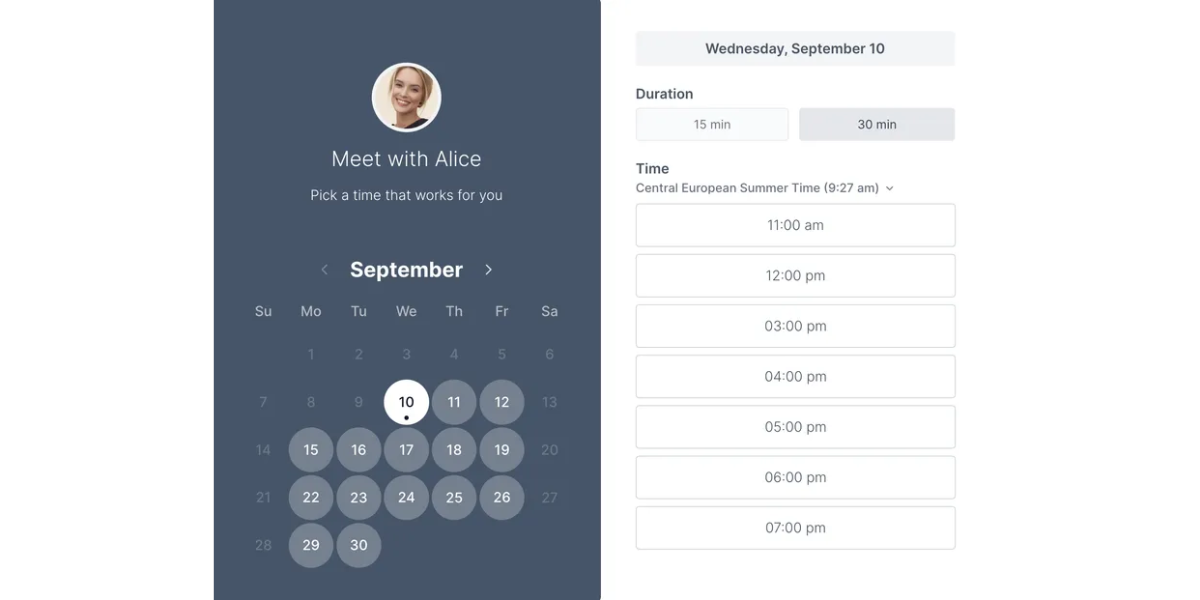
If you continue to grow and find you need more flexibility and features, the Pro plan is a very reasonable $6.99 per month, per user.
The best part is that Koalendar integrates with your Google Calendar, so there’s no need to switch to a new calendar tool.
When should you switch from Google Calendar and Google Appointments?
Your business is growing. That's great. Here's when it's time to upgrade:
Growth triggers
- You're sending manual reminder emails. If you're manually emailing clients to remind them of their appointments, scheduling software will save you hours. Automation pays for itself in the first month.
- Clients are no-showing. Automated reminders cut no-shows by 40%+. If missed appointments are costing you, this is your ROI.
- Your booking page doesn't match your brand. You've built a professional business, but your booking link looks generic. A custom booking page builds trust and reflects your identity.
- You're managing multiple people. If you're juggling different team members' schedules, assigning bookings, or trying to avoid double bookings, manual coordination is error-prone. Software with team tools fixes this.
- You need client history. You can't remember past interactions, preferences, or notes. A simple client profile system saves time and improves service.
- Payment processing is manual. You're sending separate payment links, hoping clients pay, and losing bookings to friction. Collecting deposits at booking protects revenue.
Business scenarios where you'll feel the difference
- Sales teams: Five reps, each booking discovery calls. Google Calendar = coordination chaos. Scheduling software with round-robin = smooth, fair distribution.
- Consultants: You charge for your time. Automated reminders reduce no-shows. A branded booking page looks professional. Client notes help you prep. ROI is clear.
- Service businesses (coaching, tattoo studios, salons): High-value sessions, client-specific notes (placement, preferences, allergies), deposits needed, team coordination essential. Google Calendar isn't built for this.
- Recruiting: Scheduling interviews across multiple interviewers, time zones, and stages requires coordination. Automated reminders and calendar sync prevent mix-ups.
Is Google Calendar enough for your business?
Google Calendar appointment scheduling is a solid starting point for solo work. But growth brings complexity. You don't have to ditch Google; you just need to layer on a system that automates the boring stuff.
Growth means more bookings. More bookings mean more complexity. More complexity means automation. Google Calendar can't automate client reminders, collect payments, manage teams, or build client profiles. It's not designed to.
It’s not about whether Google Calendar is "good." It is. The question is: Is it enough for what you're building?
If you're processing five bookings a month, yes. If you're processing fifty, no. If you're planning to scale, no.
What’s great is that you don't have to choose between Google Calendar and scheduling software. The best solutions integrate with Google Calendar, syncing your availability automatically, so you keep your central calendar and add the system to reduce your admin overload.
Make booking your time easier for your clients and customers
Stop chasing emails. Share your booking link and let clients schedule instantly.
If Google Calendar and Appointments limitations are slowing you down, try Koalendar free — no card needed.
You get a fully customizable booking page, real-time Google Calendar sync, automated reminders, and team scheduling. Keep Google Calendar as your central hub. Add Koalendar for the power.