
TL;DR
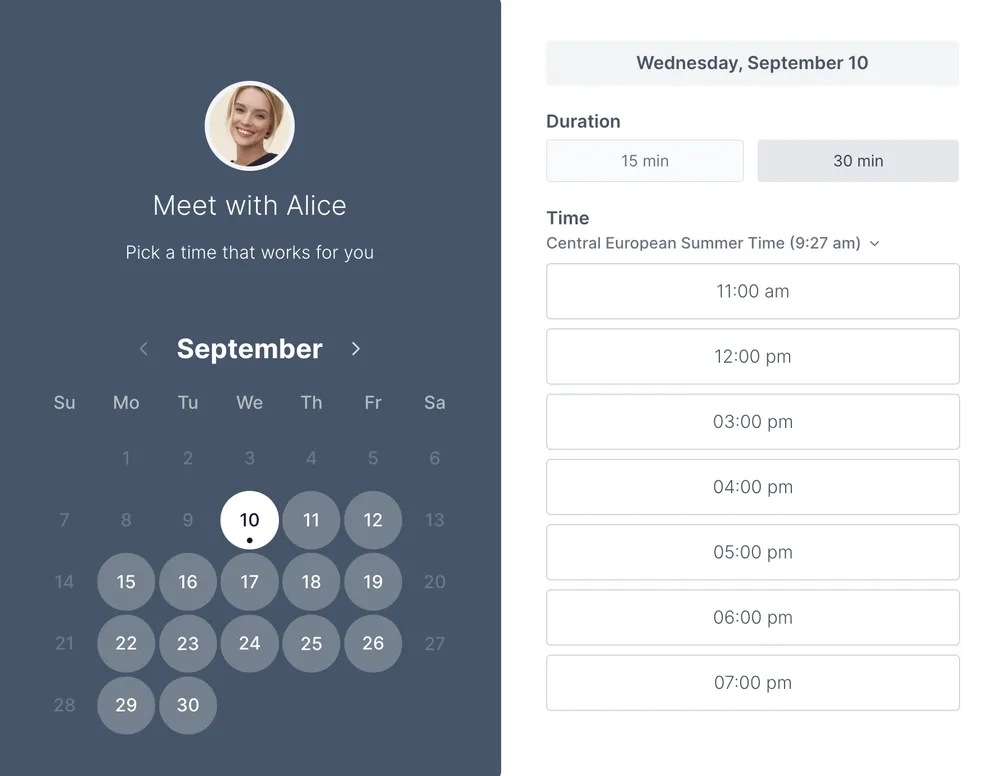
Instead of declining a clashing invite, you can propose a new time in Google Calendar: open it, click the down arrow by your RSVP, pick a slot, and send it for the organizer to accept or reject, the same on desktop and mobile, provided the organizer allowed guest edits, the meeting was made in Google Calendar, and no Workspace admin has blocked changes. A brief reason, a couple of alternatives, and an early reply keep the request professional, but because proposing only reacts to one clash at a time, anyone rescheduling often is better off sharing a booking link like Koalendar that lets people book from real availability and prevents most scheduling conflicts up front.
A meeting invitation lands at 2 pm, but you already have a call booked. Declining feels blunt and means the organizer has to do the work and propose another time. That can mean the meeting never happens, but Google Calendar has a better option built into the invitation itself. That's right, you can suggest a different slot without turning the meeting down.
Knowing how to propose new times in Google Calendar turns that awkward clash into a quick, polite reply. In this guide we'll start with the exact steps on desktop and mobile, then look at why the option sometimes goes missing, how to ask for a change without looking unprofessional, and how to keep these conflicts off your calendar in the first place.

How to propose new time in Google Calendar (step-by-step)
To propose a new time in Google Calendar, open the meeting invitation, click the down arrow next to your RSVP, select 'Propose a new time,' choose an alternative slot, add a note if needed, and send the suggestion. The organizer can then accept or reject your proposed time.
Here is what is happening when you do that. The 'Propose a New Time' feature allows attendees to suggest an alternative meeting time without declining the invitation. The organizer receives the proposal and can accept or reject the suggested schedule. The steps take about ten seconds once you know where the option lives, and the path is slightly different on desktop and mobile.
On desktop
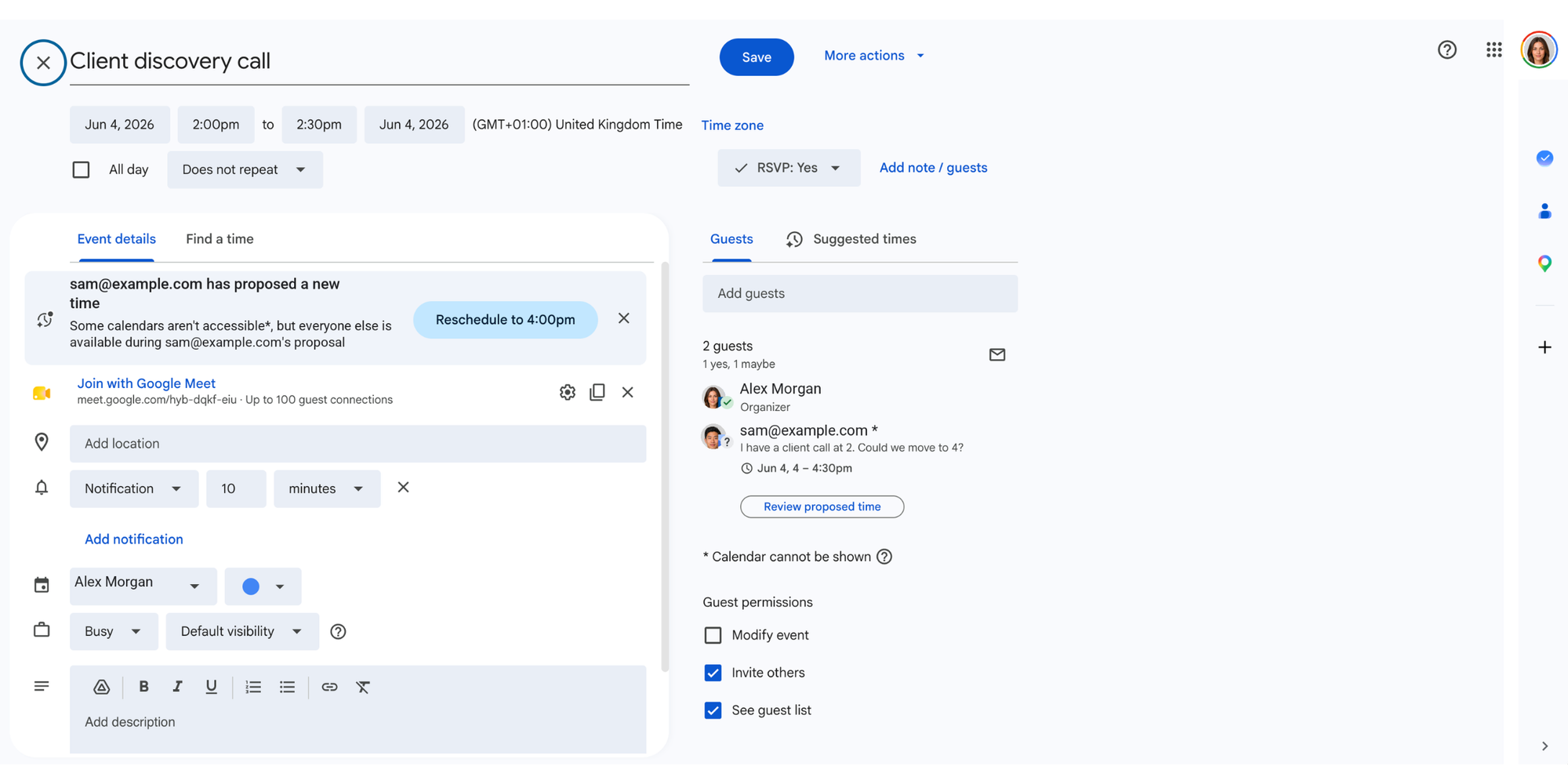
Open Google Calendar in your browser. From there:
- Open the calendar invitation.
- Next to your RSVP, click the down arrow.
- Select "Propose a new time."
- Choose a new time slot.
- Add a note.
- Send your proposal.
The proposal control sits next to your "Going?" response, so if you can RSVP to the event, it is usually right there. You can see the same path on screen in Google's guide to responding to invitations.
On mobile
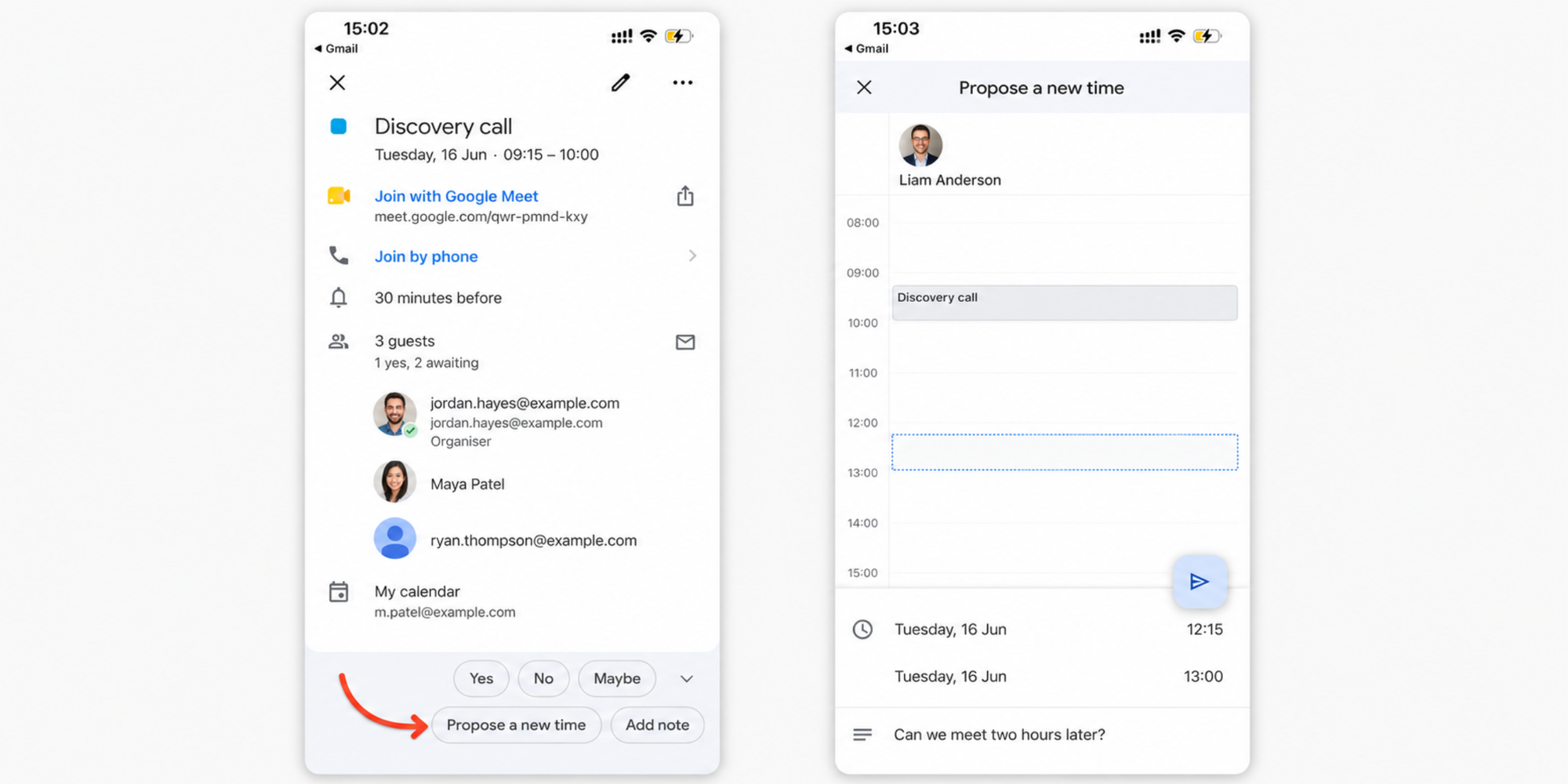
The Google Calendar app follows the same logic with fewer taps. Open the event, scroll to the "Going?" response area, and tap "Propose a new time." Pick your new slot, add a short note so the organizer has context, and tap "Send proposal." It works the same way on iPhone and Android, which makes it handy when an invite arrives while you are away from your desk.
Why can't I propose a new time in Google Calendar?
The feature may be unavailable if the organizer disabled attendee modifications, the meeting was created through another platform, or your Google Workspace settings restrict attendee changes. The option is conditional by design, so when it goes missing there is almost always a specific reason. Here are the three you will hit most often.
Meetings created outside Google Calendar
If the invite started in Outlook, a video tool, a CRM, or an imported .ics file, Google Calendar is only showing it to you, not powering the responses behind it. The proposal option only appears for events Google Calendar actually owns. The same goes for all-day events and very large meetings, where the feature is switched off. When you cannot propose, a short reply with two suggested times does the same job.
Organizer restrictions
Every organizer sets guest permissions when they create an event. If they did not allow guests to modify the meeting, the proposal control stays hidden for everyone they invited. This is where meeting organizer controls decide what attendees can do, so the fix is on their side, not yours. Worth knowing too: organizers cannot propose a new time to themselves. They edit the event directly instead.
Google Workspace settings
Inside a company that runs Google Workspace, an administrator can restrict attendee changes across the whole organization, which overrides the individual event. If the option is missing on every invite you get at work, this is the likely cause, and your admin can check the Google Workspace calendar permissions. On a personal Gmail account none of this applies, which is why the same feature can behave differently at work and at home.
What happens after you send the request
Your proposal does not move the meeting on its own. The organizer gets an event notification showing your suggested time, and they choose to accept or reject it. If they accept, Google Calendar updates the event automatically for every guest, so nobody has to resend an invite.
One detail trips people up: for recurring meetings, a proposal applies only to the single instance you are looking at, not the whole series. Until the organizer responds, the original time stands.
Best practices when requesting a different meeting time
A proposal is a small ask, and a little care makes it read as organized rather than flaky. These three habits cover most of the professionalism worry.
Include a reason
One line of context is enough: "I have a client call then, could we shift later?" The organizer does not need your life story, just a reason that signals the request is genuine and not a brush-off.
Offer multiple alternatives
When you can, suggest more than one slot. A single counter-proposal can miss the organizer's availability and start another round, while two or three options usually land on the first try and cut the scheduling delays that come from trading messages back and forth.
Respond quickly
Reply while there is still room to move things. Proposing a new time the day before a meeting leaves the organizer scrambling, and it raises the odds of missed appointments. A quick response gives everyone time to re-plan calmly.
Google Calendar's limits for frequent scheduling changes
Proposing a new time is a good fix for the occasional clash, but it is reactive. It only helps after a conflicting invite already exists, and the cost climbs the more you lean on it. Every reschedule on a recurring meeting has to be handled one instance at a time, and every proposal adds another round of notifications and replies across the guest list.
Google's own Google Calendar training and productivity tips can sharpen how you run meetings, but they cannot change the basic shape of the feature: it waits for a conflict, then asks you to negotiate your way out of it. For anyone rescheduling several times a week, that adds up to real scheduling delays.
A better way to avoid scheduling conflicts
Google Calendar's propose-a-new-time feature is helpful when conflicts happen. But if you are regularly rescheduling meetings, a scheduling tool like Koalendar can remove most of that back-and-forth by letting people book available times from the start. Instead of sending an invite and hoping it fits, you share a link to your real availability, and the other person picks a slot that already works for you.
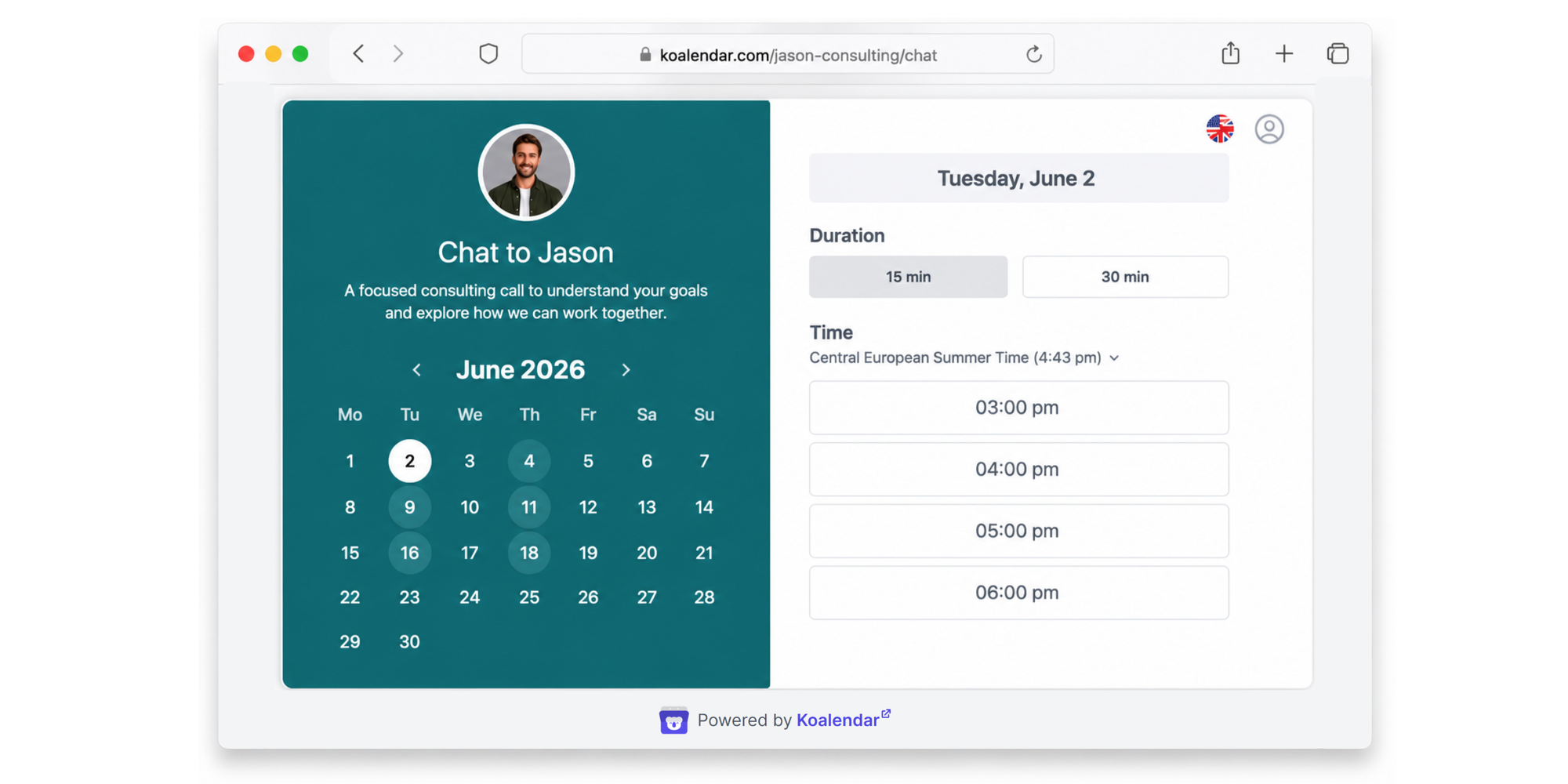
That one change flips scheduling from reactive to set-and-forget. Your booking page is open around the clock, so people can lock in a time whenever they think of it, with no per-booking fees and no cap on how many bookings you take. The result is fewer conflicts to untangle, because the bad slots were never on the table.
Google Calendar vs scheduling software for managing meetings
Both approaches get a meeting on the calendar. The difference is how much manual coordination each one asks of you, especially once your week fills up.
Manual rescheduling
With Google Calendar alone, you are the scheduling engine. You send invites, watch for conflicts, propose new times, and wait for accept-or-reject decisions on each one. It works fine for a handful of meetings, but it leans on meeting invitations going back and forth until everyone lands on a slot.
Automated scheduling links
A scheduling link does the negotiating for you. People see only the times you are genuinely free and book one directly, which is where scheduling links save the most time.
Koalendar keeps that availability accurate with calendar sync across Google, Outlook, and iCloud, so a slot disappears the moment it fills. The free plan connects up to two calendars for conflict checking, and more than that is on the paid plan, so you can sync your Google and Outlook calendars and stop worrying about double-bookings. Automatic time-zone detection shows each visitor their own local time, which quietly prevents the most common cross-region mix-ups. You can also build in buffer times between meetings, so the booking page leaves a gap to breathe instead of stacking calls back to back.
Reducing back-and-forth emails
The biggest win is the emails you never send. Instead of trading three or four messages to find a time, you share one link and the booking confirms itself. That alone can reduce scheduling conflicts for teams that live in their inbox, and it frees up the time those threads used to eat.
A better alternative for small businesses
For a small business juggling client meetings, the math gets more obvious. Every manual reschedule is time a team member is not spending on the work itself.
Bruin, a lean data-platform start-up, puts numbers on that. Before Koalendar, its co-founders lost hours to back-and-forth Slack threads over the ten to fifteen external meetings they run each week. Their story of simplifying multi-calendar scheduling with Koalendar shows what changed once they switched to Koalendar booking links. People now pick a time from the right availability and reschedule themselves from the link, while the founders run all three of their calendars from one place and save roughly three to five hours a week.
“Finding a good time to meet is very difficult, so the benefit of Koalendar is having a shared calendar, with the right availability, where people can choose their preferred date and time from."

Sabri Karagönen
Co-founder at Bruin
Share availability instead of rescheduling
When clients book from your real availability, most reschedules never need to happen. They choose a slot that already fits your calendar, which feels effortless on their end and adds up to an improved client experience, all without trading times. When a change is genuinely needed, clients can reschedule themselves from the same page, always against your real availability, so the new time still works for you without a single email. A shared booking page also scales in a way manual invites cannot, so adding more clients does not mean more coordination.
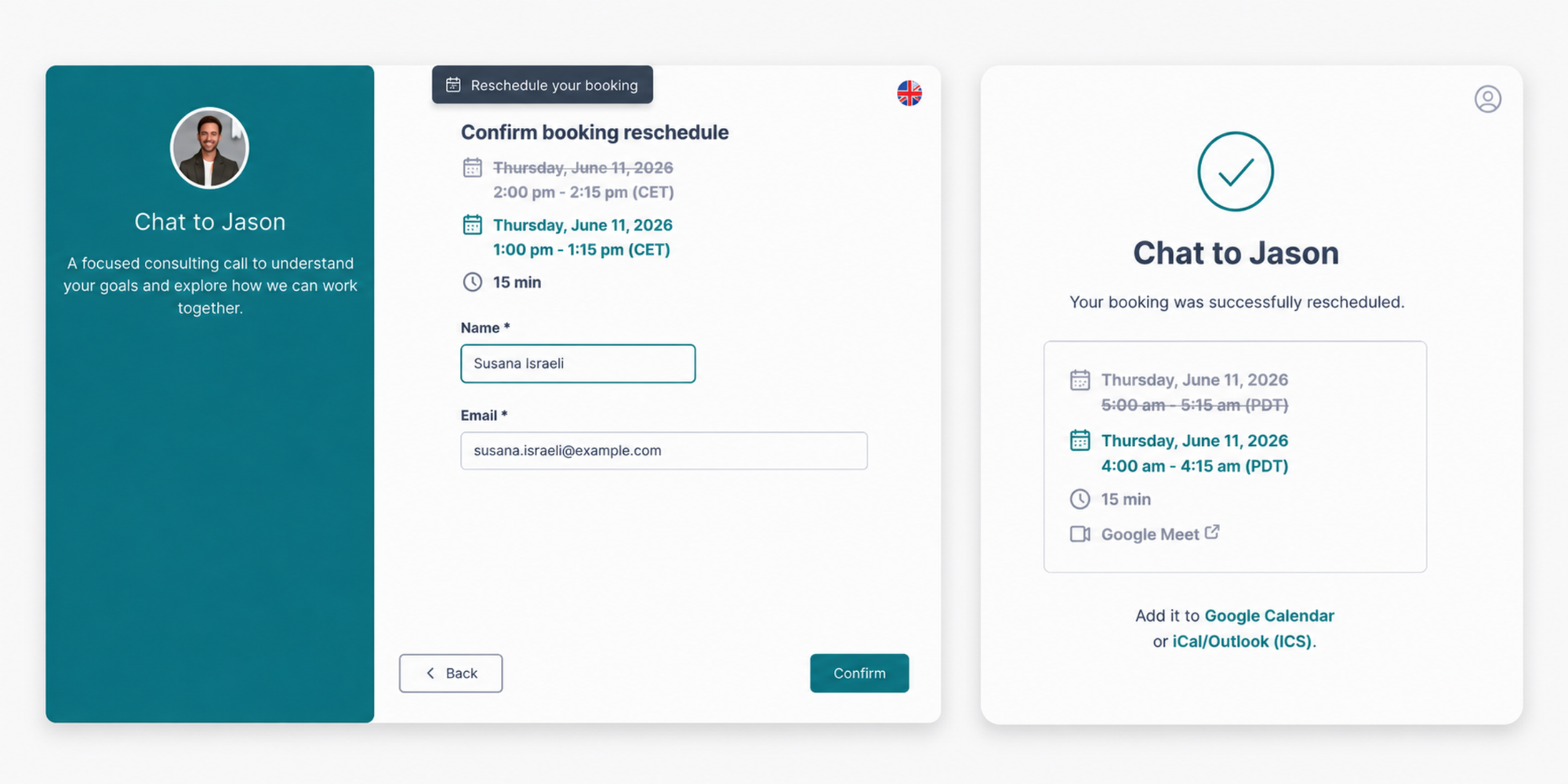
How Koalendar automates scheduling
Koalendar gives each person or team a booking page that handles the busywork. Bookings are unlimited on the free tier, calendars stay in sync so conflicts are caught automatically, and automatic time-zone detection is included at no cost. Automated email and SMS reminders, available on the paid plan, cut down on missed appointments by nudging clients before the meeting. The same plan also lets you brand the booking page with your own logo and colors, so it reads as part of your business rather than a generic form. If you want a head start, grab this free guide to automating Google Calendar scheduling.
Conclusion
Learning how to propose a new time in Google Calendar is worth it for the occasional clash. A few clicks and a polite note can save you from declining a meeting outright and help everyone find a better slot.
But if you’re proposing new times every week, the problem isn’t your response, it’s the scheduling process. Google Calendar helps you fix conflicts after they happen. Koalendar helps you avoid them before they land on your calendar.
With Koalendar, you share one booking link connected to your real availability. Clients, candidates, parents, or teammates choose a time that already works for you, while calendar sync, buffer times, time-zone detection, and automated reminders keep everything running smoothly. No guessing. No email chains. No double-bookings.
So use Google Calendar’s propose-a-new-time feature when a meeting clash slips through. But when you’re ready to stop rescheduling the same meetings again and again, Koalendar is the easier way to stay booked without the back-and-forth.