TL;DR
Merging Google Calendars means combining events from multiple calendars or accounts into one unified view so you can manage meetings, appointments, and availability more easily. Fewer double bookings, fewer missed meetings. The fastest way is to share one calendar with another Google account. For bigger setups, an .ics export-import or a sync tool works better.
You have a personal Gmail and a work Gmail. Maybe a client account too. Each runs its own calendar, and none of them know what the others are doing. Double bookings happen, the apology emails pile up, and the calendar chaos builds into real fear of missing an important meeting.
That chaos traces back to one problem, your calendars cannot see each other. The fix is to merge them. This makes your calendars aware of one another and means those double bookings will fade, along with that nagging worry that you forgot something.
Merging can look complex, but it is more approachable than it looks, and the right path comes down to one question. Do you just want everything in one view, or do you need your accounts to truly stay in sync?
Why people merge Google Calendars
Most people who type "how to merge google calendars" into a search bar want one of three things: one place to see everything, no double-booking when someone tries to schedule with them, or a clean separation between work and personal with visibility across both.
Knowing which of those you need shapes the right approach, so it is worth pinning down your issues before you change calendar settings. The three situations below are where most people have problems.
Managing work and personal schedules
Plenty of people keep work and personal on separate Google accounts on purpose, and for good reason: it stops a Saturday hike from cluttering the work view and keeps a client from ever glimpsing a dentist appointment.
The separation is not the problem. The problem is that the two accounts have no idea the other exists, so the only way to know whether Thursday at 4pm is genuinely free is to open both and compare them by eye.
What you want here is rarely one blended calendar. It is a single screen where work and personal sit side by side, each still labeled and owned by its own account, so you can take in every commitment at a glance without the two ever bleeding into one another. That distinction decides your method. If you only need to see the other calendar, a one-directional share keeps the wall up while handing you the full picture; you only need something heavier the moment you want to create and edit events across both.
Avoiding double bookings
A double booking rarely means you were careless. It almost always means two calendars could not see each other at the moment that mattered. One client books you for 2pm on Tuesday through your work calendar; another books the same slot through a personal one, and because neither calendar knows the other exists, both invitations look perfectly fine right up until the day arrives and two meetings want the same half hour.
Merging your calendars solves one half of this straight away. Once every commitment shows up in a single view, you stop double-booking yourself, because you can spot the clash before you confirm anything.
The harder half is the booking someone else makes against you. Stopping a client from grabbing a slot that is already taken on another calendar means those calendars have to check one another the instant a booking comes in, not simply sit next to each other on your screen. That is the line between a combined view, which is plenty for many people, and true sync, which the rest of this guide builds toward.
Keeping client meetings organized
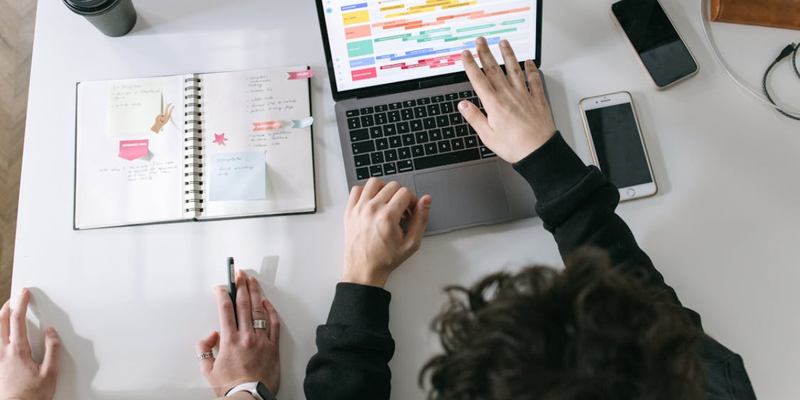
Client work never sits in a single neat pile. A normal week threads together discovery calls, project kickoffs, weekly check-ins, and deliverable reviews, often for several clients at once, and each of those deserves to stay recognizable rather than dissolve into a generic block of busy. The point of combining calendars is to see all of it in one timeline, not to flatten it into a single undifferentiated stream.
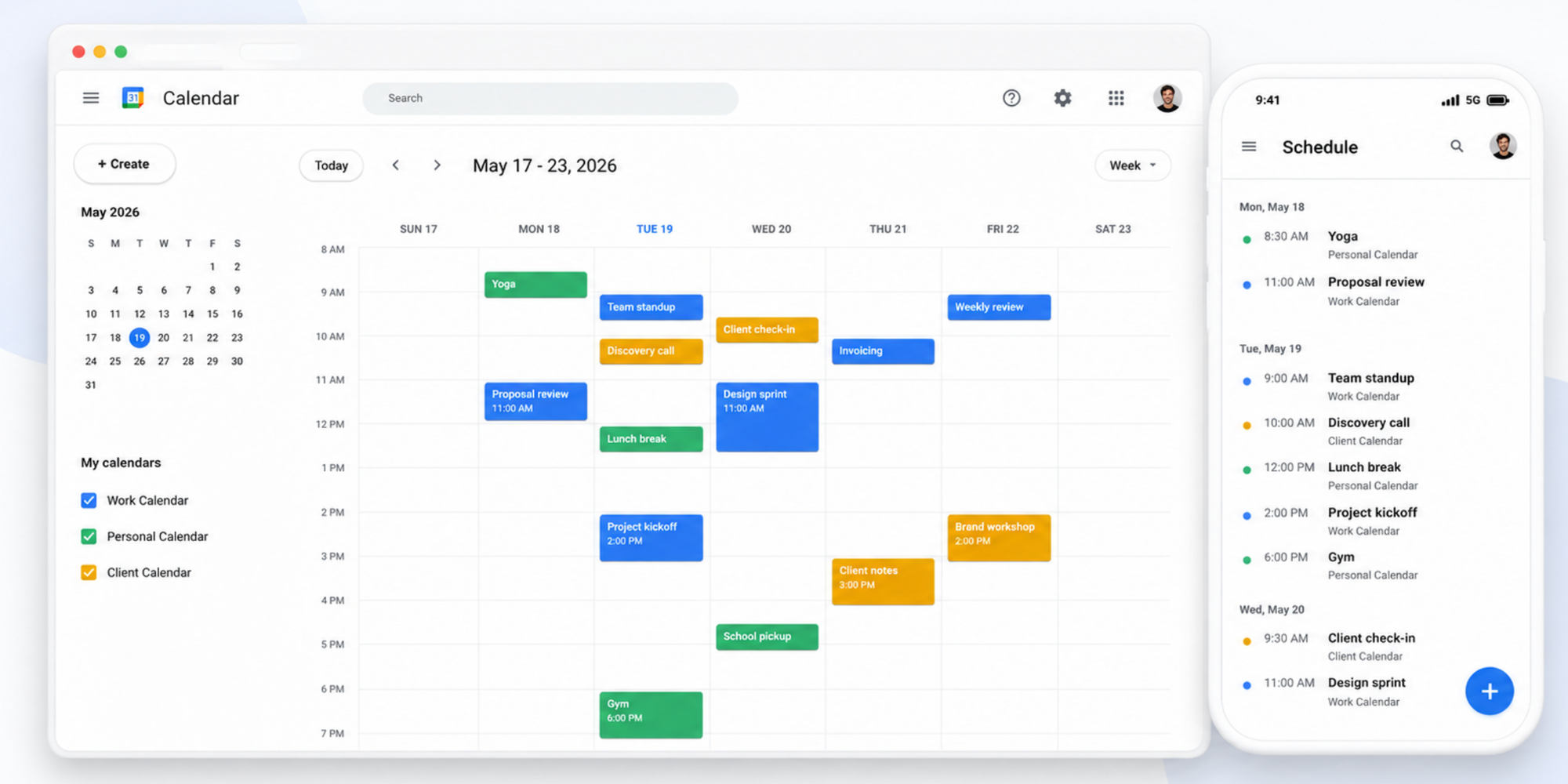
The way to get both is to keep the calendars themselves separate, one per client or per kind of work, and bring them together only at the view layer. Overlay them on one screen, give each its own color, and you get a timeline that answers two questions at once: what is next, and who it belongs to. Glance at Tuesday and you can tell that the blue 10am is a discovery call for one client and the orange 2pm a kickoff for another, without opening anything to check.
How to merge Google Calendars from different accounts
If you own multiple Google accounts, you have three paths for combining their calendars. Each solves a different problem.
Option 1: Share one calendar with another account
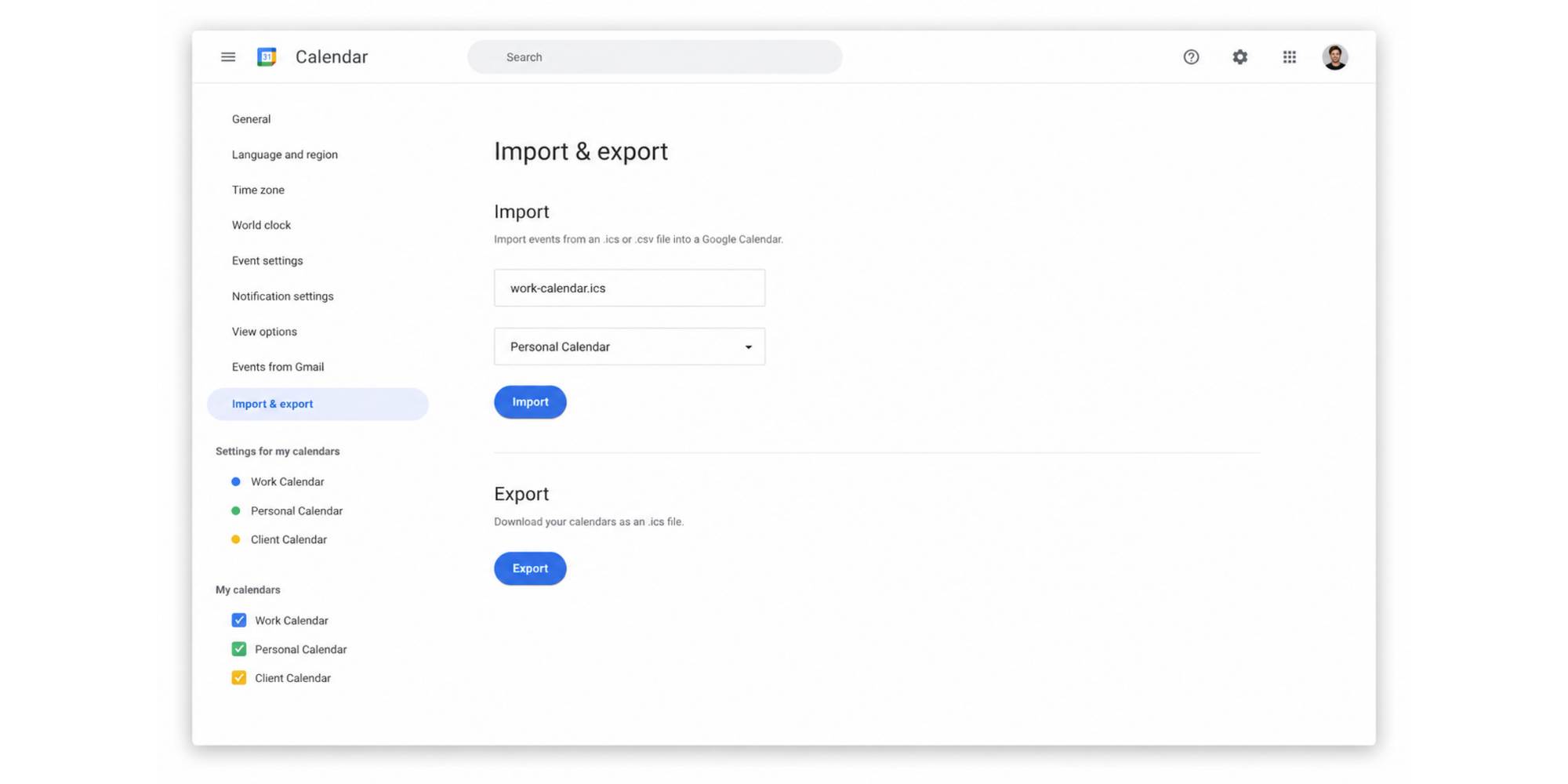
Sharing is the lightest-touch option and the one most people should try first. To set it up:
1. From the source account, open the calendar's settings under "My calendars."
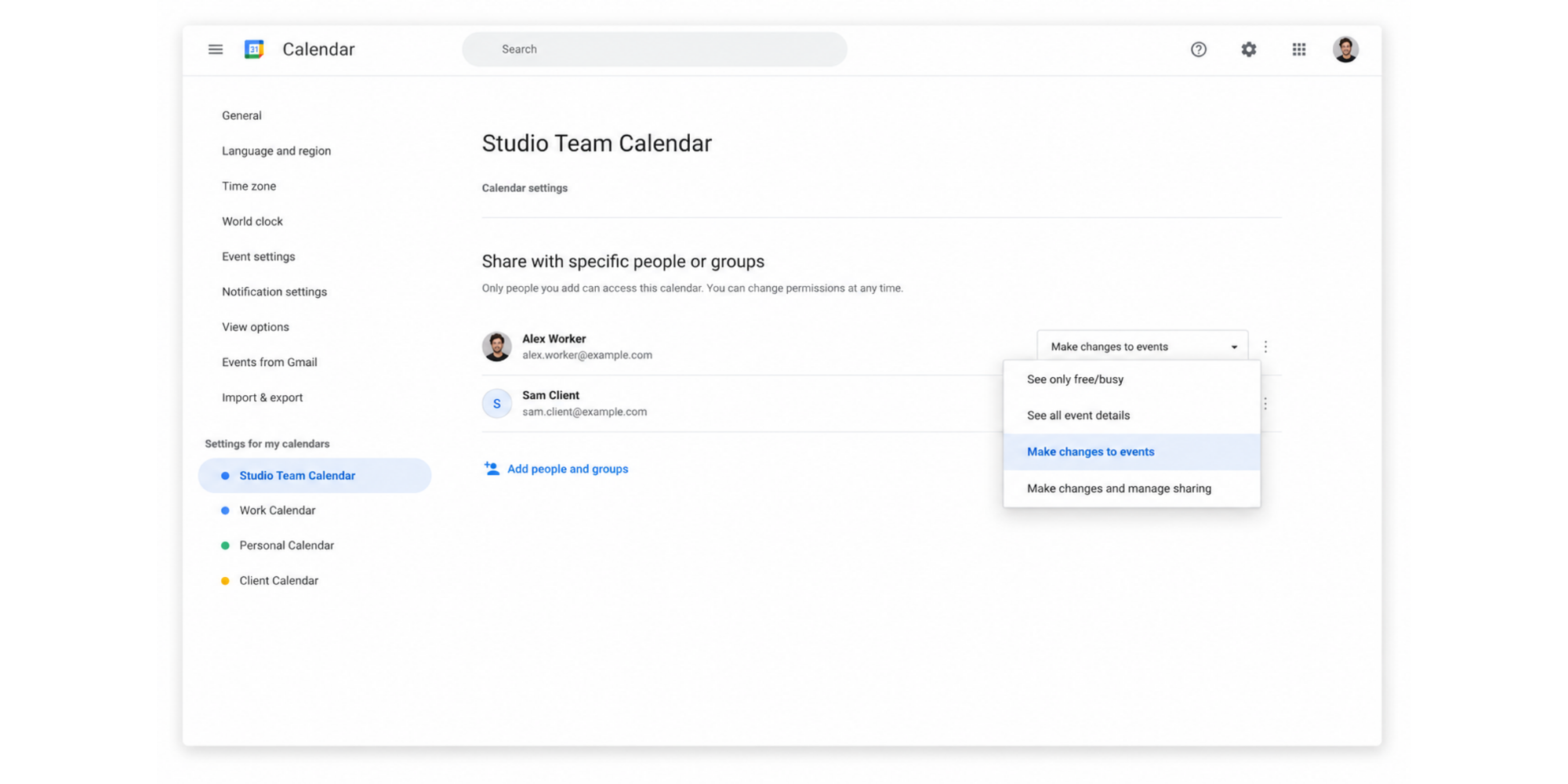
2. Under "Share with specific people or groups," add the destination account's email.
3. Pick a permission level (see only free/busy (hide details), see all event details, make changes to events, or make changes and manage sharing) and save.
4. On the destination account, click the email link Google sends. The calendar appears under "Other calendars."
Google's documentation on sharing your calendar covers this path. The original account still owns the calendar; the destination is just looking through a window.
Option 2: Export and import calendars
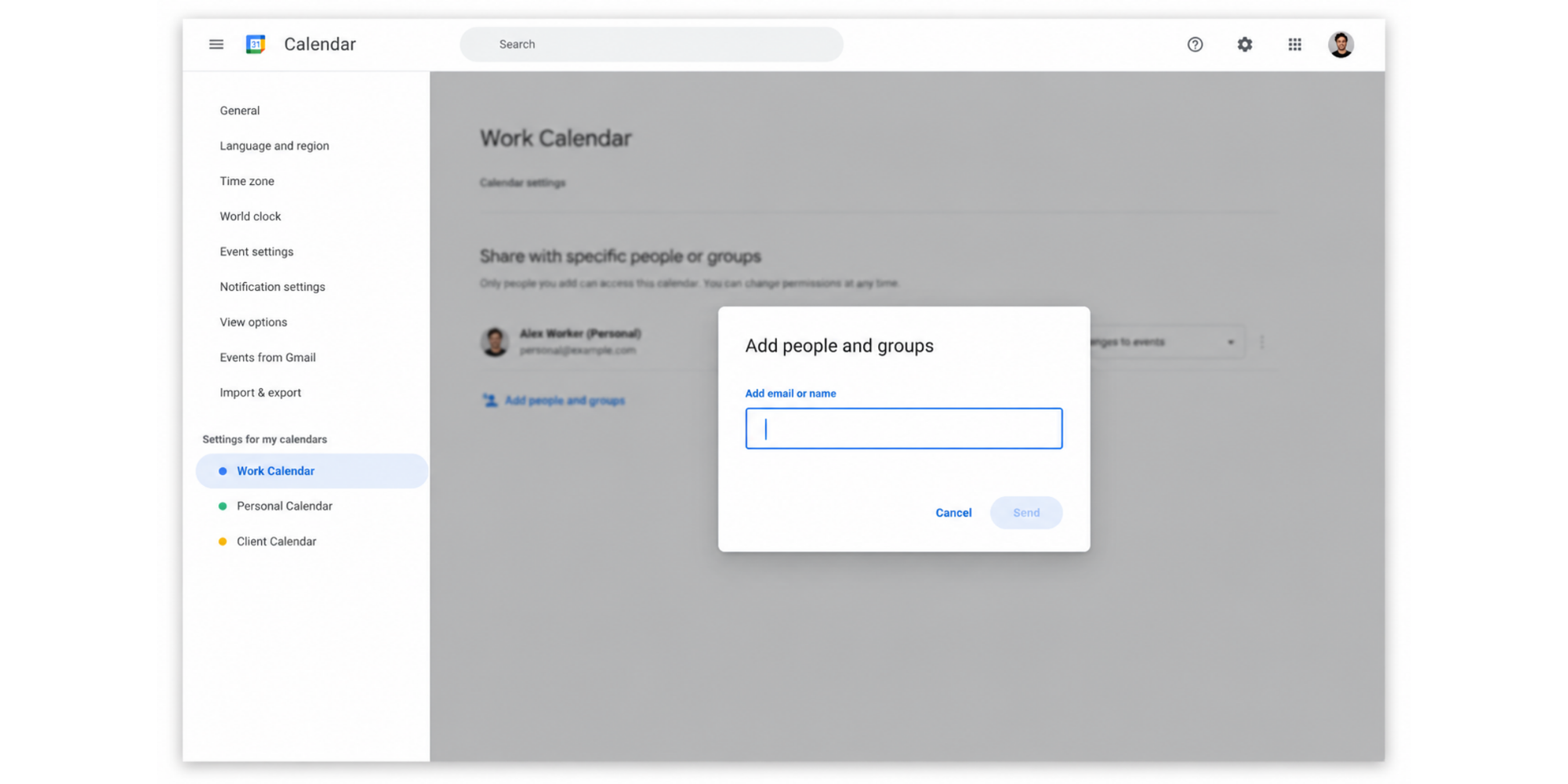
If you want the destination account to actually own copies of the events, export and import does that. The brief steps:
1. Open Google Calendar
2. Go to Settings
3. Export your calendar
4. Import it into another calendar
5. Enable sync and sharing settings
6. Check for duplicate events
In practice: Settings, then Import & export, then Export produces a .zip with one .ics per calendar. From the destination account, Settings, Import & export, Select file, choose the target calendar, Import. Google's documentation on importing events supports .ics and .csv. Important: import is a one-time copy. New events added after the export will not appear in the destination unless you export again.
Option 3: Use calendar sync tools
Sharing and import each solve one half of the problem. Sharing gives ongoing visibility but does not move ownership. Import moves ownership but is a snapshot. If you want events to mirror across calendars over time, and especially if you want anyone outside to book you against your real availability, you need a calendar sync tool that connects all your accounts and keeps them in step.
How to combine Google Calendars into one view
Combining and merging are close cousins but not the same thing. When you want to combine calendars from different accounts into one workspace, combining keeps each calendar in its own home and displays them together. For a lot of people that is the whole answer.
Overlaying calendars in Google Calendar
In a single Google account, every calendar under "My calendars" or "Other calendars" can be toggled on or off in the same view. Check the box next to two or three calendars to overlay them in the main grid. Events stay in their original calendars; they render in one chronological strip.
For two Google accounts, the cleanest setup is to share one account's calendars with the other (Option 1). Once accepted, the second account sees both sets and can overlay them. The mobile Google Calendar app also supports multiple accounts: add each in Settings and the app shows events from all of them in one timeline.
Color-coding multiple calendars
Color-coding turns the overlay into something useful instead of overwhelming. Click the three-dot menu next to any calendar in the side panel and pick a color. A useful pattern is one color per context: work in one, personal in another, client work in its own. The eye learns the pattern in a few days. Shared calendars from other accounts can be recolored on the receiving end without affecting the source.
Managing notifications correctly
Each calendar has its own notification settings. When you add a shared calendar from another account, Google sometimes defaults to the source account's reminder settings, which may not match what you want. Open the calendar's settings on the receiving side and adjust event notifications for new, all-day, and changed events. The goal is to avoid two pings from two accounts for the same meeting.
How to connect two Google Calendars automatically
Sharing and importing get you most of the way, but they are manual. Connecting calendars automatically means letting changes propagate without you doing anything when an event moves.
Syncing calendars in real time
Real-time sync inside Google's own world is mostly already done for you. Any change to a calendar shared between two accounts shows up on both sides almost immediately. The mobile app and the web app pull from the same backend, so editing on one device updates everywhere for both accounts.
What real-time sync does not do is bridge between Google and other services like Outlook or iCloud. For that you need either a manual export-and-import (a snapshot, not a sync) or a tool that sits between the two and mirrors changes both ways. Most people who say "I want my Google and Outlook calendars to sync" want two-way sync, and that is not a feature Google ships.
Using third-party scheduling tools
A scheduling tool sits in front of your calendars and presents one combined view to the world. Connect each account. The tool reads availability from every calendar at once, so the slots it offers respect every commitment you have. Bookings get written back into the calendar of your choice. This is the path most freelancers and small businesses end up on once they outgrow sharing and importing alone — our roundup of the best Google Calendar alternatives compares the main options side by side.
A good example is Bruin, a data platform company for modern analytics teams. As its co-founder, Sabri Karagönen, puts it:
“Finding a good time to meet is very difficult, so the benefit of Koalendar is having a shared calendar, with the right availability, where people can choose their preferred date and time from."

Sabri Karagönen
Co-funder at Bruin
Read the full Bruin customer story to see how they simplified multi-calendar scheduling with Koalendar.
Avoiding duplicate events
Duplicates usually come from a re-import. Re-importing the same .ics file can create duplicate events: Google's import flow does not flag previously-imported events, so they get added again. Duplicates also show up when the same event is created independently in two different calendars and then synced together.
How to merge two Google Calendars for teams
Teams change the problem. Now you are not just reconciling your own contexts; you are coordinating across people, each of whom has their own accounts, calendars, and habits.
Shared calendars for small businesses
The first move for most small businesses is a single shared business calendar. Inside the business's Google Workspace, or across Gmail accounts that have agreed to share, create one calendar the team can write to. Our shared Google Calendar guide for groups walks through the setup step by step.
Use it for client meetings, team-wide events, and anything more than one person needs to know about, especially the scheduling conflicts that hide between departments when each one is running its own calendar. Personal accounts stay private; the shared business calendar is the public face of the team's schedule.
Another Harvard Business Review article on hybrid work challenges cites Gallup research that teams with a formal collaboration plan are 66 percent more likely to be engaged at work and 29 percent less likely to be burned out. A good, functioning calendar goes beyond mere scheduling, it improves team morale.
Permission settings and visibility
Google offers four permission levels per person or group: see only free/busy (hide details), see all event details, make changes to events, and make changes and manage sharing. For most small teams the right default is "make changes to events" for everyone, with "make changes and manage sharing" reserved for the team owner. Sensitive personal events stay on individual personal calendars.
A small mistake worth avoiding: do not share a personal calendar at "make changes" level with the whole team just for visibility. Use "see all event details" or "see only free/busy" instead.
Best practices for collaborative scheduling
Three practices keep team calendars sane:
1. One business calendar, owned by the team. Everyone writes to it. No "I keep ours in my Gmail" arrangements.
2. Clear naming. Every event includes who, what, and where in the title, for example "Client X / Discovery call / Zoom" rather than just "Discovery."
3. Notifications scoped to the people who need them. If a meeting only involves two team members, only those two get the calendar invite.
Common problems when merging Google Calendars
Even with the right setup, things go wrong. Four common syncing problems catch people most often.
Missing events
The most common case is the export-and-forget trap. You exported your work calendar, imported it into your personal account, and assumed you were done. Three months later, the personal calendar shows none of the events added at work since the import. Import is a snapshot. The fix is to re-import periodically (painful) or set up a share instead. Events can also go missing because a share got revoked, so if a colleague's events stop appearing, check the share is still active.
Duplicate meetings
Duplicates show up in two patterns. First, when you and a meeting partner both add the same event to your respective calendars and then sync those calendars together: two copies appear because they have different event UIDs. Second, when an event is forwarded by email and accepted twice, once on each account, and both calendars now hold it. The fix is to delete one of the duplicates manually, then agree which calendar owns which type of event going forward.
Timezone issues
A 2024 Harvard Business Review piece on hybrid meetings flags scheduling complexity as a hidden cost of hybrid teams. Google Calendar handles time zones well for most events, but two cases trip people up: recurring events created in one zone and viewed in another, and iCal subscriptions where the source feed does not declare the time zone clearly. If a recurring meeting drifts an hour twice a year, the cause is almost always a daylight-saving transition combined with a mismatched zone in the event itself.
Sync delays
Sync delays are usually short, but updates can take a few minutes on very large or heavily shared calendars. If a colleague just added an event and you do not see it, give it five minutes. Still missing? Refresh the tab or restart the mobile app to force a sync.
A better way to manage multiple Google Calendars
Native Google Calendar features cover a lot. What they do not cover is letting other people see and book your real availability across every calendar at once. If you need to sync multiple Google calendars across accounts and turn that into availability management your clients can act on, a scheduling tool like Koalendar is the natural next step after merging — and pairs well with these Google Calendar tips and hacks once you have your setup in place.
How Koalendar syncs multiple calendars
Koalendar connects to Google, Outlook, and iCloud calendars. Once your accounts are linked through Koalendar's scheduling automation for Google Calendar, Koalendar reads availability from every connected calendar at the same time before offering a slot to anyone trying to book you. Multi-calendar sync is on the free-forever Koalendar plan, so you do not need to upgrade to get the core benefit.
Bookings land in the calendar of your choice, and external changes are reflected in Koalendar's available slots in real time. Setup takes a few minutes and does not need a credit card.
Preventing double bookings automatically
This is where conflict prevention stops being a manual habit and becomes a default of the system. If your personal Gmail and work Workspace account both connect to Koalendar, blocking Friday afternoon on the personal one means no one booking through your work page sees Friday afternoon as available. That alone reduces double bookings to near zero.
Automatic timezone detection handles the other side: a contact in Sydney booking a London-based agency sees slots in their local time and the meeting lands correctly on both calendars. The Koalendar guide on appointment scheduling software setup covers the end-to-end.
Automated reminder messages that nudge clients before a meeting are part of Koalendar's paid plan, separately from the free-tier confirmations that send when a booking is made.
Sharing booking links with clients
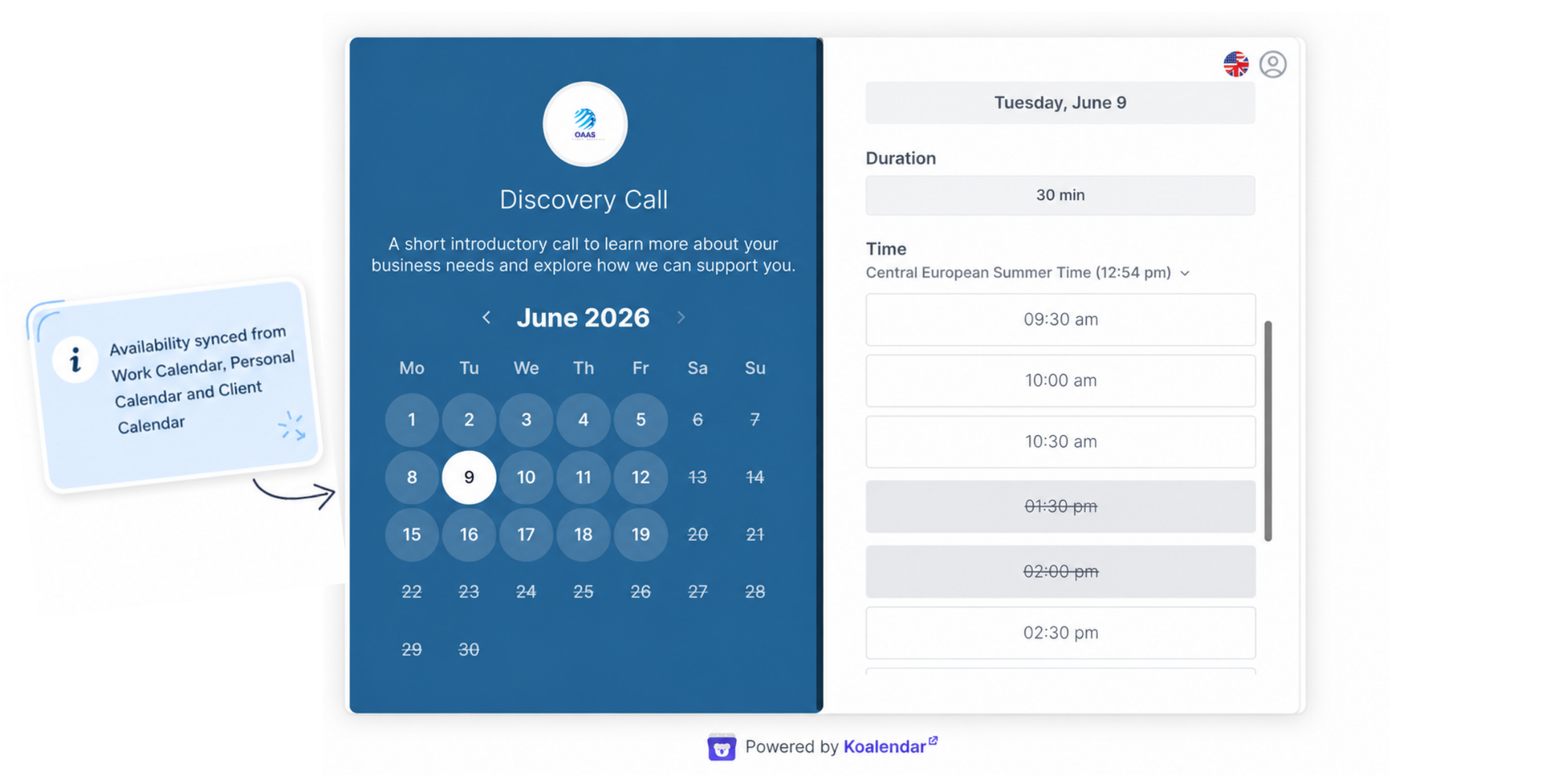
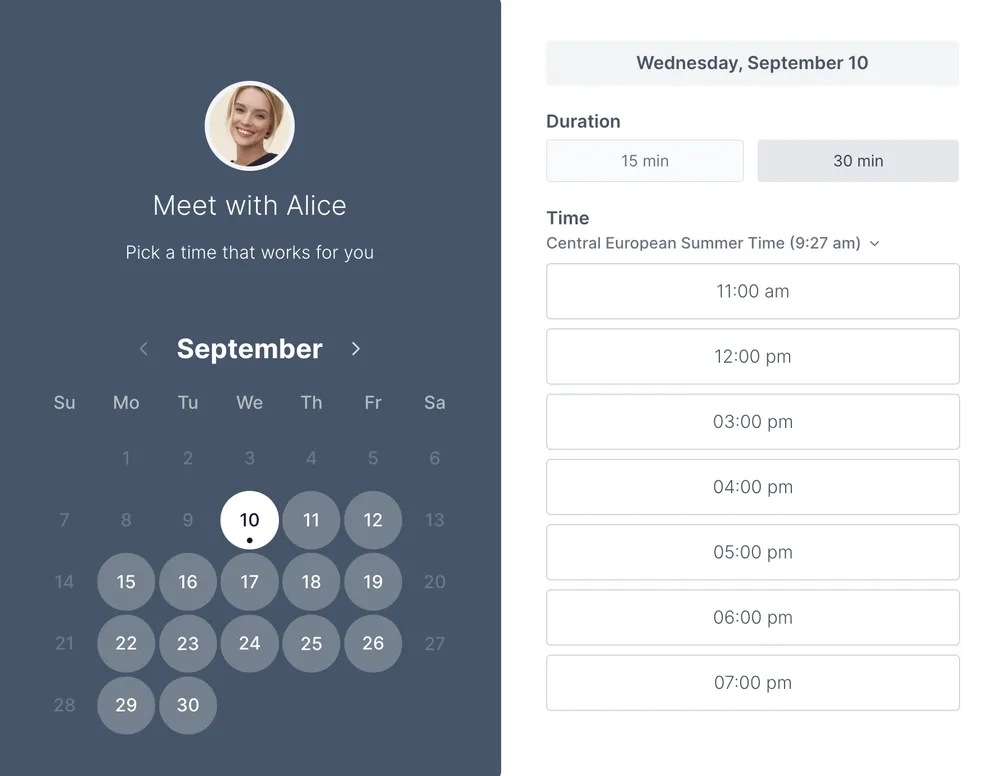
Instead of trading "when works for you" emails, you share a Koalendar booking page. Clients pick a slot that already respects every calendar you have connected, and confirmation emails go out automatically on the free tier. You can create separate booking links for different purposes (discovery calls, project reviews, office hours) with no cap and a scheduling app for freelancers on the free tier covers the same ground for one person.
Stop double bookings before they happen. Connect your Google Calendars to Koalendar and let clients book the right time automatically.
.png?w=2000&fit=max&auto=format)