
TL;DR
The iPhone Calendar app can work as a complete daily planner once you set up separate calendars, color codes, alerts, and recurring events. Use time blocking to schedule deep work, client calls, and admin tasks. Add buffer time between meetings, review your week every Friday, and lean on features like Focus mode and Siri shortcuts. For client bookings and automated reminders, pair Apple Calendar with Koalendar to remove the back-and-forth.
Between client deadlines, back-to-back calls, and a personal life, most freelancers and small business owners feel like they are one missed meeting from chaos. Luckily, your iPhone already has a powerful planner built in. You just might not be using it yet.
Learning how to use iPhone Calendar as a planner is one of the simplest productivity upgrades you can make. No new app to download, no learning curve, no monthly subscription.
Once you know how to use Apple Calendar properly, a few smart settings turn it into a daily planner that handles your work, your routines, and your client appointments without the chaos.
Here's the 6-step approach this guide walks through:
• Create separate calendars for work, personal, and clients
• Color-code each calendar so your week is scannable at a glance
• Set default alerts so you never miss a meeting
• Add recurring events for routines and check-ins
• Time block deep work, calls, and admin like you mean it
• Review your week every Friday to keep the plan honest
We'll cover the setup step by step, dig into time blocking and freelancer workflows, then show where an iCal planner reaches its limits and how to fill the gaps.
Why Apple Calendar works well as a planner
Before diving into setup, it helps to understand why the built-in app is worth your attention. Apple Calendar is not flashy, but it has the bones of a real planner if you know which features to use.
Here is the quick view of what it can do as a planner:
| Your need | Apple Calendar feature |
| Daily time blocking | Custom-length events and all-day blocks |
| Routines and rituals | Recurring events with daily, weekly, or custom intervals |
| Never miss a meeting | Default alert times and event-level reminders |
| Focused work time | Focus mode filters per calendar |
| Coordinating with others | Shared iCloud calendars with view or edit access |
| On-time arrivals | Travel Time alerts powered by Apple Maps |
Built into every iPhone
You do not need to install anything. The Calendar app is preloaded on every iPhone, iPad, and Mac, which means there is nothing extra to learn, sync, or pay for. For freelancers chasing productivity, or creative professionals planning their work week, that simplicity matters more than people admit. A planner you'll actually open beats a polished app you abandon in two weeks, every time.
Easy syncing across devices
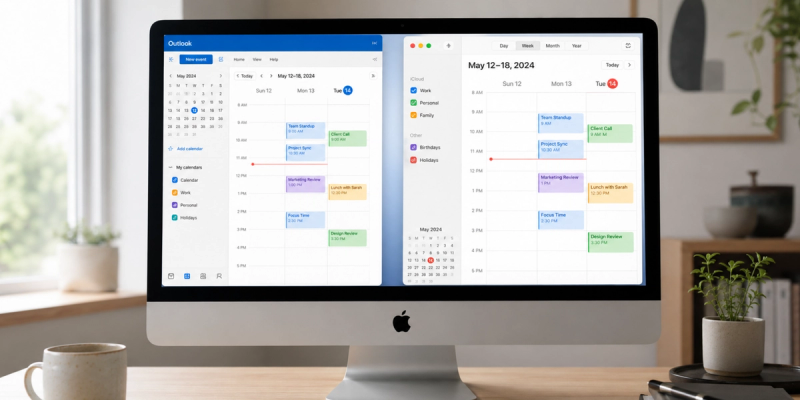
If you use iCloud, your calendars sync automatically across your iPhone, iPad, Mac, and Apple Watch, according to Apple's iCloud Calendar setup guide. You can also add Google, Outlook, or Yahoo accounts in Settings, Calendar, Accounts, which keeps work and personal schedules in one view. This calendar sync is what turns Apple Calendar from just another app on your phone into a reliable daily planning hub.
Better for time blocking than paper planners
Paper planners look beautiful, but they cannot drag, drop, or repeat themselves. Apple Calendar lets you block out time visually, reshape your day in seconds, and set events to recur every week, month, or custom interval. That flexibility is what makes it a strong fit for time blocking, the productivity method behind deep work and focused workflows. And the best part? It's already in your pocket.
How to set up iPhone Calendar as a daily planner
The default Calendar setup is fine for the occasional dentist appointment. To use it as a real planner, you'll want a tighter structure. Here's how to build one in just a few minutes.
Create separate calendars for work and personal life
Mixing everything into one calendar is the fastest way to lose track of priorities. Open the Calendar app, tap Calendars, then Add Calendar, and create separate categories like Work, Personal, Clients, and Admin, as outlined in Apple's multiple calendars guide for iPhone. This single change is what turns the app from a meeting list into a real Apple Calendar planner.
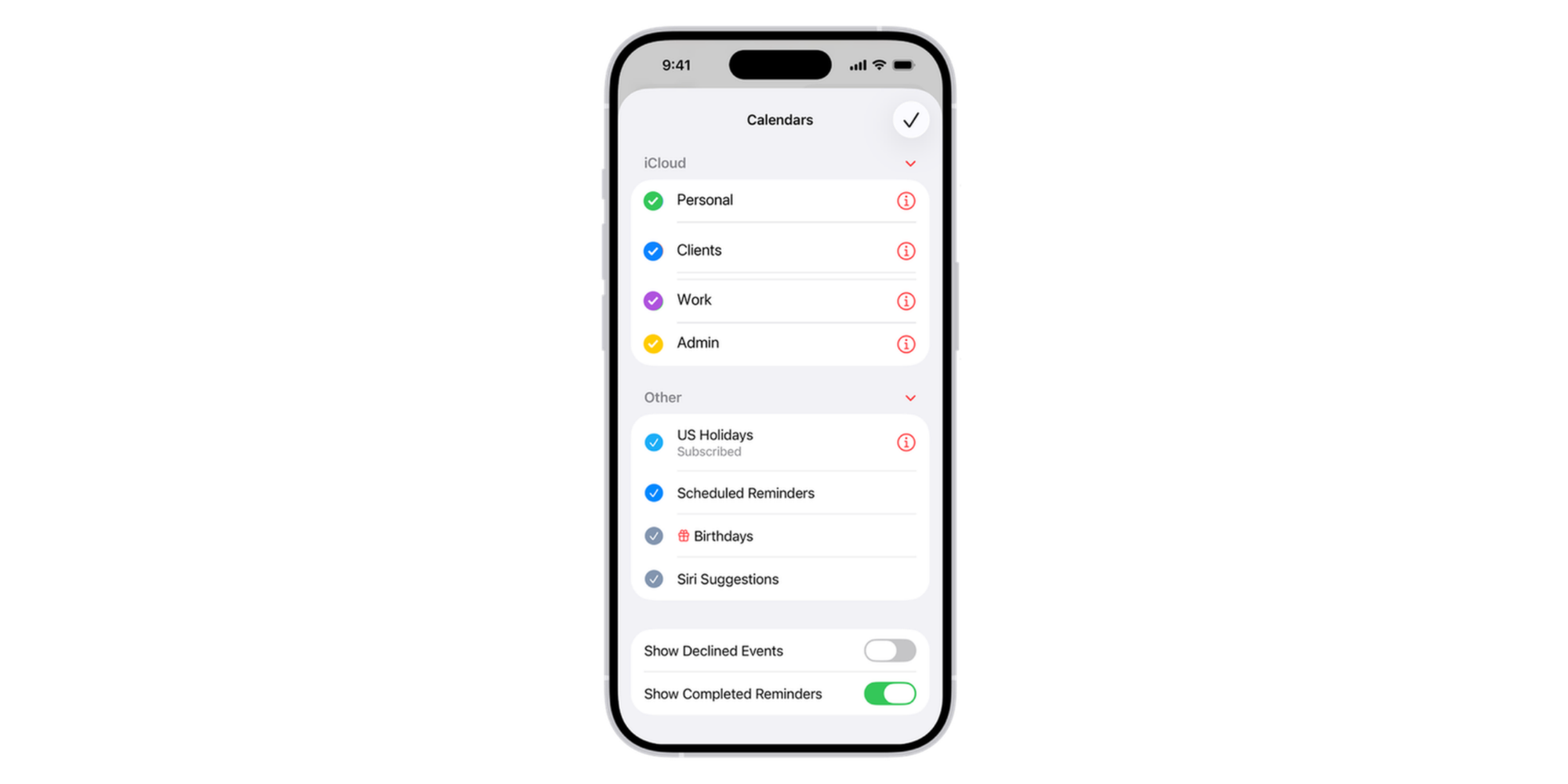
Use color coding to organize priorities
Colors make your week scannable immediately. Tap the i next to each calendar name and pick a distinct color. A simple system that works for most people: green for Personal, blue for Clients, purple for Work and deep work, and yellow for Admin. After a week of this, you'll be able to read your schedule without reading it, which is exactly the point.
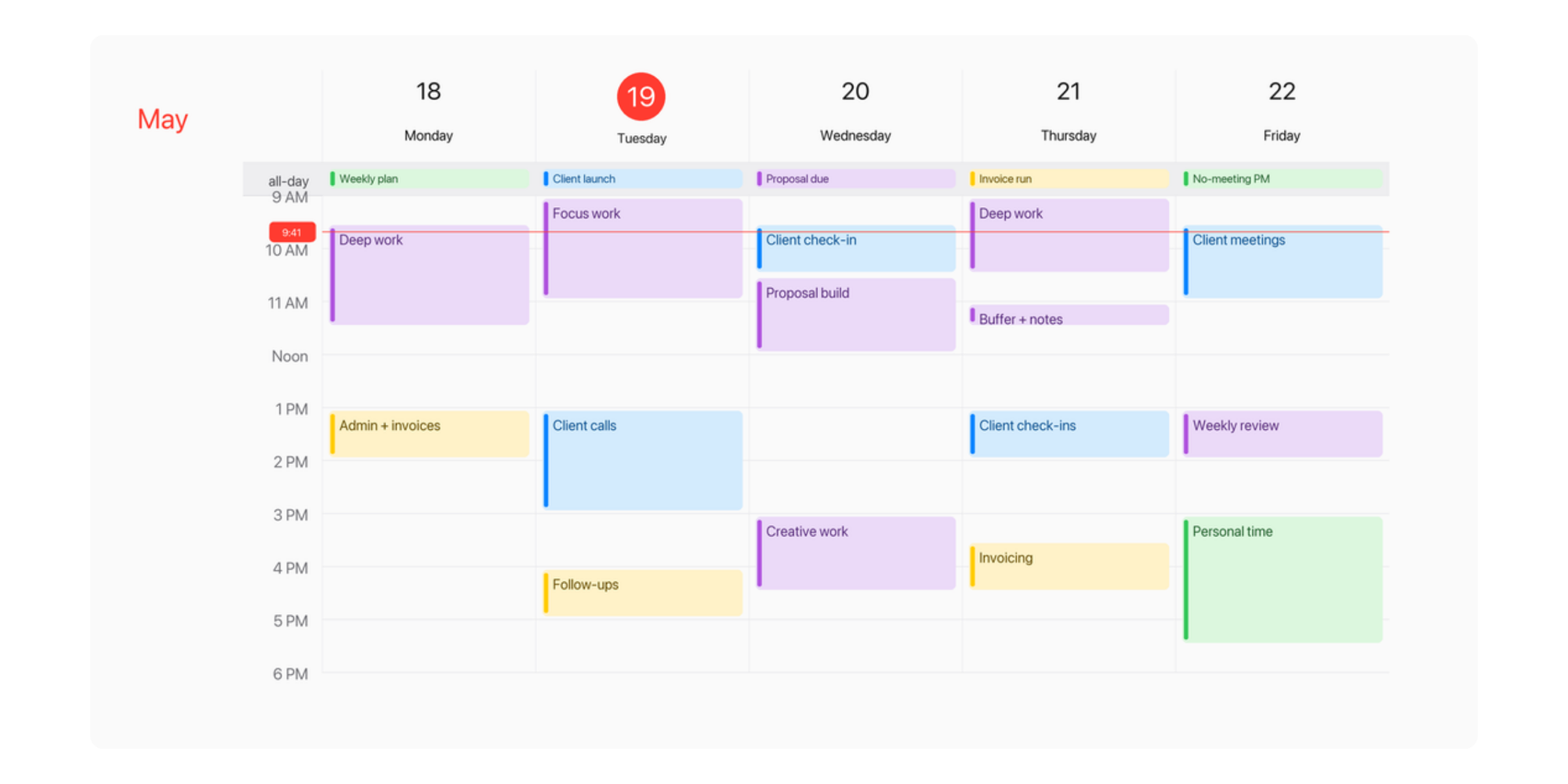
Turn on alerts and reminders
Missing meetings because calendar notifications are inconsistent is a common pain point. Go to Settings, Calendar, Default Alert Times and set defaults for events, all-day events, and birthdays. For important meetings, open the event and tap Alert to add extra reminder times, like one day before and 30 minutes before.
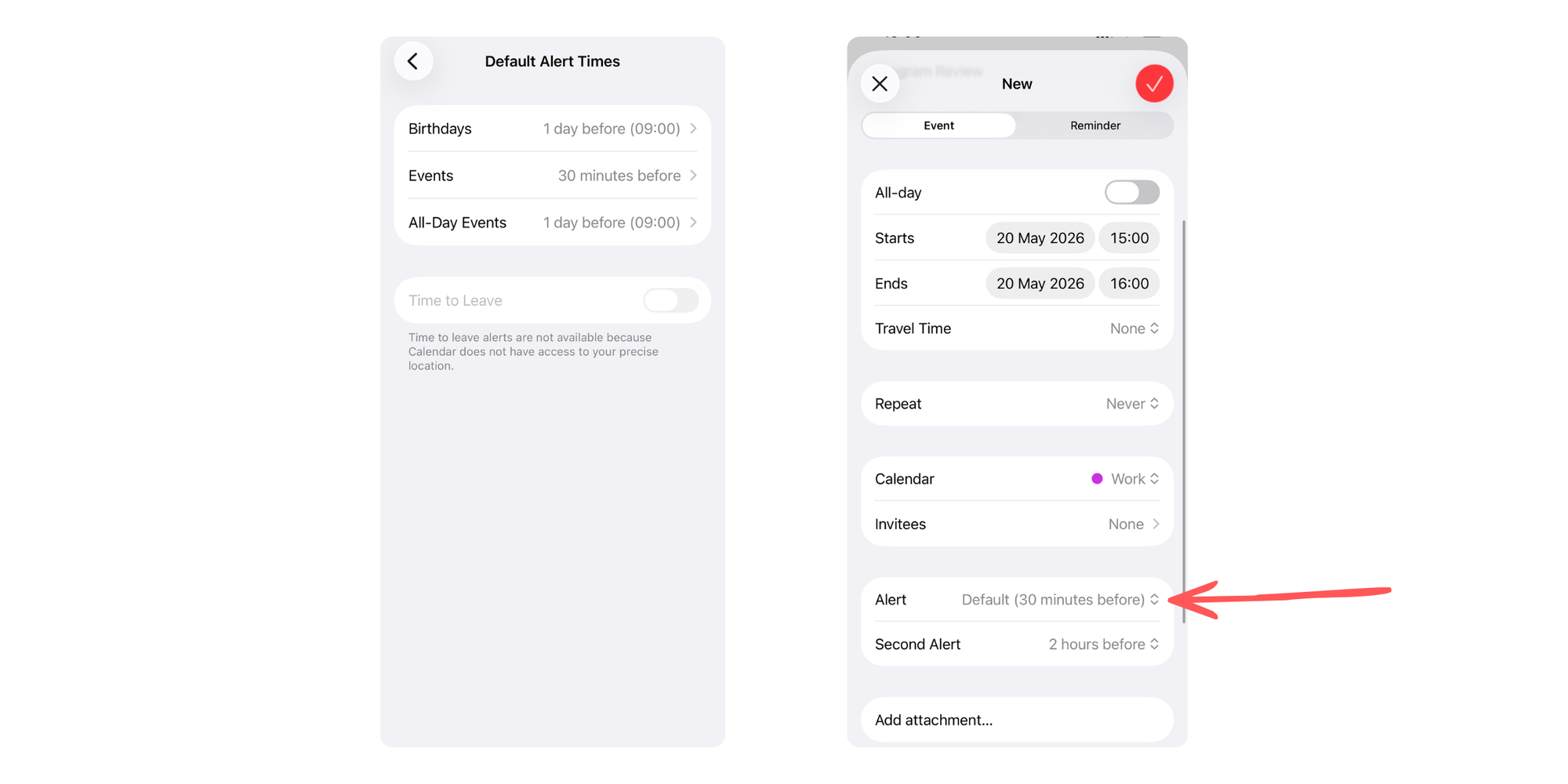
Alerts are only useful when they're predictable, so set the defaults once and stop thinking about it. On iOS 18, Apple's Calendar app also lets you add Reminders tasks alongside events, so to-dos and meetings live in the same view.
Add recurring events for routines
Routines are the backbone of any planner. Inside an event, tap Repeat and pick Every Day, Every Week, Every Month, or Custom for anything unusual, like every other Tuesday.
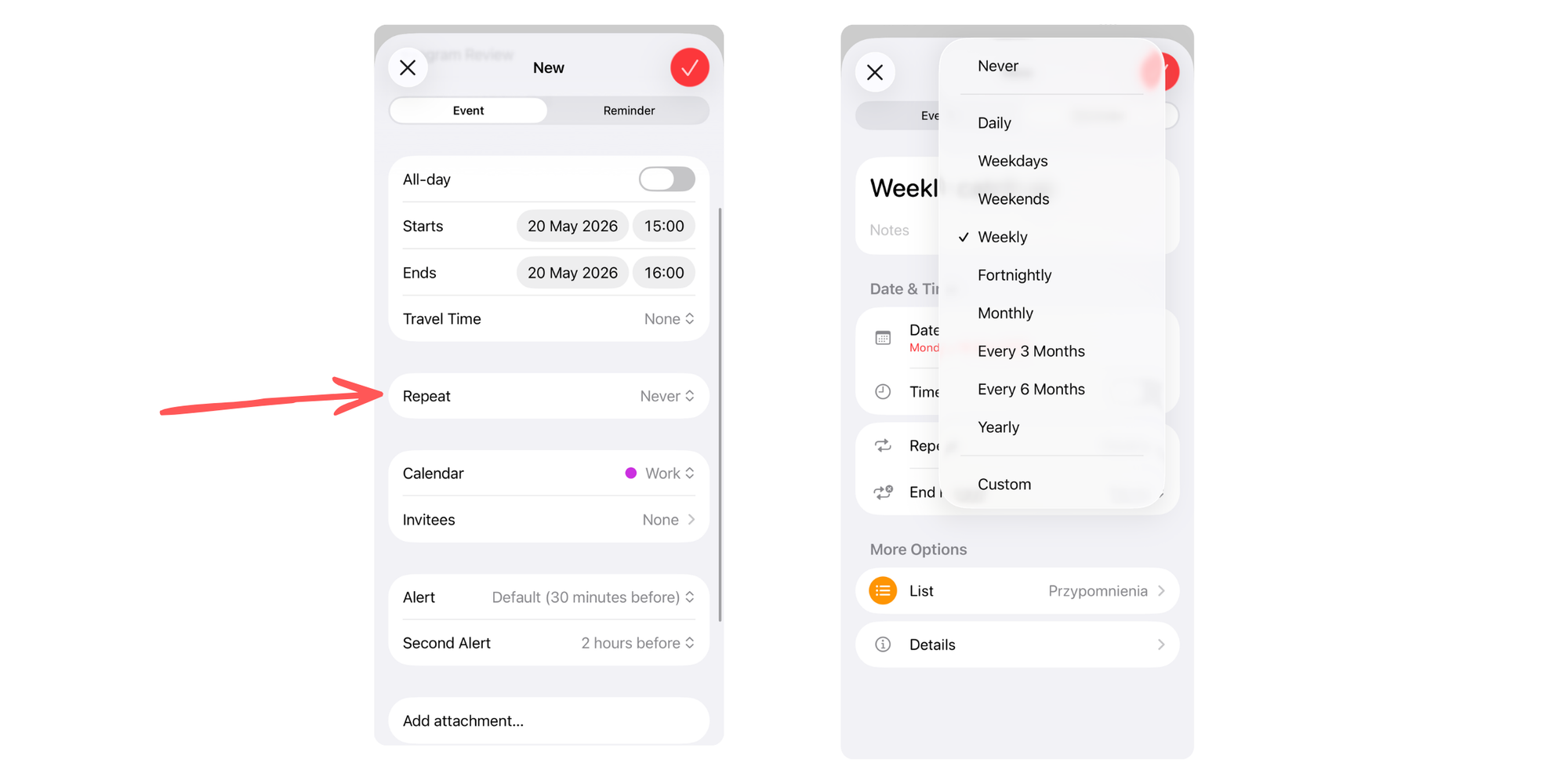
Use this for morning routines, weekly client check-ins, invoicing day, and recurring deep work blocks. Set them up once and the recurring events do the planning for you, week after week.
How to time block your week using Apple Calendar
Here's where Apple Calendar shifts from being a calendar to being a planner. Time blocking is the difference between tracking meetings and owning your day. Let's apply it inside Apple Calendar.
Schedule deep work sessions
Deep work is the focused, uninterrupted time you need for your hardest tasks. Block 90 minutes to two hours of deep work at your most productive time of day and treat it like a meeting with yourself.
Research from the University of California, Irvine famously found that after each interruption it can take around 23 minutes to fully refocus, which is why protected blocks matter more than people think.
Add buffer time between meetings
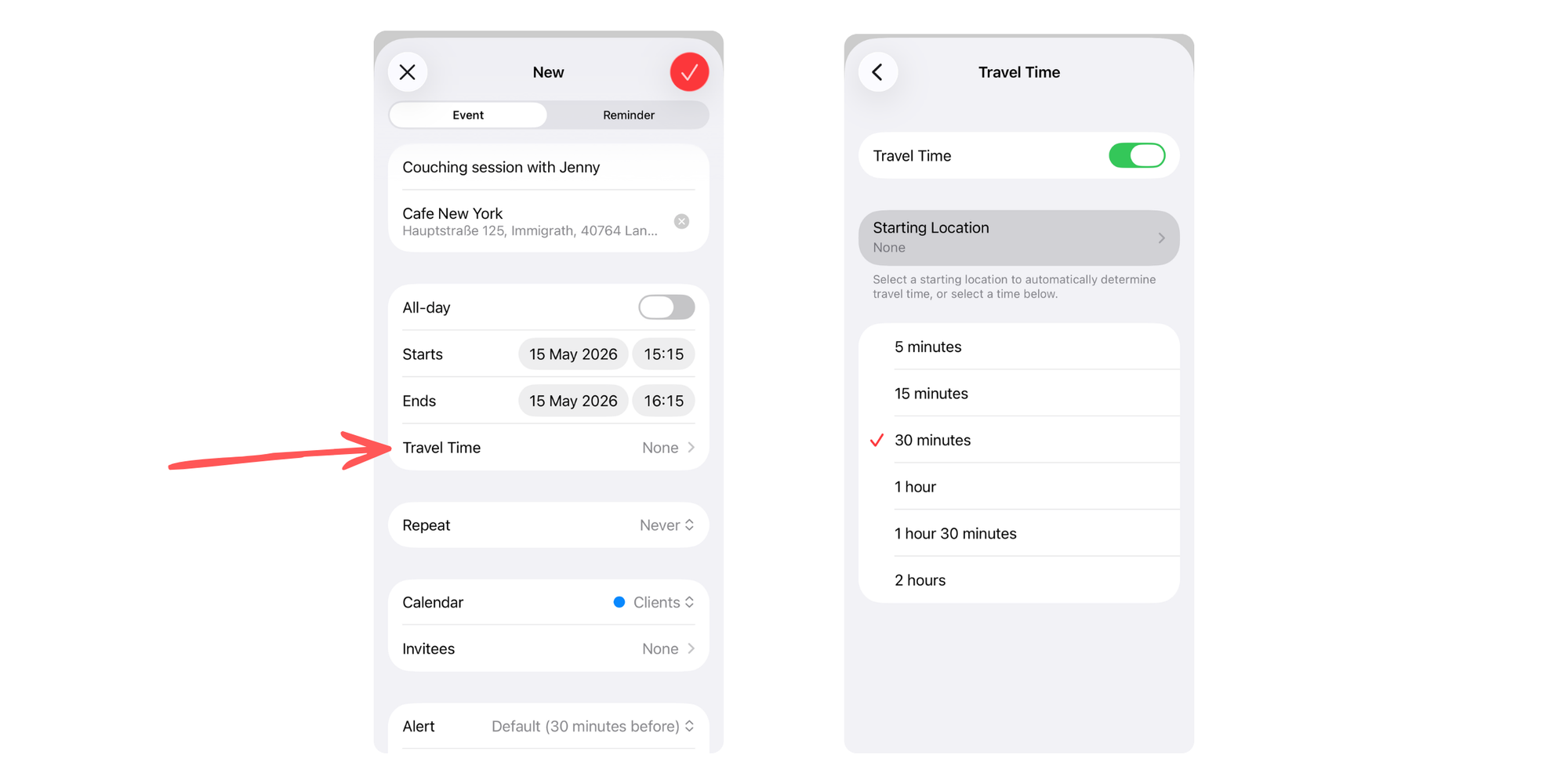
Back-to-back meetings drain energy and break focus. Add a short 10-to-15-minute buffer between calls to wrap up notes, breathe, and prep for the next thing. If a meeting has a physical location, use Calendar's Travel Time feature, which estimates departure based on Apple Maps. Buffers are how you avoid burnout without cutting your client load.
Plan admin work and client calls
Admin work expands to fill any space you give it. Batch it instead. Pick a single 30-to-45-minute window for email in the morning, and a second one in the late afternoon. The freelancer profiles featured in AltMarketingSchool's research on entrepreneur routines show this pattern repeatedly: top performers don't react to inboxes all day, they schedule the inbox like any other task.
Review your week every Friday
A weekly review is what keeps your planner honest. In David Allen's GTD weekly review system, the weekly review is a fixed slot for clearing your inbox, updating your task list, and reviewing the week ahead. Spend just 20 minutes on a Friday afternoon: check what got done, drag unfinished blocks into next week, and add any new commitments. That habit alone will outperform any productivity app you could download.
Best planner features in Apple Calendar most people ignore
Most people use about 10% of what Apple Calendar can do, and the other 90% is exactly where the planner magic lives. These four features close the gap between a basic calendar and a full planning system.
Travel time
If you enter an event location, Calendar can calculate travel time using Apple Maps and send a Time to Leave alert based on real conditions, per Apple's travel time documentation. This works for driving, walking, cycling, and transit. A small feature that quietly prevents a lot of "I'm running late" texts.
Shared calendars
You can share any iCloud calendar with a partner, an assistant, or a teammate, and decide whether they can view or also edit. Apple's calendar sharing settings guide shows how to add or remove people in a few taps. This is a clean way to coordinate without resorting to group chats and screenshots.
Focus mode integration
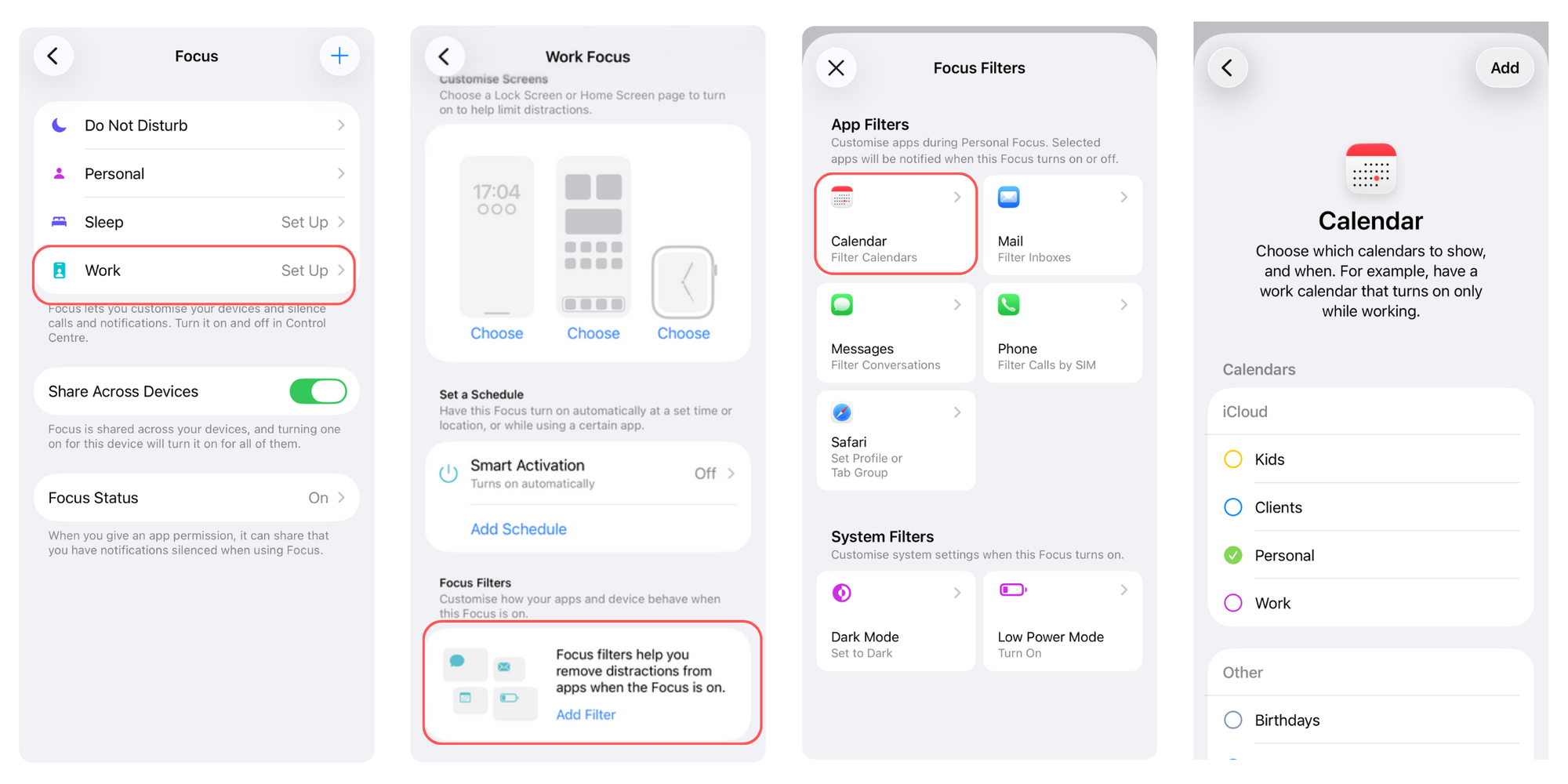
Focus mode scheduling is one of iOS's most underused tools. In Settings, Focus, pick a Focus, add a filter, and choose which calendars are visible during it. Your Work Focus can show only work events, while a Personal Focus hides them entirely. The result is a planner that quiets itself when you need to concentrate.
Siri scheduling shortcuts
Siri can create, change, and check events on command, as detailed in Apple's Siri with apps documentation. Try "Schedule a meeting with Alex on Friday at 2 PM," "What's on my calendar tomorrow?" or "Move my 3 PM call to 4." When your hands are full, voice scheduling adds a surprising amount of speed.
How freelancers use iPhone Calendar to stay organized
Freelancers face a planning challenge most office workers don't: there is no boss, no shared calendar, and no one stopping you from accepting too much. A well-structured Apple Calendar planner is one of the simplest tools for staying on top of it all. Think of it as your scheduling sidekick, minus the cape.
Managing client meetings
Color-code each client or service so your week reads like a snapshot of where your time goes. Set recurring blocks for weekly check-ins, monthly reviews, and quarterly planning. If you work with a small team or a VA, share a calendar with them so everyone sees the same view, which helps you avoid double-bookings before they happen.
Planning creative work
Creative work needs space to breathe. Schedule your most demanding work during your highest-energy hours, often early morning, and protect those blocks like client meetings. Freelancers profiled by AltMarketingSchool often plan the next day the night before, timestamping each task so they wake up knowing exactly what to tackle first.
Avoiding burnout with scheduling blocks
Burnout is a real risk for freelancers. A 2025 study published in MDPI found that around 40.9% of freelancers reported high emotional exhaustion. Build recovery into your calendar: at least one no-meeting day per week, a hard stop in the evening, and dedicated breaks. Protected time on your planner is the cheapest mental health tool you have.
When Apple Calendar alone isn't enough
Apple Calendar is excellent at planning your time. It's not designed for letting clients book it. As your client list grows, that gap becomes the bottleneck.
The problem with manual scheduling
Manual scheduling means emails, time zone math, and follow-ups. The 2023 Microsoft Work Trend Index found that knowledge workers spend roughly 57% of their time on communication rather than creation, and inbox research estimates 10 to 12 hours per week handling email alone. Every "Does Tuesday at 3 work for you?" message chips away at the focus time you just blocked off. If that sounds familiar, you're not alone.
Why booking links save time
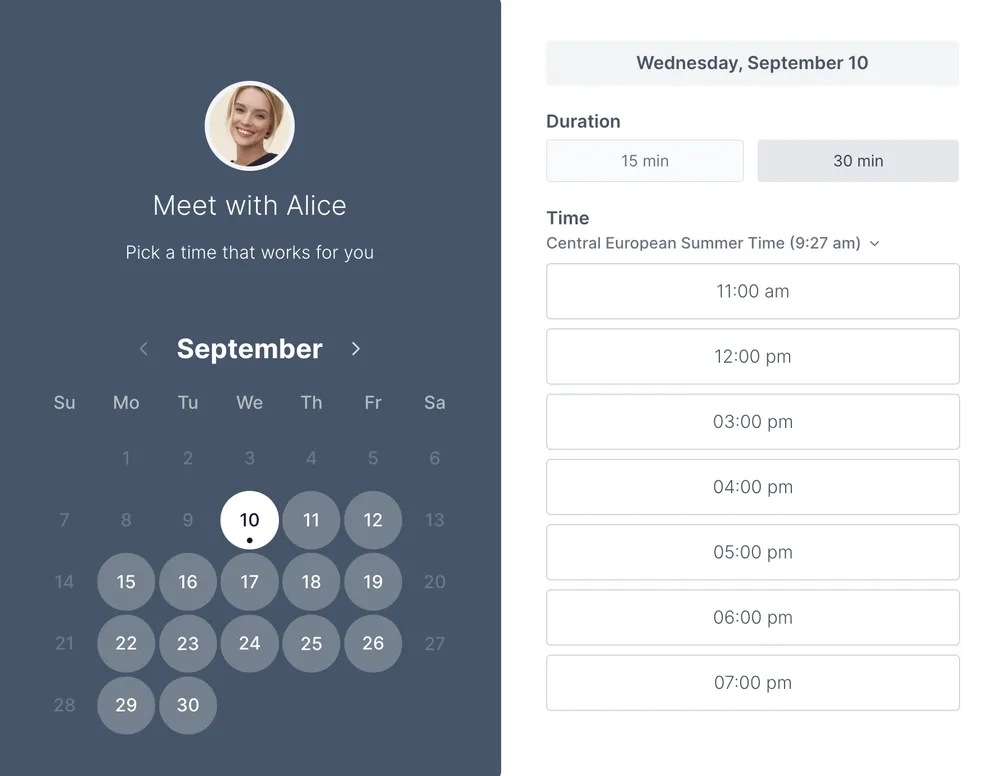
A booking link flips the workflow. You publish your real availability once, and people pick a time that already fits. No emails. No double-bookings. No checking your calendar four times. This is exactly where an appointment scheduling tool earns its keep for anyone with a steady stream of client calls.
How Koalendar connects with your calendar
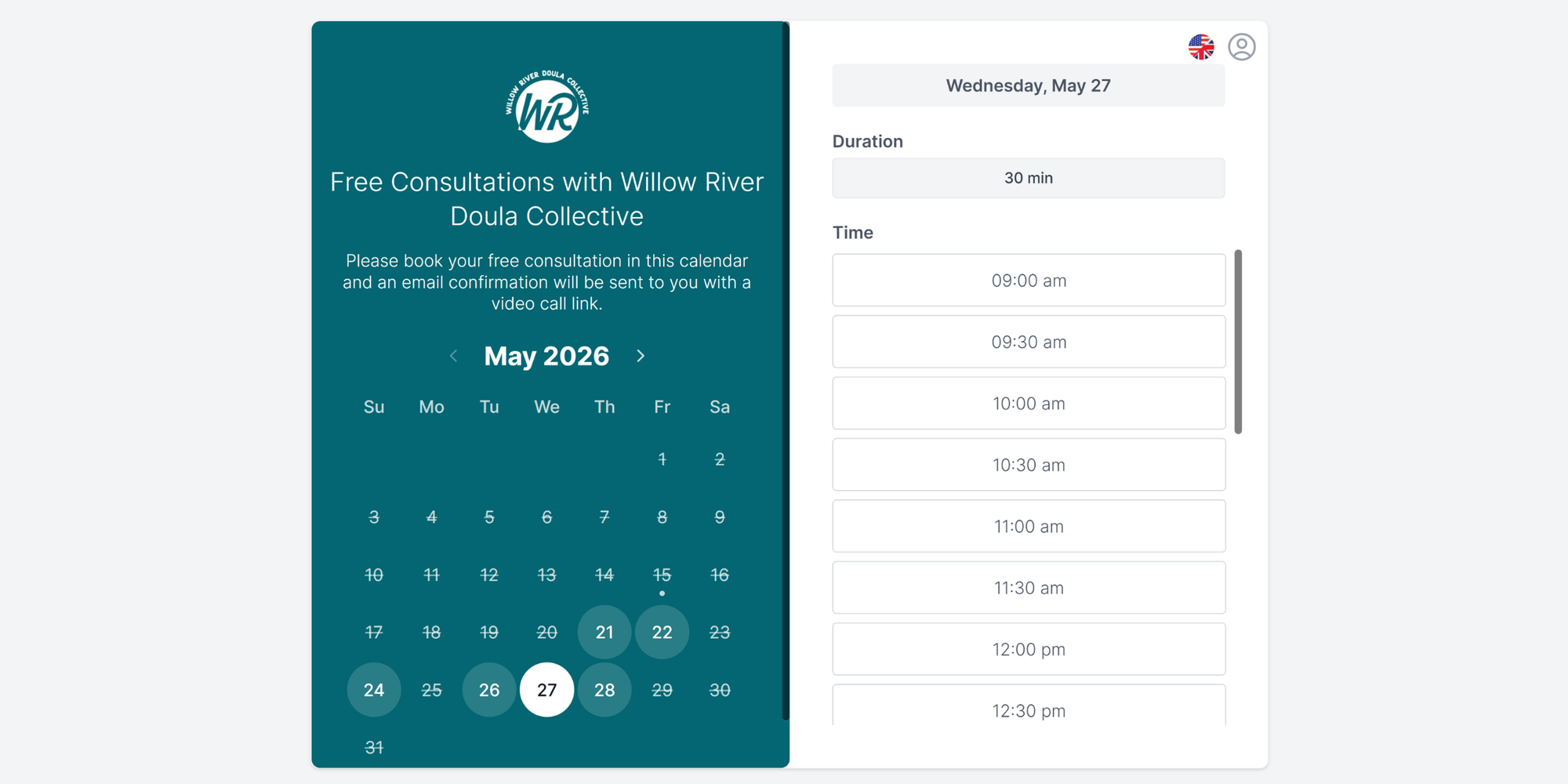
Koalendar syncs with Apple Calendar via iCloud, plus Google and Outlook, so any block on your iPhone Calendar automatically marks you as unavailable on your booking page. Clients can self-schedule 24/7 from a clean, custom booking page, with automatic time zone detection so everyone sees the right time without doing the math. The free forever Koalendar plan is genuinely generous: unlimited bookings, unlimited booking pages, calendar sync, simple setup, and no credit card required. When you grow into it, paid plans add automated email and SMS reminders, buffer times, custom branding, and team scheduling, so this booking calendar for freelancers keeps up as your work scales.
Stop juggling scheduling manually. Share your booking link and let clients schedule time automatically with Koalendar's online scheduling software.
Apple Calendar planner setup example
To make all of this concrete, here's a sample weekday for a freelancer using Apple Calendar as a planner. It shows how the different calendars, color codes, and time blocks come together in a single day.
| Time | Activity | Calendar | Color |
| 7:00 to 8:30 AM | Morning routine, walk, journaling | Personal | Green |
| 8:30 to 9:00 AM | Email and inbox triage | Admin | Yellow |
| 9:00 to 11:30 AM | Focus work, main client project | Work | Purple |
| 11:30 to 12:00 PM | Meeting buffer and prep | Work | Purple |
| 12:00 to 1:00 PM | Lunch and break | Personal | Green |
| 1:00 to 3:00 PM | Client calls and meetings | Clients | Blue |
| 3:00 to 3:30 PM | Buffer and notes | Work | Purple |
| 3:30 to 4:30 PM | Admin, invoicing, follow-ups | Admin | Yellow |
| 4:30 to 5:30 PM | Creative work or learning | Work | Purple |
| 5:30 PM onward | Personal time, no meetings | Personal | Green |
Use this as a template, not a rule. Adjust blocks to match your energy and client load and revisit the layout in your Friday review.
Conclusion
You don't need a complicated productivity system to stay organized. Once you learn how to use iPhone Calendar as a planner, your week becomes easier to read, your time becomes easier to protect, and your focus stops slipping into the inbox.
Set up your calendars, color-code your priorities, time block the work that matters, and review the week each Friday and remember, you've got this.
When the bookings start piling up, that's where a client booking software like Koalendar quietly handles the rest, so your planner stays a planner instead of a scheduling inbox.
Your iPhone Calendar handles planning. Koalendar handles bookings. Automate reminders, avoid double-bookings, and stay organized without the extra admin. Try the Koalendar free forever plan, no card needed.