
TL;DR
Switching to the Free plan is the way to cancel a paid Calendly subscription and keep using Calendly with limited features. Go to Billing in your Admin Center, select Change plan, pick Free, and confirm the downgrade.
Mobile users whose subscription is managed through Apple must cancel in their device’s Subscriptions settings. Cancelling moves your account to Calendly’s free tier at the end of your billing cycle; it doesn’t delete your meetings.
If you don’t plan to use Calendly at all, you can go further by deleting your account, which permanently removes your profile and all related data.
If you’re looking for a simpler, more affordable appointment booking software, Koalendar offers unlimited bookings, 2 calendar syncs and unlimited 1-1 booking pages on a free plan with optional Pro upgrades at $6.99/seat/month (billed annually), $9.99/seat/month (billed monthly). Keep reading for detailed instructions and a comparison of features.
How to cancel your Calendly subscription
Cancelling Calendly isn’t a single button labelled Cancel; you downgrade your paid plan to the Free tier. Only Owners or Admins can change plans for an organization, so if you can’t find the Billing option you may lack the right permissions. Here’s how to do it on desktop and mobile.
Cancel Calendly on desktop
Calendly handles cancellations by switching you to the Free plan. Follow these simple steps:
- Log in and open Billing – From your Calendly home page, go to the Admin Center and select Billing.
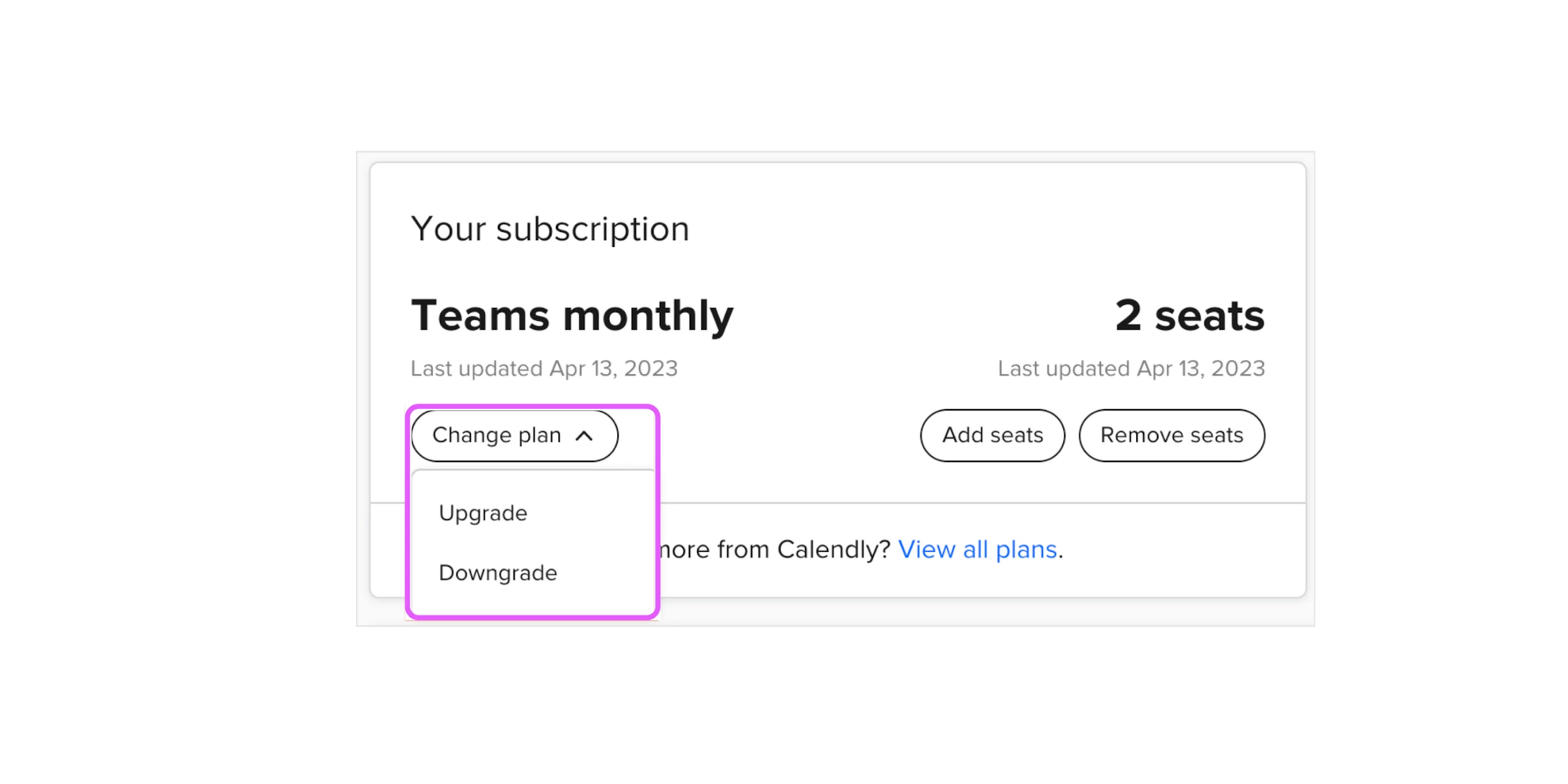
- Start the downgrade – On the Billing page select Change plan (or Upgrade/Downgrade). Choose Downgrade or Free plan.
- Confirm your free plan – Once you select the Free plan, Calendly shows a banner summarising what you’ll lose. Confirm the change; the downgrade will take effect at the end of your current billing cycle.
- Keep using paid features until the end of the cycle – You retain access to paid features through the remainder of the billing period.
- Receive confirmation – Calendly typically sends a confirmation email. You can also verify the status by visiting the Billing page; a banner will show the scheduled downgrade.
1. Log into your Calendly account
2. Open Billing → Change plan
3. Select the Free plan
4. Confirm cancellation
5. Check your email for confirmation
Cancel Calendly mobile subscription
If you purchased Calendly via Apple in‑app purchase, changes must be handled through Apple, not Calendly. The iOS app lets you review your plan, but switching to free or cancelling requires using Apple’s subscription settings. Use these steps:
- Open the Calendly app and tap the Account icon. Go to Account → Account Type.
- Manage subscription through Apple – Calendly displays that subscriptions bought through the Apple App Store can’t be changed from the app. Tap the link to manage via Apple ID → Subscriptions → Calendly.
- Cancel via Apple – In your iOS settings, select Calendly under Subscriptions, choose Cancel Subscription, and follow Apple’s prompts.
- Downgrade to Calendly Free – After you cancel the Apple‑managed subscription, your account automatically moves to the Free plan at the end of the billing period.
- Switch to a Calendly‑managed plan later – If you want to upgrade again or manage seats, you must first cancel the Apple subscription and then choose a plan on calendly.com.
How to confirm your cancellation
Once you downgrade, Calendly keeps your paid features until the end of your current billing cycle and then moves you to the Free plan. To confirm that cancellation worked:
- Check Billing status – The Billing page should display that you’re on the Free plan and show your next renewal date. During a scheduled downgrade, a banner appears allowing you to cancel or undo the downgrade.
- Verify email confirmation – Calendly sends an email confirming the change. If you don’t see it, check your spam folder. You can also look at your transaction history to ensure no future charges.
- Contact support if needed – If you continue to see unexpected subscription charges, email billing@calendly.com; Calendly’s community moderators advise reaching billing support to resolve unexplained renewals.
Need a simpler way to schedule meetings and appointments? Koalendar gives you unlimited bookings, calendar sync, and automated confirmations without the extra complexity.
What happens after you cancel Calendly?
Will your booking links stop working?
Downgrading to Calendly’s free tier doesn’t delete your scheduling page or cancel existing meeting links. The Calendly community notes that existing booked events remain and aren’t removed when you cancel your subscription. After the downgrade, your scheduling page continues to accept bookings, but features tied to paid plans (e.g., round‑robin events, routing forms or collective scheduling) will be unavailable. Your custom branding and advanced workflow automations also disappear when your plan switches to Free.
Will Calendly delete your meetings?
Cancelling your subscription (switching to Free) does not delete meetings. Booked events remain in your account and on connected calendars. However, deleting your account is different: when owners permanently delete their account, all booked meetings for their event types may be removed from the Meetings page and can’t be recovered. While deleted events may still appear on your external calendar as cancelled appointments, they won’t be visible inside Calendly. Therefore, if you want to maintain history, downgrade instead of deleting.
Can you reactivate later?
Yes. Cancelling a subscription simply downgrades you to the Free plan and can be reversed. Calendly’s deletion article states that switching to a different plan or cancelling the paid plan can be reversed anytime. You can upgrade to a paid plan again by returning to the Billing page and selecting an appropriate tier. Deleting your account, however, is permanent and cannot be undone.
What happens to my confirmed, future, group meetings if I downgrade?
Downgrading from a paid plan to the Free tier essentially “parks” all the features that require a paid subscription. Calendly only allows one active event type on the Free plan, and that event type must be a one‑on‑one meeting. Your existing group events are not deleted. Downgrading does not remove your data or cancel bookings. Event types beyond your first become “inactive,” but the scheduled meetings remain on your calendar. Invitees will still receive the calendar invites they already booked, and the meetings will go ahead as scheduled.
How to delete your Calendly account
Deleting removes your entire account and all data. Calendly lists three options when you consider leaving the platform: switch plans, cancel your paid plan, or delete your account.
Difference between deleting and canceling
- Canceling your paid plan (downgrading) moves you to the Free plan at the end of the billing cycle. You won’t be billed again and can still schedule meetings. This option is reversible; you can upgrade later.
- Deleting permanently removes your account and its data. You won’t be billed again, but you lose access to all event types and meeting history. If you’re the organization owner, deleting the account can remove team‑level bookings from the Meetings page.
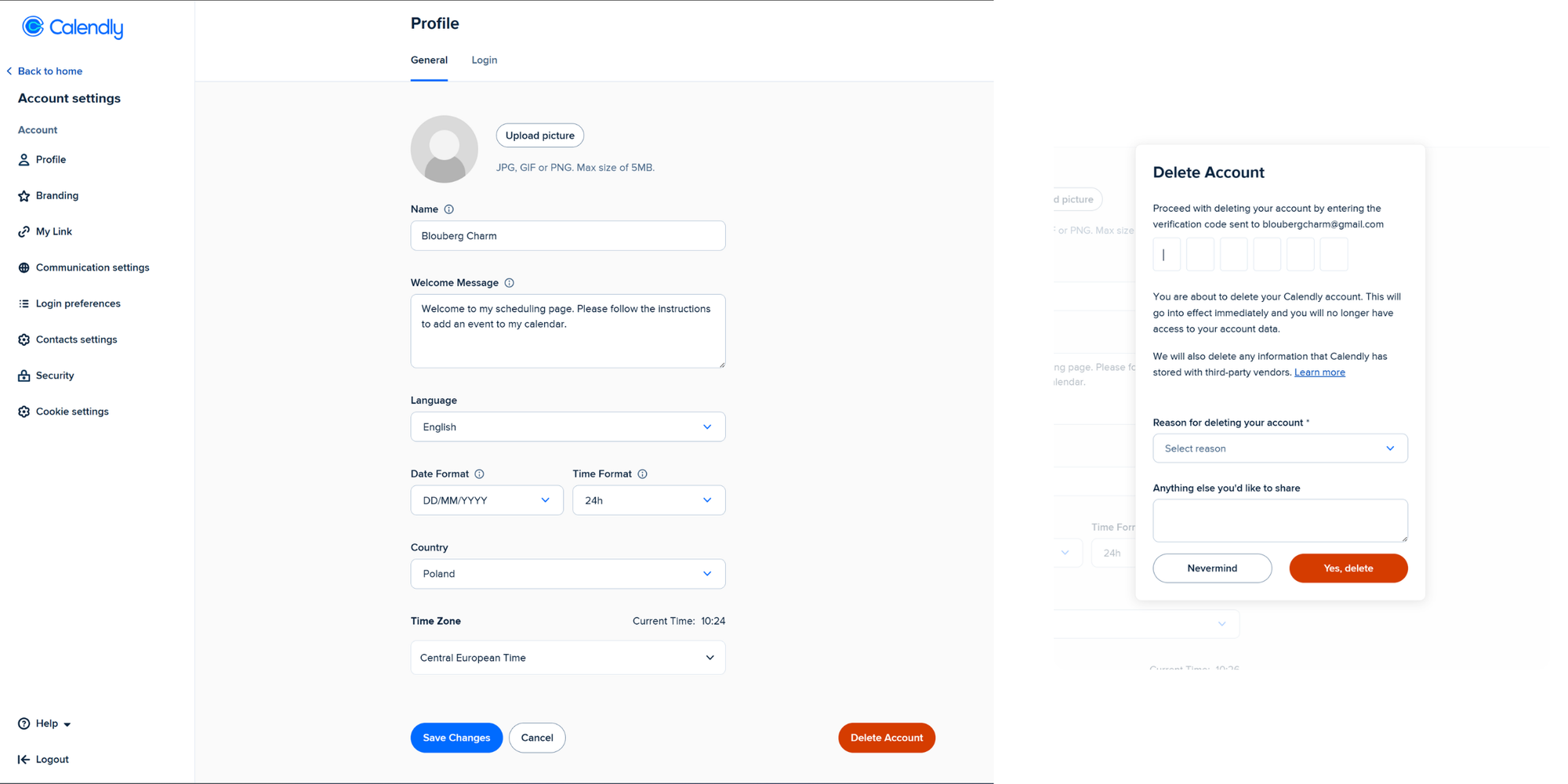
Steps to delete your account
- Go to Account → Account Settings inside Calendly.
- Scroll to the bottom of the Profile page and select Delete Account.
- Choose your option:
- Transfer ownership and delete my account – assigns another user as the team owner before your account is deleted.
- Keep my account and leave organization – leaves the team but keeps your personal account.
- Delete my account and disband the organization – available for owners who want to close the organization.
- Check your email for a verification code and enter it.
- Select a reason for deleting and confirm.
How to export your data first
Calendly doesn’t currently provide a direct export of event type settings. In a community thread, a Calendly staff member explained that there is no export feature for event types. Before deleting your account, you should therefore manually save important data:
- Download scheduled events – Navigate to your Scheduled Events tab and copy upcoming or past bookings into a spreadsheet. Some users employ integrations like Coupler.io or Zapier to automatically export bookings to Google Sheets.
- Save meeting links and embed codes – If you embedded Calendly on your website or shared booking links, note these URLs so you can redirect them after deletion.
- Document integrations – Note which calendars, CRM tools or payment processors you connected. After deletion you’ll need to reconnect these to a new platform.
Once you delete your account, the data cannot be restored, so backing up is essential.
If you’re considering looking for an alternative, we covered the best Calendly alternatives in 2026.
Common problems when canceling Calendly
Can’t find billing settings
Only account owners and admins can manage the plan or billing. Individual users within an organization cannot downgrade independently because all users in a Calendly organization must be on the same plan. If you don’t see Billing in the Admin Center, contact your workspace owner. On desktop, Billing is located under the Admin Center; on mobile subscriptions purchased through Apple, you’ll need to cancel via your Apple ID settings.
Still getting charged
Calendly subscriptions renew automatically at the end of each cycle. After downgrading, check your next renewal date on the Billing page and ensure the plan shows Free. If you continue to see charges, contact the Billing team. A Calendly Community moderator advises emailing billing@calendly.com, as the billing team has the most insight into account and payment issues. According to Calendly’s Customer Terms, fees are non‑refundable; you must pay outstanding obligations and are not entitled to refunds or credits after cancellation. Refunds may be considered in special cases, but they are not guaranteed.
Workspace admin restrictions
In organizational accounts, owners control licenses. Calendly’s plan management guide notes that you cannot have different plan tiers within the same organization. To cancel your subscription, an owner must downgrade the entire organization to the Free plan. If you want to keep your personal account but leave the organization, use the Keep my account and leave organization option when deleting your account.
Why some users switch from Calendly
Pricing concerns
Calendly’s Standard plan is priced per seat. According to Zeeg’s analysis, a single user at US$10 per month scales quickly—a team of 20 costs about $200 per month on the Standard plan or $320 on the Teams plan. Many small businesses find they’re paying for features they rarely use, especially when team size grows. Prices can rise further when you need routing forms, team scheduling or CRM integrations. Paying per user also encourages companies to seek a more cost‑effective alternative.
For a real-world example, see how a consulting company moved from Calendly to Koalendar when their growing global team needed round-robin scheduling, automatic time-zone detection, and a more cost-effective way to manage admissions calls.
Simpler scheduling alternatives
Another reason people leave is complexity. Calendly is a powerful appointment booking software with advanced features like routing forms, round‑robin scheduling and analytics. For individuals or small teams who just need to sync a calendar, set availability and send reminders, this sophistication can feel like too many features. Some users also note that Apple Calendar integration was discontinued for new users in 2024. Searching for a tool that keeps calendar sync simple, saves time scheduling and avoids unnecessary enterprise complexity leads many to alternatives such as Koalendar.
Free scheduling tools for small businesses
Cost‑sensitive users often look for free plans that don’t limit bookings or meeting types. While Calendly’s free tier allows only one active event type and lacks customization, Koalendar’s Free plan includes unlimited appointments, unlimited booking pages and sync with up to two Google, Outlook or iCloud calendars. This makes it appealing for freelancers, tutors and small teams who want to offer multiple appointment types without monthly fees.
A simpler alternative to Calendly
Why teams choose Koalendar
Koalendar is designed to offer essential scheduling features without the complexity or high per‑seat cost. Its Free plan provides:
- Unlimited appointments and booking pages – No cap on the number of meetings you can schedule, unlike some competitors’ limits.
- Calendar sync – Sync up to two calendars (Google, Outlook or iCloud) in the free tier. The Pro plan allows unlimited calendar sync.
- Smart time‑zone detection & instant notifications – Guests see your availability in their own time zone and receive instant booking confirmations.
- Custom booking pages and branding – Personalize your booking page with your logo, colours and messages. Pro users can remove Koalendar branding and set custom confirmation pages.
- Automated reminders and follow‑ups – The Pro plan lets you send email and SMS reminders, follow‑up messages and custom redirects after booking.
- Collect payments with Stripe – Accept payments or deposits directly through your booking page.
- Group and team scheduling – Pro lets you host group sessions, add multiple hosts (collective or round‑robin), limit bookings per day and offer tentative bookings requiring manual approval.
- Export and automation – Export bookings to CSV, integrate with Zapier or webhooks, and sync data with your CRM.
- Multilingual scheduling – Koalendar supports multiple languages, including English, Spanish and French.
Besides these features, Koalendar’s strengths are speed and simplicity. Your first booking page can be set up in minutes, shareable via link or embed. Koalendar’s pricing is transparent—start free, upgrade only if you need advanced controls.
Free scheduling without the complexity
Koalendar’s philosophy is that free should mean free. Upgrades are available at $6.99/seat/month (billed annually) only if you need more control or automation. For individuals and small businesses, this means you don’t pay for unused features. When you’re ready to scale, Pro plans unlock features like unlimited calendar sync, group meetings, payments, custom branding and advanced automation.
Moving from Calendly to Koalendar
Switching to Koalendar is simple. You don’t need a complicated migration. Just set up your new booking pages, replace your old links, and let your existing Calendly meetings run as planned.
1. Set up Koalendar
Create your Koalendar account and connect the same calendars you used with Calendly, such as Google or Outlook. Additionally, Koalendar lets you connect to iCloud.
Your existing meetings live on your calendars, not on Calendly, so when you migrate, your existing bookings are still safe, even after you stop using Calendly.
Then, recreate your booking pages in Koalendar. Add your meeting types, availability, durations, locations, questions, branding, and reminders.
Before sharing your new links, book a test meeting with yourself to make sure everything works.
2. Replace your Calendly links
Anywhere you currently share a Calendly link, swap it for your new Koalendar link.
Check places like:
- Your website
- Email signatures
- Email templates
- Live chat messages
- Thank-you pages
- Support docs
- Onboarding emails
- Partner or team documents
- Link shorteners
This makes sure all new bookings go through Koalendar.
3. Keep existing Calendly meetings as they are
Meetings already booked through Calendly will stay on your connected calendar.
You can still attend them as planned. Just note that you won’t manage those meetings inside Koalendar.
Going forward, send people your Koalendar link so all new bookings happen in one place.
Conclusion
Cancelling a Calendly subscription is straightforward once you know where to look: go to Billing, choose Change plan, select Free, and confirm. This downgrades your account at the end of your billing cycle and preserves your existing meetings. Only delete your account if you’re certain you want to remove all data, as deletion is permanent.
If Calendly has become too expensive, complex or restrictive, consider Koalendar as your next appointment booking software. Koalendar offers unlimited bookings, calendar sync and unlimited 1-1 booking pages even on its free plan, and Pro upgrades add group sessions, Stripe payments, reminders, and powerful workflows. Whether you’re a freelancer, teacher or small business, it can save time scheduling and eliminate unexpected subscription charges.
Tired of complicated scheduling tools? Try Koalendar free and start accepting bookings in minutes — no complicated setup required.
.png?w=2000&fit=max&auto=format)