TL;DR
To connect Google Calendar to Apple Calendar, add your Google account to your iPhone, iPad, or Mac and make sure Calendars is turned on. Once connected, your Google events will appear in Apple Calendar automatically.
Here’s the quick version:
- Open Settings on iPhone or iPad, or Calendar on Mac
- Go to Calendar Accounts or Calendar > Add Account
- Select Google
- Sign in to your Google account
- Turn on Calendars
- Open Apple Calendar and check that your events appear
- Set your refresh preferences if you’re using a Mac
If you’re wondering how to sync Google Calendar with Apple Calendar without switching between devices, missing meetings, or creating duplicate events, the good news is that the setup is simple. The real win is what happens after: one reliable calendar view, fewer scheduling conflicts, and less time spent checking “which calendar is right?”
.png?w=2000&fit=max&auto=format)
How to link Google Calendar to Apple Calendar in minutes
You can add Google Calendar events to Apple Calendar on iPhone, iPad, and Mac by connecting your Google account to Apple’s built-in Calendar app. Google’s official help guide confirms that Google Calendar can sync with Apple Calendar across Mac, iPhone, and iPad.
Quick setup overview
To link Google Calendar to Apple Calendar:
- Open your device’s calendar account settings
- Choose Add Account
- Select Google
- Sign in with your Google email and password
- Turn on Calendars
- Open Apple Calendar
- Wait for your events to appear
Once that’s done, Apple Calendar becomes a convenient place to view your Google events alongside iCloud, work, personal, or shared calendars.
For professionals and small businesses, this helps with cross-device scheduling, client meetings, and centralized calendar management. You can check your day from your iPhone, iPad, or Mac without wondering whether the meeting was saved in the “other” calendar.
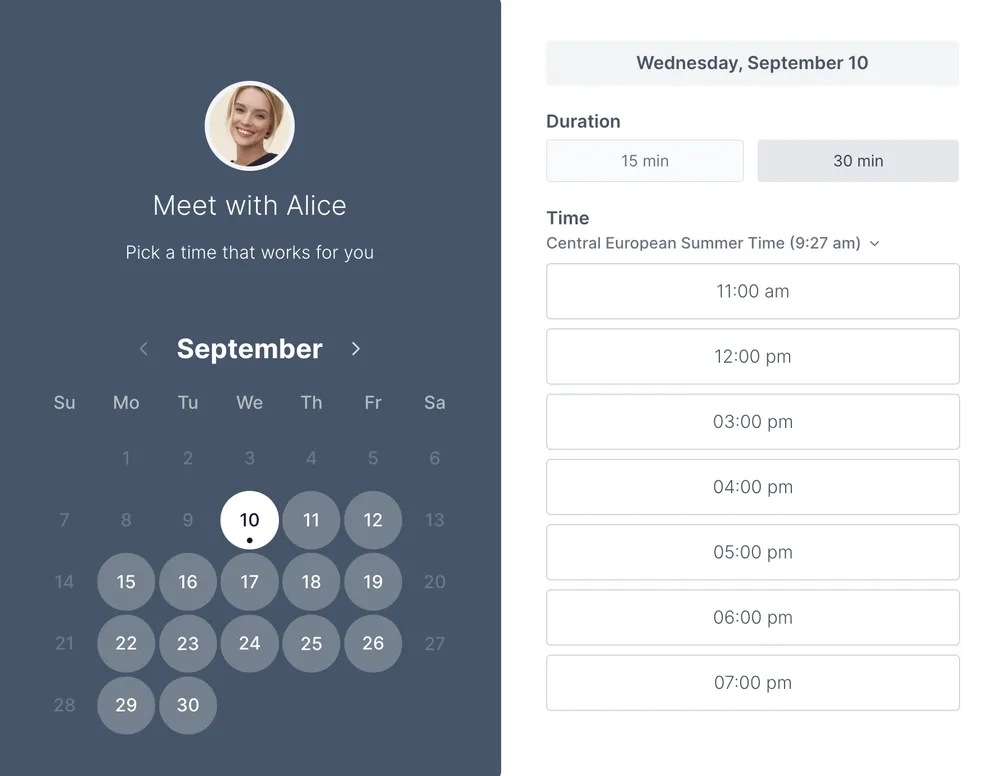
That said, calendar sync is not the same as full scheduling automation. Syncing calendars helps you see your events in one place. A scheduling tool like Koalendar helps clients book available times based on your sync calendars, sends automated reminders, and reduces manual back-and-forth, regardless of which calendar you use.
How to connect Google Calendar to Apple Calendar on iPhone
If your iPhone is your main scheduling device, start here. This setup lets Apple Calendar show your Google Calendar events directly in the native iOS Calendar app.
Add your Google account
Google’s iPhone and iPad instructions recommend adding your Google account through the device settings.
Here’s how:
- Open Settings on your iPhone
- Scroll down, tap Apps and choose Calendar
- Tap Calendar Accounts
- Tap Add Account
- Choose Google
- Enter your Google email address
- Enter your password and complete any two-step verification prompts
- Tap Next
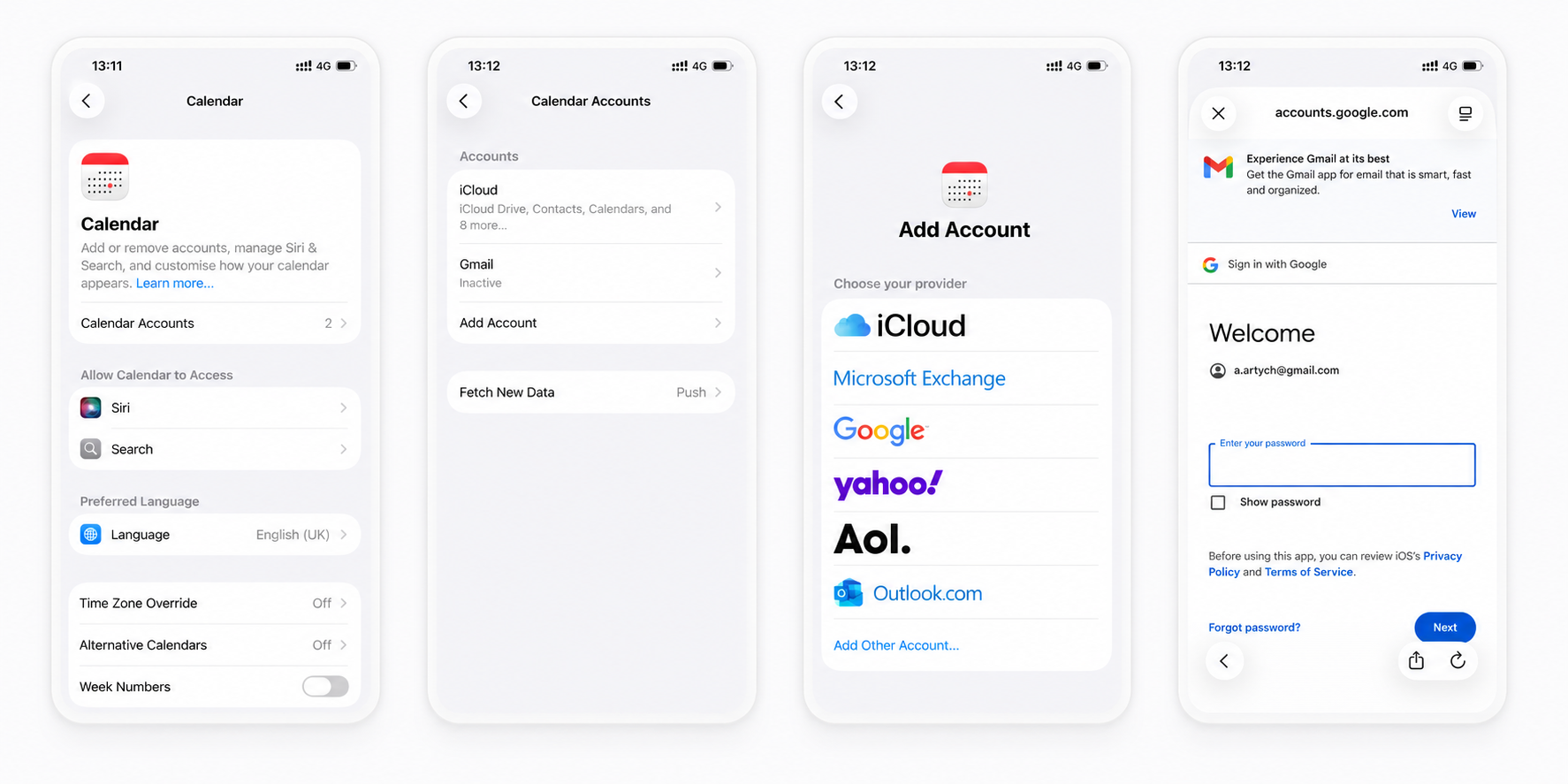
On newer iOS versions, you may see the path as Settings > Apps > Calendar > Calendar Accounts. Apple’s iPad guide uses this newer structure, and iPhone settings often follow a similar layout depending on your iOS version.
Enable calendar sync
After signing in, your iPhone will ask which Google services you want to connect. These may include Mail, Contacts, Calendars, and Notes.
To sync only your calendar:
- Turn Calendars on
- Turn off Mail, Contacts, or Notes if you don’t need them
- Tap Save
This is where calendar permissions matter. If Calendars is not enabled, your Google events won’t appear in Apple Calendar.
Verify events Are appearing
Now open the Calendar app on your iPhone.
Tap Calendars at the bottom of the screen and check that your Google account is listed and selected. If the calendar is unchecked, the events may be syncing correctly but hidden from view.
Create a quick test event in Google Calendar, then check whether it appears in Apple Calendar. If it does, you’re all set.
Tip: If you manage multiple calendars, choose one “source of truth” for new events. That could be your work Google Calendar, your personal Google Calendar, or iCloud. This helps you avoid double bookings and keeps your business availability easier to manage.
How to sync Google Calendar with Apple Calendar on iPad
The iPad setup is almost identical to the iPhone. It’s especially useful if you use your iPad for client meetings, classes, interviews, or team planning.
Step-by-Step Setup
Apple’s iPad Calendar settings guide says you can add accounts from providers such as iCloud, Google, Microsoft Exchange, and Yahoo.
Here’s how to sync Google Calendar with Apple Calendar on iPad:
- Open Settings
- Tap Apps
- Tap Calendar
- Tap Calendar Accounts
- Tap Add Account
- Select Google
- Sign in to your Google account
- Turn on Calendars
- Open Apple Calendar and check your events
This gives you a shared view of Google events and Apple Calendar events on the same device.
Common sync issues
If your Google events do not show up on iPad, check these first:
- Calendars are turned off in your Google account settings.
- The wrong Google account was added.
- The calendar is hidden in the Apple Calendar app.
- Fetch settings are delayed, so the iPad has not refreshed yet.
- A shared calendar is not selected in your Google Calendar sync settings.
Apple notes that for accounts that don’t support push notifications, you can adjust Fetch settings under Calendar account settings.
If you’re managing employee calendars or client meetings, delayed updates can cause confusion. That’s why many businesses pair calendar sync with scheduling software that checks availability before someone books.
How to connect Google Calendar to Apple Calendar on Mac
Mac setup is just as straightforward, but the menus look a little different.
Open Apple Calendar Settings
Google’s desktop instructions recommend starting inside the Apple Calendar app on your Mac.
Follow these steps:
- Open Apple Calendar on your Mac
- In the menu bar, click Calendar
- Click Settings or Preferences, depending on your macOS version
- Click the Accounts tab
Apple also notes that Mac users can add calendar accounts directly from the Calendar app by choosing Calendar > Add Account.
Add your Google Account
Next:
- Click the + button
- Select Google
- Click Continue
- Sign in to your Google account
- Follow the prompts on screen
Make sure you allow Apple Calendar to access your Google Calendar during the permission step. If permission is denied, the account may appear connected but events won’t sync properly.
Select Calendars to sync
After adding your account, check the account settings and make sure Calendars is enabled.
On Mac, Google also recommends using Refresh Calendars in the Accounts tab to choose how often Apple Calendar and Google Calendar sync.
For most professionals, a shorter refresh interval is better. It helps improve scheduling accuracy, especially when meetings change often.
Add Google Calendar to Apple Calendar: troubleshooting tips
Sometimes the setup looks right, but events still don’t appear. Don’t worry—most issues come down to one of a few settings.
Calendar not appearing
First, check whether the calendar is hidden.
In Apple Calendar:
- Open the Calendar app
- Tap or click Calendars
- Look for your Google account
- Make sure the calendar has a checkmark beside it
If you have multiple Google accounts, check that you added the correct one. It’s surprisingly easy to connect a personal Gmail account when your meetings live in a work Google Workspace account.
Sync is delayed
A delayed sync can make it look like something is broken.
On Mac, check Refresh Calendars in Apple Calendar’s account settings. Google’s desktop guide specifically points to this setting for choosing how often Apple Calendar and Google Calendar sync.
On iPhone or iPad, check Fetch settings:
- Open Settings
- Go to Apps > Calendar
- Tap Calendar Accounts
- Tap Fetch New Data
- Choose a fetch schedule
Apple explains that if an account does not support push updates, you can set a Fetch schedule instead.
Wrong calendar is selected
If new events are saving to the wrong place, check your default calendar.
On iPhone or iPad:
- Open Settings
- Go to Apps > Calendar
- Tap Default Calendar
- Choose the calendar where new events should be created
This matters when you want a clean workflow. If client meetings are created in iCloud but your team checks Google Calendar, you can end up with scheduling conflicts.
Refresh calendar accounts
If events are still missing:
- Turn Calendars off and on again for the Google account
- Quit and reopen Apple Calendar
- Restart the device
- Remove and re-add the Google account
- Check that your device is running an updated operating system
Google’s Mac instructions also recommend using the latest Apple Calendar and operating system versions before syncing.
Check Google Calendar limitations
Some Google Calendar features do not work inside Apple Calendar. Google lists email notifications, creating new Google calendars, and Room Scheduler as features that are not supported in Apple Calendar.
That doesn’t mean sync is broken. It just means Apple Calendar can show and manage many Google events, but not every Google Calendar feature carries over.
Google Calendar vs Apple Calendar: Which should be your primary calendar?
Once both calendars are connected, the next question is: which one should you actually use as your main calendar?
The answer depends on your workflow.
Benefits of Google Calendar
Google Calendar is often a better primary calendar if you:
- Use Gmail or Google Workspace
- Schedule meetings with clients or teammates outside Apple’s ecosystem
- Need easy sharing across different devices
- Use Google Meet, shared calendars, or team calendars
- Want strong compatibility with scheduling tools
For small businesses, Google Calendar is often the practical choice because team members may be using different devices. Some may be on Mac, others on Windows, and others mostly on mobile.
Benefits of Apple Calendar
Apple Calendar is useful if you:
- Prefer the built-in iPhone, iPad, and Mac experience
- Use iCloud for personal calendars
- Like Apple’s clean calendar interface
- Want one native app for multiple calendar accounts
- Use Siri or Apple widgets to manage your day
Apple Calendar works well as a viewing hub. You can bring Google, iCloud, and other accounts into one place without switching apps.
Best setup for professionals
For many professionals, the best setup is:
- Use Google Calendar as the primary calendar for work meetings, team scheduling, and client appointments.
- Use Apple Calendar as the unified view across Apple devices.
- Use scheduling software to manage bookings, reminders, and automatic availability updates.
This gives you flexibility without turning your calendar into a guessing game.
Why calendar sync matters for small businesses
Calendar sync sounds like a small technical task. But for a small business, it can quietly protect your whole day.
Missed meetings, duplicate events, and unclear availability don’t just create admin work. They affect trust. Clients expect booking to feel easy, and your team needs a shared view of what’s happening.
Reduce double bookings
Double bookings usually happen when availability is split across tools.
For example:
- A client meeting is in Google Calendar
- A personal appointment is in Apple Calendar
- A team call is on someone else’s shared calendar
- A new lead books a time because one of those calendars wasn’t checked
Connecting calendars helps you avoid double bookings by keeping events visible in one place.
Keep teams aligned
If your team uses different calendar platforms, centralized calendar management becomes essential.
One person may use Google Calendar. Another may prefer Apple Calendar. A third may use Outlook. Without a connected workflow, employee calendars become scattered.
That makes team scheduling harder than it needs to be.
A synced setup helps everyone stay aligned, especially when scheduling:
- Client meetings
- Interviews
- Sales demos
- Consultations
- Internal check-ins
- Service appointments
- Group sessions
Save time on scheduling
Scheduling should not take over your day.
Harvard Business Review research has long pointed to the cost of meeting overload, with executives spending nearly 23 hours per week in meetings on average in one cited study. Asana’s Anatomy of Work research also found that knowledge workers spend a large share of their day on coordination rather than skilled work.
Calendar sync won’t fix every meeting problem. But it does remove one common source of friction: not knowing which times are actually free.
Simplify scheduling beyond calendar sync
Syncing Google Calendar and Apple Calendar is a smart first step. But if clients, students, candidates, or teammates still need to email you for a time, there’s still room to make scheduling easier.
That’s where Koalendar fits in. As this founder of a data company using multiple calendars puts it:
“Finding a good time to meet is very difficult, so the benefit of Koalendar is having a shared calendar, with the right availability, where people can choose their preferred date and time from."

Sabri Karagönen
Co-founder at Bruin
With Koalendar, you can create a booking page, connect your calendars, and let people choose from times that actually work for you. No back-and-forth. No manual updates. No “Does Tuesday at 3 work?” loops.
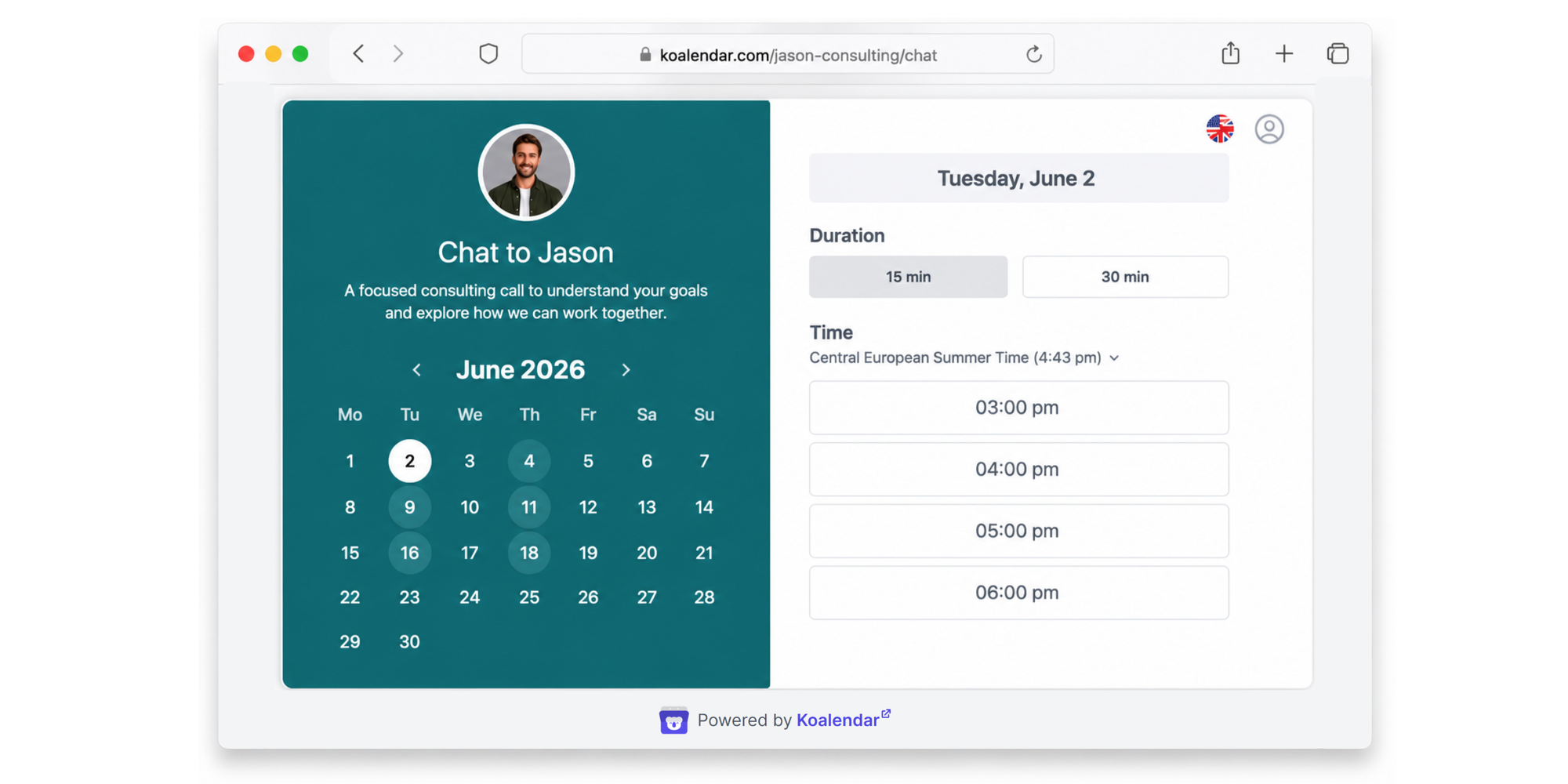
Koalendar helps with:
- 24/7 online booking, so people can book even when you’re offline
- Calendar sync with Google and Outlook, so your availability stays up to date
- Automatic availability detection, so booked times are blocked automatically
- Automated reminders, so fewer people forget their meetings
- Custom booking pages, so your scheduling experience feels polished
- Branding and customization, so your page matches your business
- Multiple calendar connections, so you can manage more than one calendar
- Team scheduling, so small businesses can coordinate employee calendars
- Unlimited appointments on the free plan, so you can start without a credit card
Think of it this way: Apple Calendar compatibility helps you see your schedule. Koalendar helps you fill it without the admin.
Discover how a remote team of accountants using different calendars increased happiness levels and productivity with Koalendar
Conclusion
Learning how to link Google Calendar to Apple Calendar gives you a cleaner, calmer way to manage your day across iPhone, iPad, and Mac. Once your calendars are connected, you can reduce missed meetings, spot scheduling conflicts earlier, and keep your business availability easier to trust.
But syncing calendars is only the beginning.
If you want clients, teammates, or candidates to book available times automatically, Koalendar is the next logical step. Connect your calendars, create a free booking page, and let Koalendar handle the scheduling details while you focus on the meeting itself.

.png?w=800&fit=max&auto=format)