
TL;DR
Creating a poll in Outlook helps you collect availability, choose meeting times, and reduce long email chains. You can create an Outlook poll from a new email or use Outlook Calendar’s scheduling poll feature to suggest meeting times.
However, Outlook polls still require participants to vote and organizers to manually confirm the final meeting. For professionals who schedule meetings regularly, tools like Koalendar make scheduling easier by letting people choose available time slots automatically, with calendar sync and reminders built in.
How to create a poll in Outlook
To create a poll in Outlook, open a new email, select the Poll option, add your question and answer choices, then send it to participants. Once people respond, you can review the results and choose the best option.
Outlook polls are useful when you need quick input from a group, whether you are deciding on a meeting time, collecting preferences, or coordinating an event. They are especially helpful for teams that already use Microsoft 365 and want to avoid long email chains.
If you are searching for how to create a survey in Outlook, the process is slightly different. Outlook polls are designed for quick voting, while surveys are better for collecting detailed feedback through tools like Microsoft Forms.
Create an Outlook poll from a new email
The fastest way to create a poll in Outlook is directly from a new message.
Follow these steps:
- Open Outlook and select New Mail.
- Create your email message.
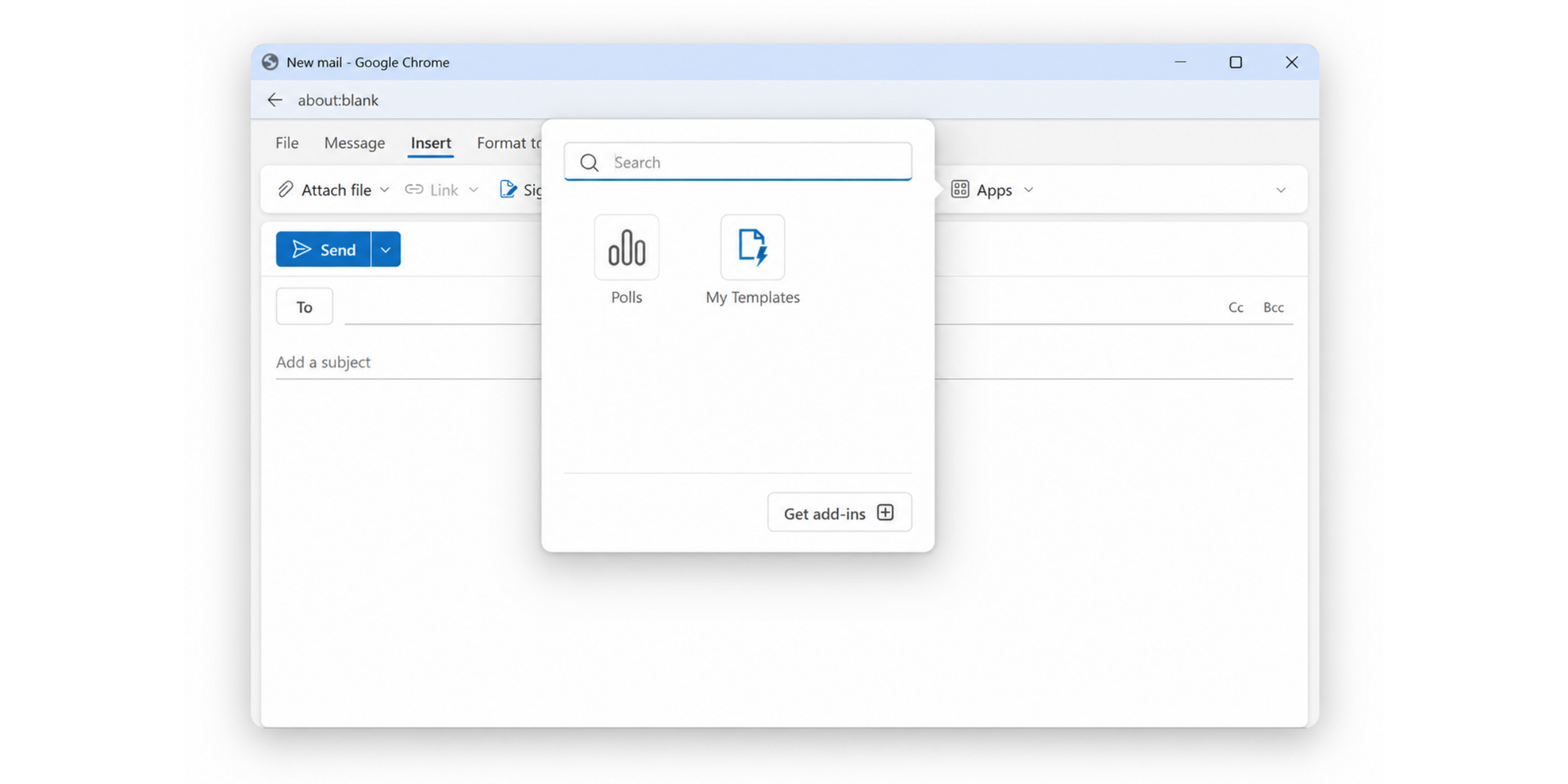
- Go to the Insert tab. Select Apps. If you haven't used Polls before, choose Get add-ins, search for Polls, and click Add. Once installed, Polls will be available from the Apps menu for future emails.
- Add your question and available options.
- Choose whether participants can select multiple answers or require a single choice.
- Send the email.
Participants can then vote directly from the email. Their responses are collected so you can see which option receives the most votes.
This works well for simple decisions, such as:
- Choosing a lunch date
- Selecting a team meeting time
- Picking an event option
- Gathering quick opinions
For more complex decisions, an Outlook availability poll may not provide enough flexibility because it focuses on voting rather than automatically checking calendars.
Create a meeting poll in Outlook Calendar
If your goal is finding a time for a meeting, Outlook also offers a scheduling poll option.
Here is how to create a meeting poll in Outlook:
- Open Outlook Calendar.
- Create a new meeting invitation.
- Add the required participants.
- Select Scheduling Poll or the relevant poll option available in your Microsoft 365 account.
- Add possible meeting times.
- Send the poll.
- Review responses and choose the final time.
The advantage of a meeting scheduling poll in Outlook is that participants can quickly indicate which times work best.
For example, instead of sending:
“Are you free Tuesday at 10?” “What about Wednesday afternoon?” “Could we do next week?”
You can send several options at once and let everyone vote.
The downside? You still need to check responses, select a final time, and send the calendar invitation.
Create a poll in Outlook Web vs Outlook Desktop
The steps for creating an Outlook poll depend slightly on which version you use.
| Poll availability | Best for | |
| Outlook Web | ✅ Available through Microsoft 365 features | Quick polls from your browser |
| Outlook Desktop | ✅ Available depending on account setup | Teams using Outlook as their main calendar |
| Outlook Mobile | Limited | Checking responses while away |
Microsoft regularly updates Outlook features, so the exact location of the Poll button may vary depending on your account type and organization settings.
If you cannot find the poll option, check whether your organization has Microsoft 365 features enabled or whether you need access to Microsoft Forms.
How to create a survey in Outlook
Creating a survey in Outlook is different from creating a poll because surveys are designed to collect more detailed feedback.
A poll usually asks one simple question:
“Which meeting time works best?”
A survey collects broader information:
“How satisfied were you with the training session?”
When to use an Outlook survey instead of a poll
Use an Outlook poll when you need people to choose between options quickly.
Examples:
- Choosing a meeting time
- Selecting a project preference
- Voting on an event date
Use an Outlook survey when you need opinions, feedback, or multiple responses.
Examples:
- Customer feedback
- Employee satisfaction surveys
- Training evaluations
- Event reviews
If you are looking for how to create a survey in Outlook, the best approach is usually using Microsoft Forms and sharing it through Outlook.
How to create an Outlook survey using Microsoft Forms
To create a survey:
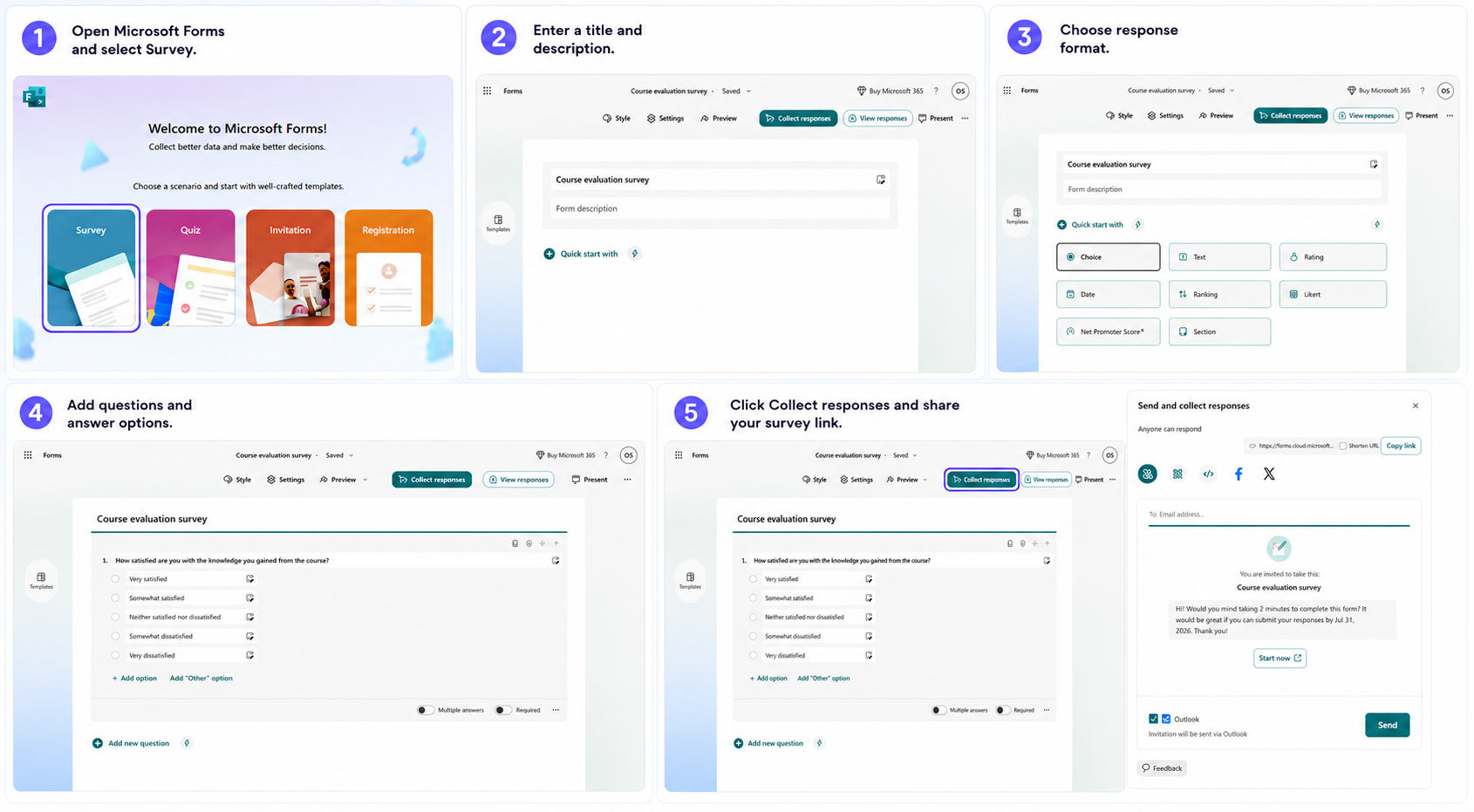
- Open Microsoft Forms. From the available options, select Survey.
- Enter a title and, if needed, add a description.
- Choose the response format.
- Add your questions and the available answer options.
- When your survey is ready, click Collect responses in the top-right corner.
- Share the survey link through Outlook or use one of the other available sharing options.
Microsoft Forms supports:
- Multiple-choice questions
- Ratings
- Text responses
- Ranking questions
- Multiple sections
According to Microsoft’s own guidance, Forms is designed for collecting structured responses, while Outlook polls are better suited for quick decisions.
How Outlook scheduling polls work
An Outlook scheduling poll helps groups find a meeting time by letting participants vote on available options.
The process is simple:
- The organizer suggests possible times.
- Participants select the options that work.
- The organizer reviews responses.
- A final meeting time is chosen.
- A calendar invitation is created.
For occasional meetings, this process works well. It is a practical way to coordinate with several people without endless email exchanges.
However, professionals who schedule meetings every day often need more than a voting system.
What happens after participants vote?
After participants respond, the organizer still needs to:
- Review availability
- Decide on the best option
- Send the final invitation
- Update calendars
- Follow up with people who have not responded
This creates another step between “finding a time” and “having a meeting.”
That gap is where automated scheduling tools can help.
Benefits of using an Outlook scheduling poll
An Outlook scheduling poll can help you:
Reduce scheduling emails Instead of multiple messages, everyone responds in one place.
Make team decisions faster Participants can quickly show which times work.
Coordinate larger groups Multiple people can provide availability without individual conversations.
For occasional meetings, this may be enough. But recurring meetings, client calls, interviews, and appointments often require a more automated approach.
Common problems with Outlook polls
Outlook polls solve one part of scheduling: collecting preferences. But they do not remove every scheduling challenge.
Participants don’t respond to polls
One of the biggest problems with scheduling polls is waiting for everyone to vote.
You may still need to send reminders like:
- “Can everyone respond by Friday?”
- “We still need two more votes.”
- “Please confirm your availability.”
For busy teams, this can create another round of follow-up emails.
Poll responses become outdated
Availability changes.
Someone may vote for Tuesday morning, then receive another meeting invitation or have a deadline added to their calendar.
The poll result may no longer reflect their real availability.
This is why calendar synchronization matters. Real-time calendar updates remove the need for people to manually keep availability accurate.
Outlook polls still require manual scheduling
An Outlook scheduling poll helps you find a possible time, but it does not fully automate the booking process.
You may still need to:
- Confirm the meeting
- Check calendars
- Send invitations
- Manage reminders
- Avoid double bookings
For professionals managing frequent meetings, interviews, or appointments, a dedicated scheduling tool can remove these extra steps.
Outlook polls vs scheduling tools: Which one should you use?
Outlook polls are useful for occasional decisions. Scheduling tools are better when you need people to book time automatically.
| Outlook Poll |  | |
| Find meeting availability | ✅ | ✅ |
| Let people choose available slots | Limited | ✅ |
| Automatic calendar sync | Limited | ✅ |
| Booking page | ❌ | ✅ |
| Automatic reminders | Limited | ✅ |
| Recurring scheduling | Limited | ✅ |
| Group scheduling | Limited | ✅ |
| Custom availability settings | ❌ | ✅ |
The right choice depends on your workflow.
Use an Outlook poll when:
- You need a quick vote
- You rarely schedule group meetings
- Everyone already uses Outlook
Use a scheduling tool when:
- You schedule meetings regularly
- Clients or colleagues need to choose times themselves
- You want fewer emails
- You need automatic calendar updates
How Koalendar makes meeting scheduling easier
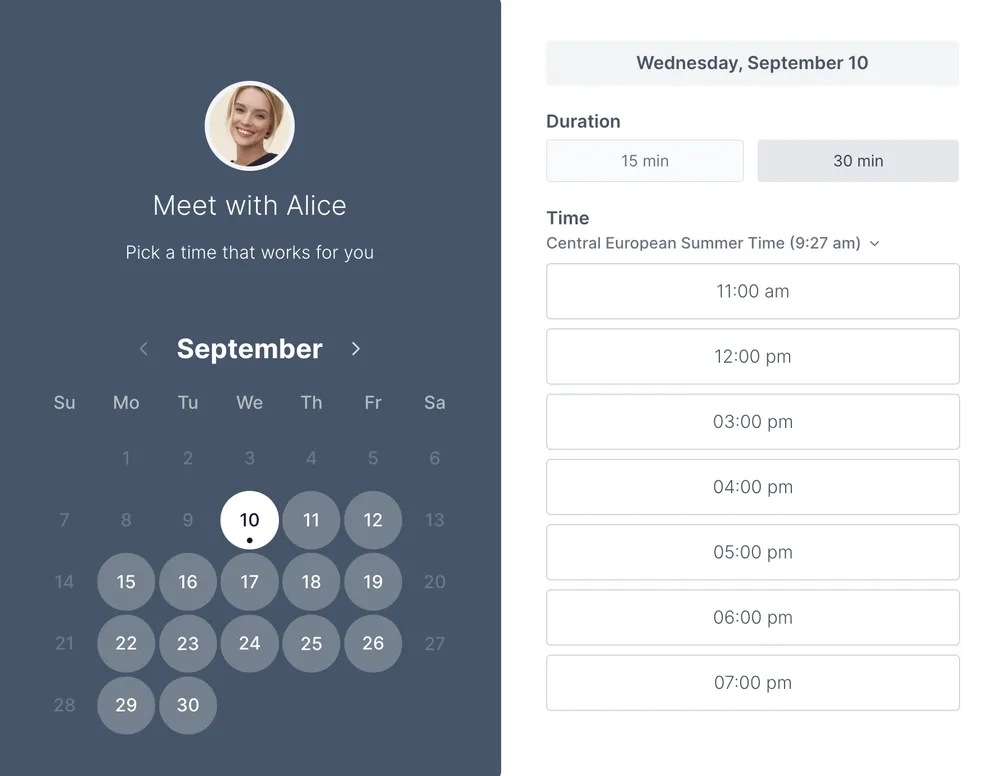
Koalendar helps professionals move from “finding a time” to “getting the meeting booked.”
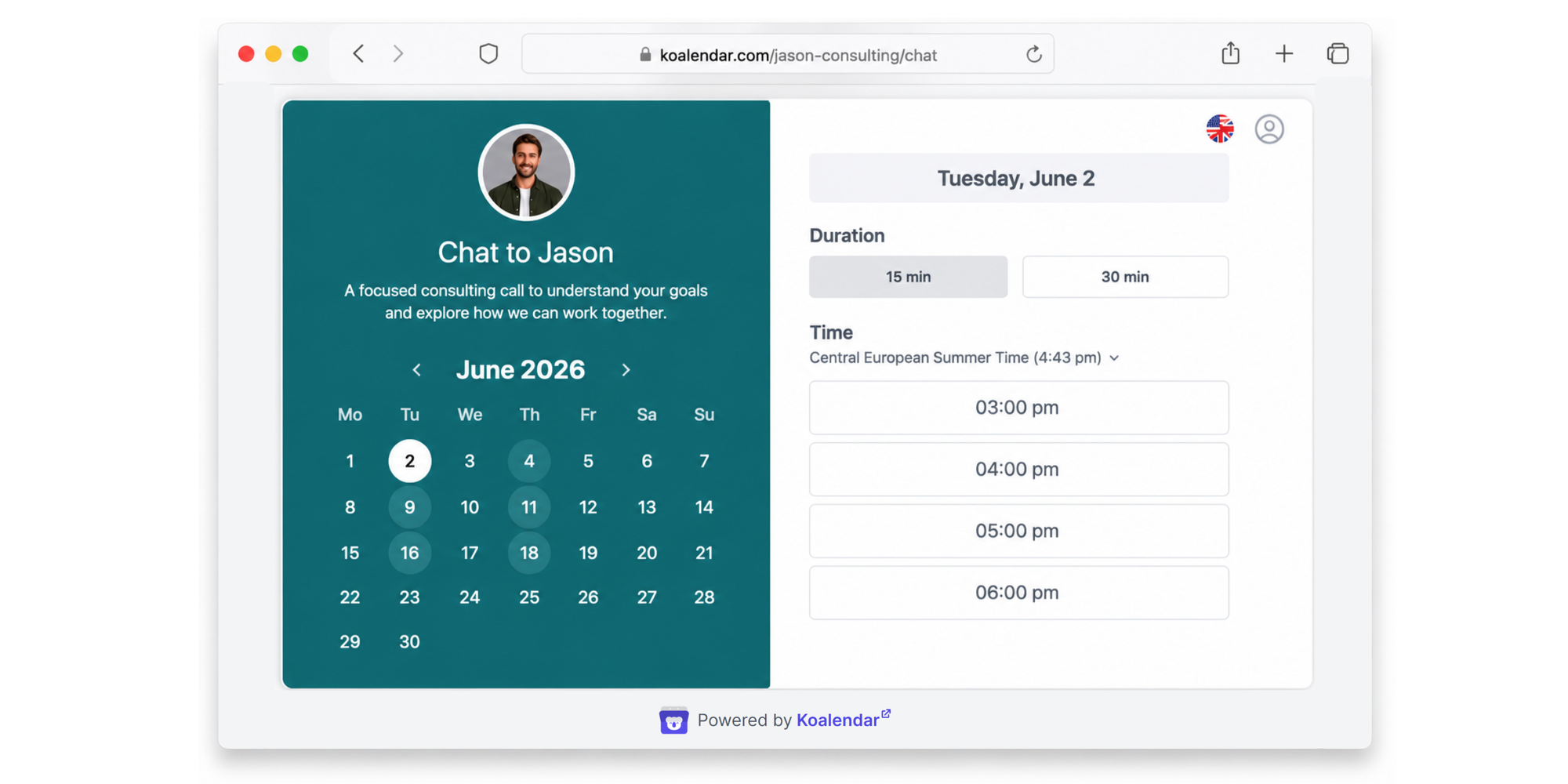
Instead of sending a poll and waiting for responses, you can share one scheduling link where people choose from your available times.
Share one scheduling link instead of sending polls
With Koalendar, you create a booking page and share it wherever you communicate.
Your clients, teammates, or candidates can:
- View your availability
- Pick a suitable time
- Receive confirmation automatically
No voting rounds. No long email threads.
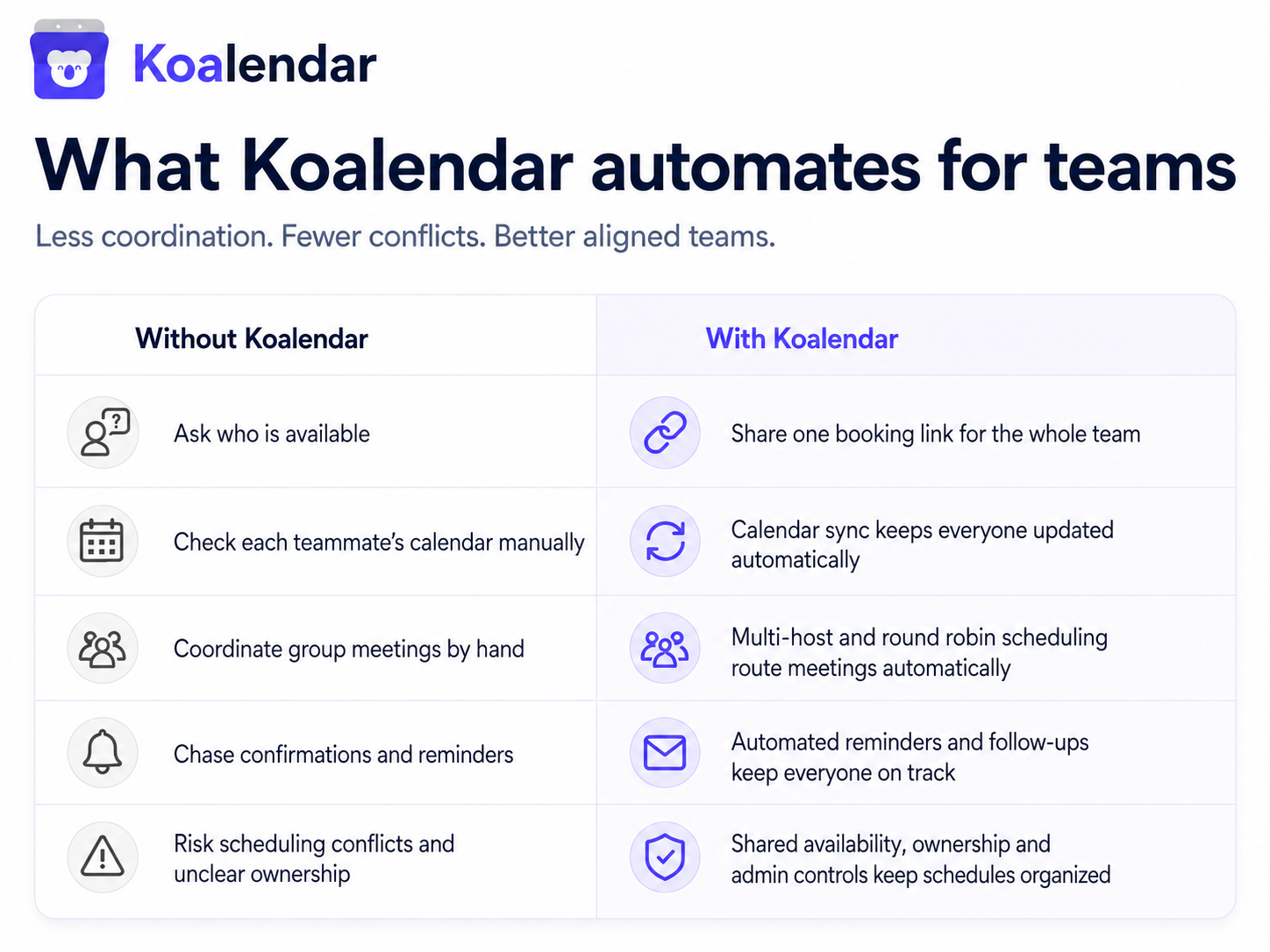
Keep your calendar automatically updated
Koalendar connects with the tools you already use, including Google Calendar and video meeting platforms.
Your availability stays accurate, helping you:
- Avoid double bookings
- Keep your schedule organized
- Spend less time managing calendars
Let people schedule meetings when it works for them
Whether you are scheduling interviews, client calls, coaching sessions, or team meetings, Koalendar gives people a simple way to choose a time.
With features like:
- 24/7 scheduling
- Automatic reminders
- Unlimited meetings
- Group scheduling
- Custom availability settings
- No-code setup
you can create a smoother scheduling experience without complicated setup.
Koalendar free forever plan lets you get started and stay free without a credit card, making it easy to try a simpler approach to scheduling. If you want to test the Pro features, you can also do it for free for a limited period of time, so you can decide if it’s the right plan for you.
Final thoughts
Knowing how to create a poll in Outlook can help you collect availability and make quick scheduling decisions. However, polls still leave you with manual follow-ups, outdated responses, and extra calendar management.
For professionals who schedule meetings frequently, Koalendar makes scheduling simpler by letting people choose available times automatically, with calendar synchronization, reminders, and booking pages built in. Start free today and spend less time chasing availability.