
TL;DR
Outlook Calendar has features most professionals never discover: Scheduling Assistant for finding meeting times across teams, categories for organization, time blocking for focus work, and shared calendars for collaboration. These features can cut your scheduling time significantly. But for booking meetings with clients, candidates, or external contacts, Outlook hits its limits. That's where connecting to a scheduling tool like Koalendar solves the problem Outlook can't, while keeping everything synced.
You use Outlook Calendar every day. You create meetings, accept invitations, maybe block off some focus time. But if you're like most professionals, you're probably using only 20% of what Outlook actually does. The other 80% is hidden in menus you've never opened.
Outlook Calendar is powerful enough to eliminate most of your scheduling friction, but only if you know where to look. The difference between using Outlook and mastering it isn't complicated. Making some small changes can save you (and your business) hours every month.
This guide walks you through 24 practical tips that work, from organizing chaos, to scheduling meetings faster, to finally solving the external scheduling problem Outlook alone can't fix.
Here’s how to save time scheduling meetings with Outlook Calendar (and a little help from appointment booking software).
Outlook Calendar tutorial: Essential features every professional should know
If you're new to Outlook Calendar, these five features are your foundation. Everything else builds on them.
1. Create and manage calendar events
Start simple. Right-click any open time slot on your calendar and select "New Event."
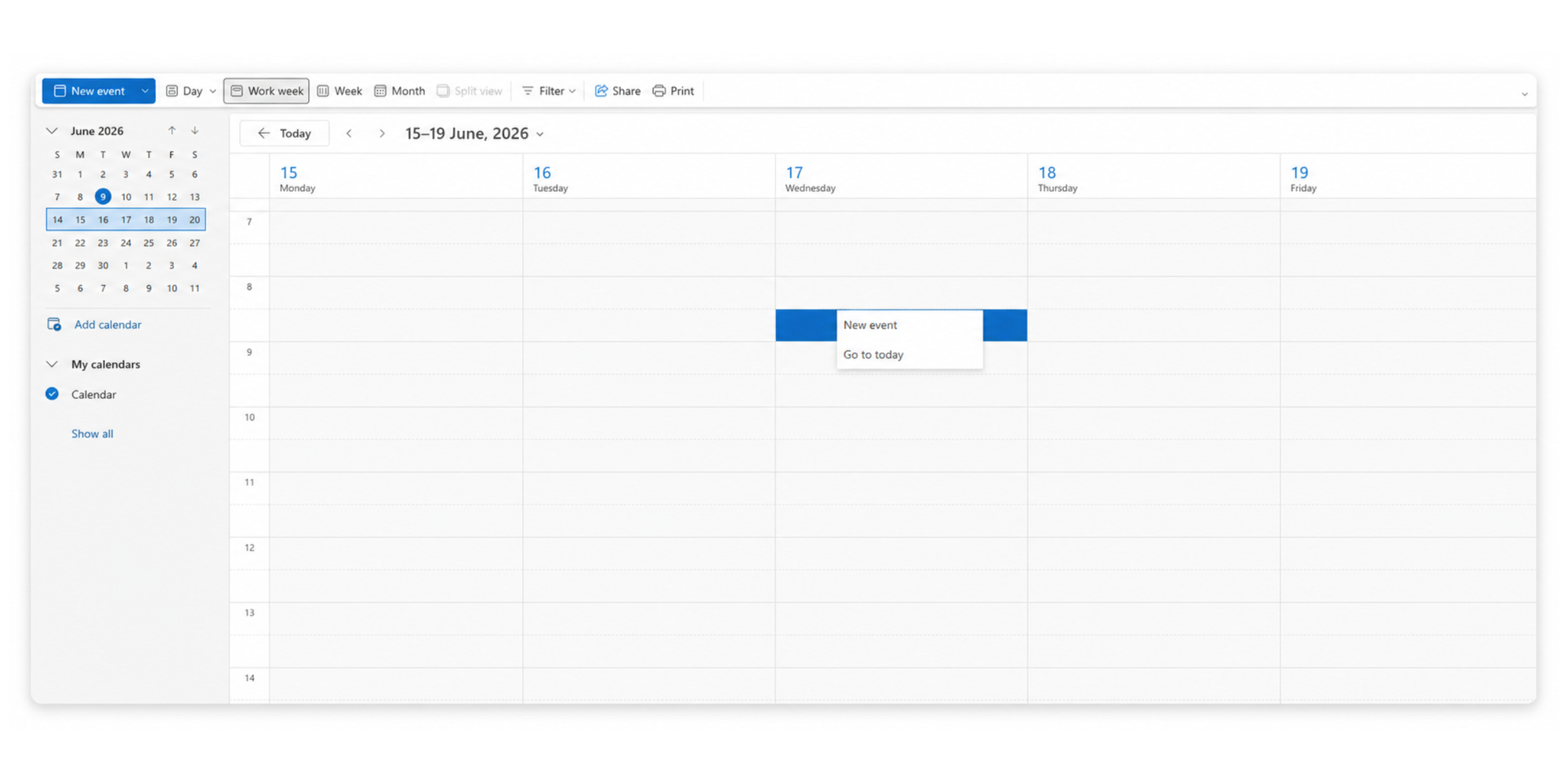
Add a title, set the time, and save. You can block time for yourself (personal focus), or invite others to attend. When you invite attendees, Outlook sends them a meeting request. They accept, decline, or suggest a new time. That response shows immediately on your calendar.
2. Schedule meetings with Outlook
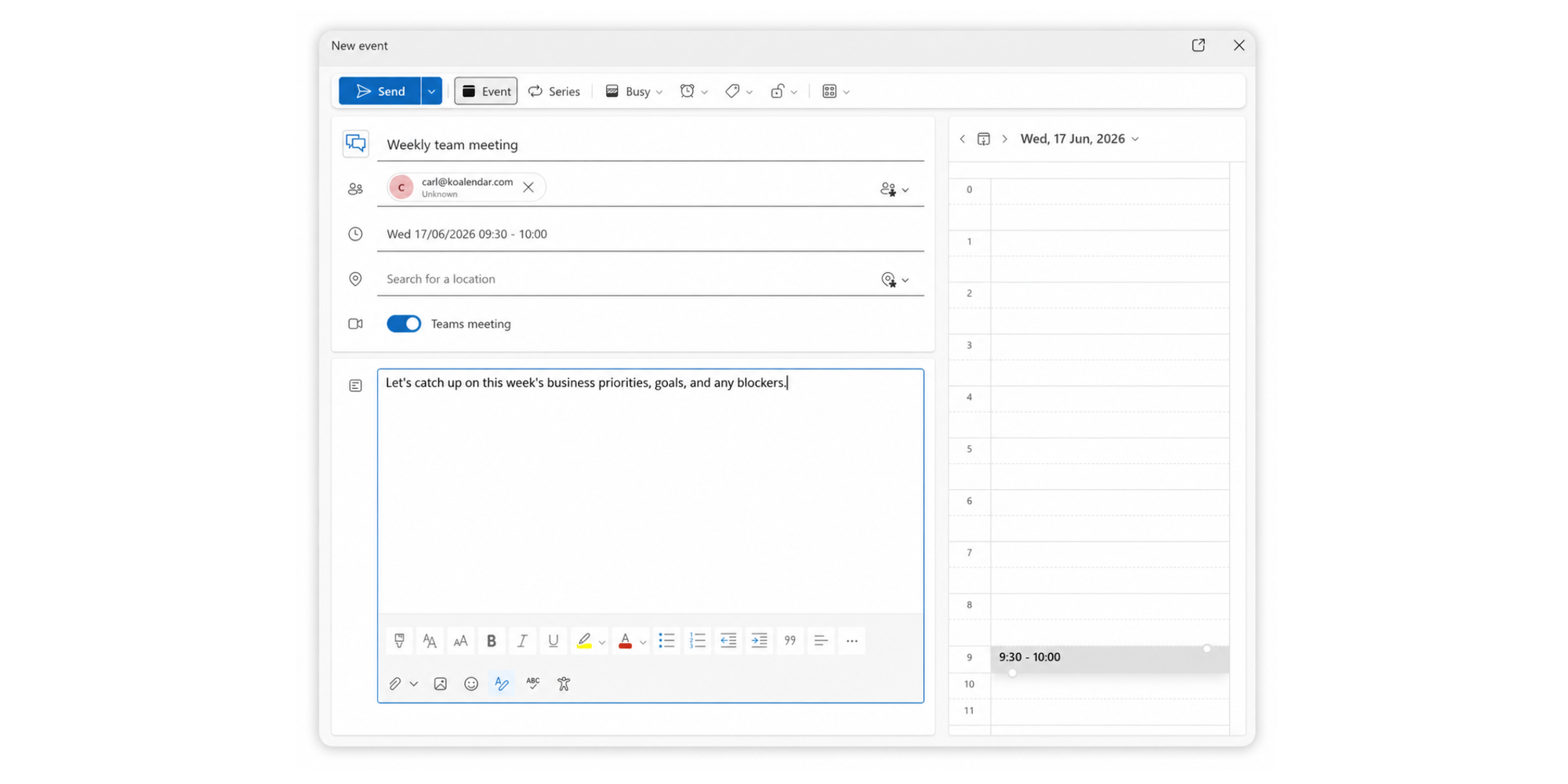
Scheduling a meeting is different from a personal event. Click "New Event”, and then add attendee email addresses. Add your subject, time, and location.
3. Use Scheduling Assistant
This is where most professionals get stuck. Open a new meeting. Click the "Scheduling Assistant" tab at the top. You'll see a grid showing your calendar and empty rows for each attendee.
As attendees load, colored blocks show their busy and free times. Drag the green handle to any open slot that works for everyone. The Scheduling Assistant pulls real-time free/busy data from attendees' calendars, preventing the guessing game of "are you free Thursday?", and stopping those annoying email chains where everyone tries to find a time that works for all.
4. Share your calendar with colleagues
Right-click on your calendar in the left sidebar and select "Sharing & Permissions" Choose which colleague gets access.
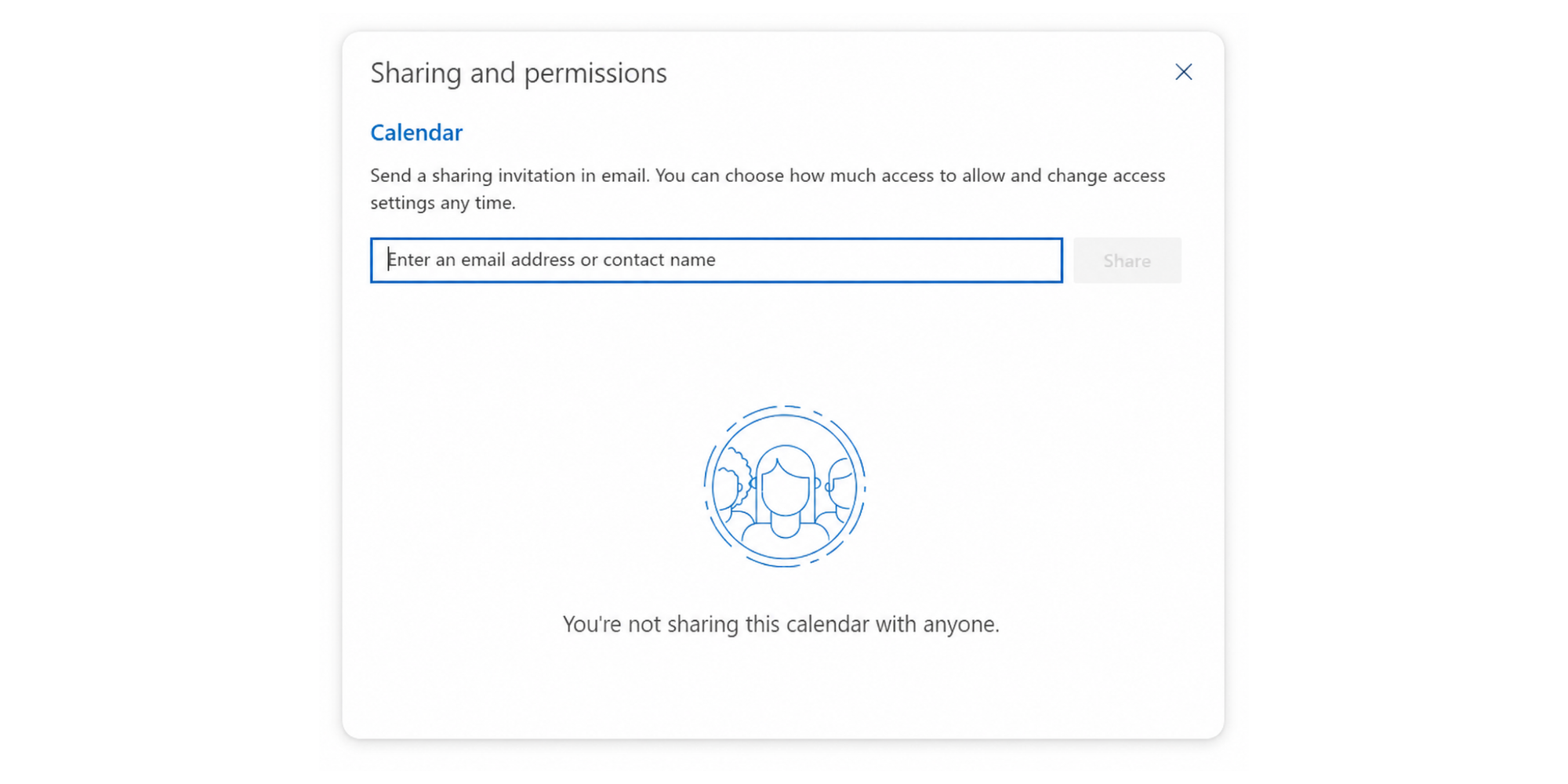
You can set permissions: they see only when you're busy (no details), limited details (time and title), or full details (everything). This is how teams coordinate without constant emails.
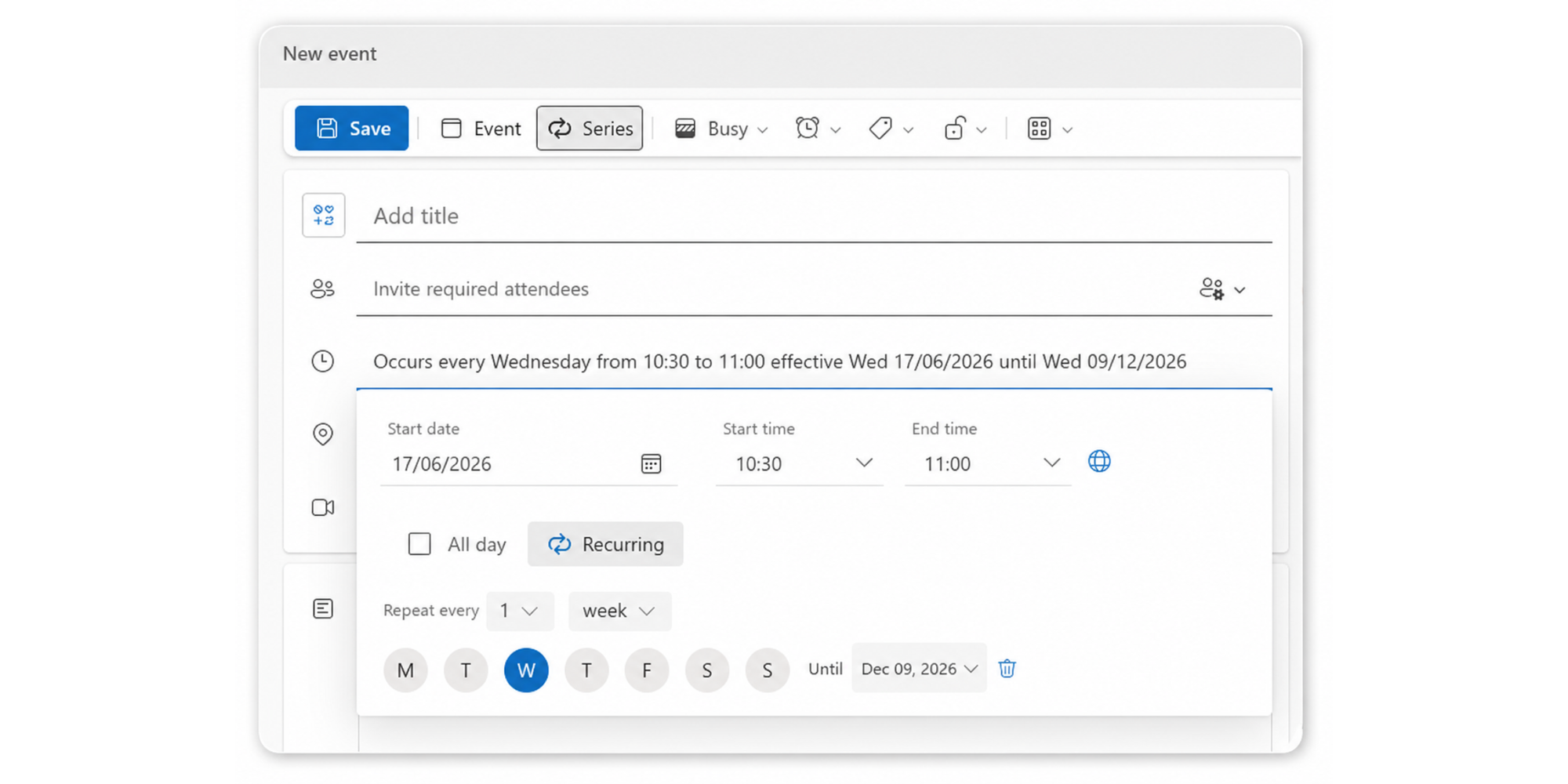
5. Set reminders and recurring appointments
When creating an event, set a reminder (1 hour before, 15 minutes before, etc.). Outlook will notify you. For meetings that happen every week, like standup meetings, team reviews, recurring 1-on-1s, click "Series" and set the pattern: daily, weekly, monthly, or custom. Outlook creates the entire series automatically.
Takeaway: If you're new to Outlook Calendar, master these five features first. Everything else in this guide builds on them.
Outlook Calendar tips to stay organized
A disorganized calendar becomes pointless. Meetings get buried and priorities become unclear. Here's how to fix that.
6. Use color categories to organize meetings
Create categories for different meeting types. Right-click any event and select "Categorise”.
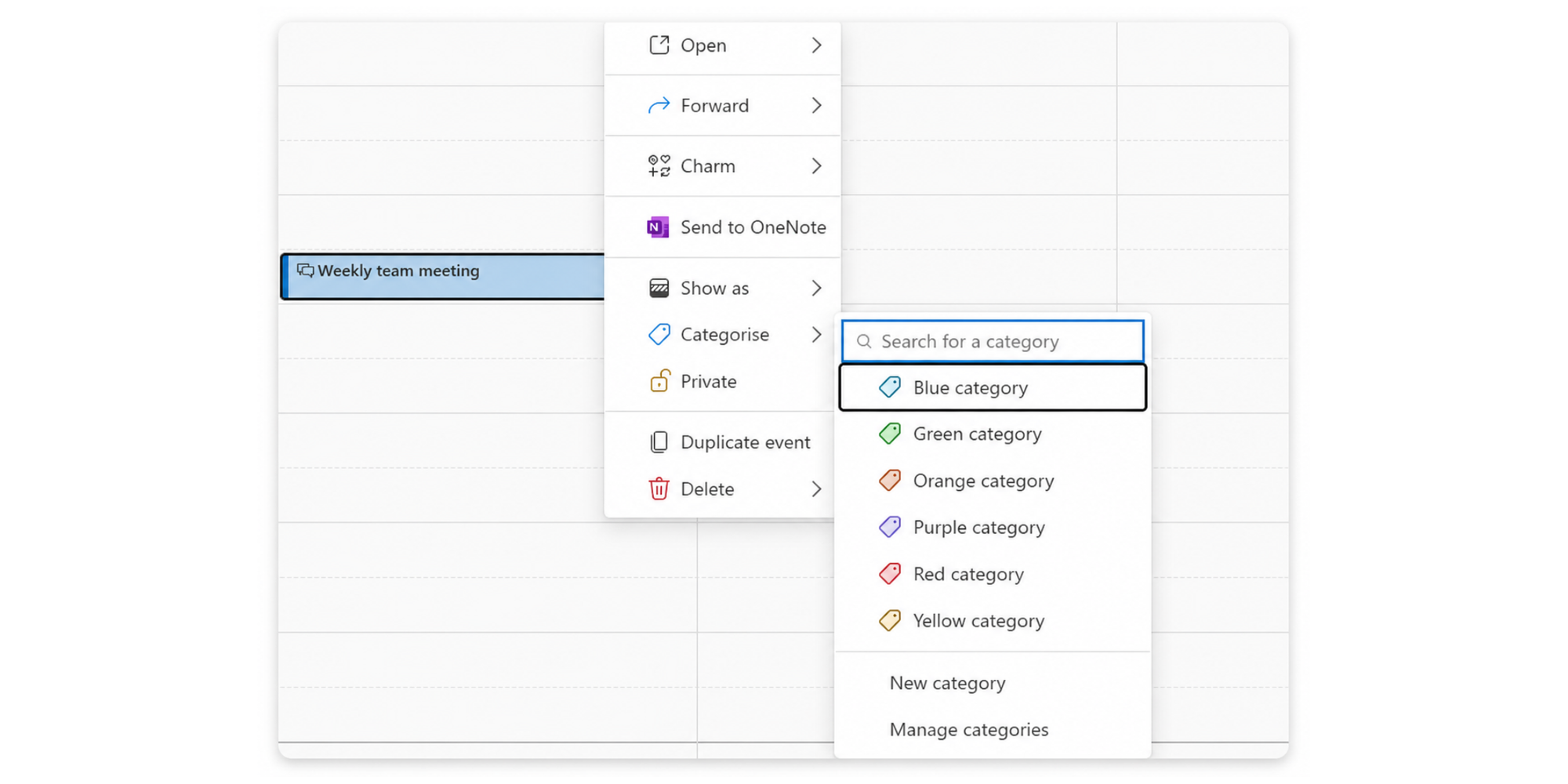
Assign a color (e.g. blue for internal meetings, green for client calls, red for urgent items, purple for one-on-ones). Over time, glancing at your calendar shows your week's shape immediately. You see at a glance what's dominating your time.
7. Block focus time for deep work
If your calendar is all meetings and no thinking time, you're not getting work done. Block at least 90-minute slots for focused work. Make these recurring. Set them to "Busy" so others see you as unavailable.
Many professionals underestimate the power of time blocking, research shows that protected focus time increases productivity by significant margins.
If you block out your time to focus on deep work, your calendar enforces the boundaries your willpower won't.
8. Customize your calendar view
Outlook offers different views: day, week, work week, month. The week view shows your schedule at a glance without overwhelming detail. The month view shows the entire month but hides time details.
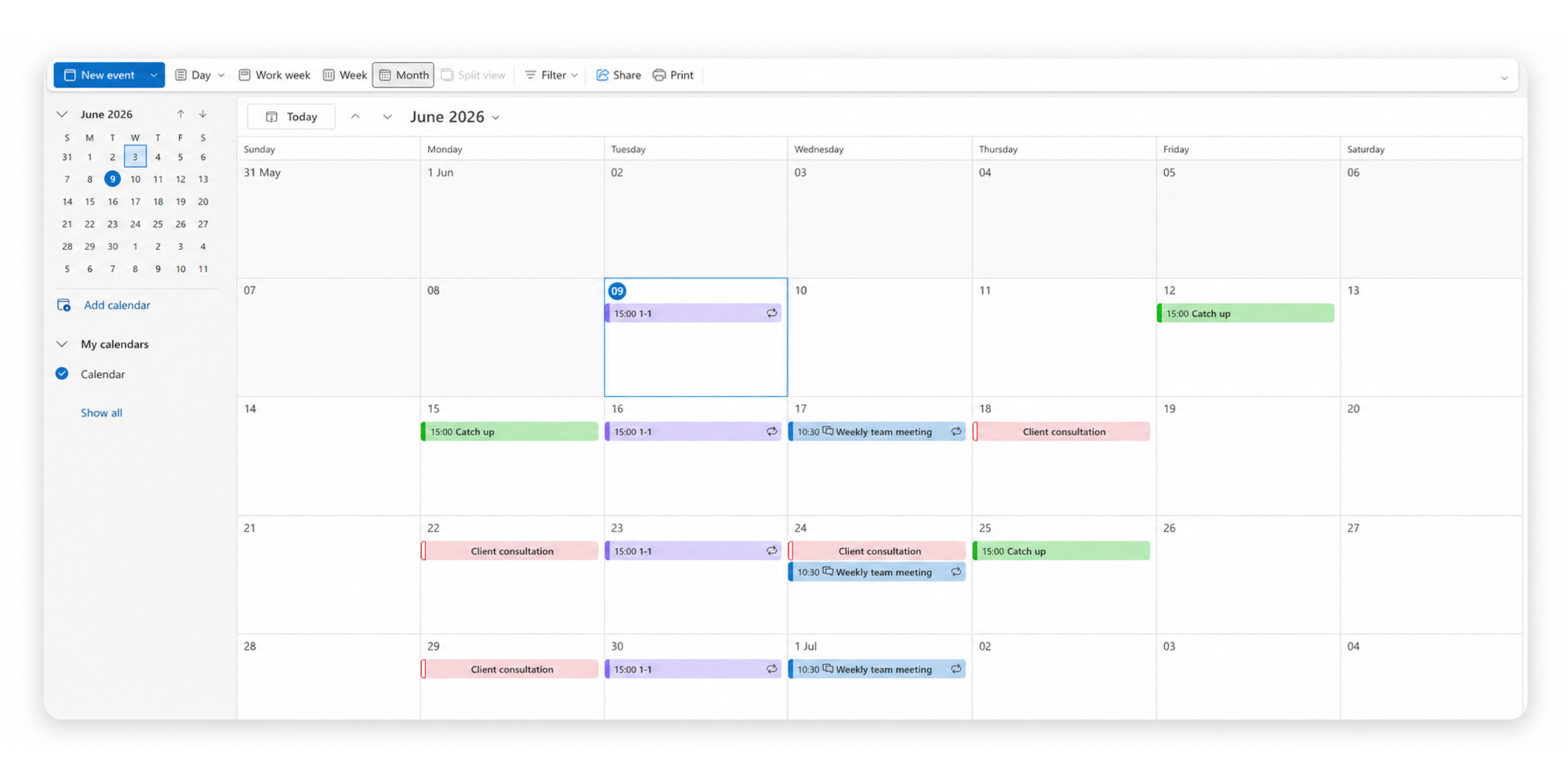
Switch views based on what you're trying to do:
- Use week view to plan your week
- Use month view to see patterns over time
9. Add multiple time zones
If your team spans geographies, this saves endless confusion. Click "Time Zones" in calendar settings (“View” > “Calendar Settings”).
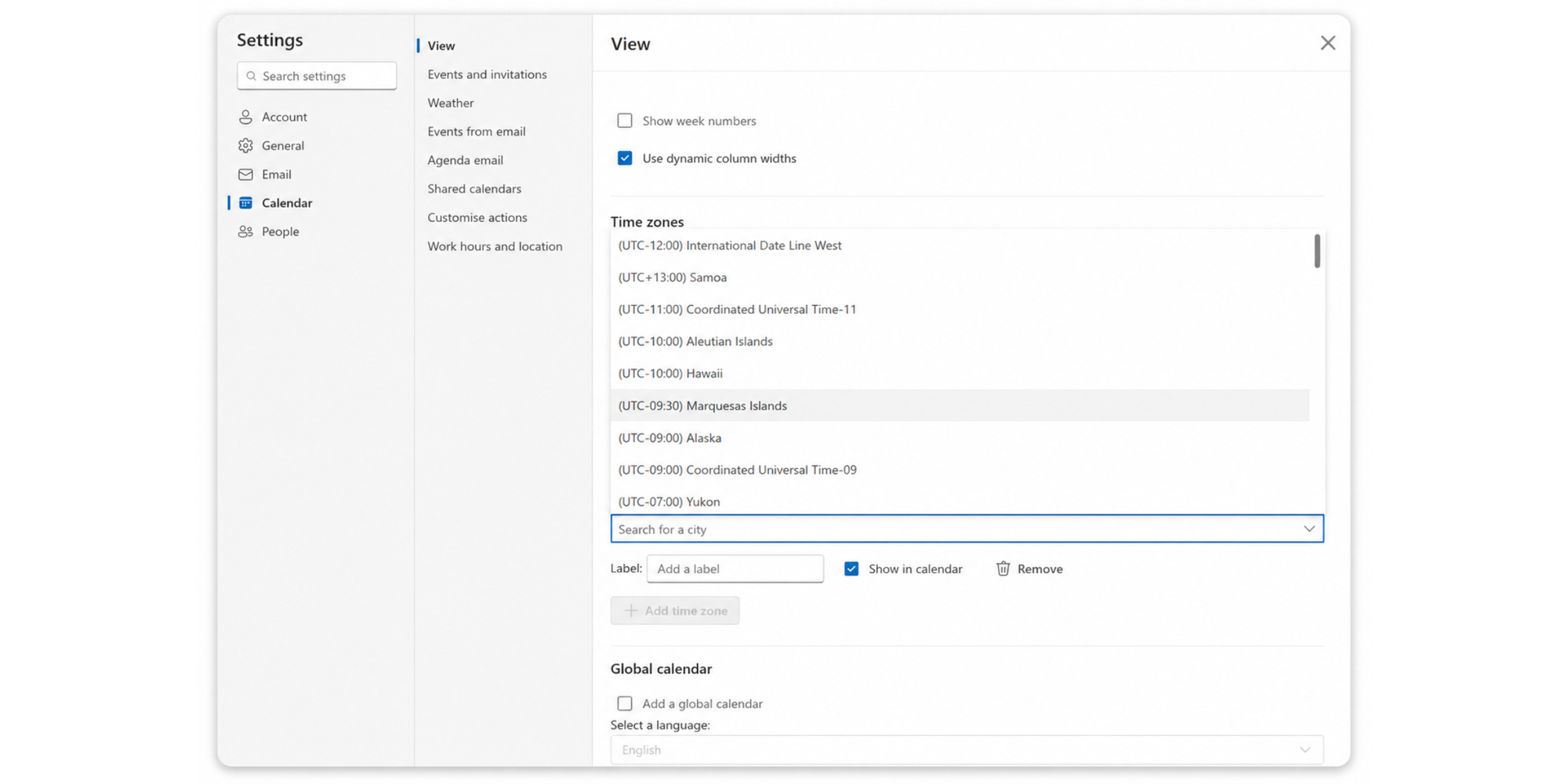
Here you can add a second time zone. Now every event shows time in both zones. When a colleague in Singapore sends a meeting invite, you see immediately what that time means for you.
10. Group multiple calendars together
You might have your work calendar, a team project calendar, and a resource calendar all going at once. Instead of flipping between them, overlay them in a single view. Right-click each calendar and select "Display in overlay." Now you see everything at once. Conflicts become obvious immediately.
How to use Outlook Calendar for scheduling meetings faster
Speed matters. Every email back-and-forth is time you're not spending on actual work. These tips eliminate the back-and-forth.
11. Turn emails into calendar events
Someone emails you "Let's meet Thursday at 2 PM." You can instantly turn this into a calendar meeting in Outlook.
Right-click the email and select "Create Meeting" or drag it to your calendar. Outlook extracts the sender's name, the suggested time, and the email text automatically. You edit if needed and send the invitation; a quick way to turn an idea into a locked-in appointment.
12. Create templates for recurring meetings
Do you schedule the same meeting weekly? Create a template. Set up the meeting once with your standard attendees, description, location, and duration, then save it as a template.
Next week, start from the template instead of from scratch. All the details are there, you just change the date.
13. Schedule Microsoft Teams meetings in one click
When creating a meeting, check the "Teams Meeting" toggle.
Outlook generates the Teams link automatically and includes it in the invite; attendees just click once and join.
Outlook Calendar features for team collaboration
Collaboration requires visibility. These features give your team the sight lines they need to coordinate without endless Slack messages.
14. Set permissions for better visibility
Calendar sharing without good permissions causes problems. Set these carefully:
- "Free/Busy Only" (colleagues see when you're busy but not what you're doing)
- "Limited Details" (colleagues see time and title but not description)
- "Full Details" (colleagues see everything)
For most cases, Free/Busy is enough. Save full details for trusted team members.
15. Coordinate remote and hybrid teams
When your team is scattered across locations and time zones, coordinate at a team level, not individual level. Create a team calendar and overlay all team members' individual calendars.
Now anyone planning a team event can see the collective picture: when most people are free, who's typically out during certain hours, and what the timezone constraints are.
16. Use calendar groups for projects and departments
Create a calendar group for your marketing team, your sales team, your product group. Add each team member's calendar to the group. Now any one team member can see the entire team's schedule at once. This prevents scheduling meetings when half the team is in training or has other commitments.
Outlook Calendar tips to reduce missed meetings and scheduling conflicts
Missed meetings damage trust and waste time. These practices prevent them.
17. Add buffers between meetings
Back-to-back meetings are a trap. You can't take notes from the previous meeting before jumping to the next one. To avoid back-to-back calls, add 15-minute buffers between meetings.
You can even create a recurring "buffer" event on your calendar if needed. This helps to reduce “context-switching” by providing brief transitions that improve focus and retention when going from one topic to another.
The 15 minutes between meetings often matters more than the meetings themselves. It helps you regroup from the one that just finished, prepare for the next, and avoid annoying colleagues and clients if your previous one overruns and makes you late.
18. Review your calendar weekly
Spend 10 minutes every Friday reviewing next week. Look for conflicts you missed, overbooked days, or days with no focus time. Make adjustments while you can.
Spot patterns: "Why do I always have back-to-back meetings on Wednesdays?" If you see the pattern, you can change it and make your schedule more manageable.
19. Keep recurring meetings from becoming calendar clutter
Recurring meetings pile up. Add every standup, every review, every recurring sync. Unless you keep on top of it, these regular meetings just become a habit; you join because you always do, even if it’s no longer necessary,
Every quarter, audit your recurring meetings. Cancel the ones that aren't serving anyone. Consolidate recurring syncs where possible. Your calendar should reflect how you actually work, not how you worked last year.
Outlook Calendar tips for client and external scheduling
Outlook is excellent for managing your calendar. But when you're scheduling clients, candidates, prospects, or partners outside your organization, the process becomes more manual.
These tips help streamline external scheduling while keeping Outlook as your source of truth.
20. Share your availability without endless email chains
Here’s a common scheduling frustration. You say: "I'm available Tuesday afternoon or Thursday morning. Does either work for you?" The person responds. You check your calendar again. You reply with two more options. They respond again. Five emails later, you have a meeting scheduled.
To avoid this, you can use your shared Outlook Calendar and availability settings. Ask clients to access your calendar link so they can see when you're free. You can set permissions to "Busy/Free only" so they see your open slots without seeing private details.
Pro tip: Instead of sharing your calendar and asking them to email back their choice, use a scheduling page that connects to Outlook. Scheduling pages eliminate the email chain by letting clients choose an available time directly. They pick a free slot, and it automatically books on both calendars. Reminders happen automatically with no need for email tennis.
21. Reduce scheduling conflicts with real-time availability
You book a meeting Thursday at 2 PM. Then someone adds you to a team meeting at the same time. Or you double-book because a previous meeting ran long. If that’s a familiar story, keep your Outlook Calendar updated in real time.
Scheduling tools connected to Outlook check your calendar in real time before confirming appointments. If you're already booked, the system offers alternative times automatically with no coordination needed from you.
This is especially valuable when you're scheduling with people across time zones or when multiple people are booking time with you simultaneously.
22. Reduce no-shows with automatic reminders
How many times have you scheduled a meeting, and the external attendee forgets, leaving you waiting as they don't show? You’ve probably lost count.
With Outlook, set reminders so you remember to join, and for attendees outside your organization, encourage them to accept your invitation so the meeting shows on their calendar and they get Outlook's default reminder.
The limitation is that Outlook reminders primarily help you remember. External attendees who don't use Outlook won't get your calendar reminders.
For client-facing meetings, automated reminder emails sent 24 hours and 1 hour before significantly reduce appointment no-shows. Rescheduling links in those reminders let clients move the meeting directly instead of emailing back and forth. This is where a scheduling tool solves a problem that Outlook alone can't fully address.
23. Keep multiple calendars synced
When you manage your work calendar, a team project calendar, and a resource calendar, keeping them aligned is difficult, especially when scheduling external people.
Use Outlook Calendar groups and sharing settings to improve visibility across your own calendars. Overlay them so you see everything at once.
When an external client books a time, it immediately blocks time on your work calendar, your team's calendar, and any resource calendar, so everyone stays in sync.
24. Create a self-service scheduling experience with Koalendar
If you're constantly scheduling clients, candidates, prospects, or partners, Outlook alone creates unnecessary admin work. Every interaction requires back-and-forth emails or requires you to manually coordinate calendars.
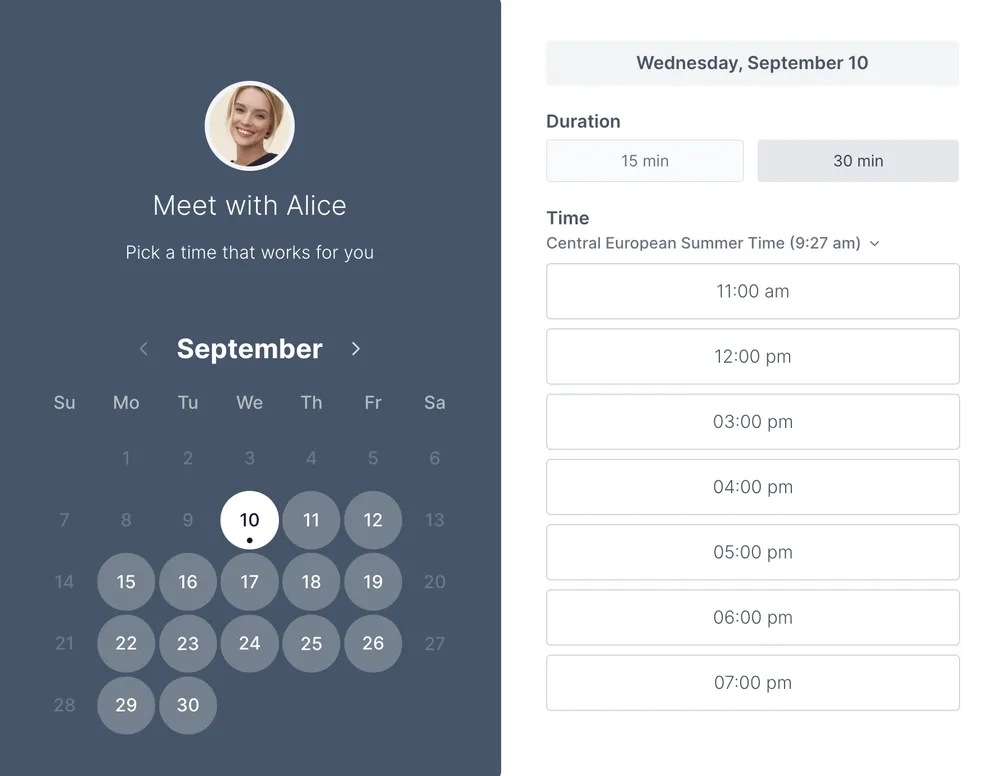
Connecting Outlook Calendar to Koalendar solves this.
Clients visit your booking page, see your available times in real time (pulled from Outlook), pick a slot, and the meeting books automatically on both your Outlook Calendar and theirs.
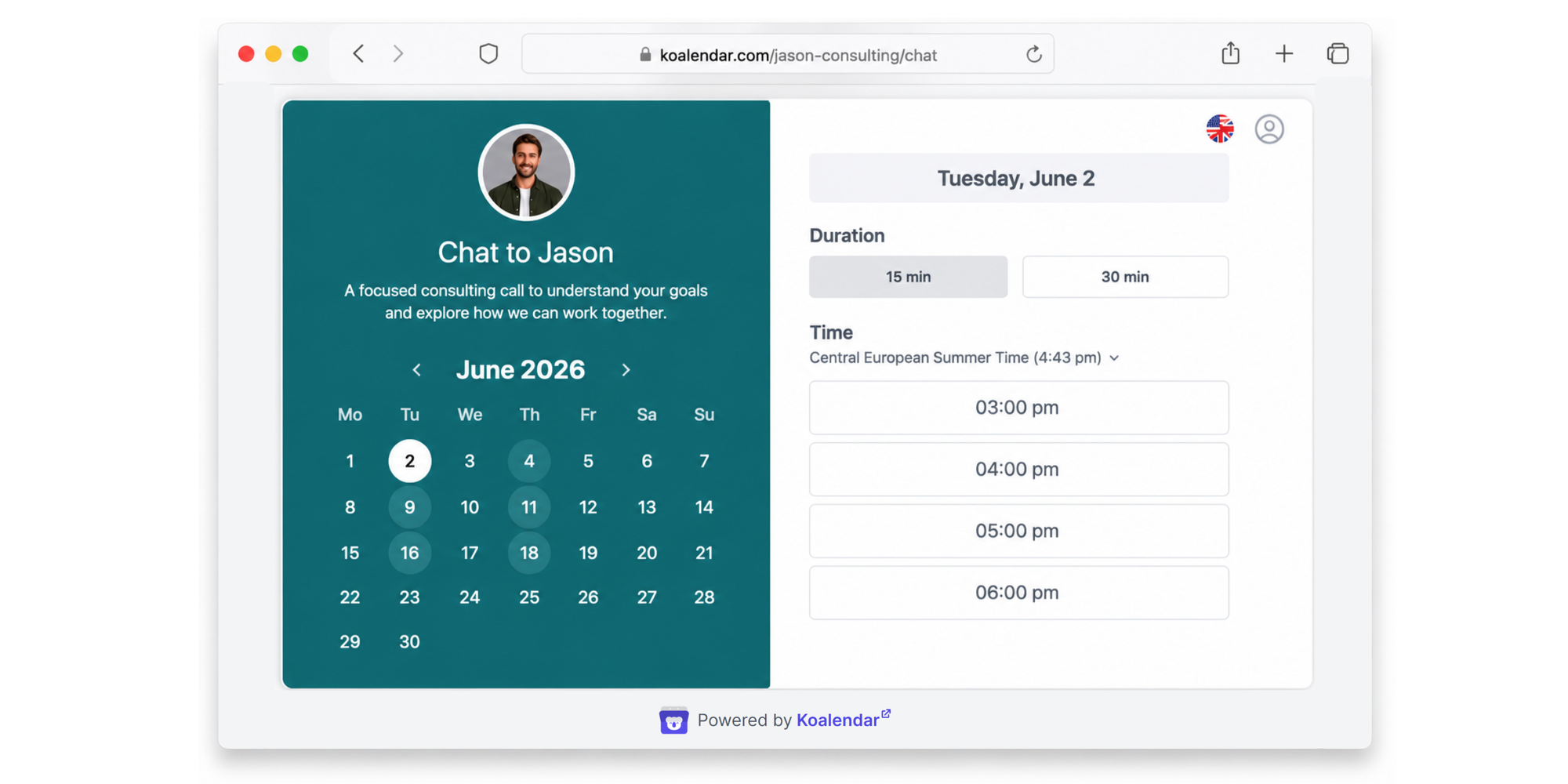
Reminders happen automatically and rescheduling links let them move the meeting without emailing you. Your schedule stays in Outlook Calendar, and everything syncs perfectly.
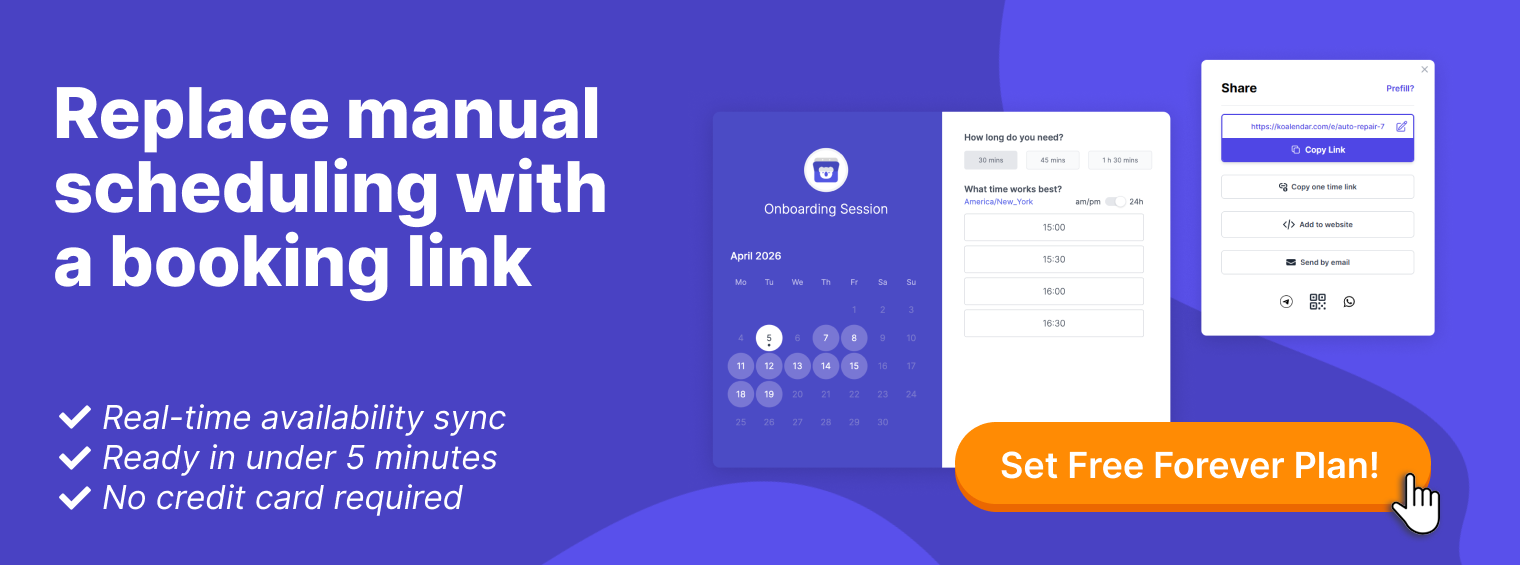
Koalendar has a Free Forever plan which is perfect to get you up and running and simplify calendar management. It includes unlimited bookings, scheduling links, and calendar sync. As you grow or need more features, the Pro plan starts at $6.99 per month, per seat, and includes automated reminders, payments, advanced customization, and group session booking.

Quick reference: Best Outlook Calendar features by use case
| If you want to... | Use this feature |
| Stay organized | Categories (color-coding meetings) |
| Protect focus time | Time Blocking (recurring focus blocks marked "Busy") |
| Find meeting times faster | Scheduling Assistant (overlay attendee calendars) |
| Coordinate teams | Shared Calendars (team visibility) |
| Compare schedules | Calendar Overlay (see multiple calendars at once) |
| Reduce no-shows | Reminders (24 hours + 5 minutes before) |
| Schedule external meetings | Koalendar + Outlook Sync (clients book directly) |
Conclusion: Make Outlook work harder for you
Outlook Calendar is powerful enough to eliminate most of your scheduling friction. Time blocking protects your focus time. Scheduling Assistant finds meeting times without email chains. Categories keep your calendar readable. Shared calendars let teams coordinate without meetings about meetings.
But Outlook has a blind spot: it works great for managing your calendar, but not for letting others book it. When you're scheduling clients, candidates, or partners (or anyone else outside your Outlook organization) you're back to email chains and manual coordination.
The best Outlook Calendar tips are those above that help you spend less time managing your schedule and more time on meaningful work. And if you're frequently booking meetings with people outside your organization, connecting Outlook Calendar with Koalendar automates the entire process, from availability sharing to appointment reminders, while keeping everything perfectly synced.
Ready to put these Outlook Calendar tips into practice? Try Koalendar for free and automate scheduling, reminders, and calendar syncing in minutes. No credit card required.