
TL;DR
Scheduling meetings shouldn't mean endless email chains. This guide walks you through how to schedule a Zoom meeting and invite others, and how to automate the whole process so you're not doing it manually every time.
Note: These steps were verified with hands-on testing across all five interfaces and last updated in June 2026.
We verified these steps in the Zoom desktop app (Windows/Mac), Zoom iOS and Android apps, Google Calendar with Zoom for Google Workspace add-on, and Outlook with the Zoom for Outlook add-in.
Quick answer: how to schedule a Zoom meeting and invite others
To schedule a Zoom meeting and invite others, open Zoom, select Schedule, enter the meeting details, choose your security settings, and save it. Then copy the invitation or add the meeting to Google Calendar or Outlook.
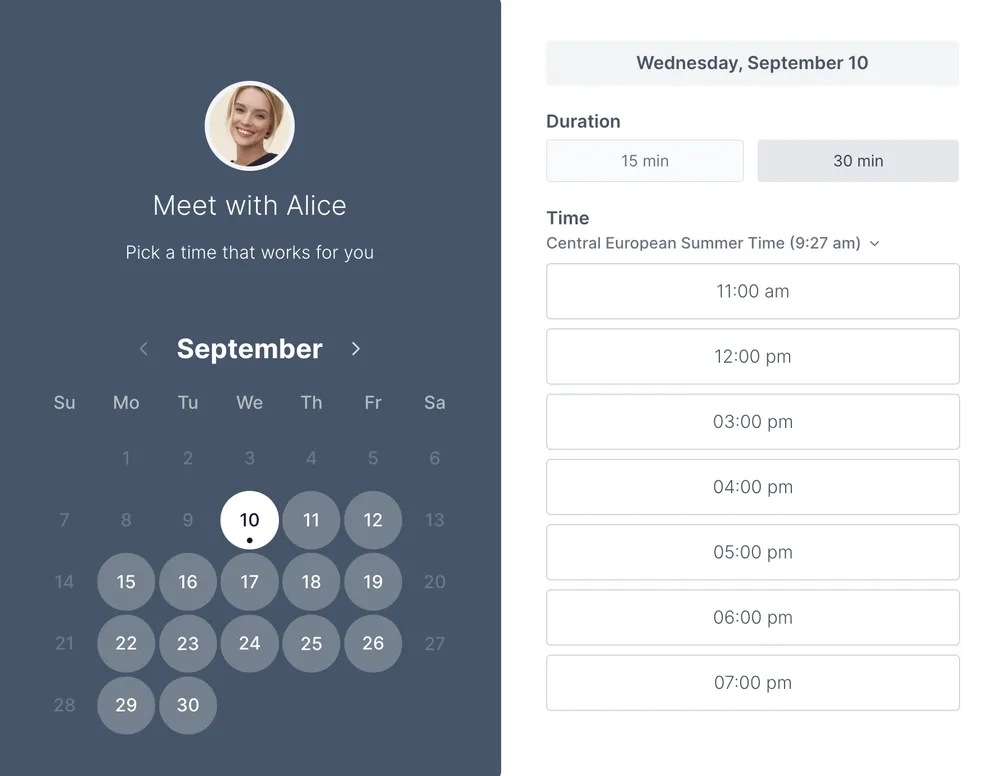
Send attendees the calendar event or Zoom link containing the meeting ID and passcode. Participants join using the Zoom link included in the invitation. Alternatively, scheduling tools like Koalendar can send the Zoom link automatically once the meeting is booked using the Koalendar booking link.
What you'll need before scheduling a Zoom meeting
Ahead of setting up your calls, here’s a rundown of what you’ll need to get started.
A Zoom account
You'll need a Zoom account to schedule meetings. A free plan lets you host meetings up to 40 minutes with up to 100 participants. Zoom’s paid plans (Pro, Business, Enterprise) remove time limits and unlock advanced features.
Your attendees don't need a Zoom account to join; they just need the meeting link. Zoom also offers a browser-based join option, so they don't even need the app installed.
A connected calendar (optional)
Connecting Zoom to Google Calendar or Outlook lets you add meetings directly to calendar invites and send them to attendees from one place. We'll cover how to set this up below.
Attendee email addresses
You'll need attendee emails if you're sending calendar invitations. If you're just sharing a link (via Slack, WhatsApp, or email), you won't need them upfront.
Choosing the right meeting settings
Before you schedule, it's worth knowing what additional settings are available to make your meetings more secure and easy to run.
- Waiting room: Attendees wait until you admit them; this is good for client calls where you want control over who enters
- Passcode: Adds a layer of security. Zoom enables this by default on most accounts
- Recurring meetings: Use the same link for weekly team standups or regular client sessions
- Host controls: Decide whether participants can share screens, unmute themselves, or use the chat
How to schedule a Zoom meeting on desktop
Zoom's desktop app (available for Windows and Mac) is the quickest way to schedule a meeting.
Step 1: Open Zoom and select Schedule
Open the Zoom desktop app and click the Schedule icon (it looks like a calendar) on the home screen.
Step 2: Enter meeting details
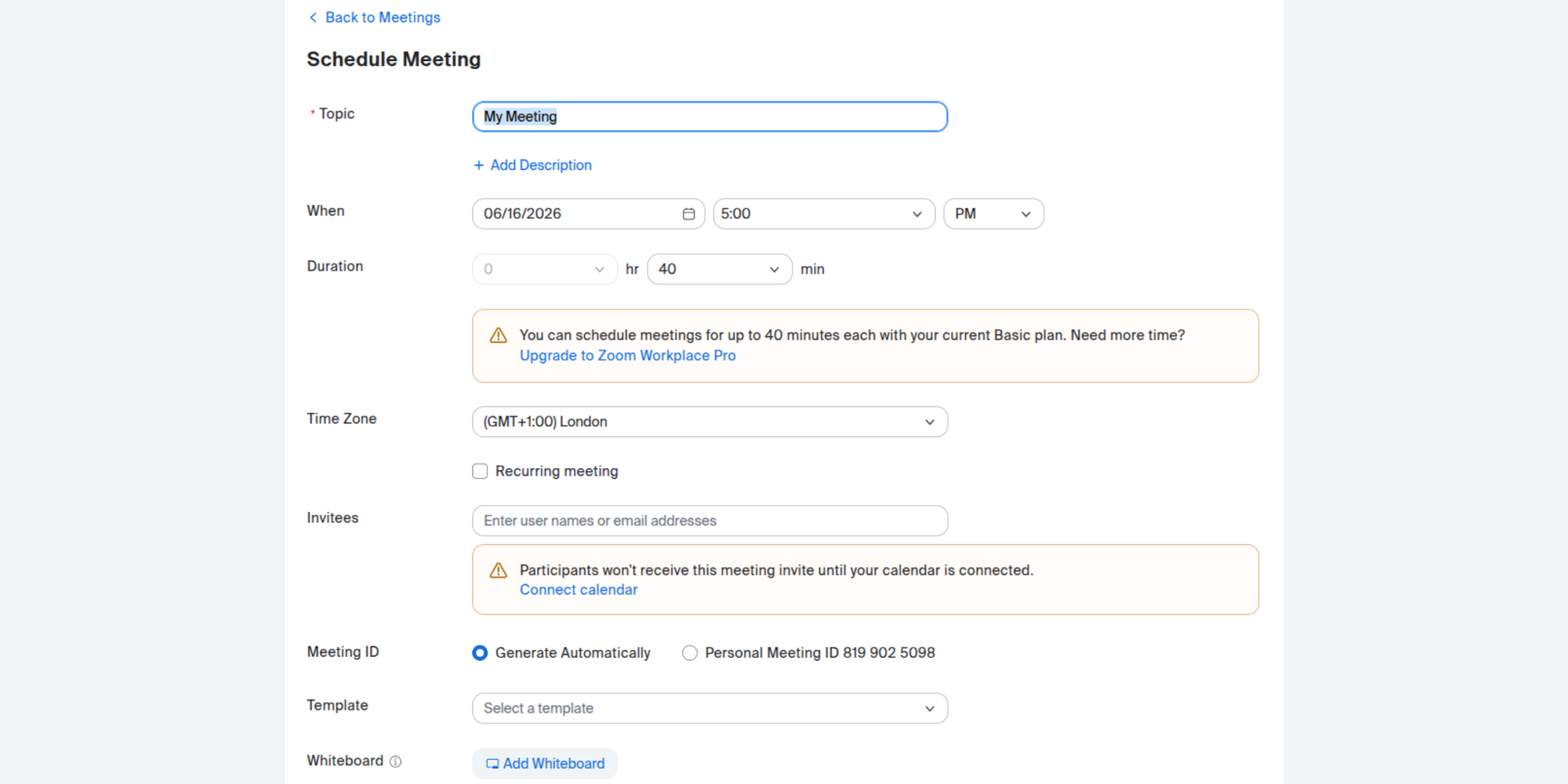
Fill in:
- Meeting title — keep it clear and descriptive (e.g. "Sales Call – Acme Corp")
- Date and time — double-check the time zone if participants are in different locations
- Duration — set a realistic estimate; Zoom doesn't cut you off on paid plans, but it helps attendees plan their day
Step 3: Configure meeting options
- Enable or disable the passcode and waiting room
- Choose whether to automatically record the meeting
- Set video preferences for host and participants (on or off by default)
Step 4: Save your meeting
Click Save. Zoom will confirm the meeting is scheduled and give you options to add it to your calendar.
Step 5: Generate the invitation
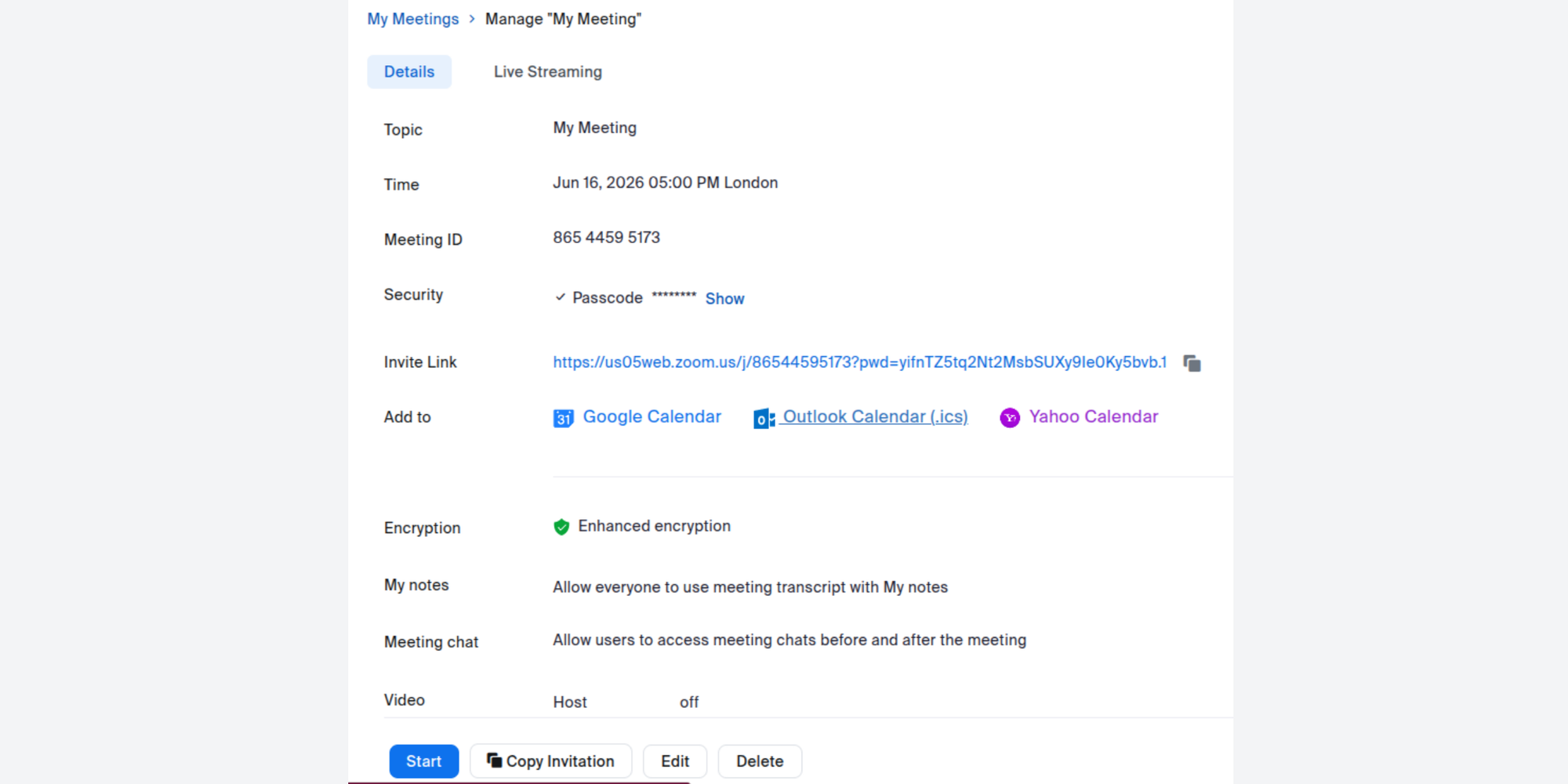
After saving, Zoom creates a full invitation with the meeting link, ID, and passcode. You can copy this to share manually, or open your calendar app to send it directly to attendees.
How to invite someone to a Zoom meeting
To invite someone to a Zoom meeting, open the meeting details in Zoom, click Copy Invitation, and send it by email, chat, or calendar invite. The recipient joins using the Zoom link, meeting ID, and passcode included in the invitation.
Inviting participants by email
Paste the copied invitation into a standard email. The invitation includes everything the recipient needs: the Zoom link, meeting ID, and passcode. No additional setup required on their end.
Inviting participants through Slack or Teams
If your team uses Slack or Microsoft Teams, you can paste the Zoom link directly into a message or channel. For recurring team meetings, pin the link so it's always easy to find.
Sharing a Zoom meeting link
For quick, informal meetings, sharing just the link (not the full invitation) is fine. Go to your scheduled meeting, click Copy Invitation or Copy Link, and send it wherever works — email, WhatsApp, LinkedIn message.
Pro tip: If your meeting has a passcode, always include it when sharing the link. A missing passcode is one of the most common reasons attendees can't join.
How to send a Zoom invite
To invite someone to a Zoom meeting, open the meeting in Zoom, click Copy Invitation, and send it by email, chat, or calendar invite. The recipient joins using the Zoom link, meeting ID, and passcode in the invitation.
Copying a Zoom invitation
- Open the Zoom app and go to Meetings
- Select the meeting you want to share
- Click Copy Invitation
- Paste into your preferred channel
Sending Zoom invites from Gmail
- Open Gmail and compose a new email
- Paste the copied Zoom invitation into the message body
- Add your attendee's email address and send
Alternatively, if you've connected Zoom to Google Calendar (covered below), the meeting link is added automatically when you create a calendar event.
Sending Zoom invites from Outlook
- Open Outlook and create a new email
- Paste the Zoom invitation into the body
- Add recipients and send
If you've installed the Zoom Outlook Add-In, you can schedule meetings directly inside Outlook, without the need to copy and paste the link or switch from one app to the other.
How to send a Zoom calendar invite
To send a Zoom calendar invite, schedule a Zoom meeting, add it to Google Calendar or Outlook, enter attendee email addresses, and send the event invitation. The Zoom meeting link is included automatically.
Sending a Zoom invite through Google Calendar
- Schedule the meeting in Zoom (or create the event in Google Calendar with the Zoom add-on enabled).
- The Zoom link appears automatically in the event description.
- Add guest email addresses in the Guests field.
- Click Save and send the invite.
Guests receive a calendar invitation with the Zoom link embedded — no manual copying required.
Sending a Zoom invite through Outlook Calendar
- Open Outlook Calendar and create a new event.
- If the Zoom Outlook Add-In is installed, click Add a Zoom Meeting in the toolbar.
- The Zoom link, meeting ID, and passcode are added to the event automatically.
- Add attendees and send.
Editing an existing calendar invitation
If the time changes or you need to update meeting details, edit the calendar event and resend it to attendees. Zoom meeting details (link, ID, passcode) stay the same unless you delete and recreate the meeting.
How to invite people to a Zoom meeting using Google Calendar
Google Calendar and Zoom work well together, especially if you've connected them via the Zoom + Google Calendar integration.
Connect Zoom to Google Calendar
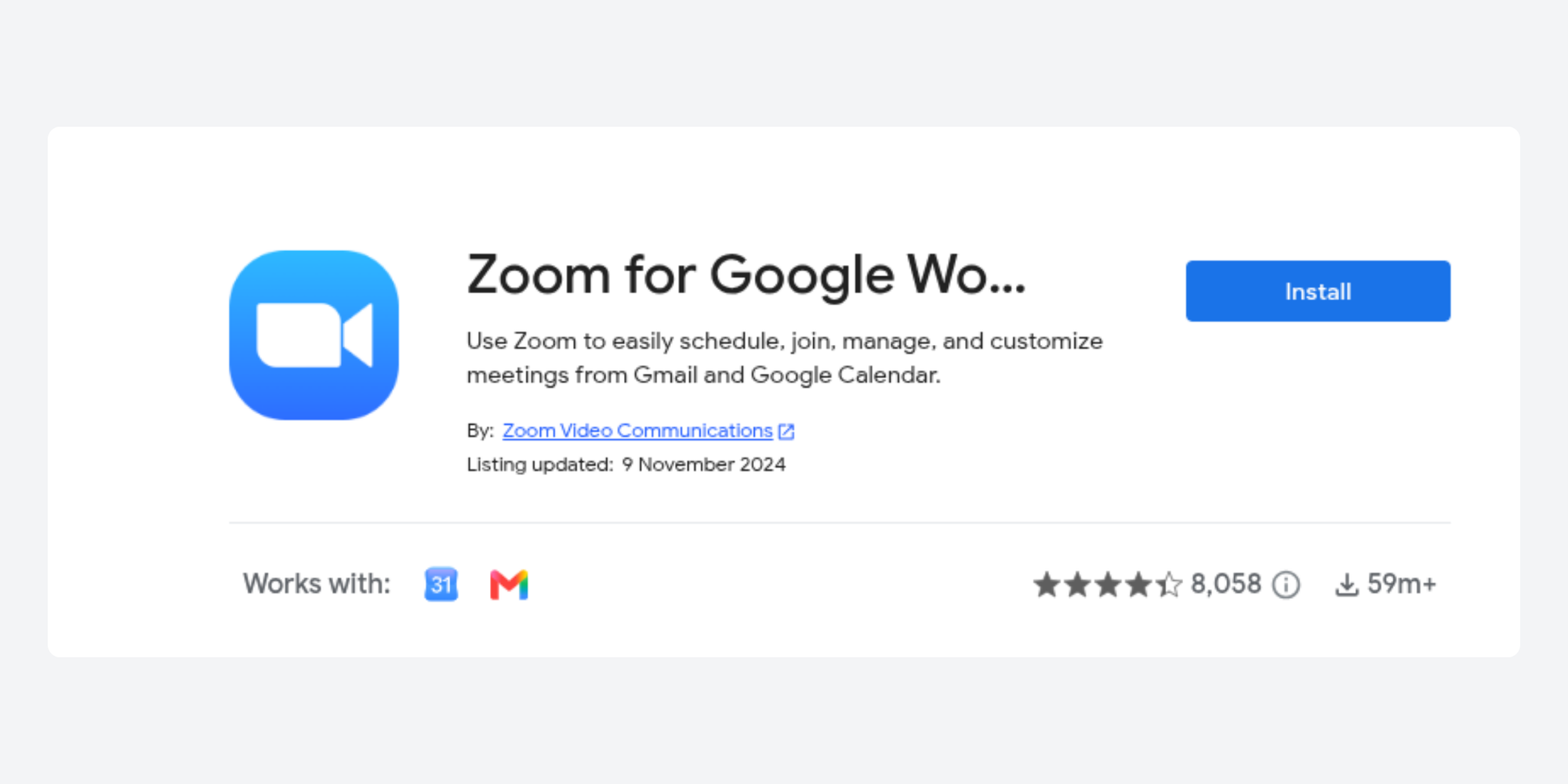
Install the Zoom for Google Workspace add-on from the Google Workspace Marketplace. Once installed, you'll see a Make it a Zoom Meeting option when creating events in Google Calendar.
Create the calendar event
Open Google Calendar, click a time slot, and select More options to open the full event editor.
Add guests
Enter attendee email addresses in the Guests field. Google Calendar lets you view their availability before sending, which helps avoid scheduling conflicts.
Send the invitation
Click Save. Google Calendar will ask if you want to send invitations; confirm, and each guest receives an email with the event details and Zoom link.
Manage RSVPs
Guests can accept, decline, or mark the invite as tentative. You'll see their responses in the Google Calendar event, making it easy to track who's confirmed.
How to invite people to a Zoom meeting using Outlook
If you use Microsoft’s workplace ecosystem, Zoom also syns well with Outlook. Here’s how to set up a Zoom meeting in Outlook.
Install the Zoom Outlook Add-in
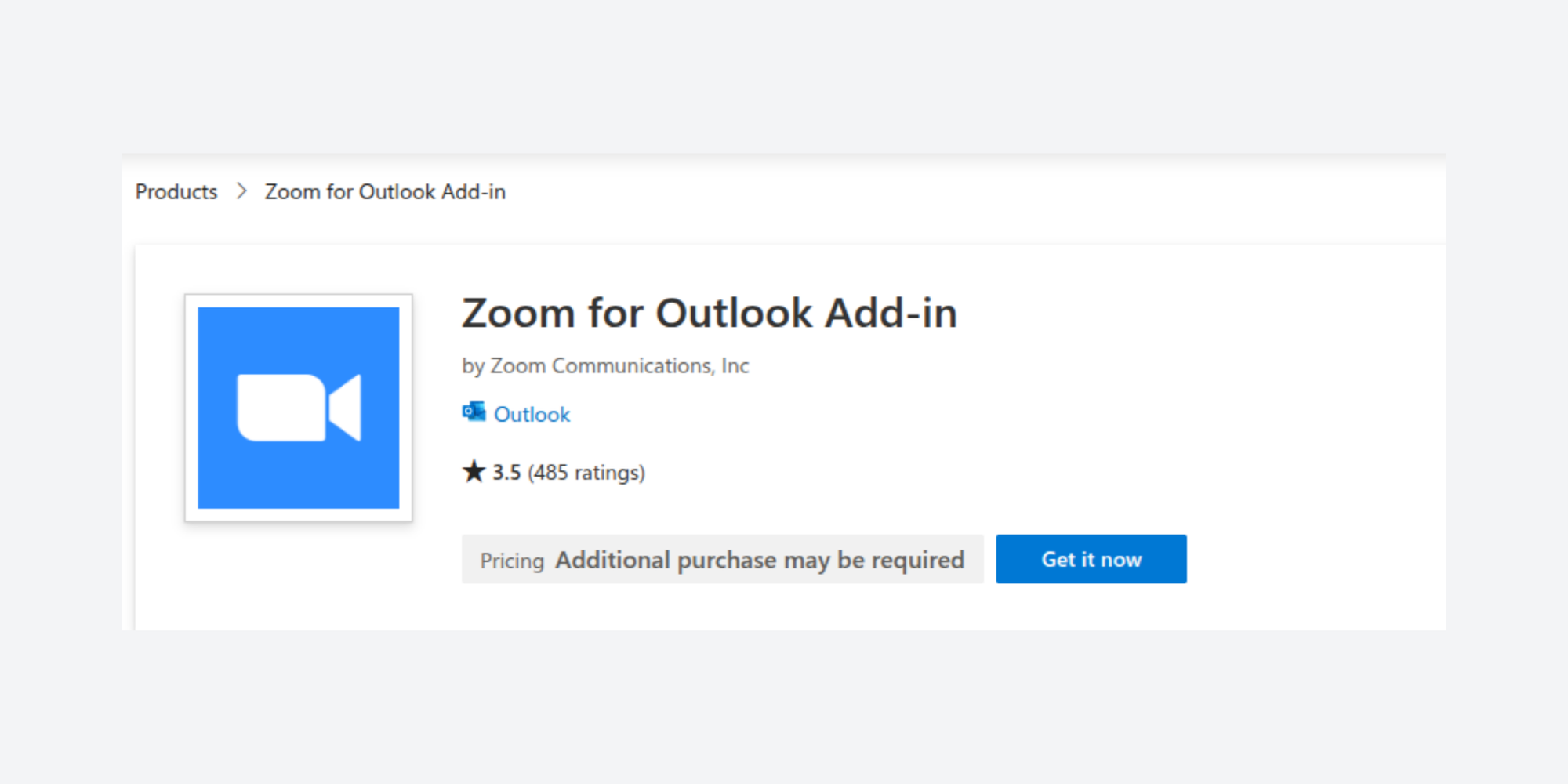
Download the Zoom Add-in for Outlook from Microsoft Marketplace or the Zoom App Marketplace. Once installed, it appears in your Outlook toolbar.
Schedule the meeting
In Outlook Calendar, create a new event. Click Add a Zoom Meeting in the toolbar to automatically populate the meeting details.
Add attendees
Enter attendee email addresses in the To field.
Send the calendar invite
Click Send. Attendees receive a calendar invitation with the Zoom link, meeting ID, and passcode already included.
How to schedule and invite others from the Zoom mobile app
The Zoom app for iPhone and Android lets you schedule and share meetings on the go.
Schedule a meeting on iPhone
- Open the Zoom app and tap Schedule.
- Enter the meeting name, date, time, and duration.
- Toggle on your preferred settings (waiting room, passcode).
- Tap Save.
Schedule a meeting on Android
The process is identical. Open the Zoom app, tap the Schedule button, fill in the details, and tap Done.
Share the Zoom invite
After saving, tap Add Invitees or go to your scheduled meetings list, select the meeting, and tap Copy Invitation. Paste it into an email, SMS, or messaging app.
Add participants later
You can also add participants during a live meeting. Tap Participants → Invite and choose to send by email, message, or copy the link.
How to add a poll to a Zoom meeting
Zoom's built-in Polls and Quizzes feature lets you collect feedback, run quick votes, check attendance, or make decisions during a live meeting. Unlike meeting invitations, polls are created before or during the meeting and launched while participants are connected.
Where to find the polls and quizzes option
You can create polls when you're scheduling a new Zoom meeting or editing an existing one.
- Sign in to your Zoom account.
- Create a new meeting or open an existing meeting.
- Scroll to the Polls/Quizzes section near the bottom of the meeting settings.
- Select Create (or Add) to build a new poll.
Note: If you don't see the Polls/Quizzes option, make sure polls are enabled in your Zoom account settings and that your account supports the feature.
How to create a poll in Zoom
Creating a poll only takes a few minutes:
- Open the Zoom meeting you want to edit.
- Go to Polls/Quizzes.
- Click Create.
- Enter your poll question.
- Add your answer options.
- Save the poll.
When your meeting starts, open the Polls button in the meeting controls and launch the poll whenever you're ready. Participants can vote in real time, and you'll be able to view the results instantly.
When to use Zoom polls
Zoom polls are useful for:
- Gathering quick feedback from attendees
- Running live votes during team meetings
- Checking attendance or participation
- Choosing next steps before ending the meeting
- Making interactive webinars and training sessions more engaging
Zoom polls vs. Scheduling polls
It's important to distinguish between Zoom polls and scheduling polls.
Zoom polls happen during a meeting and help you collect responses from attendees in real time.
Scheduling polls happen before a meeting is booked. They let participants vote on the date and time that works best, making it easier to find availability without endless back-and-forth emails.
If you're trying to coordinate schedules before creating a Zoom meeting, tools like Koalendar's Meeting Poll are a better fit because they help everyone agree on the best meeting time first. Once a time is selected, you can automatically generate and share the Zoom meeting invitation.
Common problems when sending Zoom invites
Here are some frequent issues that occur when sending Zoom invites, and how to troubleshoot them.
Zoom invitation not received
Check the recipient's spam or junk folder. If sending via calendar (Google or Outlook), confirm you entered the email address correctly. Also check that your calendar app is connected to the right Zoom account.
Missing Zoom link
The most common cause of a missing link is that the Zoom add-in wasn't active when the calendar event was created. Delete the event and recreate it with the Zoom integration enabled or manually paste the Zoom invitation into the event description.
Incorrect time zone
Zoom displays times in your local time zone by default. When inviting attendees in different regions, check the time zone setting before saving. Google Calendar automatically shows attendees the event in their local time zone.
Calendar invite not syncing
If Zoom isn't syncing with Google Calendar or Outlook, disconnect and reconnect the integration. Make sure you're signed into the same account in both Zoom and your calendar app.
Participants can't join the meeting
If your guests are struggling to join, it may be caused by a meeting link error (such as the wrong link) or missing passcode. It might also be that the waiting room is enabled and no one has admitted them. Always test the link before an important meeting.
Best practices for professional Zoom meetings
To make your Zoom meetings run more smoothly and reduce scheduling time, follow these best practice tips.
Use calendar invites instead of manual emails
Calendar invitations reduce no-shows. Attendees get a reminder, the event blocks time in their diary, and the Zoom link is always easy to find — no digging through old emails.
Send automatic reminders
A reminder sent 24 hours before (and again 15 minutes before) can significantly reduce no-shows. You can set these up manually in your calendar app, or automate them with a scheduling tool.
Schedule recurring meetings
For weekly team standups or regular client check-ins, set up a recurring Zoom meeting. One link, reused every week, means no need to schedule from scratch each time.
Include meeting agendas
Adding a short agenda to the calendar event description sets expectations and keeps meetings focused. It takes two minutes to write and saves so much time by reducing small talk and keeping things on track.
Avoid double bookings
Keep your calendar updated with accurate availability. If you're managing multiple clients or teams, a calendar sync tool that reflects your real availability across all platforms will prevent clashes.
A faster way to schedule Zoom meetings automatically
Scheduling a Zoom meeting is straightforward. Getting attendees to pick a time that works (without three rounds of back-and-forth emails) is the hard part.
You know the pattern: you suggest a time, they're busy, they suggest another, you're in a meeting, the reply arrives Friday afternoon. By the time you land on something, a week has gone by.
That's the gap scheduling automation fills.
How scheduling automation works

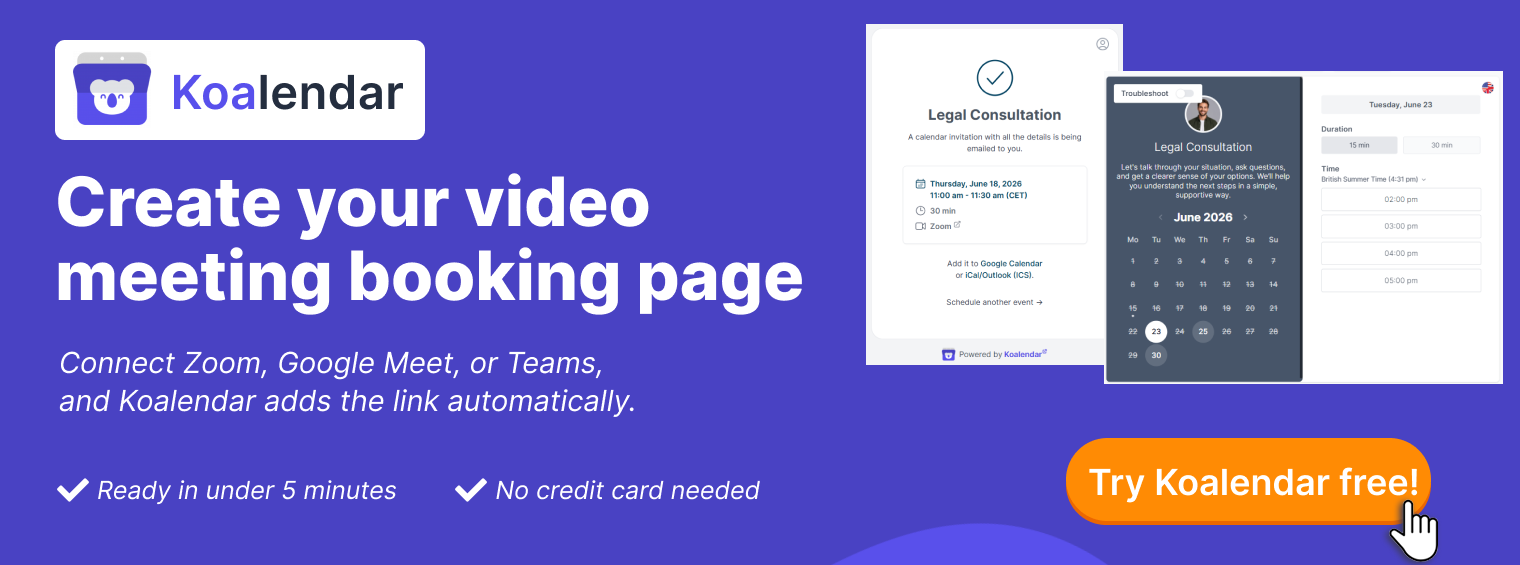
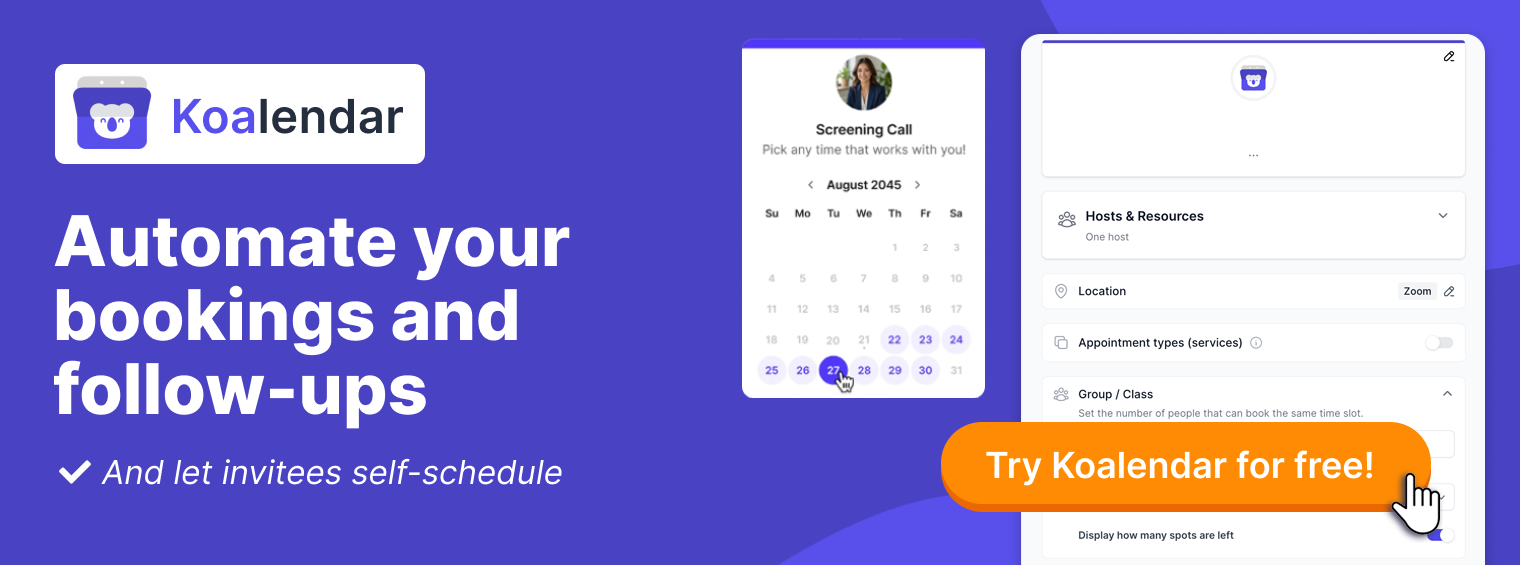
Tools like Koalendar connect to your calendar, read your real availability, and share a booking link with your clients or colleagues. They pick a slot that works for them. The meeting is created automatically, with no manual scheduling required.
Stop chasing emails and coordinating calendars manually. Connect Zoom with Koalendar, share your booking link, and let people schedule meetings automatically. Start free today →
Connecting Zoom with Koalendar
Koalendar's Zoom integration (available on the Pro plan) links directly to your Zoom account. When someone books a meeting through your Koalendar booking page, a unique Zoom link is generated and included in the confirmation automatically.
Automatically create Zoom meetings
Every booking creates a new Zoom meeting complete with a unique link, meeting ID, and passcode, without you doing anything. All the admin is done on autopilot so you can focus on preparing for your next meeting.
Let attendees pick a time that works
Share your custom booking page and let clients choose from your available slots. Koalendar's timezone detection automatically adjusts times for international attendees, so there's no confusion about when the meeting starts.
Reduce no-shows with automated reminders
Koalendar sends automated email reminders before each meeting, reducing the chance of forgotten appointments and eliminating the need for you to chase anyone.
Ideal for consultants, recruiters, sales teams, and small businesses
If you're running multiple client calls, demos, or interviews each week, the admin overhead of scheduling manually adds up fast. Koalendar handles the logistics and simplifies team coordination so you can focus on the meetings themselves, not the scheduling around them.
Conclusion: Take the hassle out of Zoom scheduling
Scheduling a Zoom meeting and inviting others takes just a few minutes once you know where to look, whether you're working from the Zoom desktop app, mobile, Google Calendar, or Outlook.
For one-off meetings, the manual process works fine. But if you're scheduling regularly, automation saves real time.
With Koalendar, you can automatically create Zoom meetings, sync your calendar, reduce no-shows, and let clients or colleagues book available slots without the back-and-forth. That helps you improve productivity, eliminate forgotten invitations and reduce the administrative overhead.
Ready to spend less time scheduling and more time meeting? Connect Zoom to Koalendar and automate appointment scheduling in minutes — no credit card required.
Written by Carl MacDonald, an experienced writer about B2B SaaS and technology. All of the steps in this guide have been verified with hands-on testing across Zoom desktop (Windows and Mac), iOS, Android, Google Calendar, and Outlook in June 2026.