TL;DR
A good Google Calendar Chrome extension can help you share booking links, improve calendar views, track time, clean up clutter, or capture meeting notes.
They make Google Calendar more useful. However, there are many extensions to choose from, some better and safer than others. The best choice depends on your biggest calendar frustration. Use booking tools to share availability faster, clean-up extensions to make busy calendars easier to read, and notes tools to capture meeting outcomes.
For scheduling, Koalendar is useful when you need booking pages, calendar sync, and double-booking prevention, not just another toolbar button.
Google Calendar should make your day easier, not harder. It’s a solid tool when used for simple scheduling, but once things get complex with team calls, shared calendars, and booking links, small problems can really stack up. Suddenly you find yourself wrestling with duplicate events, accidental month jumps, and lost meeting notes.
That is where extensions for Google Calendar and Workspace add-ons can help. This guide compares the best Google Calendar extensions and best Google Calendar add-ons by job: sharing availability, tracking time, improving team views, cleaning up clutter, and capturing meeting notes. It also explains when to use a Chrome extension or Workspace add-on, plus how to install, pin, manage, or remove each one safely.
What Google Calendar Chrome extensions do
Chrome extensions do not replace Google Calendar. They are handy, extra tools that add useful new abilities to Google Calendar. They might create a helpful shortcut, a nice visual tweak, or even a new way to work within the calendar you already use.
Popular new abilities include:
· Quick access to upcoming events from the toolbar
· Color and view improvements for packed weeks
· Booking link sharing without opening another tab
· Time management overlays for focus or time tracking
· Meeting notes linked to calendar events
· Cleanup tools for duplicate events or scroll issues
The trade-off is deciding which extensions you can trust. Adding an extension often means giving it access to your data. Google's Chrome Help advises users to approve extensions with a reliable track record. If your issue is readability, you might be able to fix that without extensions. Start with built-in settings first. Koalendar's guide on how to customize Google Calendar covers views, event colors, reminders, and layout options is helpful here.
Download the Google Calendar Automation playbook
A practical guide for small business owners who want to reduce admin work and scale booking operations.
Chrome extensions vs. Google Workspace add-ons
First you need to know the difference between extensions and add-ons. Many listicles blur these terms, but they are not the same. A Chrome extension is installed from the Chrome Web Store and works in the browser. It is best for toolbar shortcuts, page tweaks, and desktop workflows.
A Google Workspace add-on is installed from the Google Workspace Marketplace and appears inside Google Calendar or the Google side panel. Google's developer documentation for Calendar add-ons says they provide contextual event interfaces and custom conferencing solutions. Google says Calendar add-ons do not work in the Google Calendar mobile app, so check before relying on one from your phone.
Here’s a quick guide to deciding if you need a Chrome extension or Workspace add-on:
| Your need | Best fit | Why |
| I keep opening new tabs just to check, copy, or share calendar details | Chrome extension | Best when you want a shortcut you can open, pin, hide, manage, or remove in Chrome. |
| My calendar is packed and hard to scan | Chrome extension | Best for colors, tags, duplicate-event display, or scroll behavior. |
| I want help while creating or editing an event | Workspace add-on | Best when the tool should appear as you open or edit a Google Calendar event. |
| I need meeting links added without copying and pasting details | Workspace add-on | Best for adding third-party meeting options directly to Google Calendar events. |
| I need it to work on my phone or tablet | Check first | Google says Calendar add-ons do not work in the Google Calendar app on phones or tablets, so test mobile needs before relying on any add-on. |
Scheduling and booking
Scheduling is where Google Calendar often needs help. Calendar can show your time, but it does not always make it easy for someone else to choose the right slot without back-and-forth emails.
Koalendar
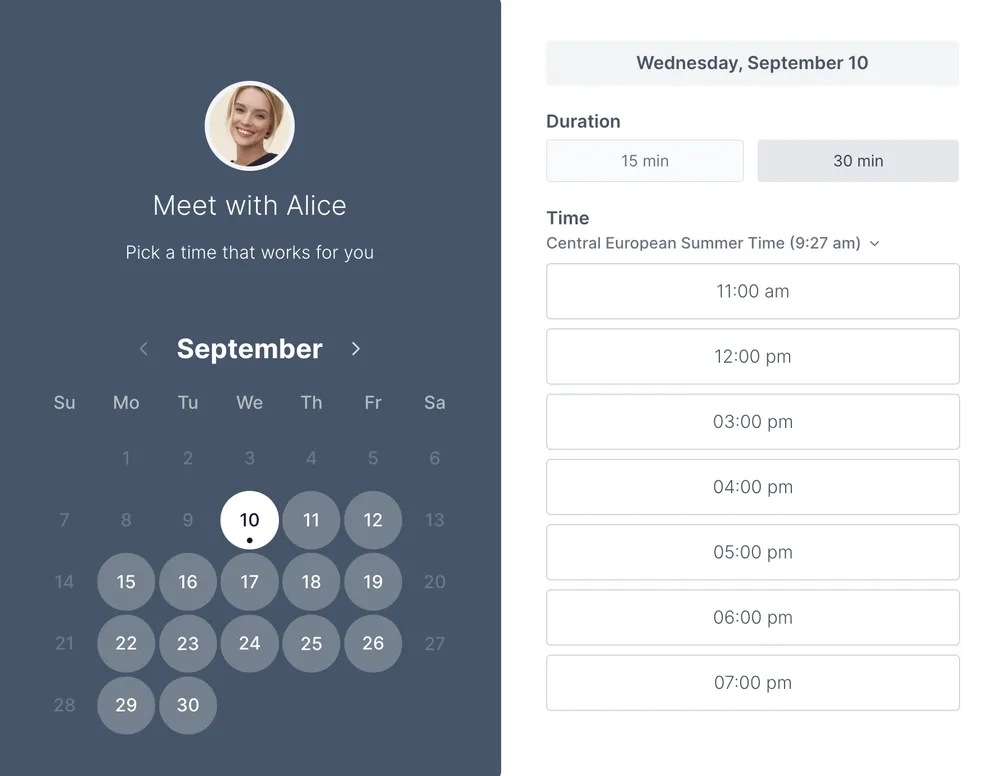
Koalendar is strongest when you need a full scheduling layer, not just a shortcut. Its Chrome extension for appointment scheduling gives you instant access to booking pages from any browser tab while writing an email or working in another app.
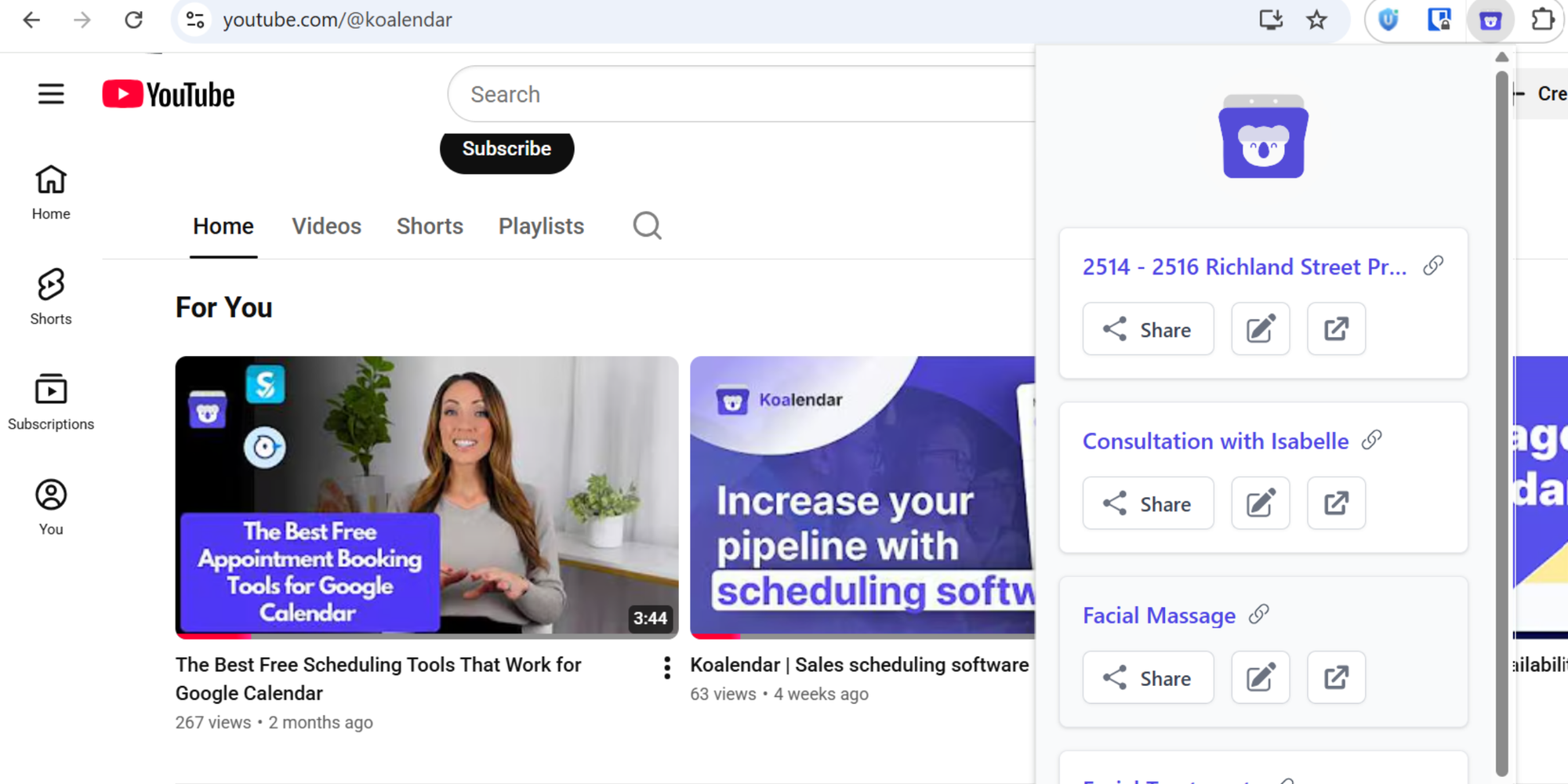
Koalendar also has a Google Workspace Marketplace add-on for appointment scheduling. Koalendar's free forever plan includes unlimited bookings, unlimited event types, unlimited scheduling links, 2 calendars sync, smart time zone detection, instant booking notifications, video conferencing, website embeds, and 30+ languages. You can also customize booking pages with your logo, colors, event types, and language. On Free, Koalendar includes instant booking notifications. Pro adds custom email and SMS reminders, follow-up emails, and payments.
That matters if you want people to book without creating double bookings. Koalendar's calendar sync feature checks connected Google, Outlook, and iCloud calendars, blocks overlapping time slots, and updates availability in real time. Its website booking calendar embed options include inline embed, popup widget, and popup text.
Koalendar's guides to Google Calendar appointment scheduling and a Google Forms booking system explain when native Google workflows work and when a scheduler is cleaner.
Zoom for Google Workspace
This option is narrower, as it only covers Zoom and not other videoconferencing system.
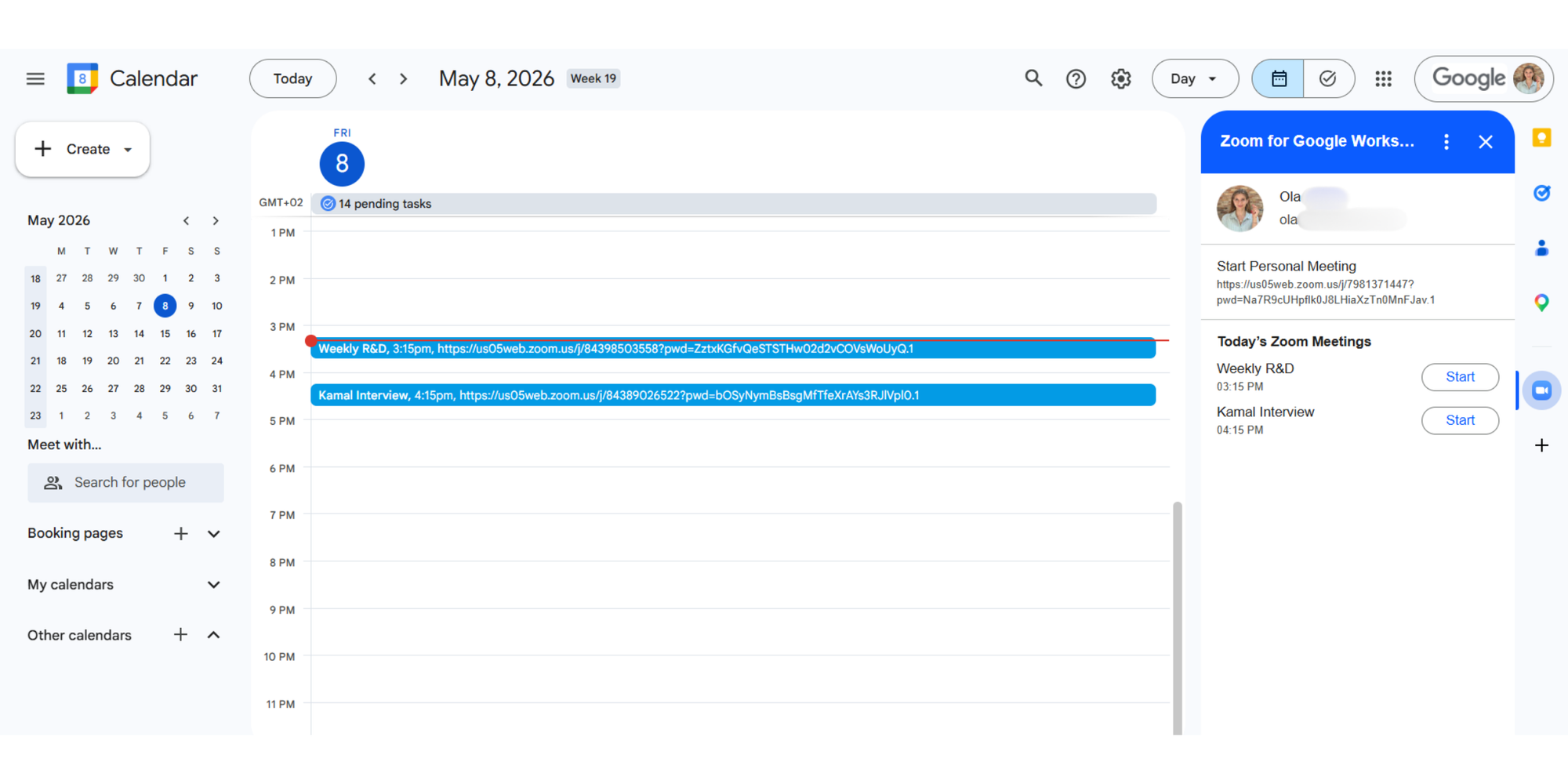
The Google Workspace Marketplace listing for Zoom says it helps users schedule, join, manage, and customize Zoom meetings from Gmail and Google Calendar. Use it when the problem is adding Zoom details to events faster.
Time tracking and focus
Once your calendar is full, the next problem is usually not more scheduling. It is protecting the time you already have and understanding where it goes.
Motion
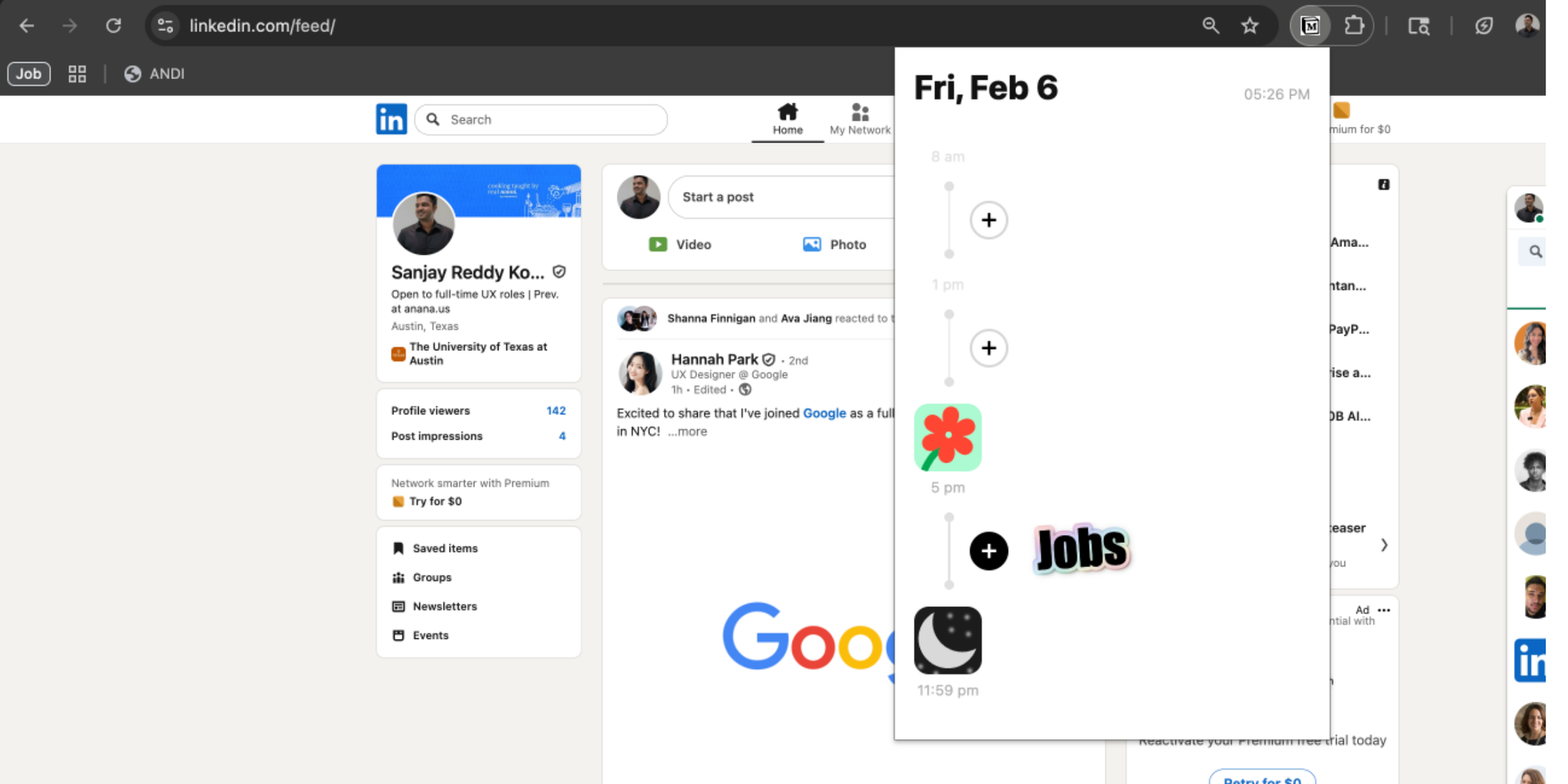
Motion is better when your calendar needs to become an AI-powered work plan. Motion’s Chrome extension lets you quickly turn webpages, emails, or ideas into tasks, then automatically schedules them around your meetings, deadlines, and priorities. Use Motion if you want your calendar to decide what to work on next instead of manually dragging tasks around all day.
Toggl Track
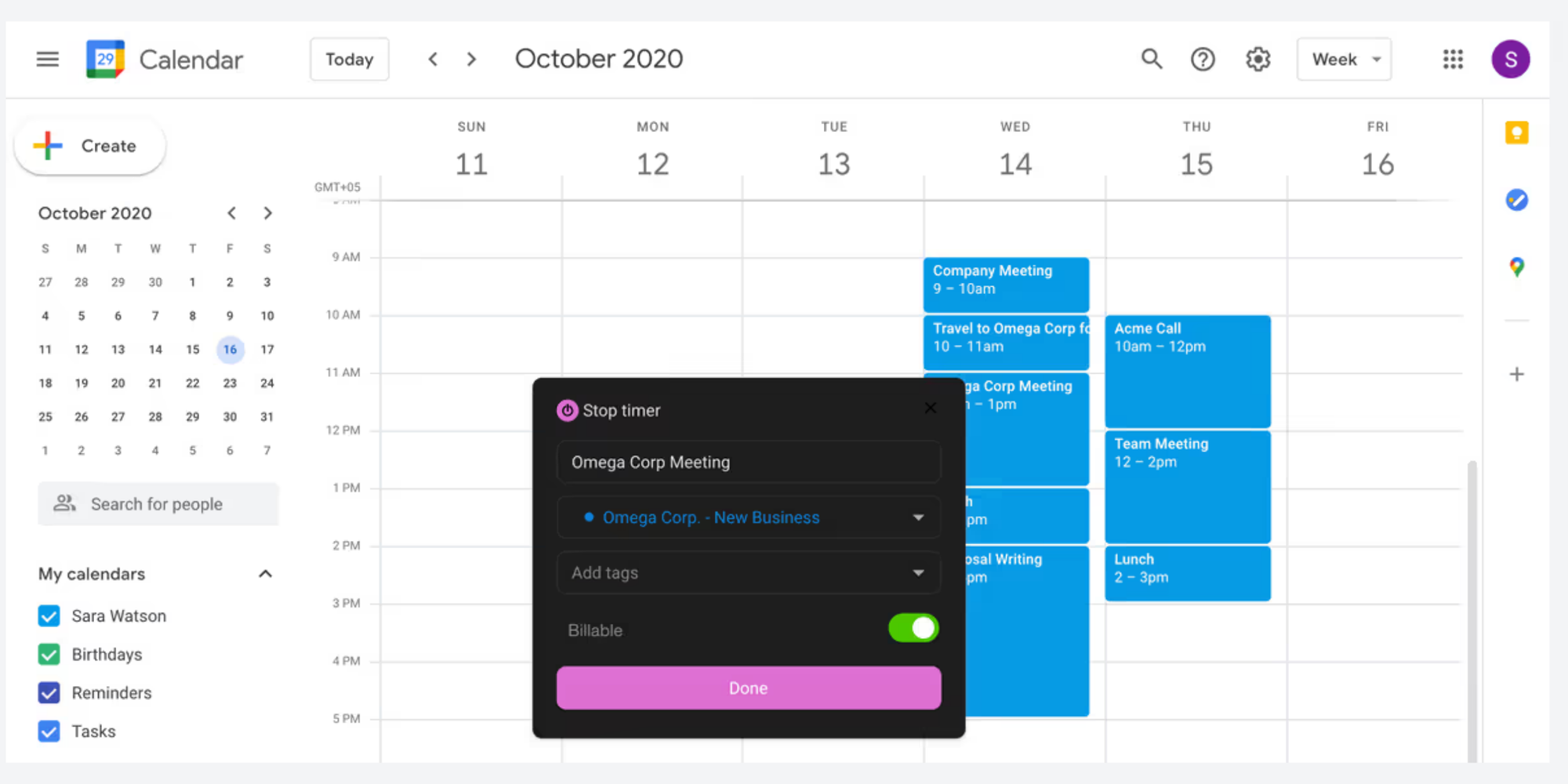
Toggl Track is better when the calendar needs to become a time log. Toggl's Google Calendar time tracking integration lets you view calendar events inside Toggl Track's calendar view and use them to add time entries. Use Toggl if you bill by the hour or need your calendar to reflect what actually happened.
Team coordination
Team scheduling gets messy when you are comparing several calendars at once. The default Google Calendar view can work for a few people, but it becomes harder when you need to compare staff, rooms, contractors, resources, or shifts.
TeamCal
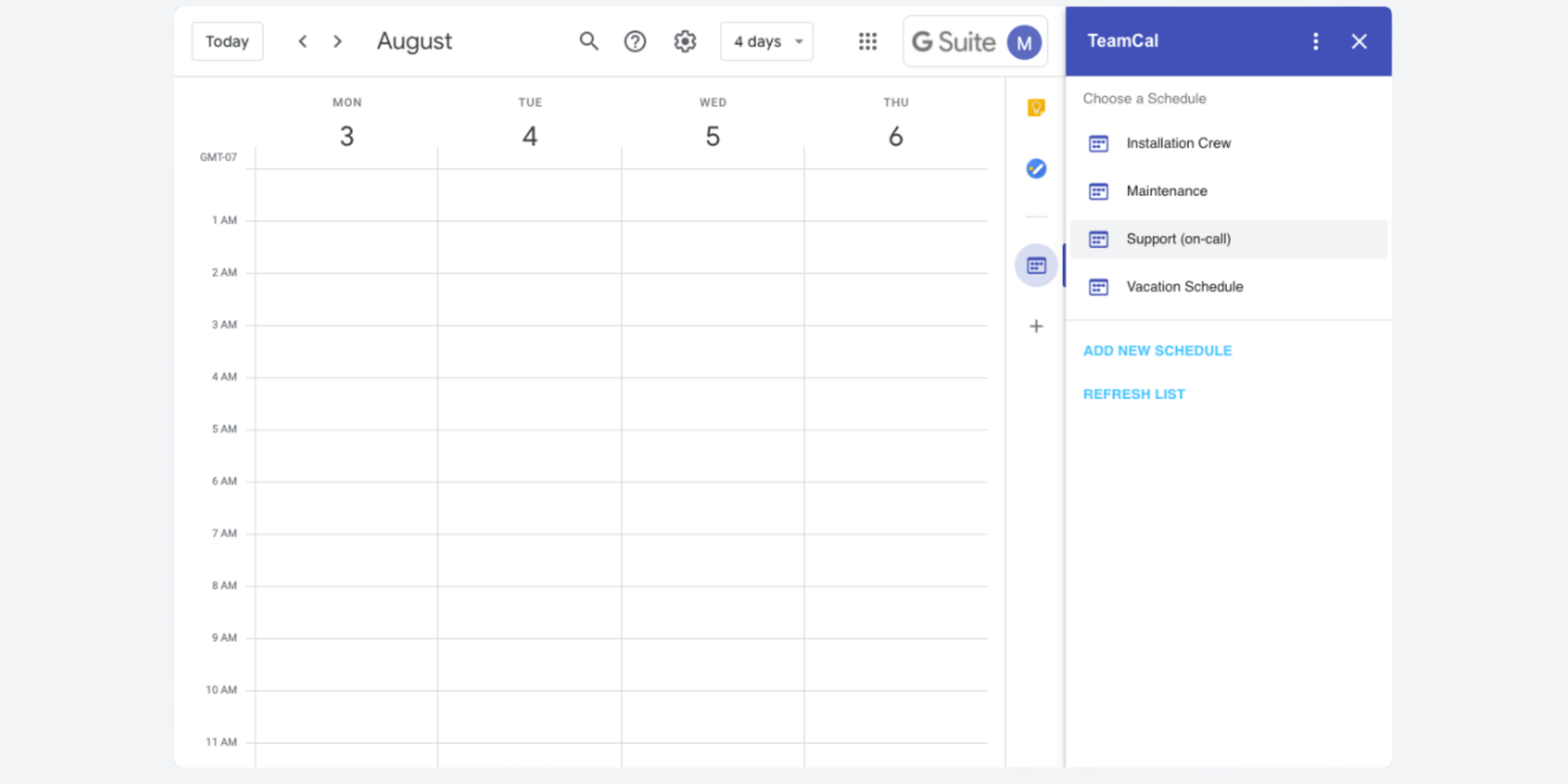
TeamCal gives Google Calendar a horizontal timeline view. Its Google Workspace Marketplace listing says it displays many calendars at once in a Gantt-like schedule view for employees, contractors, rooms, machinery, and resources. It helps teams spot gaps and prevent overbooking.
If your problem is shared physical resources, Koalendar's guide to meeting room management goes deeper into resource booking workflows.
Tags for Google Calendar
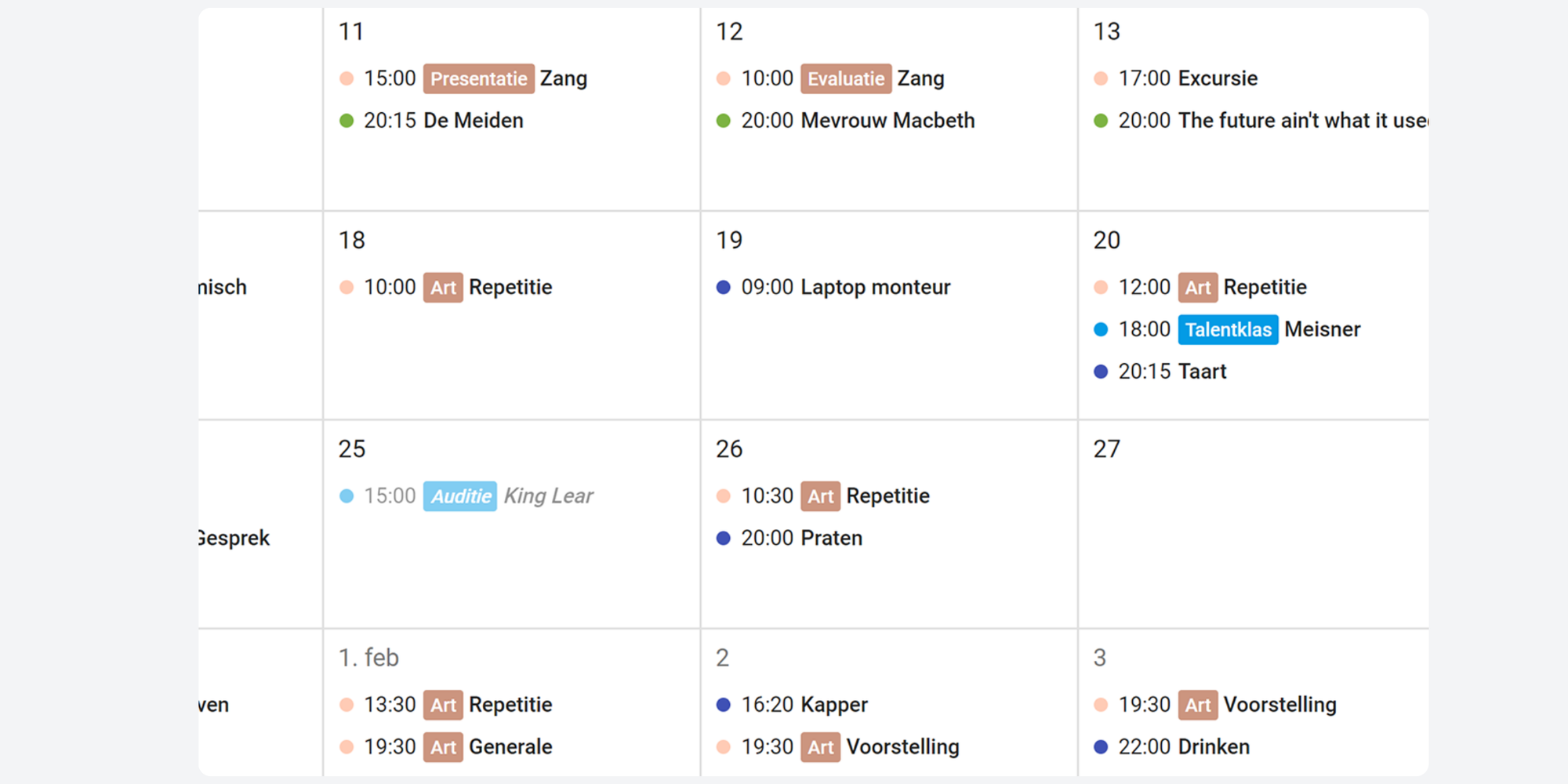
This too is lighter. The Chrome Web Store listing for Tags for Google Calendar says event names with a colon display the text before the colon as a colored tag. For example, “Client: Weekly call” becomes easier to spot in a packed calendar view. Koalendar's free calendar app for Microsoft Teams comparison can help if your team also uses Teams.
Calendar cleanup
Sometimes the best extension is the one that removes those small, daily irritations.
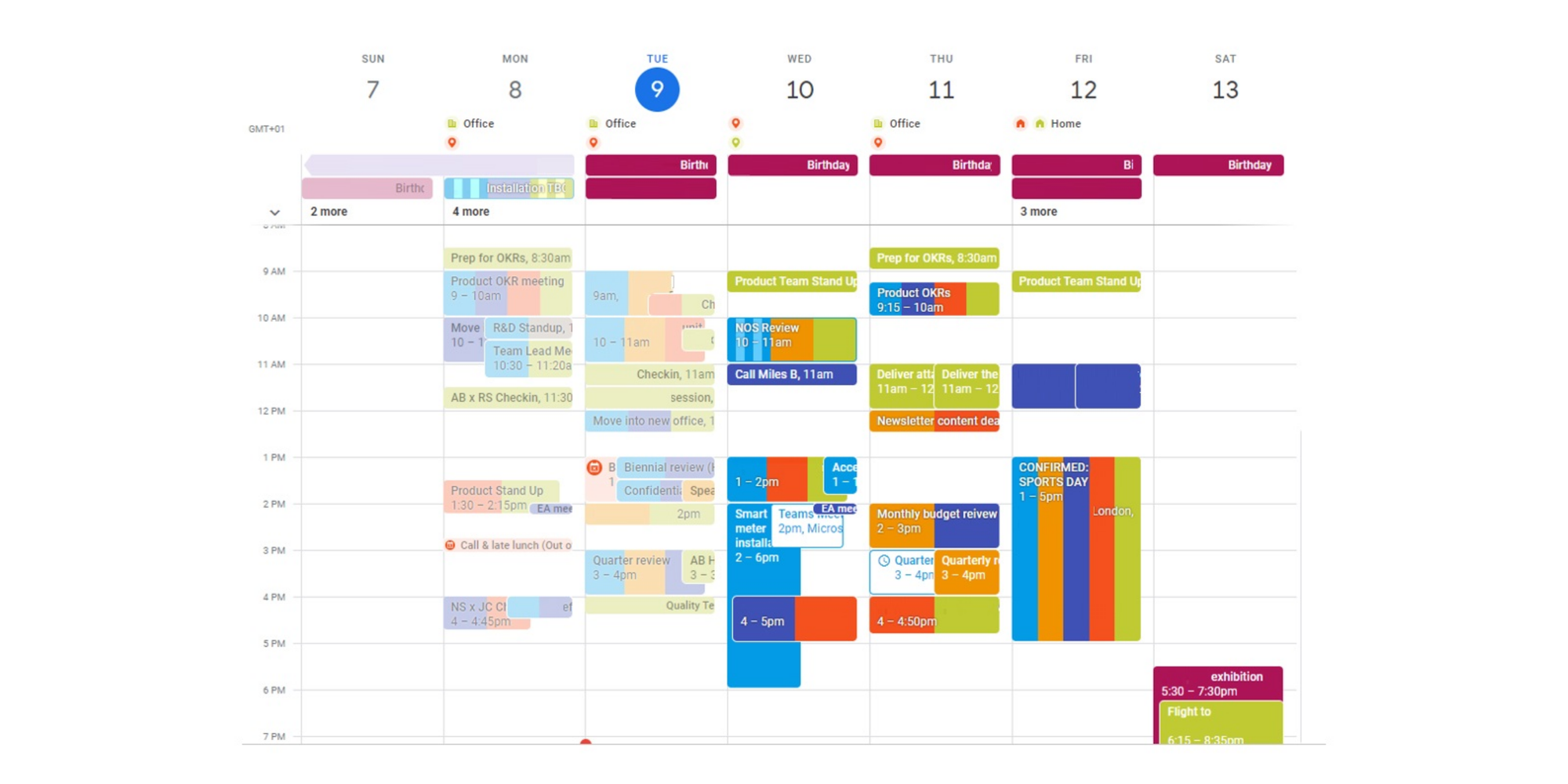
Event Merge tools, including Cal Merge for Google Calendar, help when the same event appears on several calendars. The Chrome Web Store listing for Cal Merge says it visually merges the same event on multiple Google Calendars into one event and colors it with a user-selected gradient style. It does not delete duplicates. It makes the view cleaner.
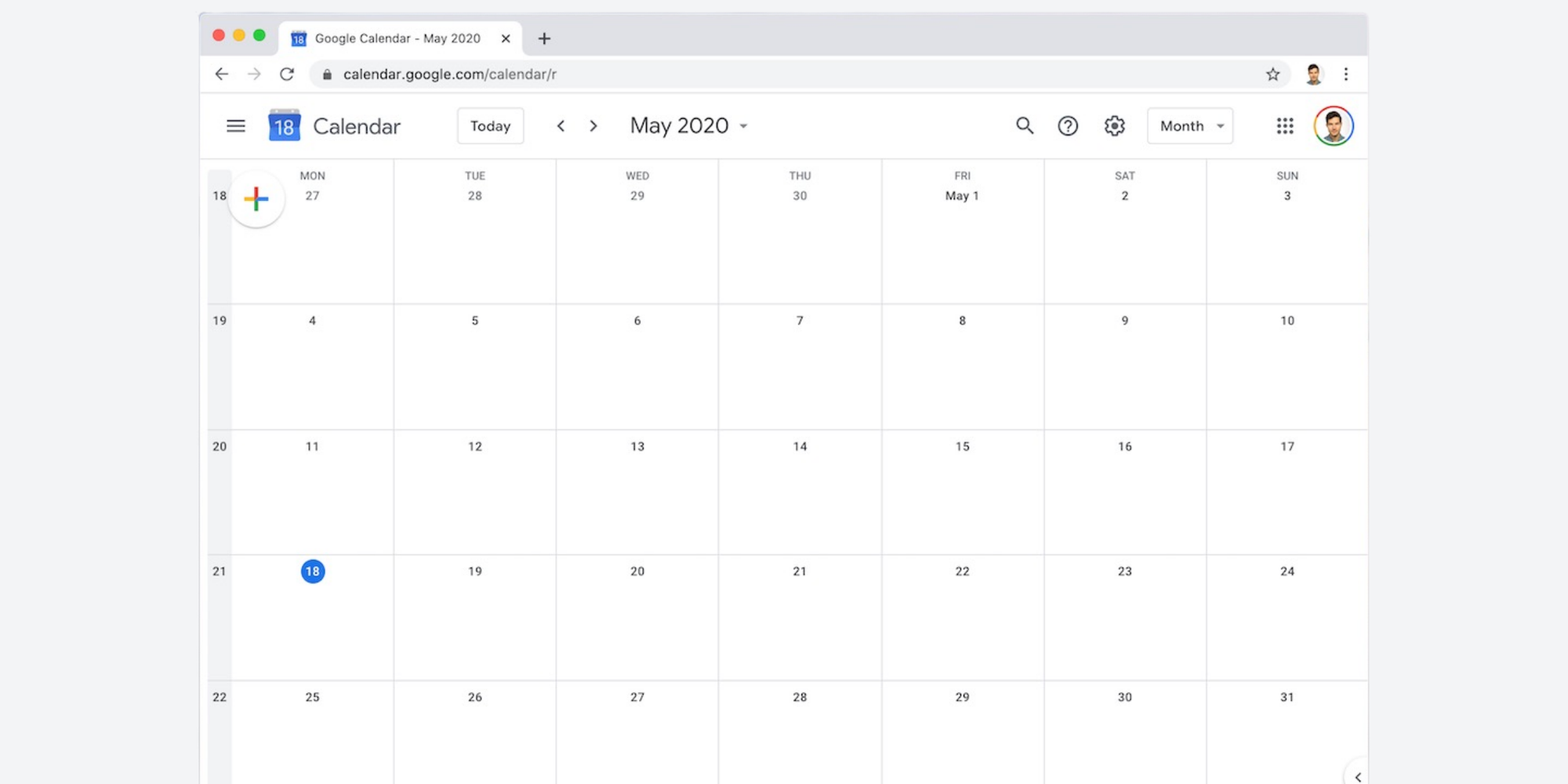
Google Calendar Disable Month Scroll solves accidental jumps in month view. Its Chrome Web Store listing says it prevents Google Calendar from jumping month to month when scrolling, especially for Magic Mouse or trackpad users, without breaking scrolling in week or schedule view.
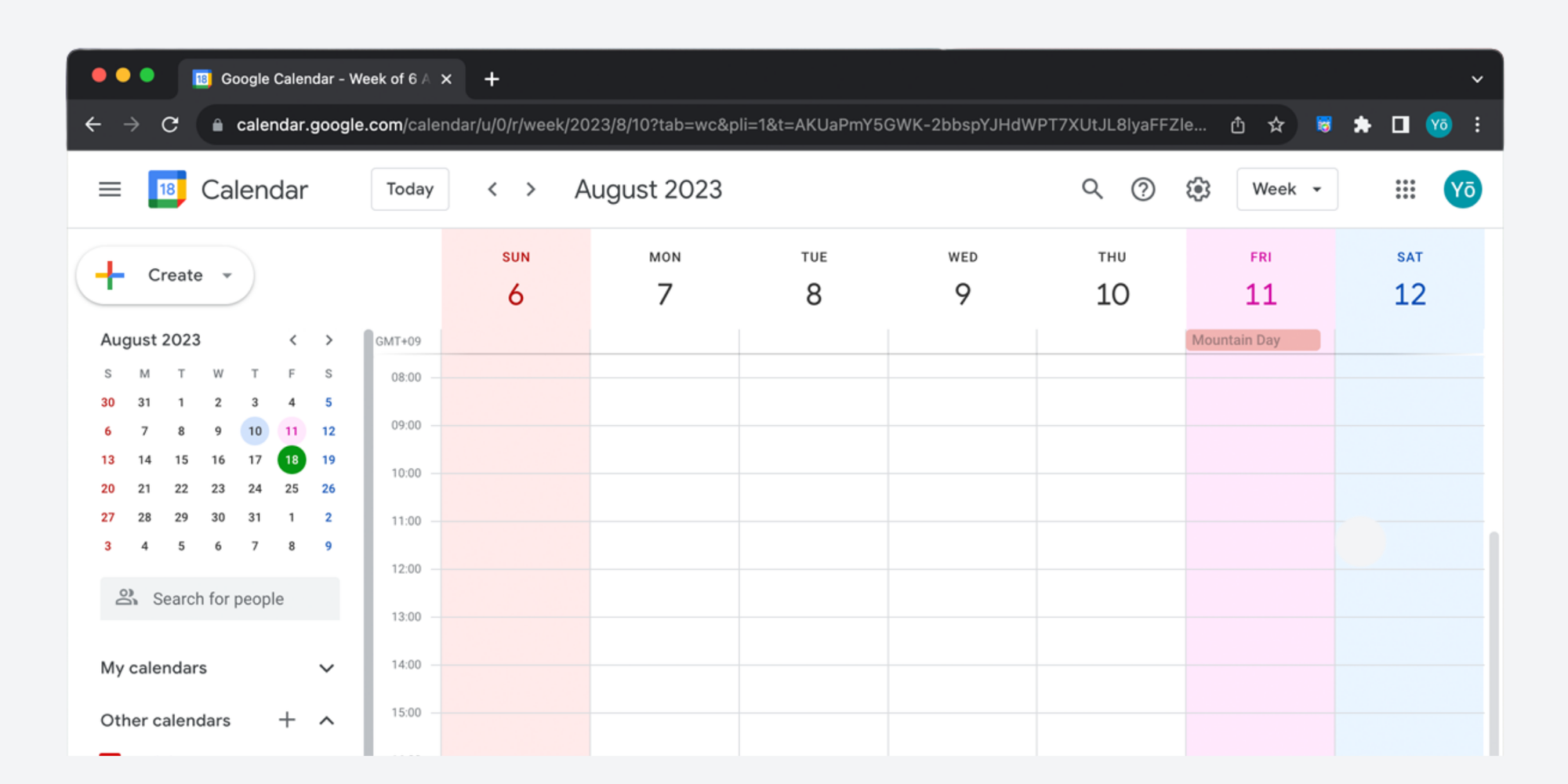
G-calize is for visual clarity. Its Chrome Web Store listing says you can select text and background colors for weekdays, Saturday, Sunday, today, and holidays. Use it when you want key days to stand out immediately.
Meeting notes
Meeting notes tools are useful when events become records of decisions, not just time placeholders.
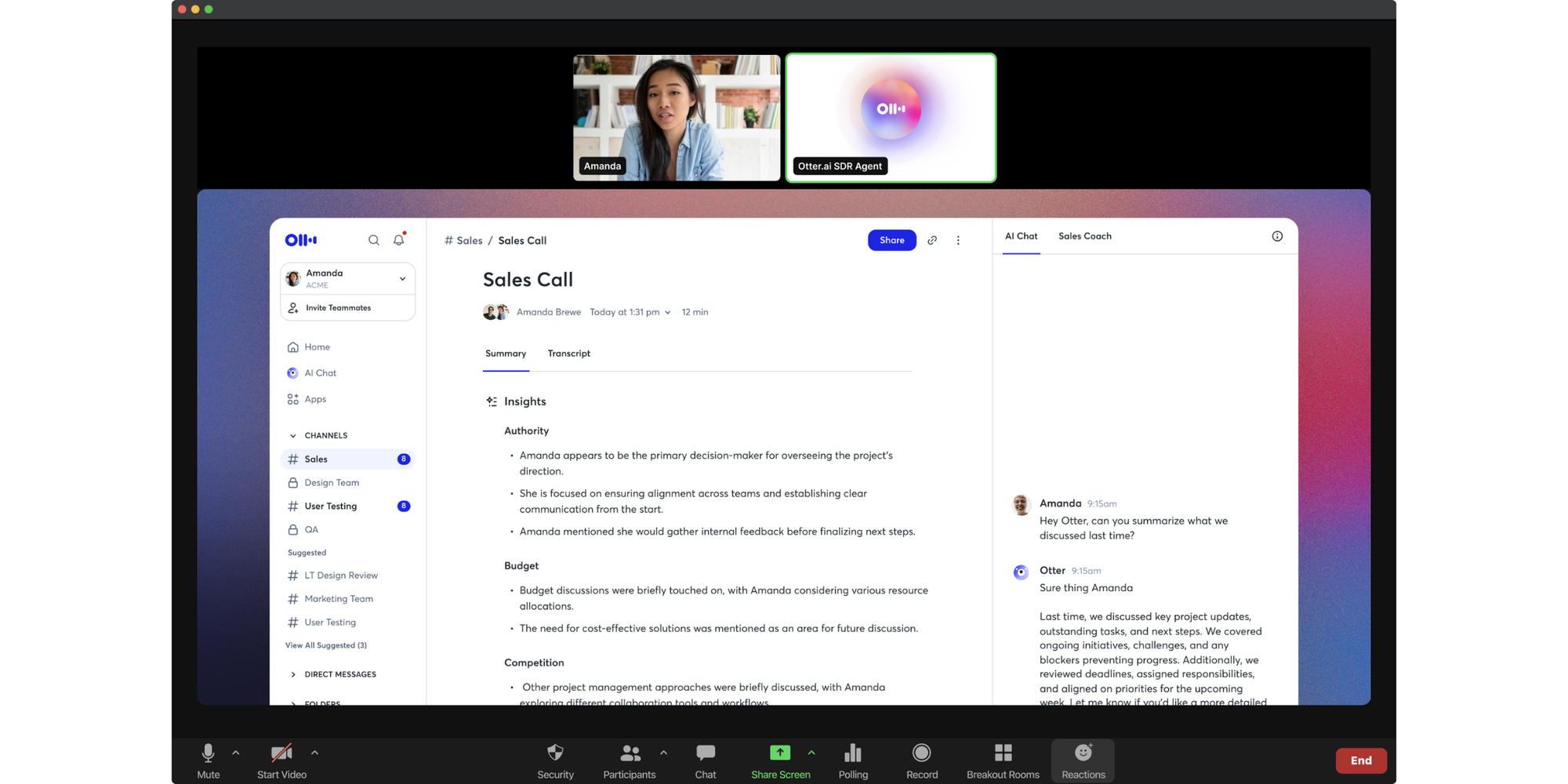
Otter connects meeting notes to your calendar workflow. Otter says its Chrome extension for meeting notes can record, transcribe, and share meeting notes, and can set OtterPilot to join meetings from your calendar.
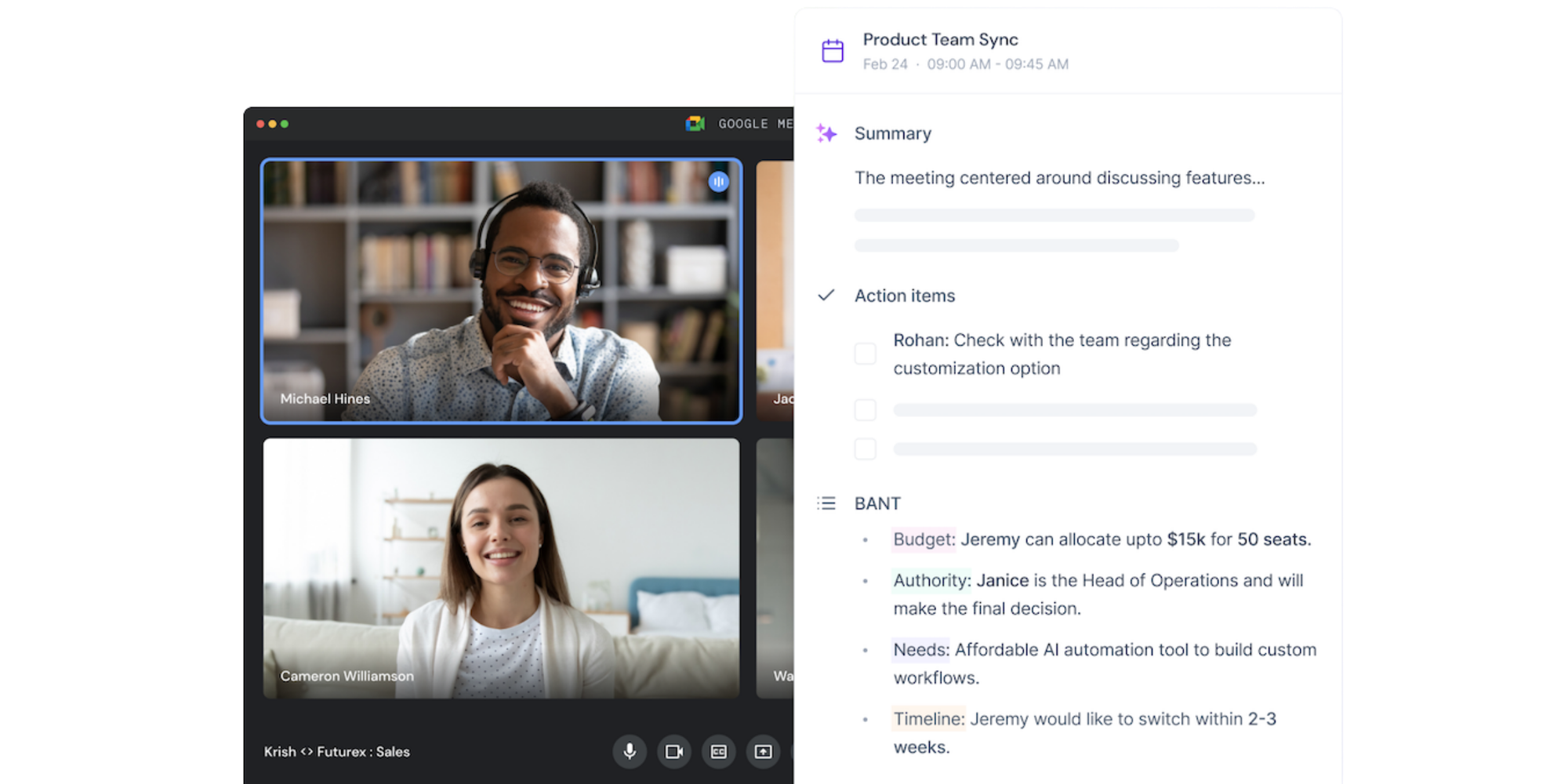
Fireflies is similar, with more emphasis on summaries and action items. Its Chrome Web Store listing for Fireflies says it records and transcribes meetings from the browser, generates transcripts, summaries, highlights, and action items, connects with other apps, and automatically joins meetings after you connect your calendar and video platforms.
The practical caution is consent. If a tool joins meetings, records audio, or creates transcripts, make sure attendees know what is happening and that your use fits your organization's policies.
How to install extensions and add-ons
Installing is simple, but it is worth slowing down before you do it. Calendar tools often need access to sensitive schedule data. You need to make sure you trust the tool first.
For a Chrome Web Store extension:
1. Open the Chrome Web Store
2. Search for the extension
3. Select the extension
4. Click Add to Chrome
5. Review requested permissions (this is what it gets access to)
6. Click Add extension only if you trust the developer
Once installed, you can pin extensions from the icon near the address bar, then turn them off, adjust site access, or remove them completely from Chrome. Google's Chrome Help warns users to approve only extensions with a good record.
For a Google Workspace Marketplace add-on:
1. Open Google Calendar on desktop
2. Click Settings
3. Choose Get add-ons
4. Install the add-on from the Marketplace
5. Follow the authorization steps
6. If you use a work or school account, check whether admin approval is required
Google Calendar Help flags that workplace or school users may need administrator approval.
A good rule for both: install one tool at a time, test it for a week, then keep only what earns its place.
Manage events without opening Google Calendar
Sometimes you only need to edit, check, or create events quickly without breaking your flow.
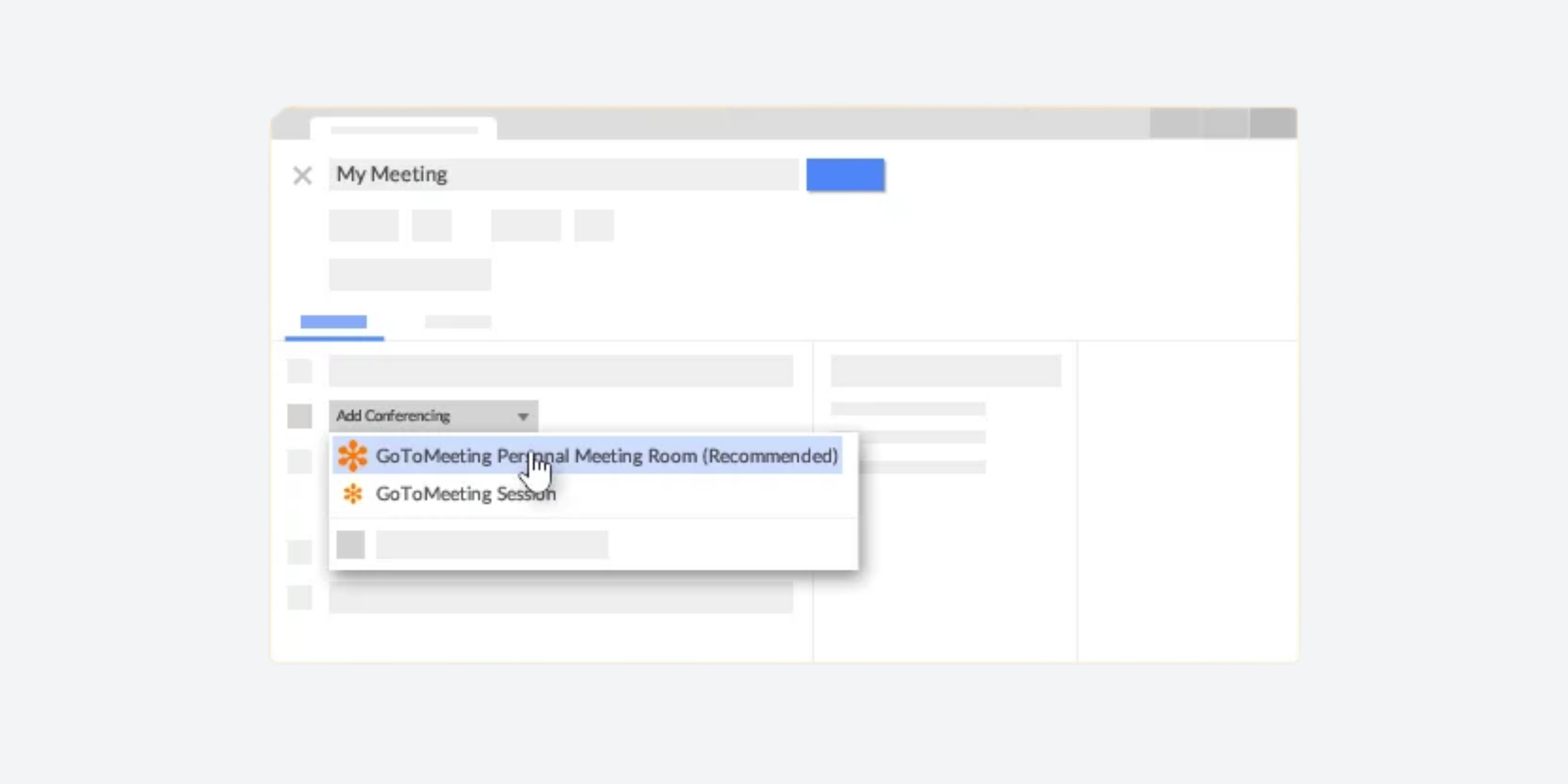
GoTo Meeting is a useful video meeting example. Its Google Calendar integration page says users can schedule, manage, and join GoTo Meeting sessions directly from Google Calendar. A typical edit flow is simple: open the calendar event, change the meeting time or GoTo details, save the event, and let the updated invite carry the new information to attendees.
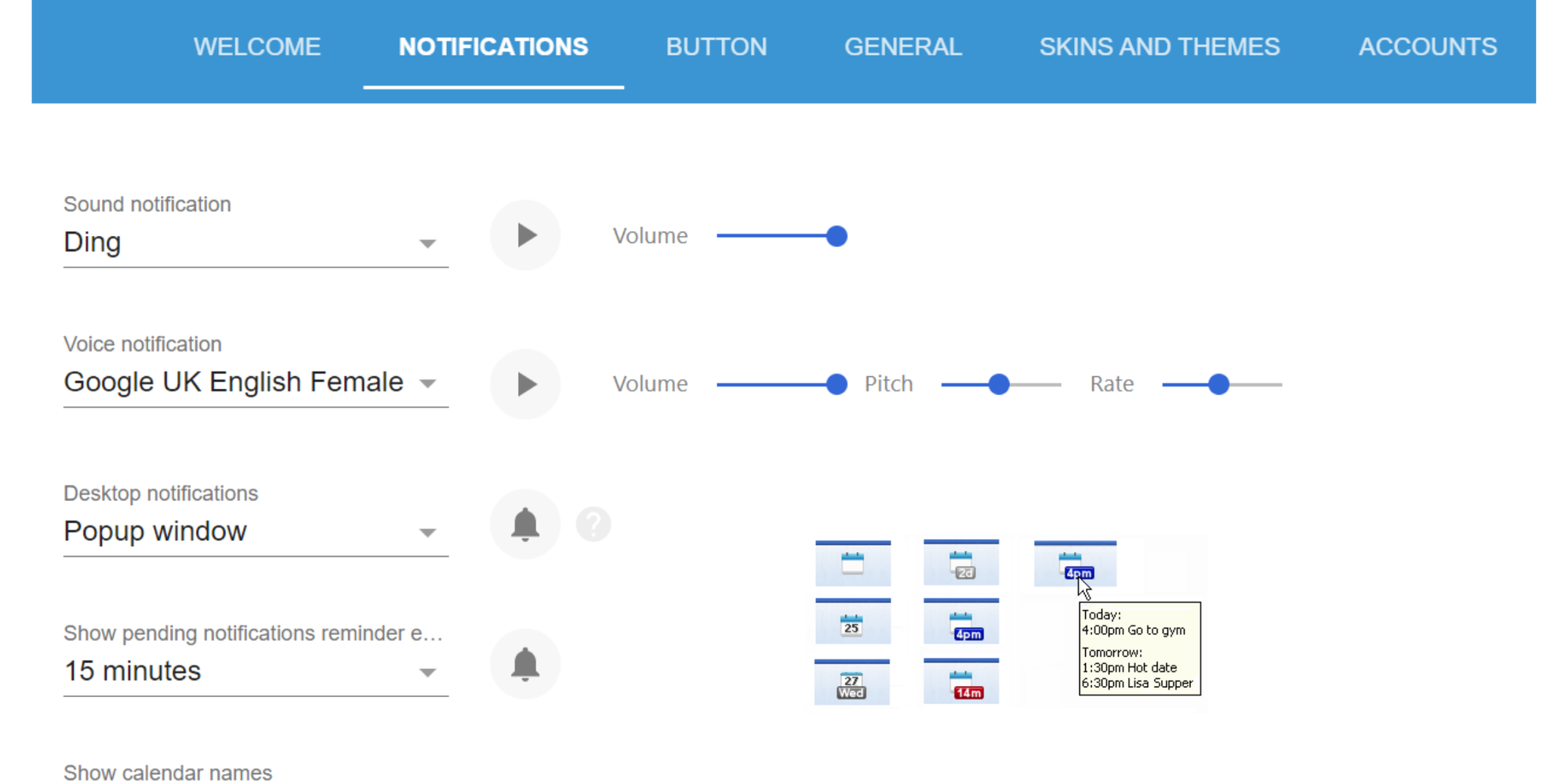
Checker Plus for Google Calendar is broader. Its Chrome Web Store listing says you can see upcoming events, get meeting notifications, snooze events, create events quickly, use popup views, drag and drop events, and do much of this without opening the Google Calendar page.
How to choose the right tool
The best setup is usually smaller than you think. Start with the single calendar problem that wastes the most time, then pick the tool that handles that job cleanly.
Use this guide, showing the best tool for each problem:
| Best fit | Why it helps | |
| Clients need to book you | Koalendar | Creates booking pages, syncs calendars, blocks overlapping time slots and sends reminders so you avoid double bookings and no shows. |
| Copying Zoom links | Zoom for Google Workspace | Adds Zoom meeting details to Google Calendar invitations with one click. |
| Meetings break focus time | Clockwise | Moves flexible meetings to create longer uninterrupted work blocks. |
| Billable hours are unclear | Toggl Track | Shows Google Calendar events in Toggl so you can add time entries from your schedule. |
| Team availability is unclear | TeamCal | Displays many calendars at once in a horizontal schedule view. |
| Project events blur together | Tags for Google Calendar | Turns prefixes like “Client:” into colored tags inside event names. |
| Duplicate events clutter your week | Event Merge / Cal Merge | intoVisually merges the same event across multiple calendars into one event. |
| Month view jumps | Disable Month Scroll | Stops Google Calendar jumping month to month when you scroll. |
| Key days need to stand out | G-calize | Lets you set text and background colors for weekdays, today, and holidays. |
| Meeting outcomes get lost | Otter or Fireflies | Records meetings and produces transcripts, summaries, or action items. |
| Calendar needs a toolbar | Checker Plus | Shows upcoming events, notifications, and quick event creation from the toolbar. |
If your main pain is “my calendar is hard to read,” a lightweight extension may be enough. If the issue is “people need to book me without emails, conflicts, or manual follow-up,” a scheduling tool is the better category. For more options, see Koalendar's guide to the best scheduling software for small business.
Install the free Koalendar Chrome extension and share your booking page from any browser tab. It is a simple way to keep your scheduling link close by, reduce back-and-forth emails, and keep bookings connected to the calendar you already use.