
TL;DR
Looking for a Google scheduling poll? You have three ways to find a time that works. Build a poll with Google Forms, use a dedicated meeting poll to collect everyone’s availability, or connect the calendars of the people who need to attend and let a scheduling tool show only the times when they’re all free.
You need several people to find a meeting time that works, and you’re looking for a Google schedule poll to make it easier.
The good news is that you don’t have to solve it through another email chain.
You can turn Google Forms into a Google poll for scheduling, use Koalendar’s free meeting poll to collect availability, or avoid polling completely when the calendars of the people who need to attend can be checked automatically.
The best approach depends less on how many people are meeting and more on how you want to find their shared availability.
Can you create a Google schedule poll?
Yes. You can create a Google schedule poll with Google Forms by listing possible dates and times, asking participants to select every option that works, and reviewing the responses manually to find the best overlap. Or, for a faster purpose-built option, you can use Koalendar’s free meeting poll to add times, share one link, and collect everyone’s availability without building a form first.
Google Forms is designed for creating forms and surveys, collecting responses and analysing the results, so it can be adapted into a scheduling poll even though group scheduling isn’t its primary purpose.
But it isn’t your only option.
Think about the workflow you actually need: People need to tell you when they’re free? Use a Google Forms poll or a dedicated meeting poll.
The relevant calendars are connected and everyone needs to attend? Use calendar-based scheduling to show only times when all required people are available.
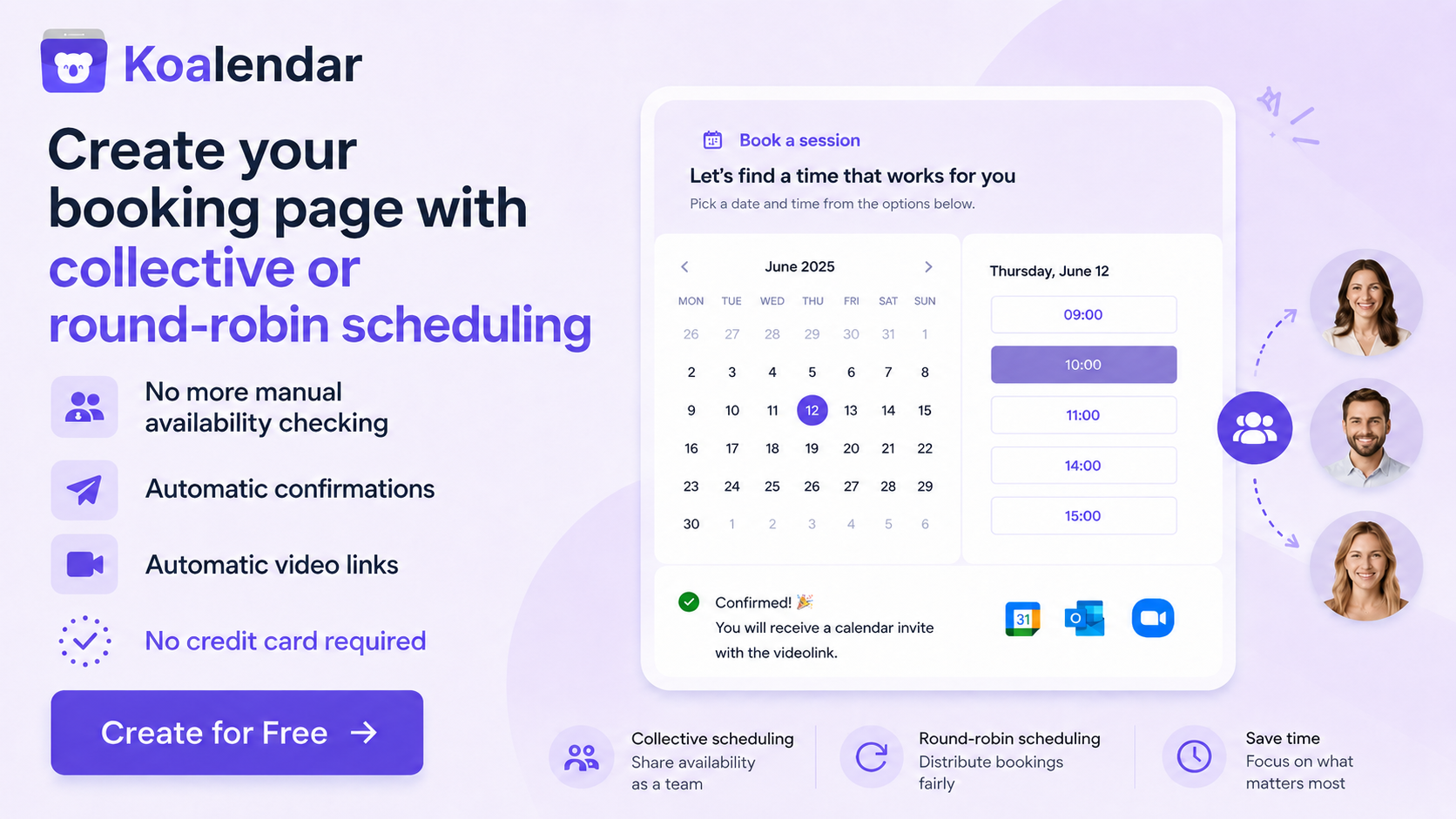
You need any one member of a team to take the meeting? A round-robin scheduling setup can show times when at least one host is available and assign the booking accordingly. Koalendar supports both Collective and Round Robin team scheduling.
In other words, a group meeting doesn’t automatically require a group vote.
How to create a Google Forms scheduling poll
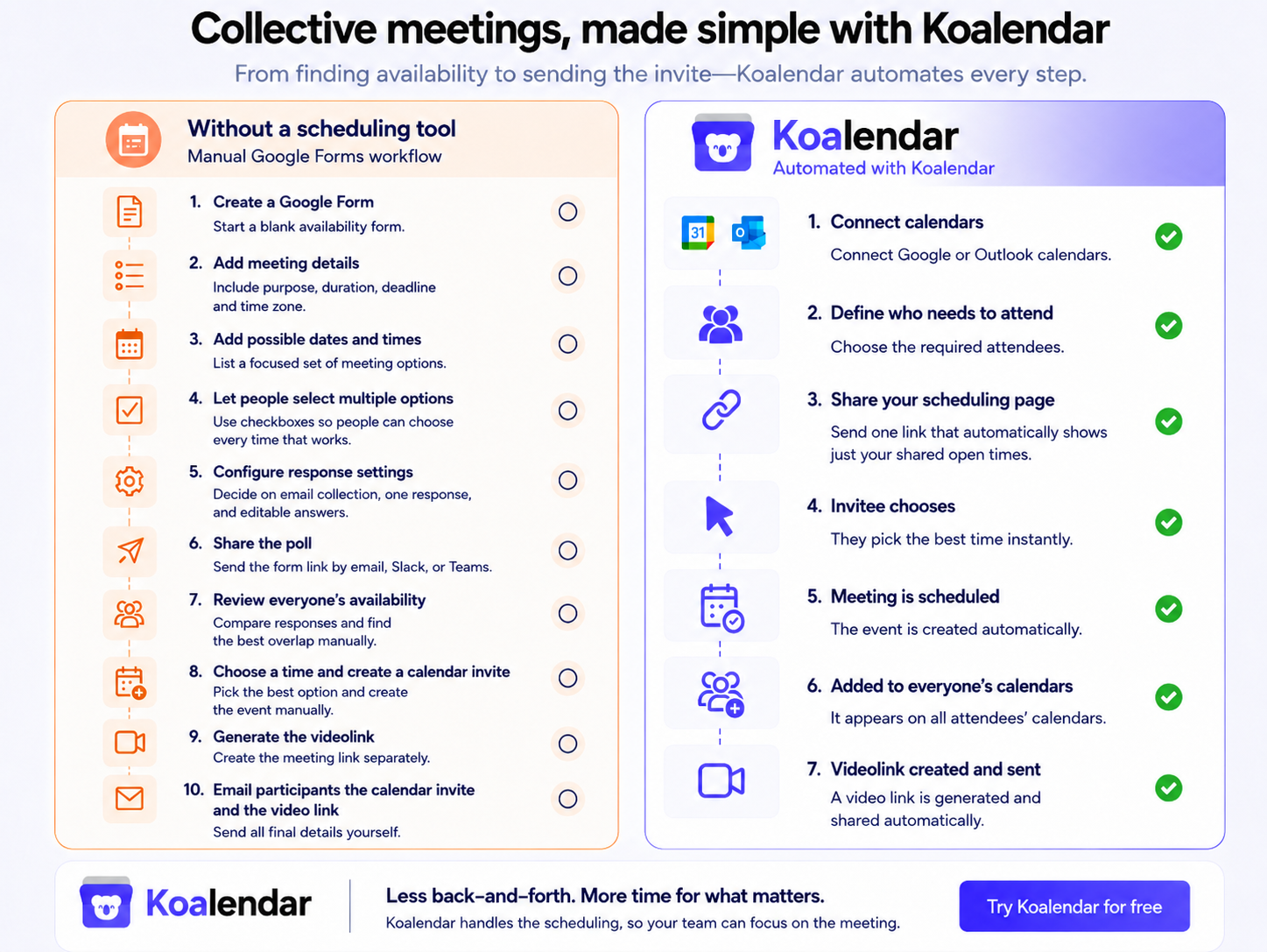
A Google Forms scheduling poll is an option when participants need to manually share which proposed dates or times work for them. It’s not the most practical option, though, because you need to build the form, add each time slot, configure the settings, share it, and then review the responses yourself. For a one-off meeting, that may be manageable. If you schedule groups regularly, those extra steps can quickly add up.
1. Create a Google Form
Open Google Forms and start a blank form.
Give it a clear title such as:
Project kickoff availability
or:
Choose a time for our quarterly meeting
Google Forms can be created directly from Forms, Google Drive or Google Sheets.
2. Add your meeting details
Tell people what they’re choosing a time for.
Include the meeting duration, location or video format, response deadline and time zone.
For example:
Please select every 45-minute slot you could attend next week. All times are shown in CET.
That little bit of context can prevent another round of questions later.
3. Add possible dates and times
Now list the options you want people to consider.
A simple Google poll for dates might include:
- Tuesday 8 September
- Wednesday 9 September
- Thursday 10 September
For a specific meeting, add complete time slots:
- Tuesday at 10:00
- Tuesday at 14:30
- Wednesday at 11:00
- Thursday at 15:00
Try not to add every theoretically possible time. A focused set of options makes the poll easier to answer and the results easier to compare.
4. Let people select multiple options
For an availability poll, you’ll usually want to know every time someone can attend rather than forcing them to choose one favourite.
Google Forms’ Checkboxes question type lets respondents select multiple answers. Multiple Choice limits them to one.
Your question can be as simple as:
Which of these meeting times work for you?
Then list the proposed times underneath.
5. Configure your response settings
Before sharing your poll, decide how you want people to respond.
Google Forms lets you control settings such as limiting users to one response, collecting email addresses and allowing respondents to edit an answer after they submit it.
Allowing edits can be useful for scheduling. Someone who becomes unavailable can change their response rather than messaging you separately.
It still relies on them remembering to make the update, though.
6. Share your Google poll for scheduling
Publish the form and send the responder link through email, Slack, Microsoft Teams or whichever channel your group uses.
Google Forms lets you control responder access and share published forms with specific people, groups or more broadly by link, depending on your settings.
For meetings with external participants, check those permissions before sending the poll.
7. Review everyone’s availability
As replies arrive, open the Responses tab.
Google Forms provides a response summary, and you can open the responses in Google Sheets when you want to analyse them in a spreadsheet.
Now look for the time that creates the best overlap.
With five people and four choices, that may be obvious.
With 20 people and 12 choices? You have a little more detective work ahead.
8. Choose a time and schedule the meeting
Once you’ve identified the best option, create the calendar event and invite everyone.
The scheduling poll has helped you answer:
When can we meet?
You still need to turn that answer into the actual meeting.
Where Google Forms scheduling polls get complicated
Google Forms can work for collecting availability, but it leaves the organiser responsible for turning everyone’s answers into a meeting.
That isn’t a flaw in Google Forms. It simply reflects what Forms is designed to do: collect responses, not manage the entire scheduling workflow.
Availability can change after people respond
Someone selects Thursday at 2 p.m. because they’re free when they complete the form.
Then another meeting appears on their calendar.
The Form response doesn’t automatically change with their calendar availability. Someone needs to update the response, or the organiser needs to spot the conflict another way.
More participants mean more responses to compare
As you add participants and possible meeting times, the number of answers you need to compare grows quickly.
The organiser still has to find the overlap and decide which option wins.
A dedicated meeting poll can make those results easier to see. Calendar-based scheduling can go a step further and determine shared availability without asking people to submit it manually.
Finding a time doesn’t schedule the meeting
Once the poll produces a winning slot, someone still needs to create the event, invite attendees and organise the meeting details.
For one meeting, that’s not a huge burden.
Repeated every week, it starts to look like another admin process.
You rebuild the workflow next time
New meeting, new possible times, new Form, new responses.
When you schedule meetings regularly, manually collecting availability can become scheduling work of its own.
The challenges you will find using Google Forms to create a poll are the same ones you’ll encounter if you use Google Forms as a booking system.
Need people to share availability? Try Koalendar’s free meeting poll
When people need to tell you which proposed times work, a purpose-built meeting poll keeps the process focused on that one job.
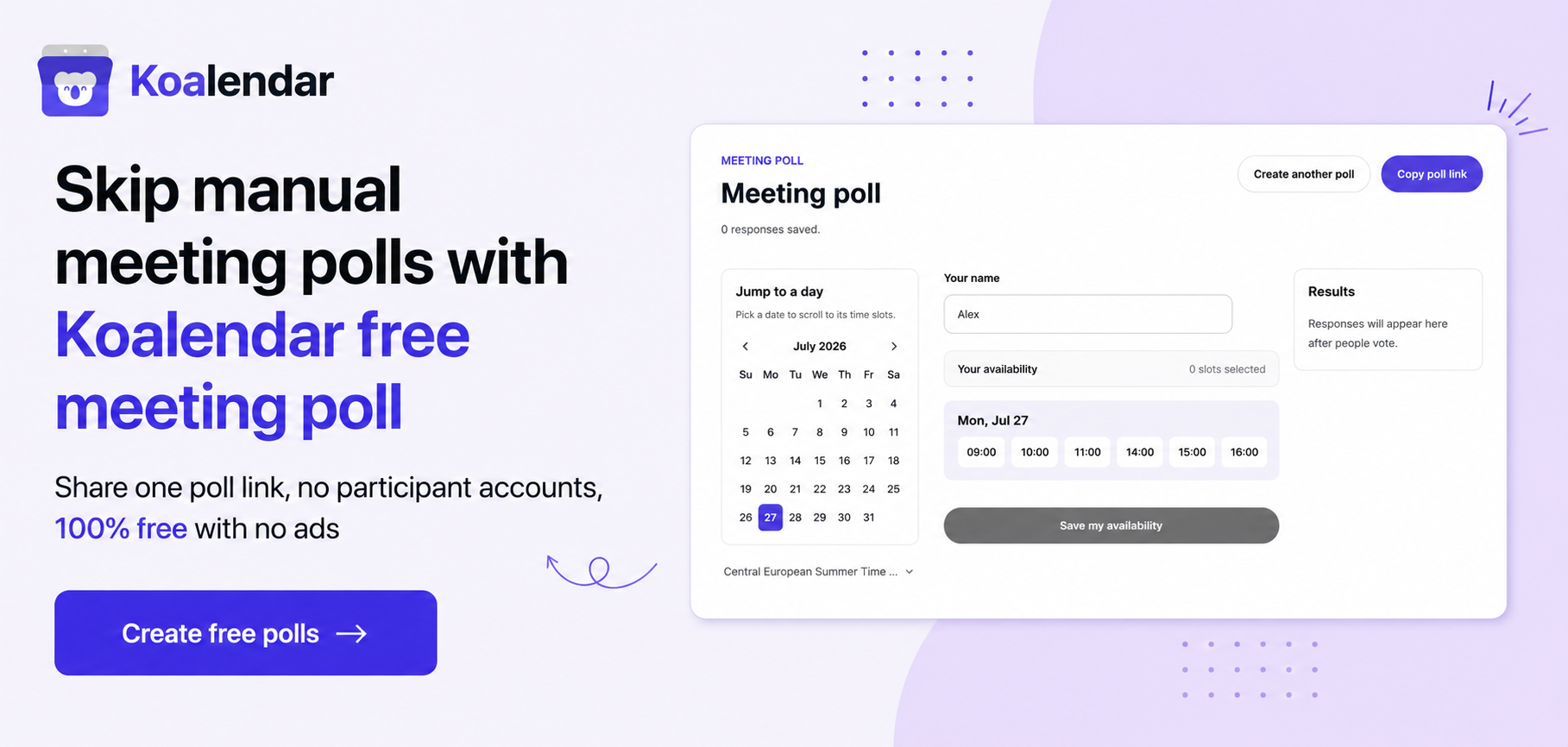
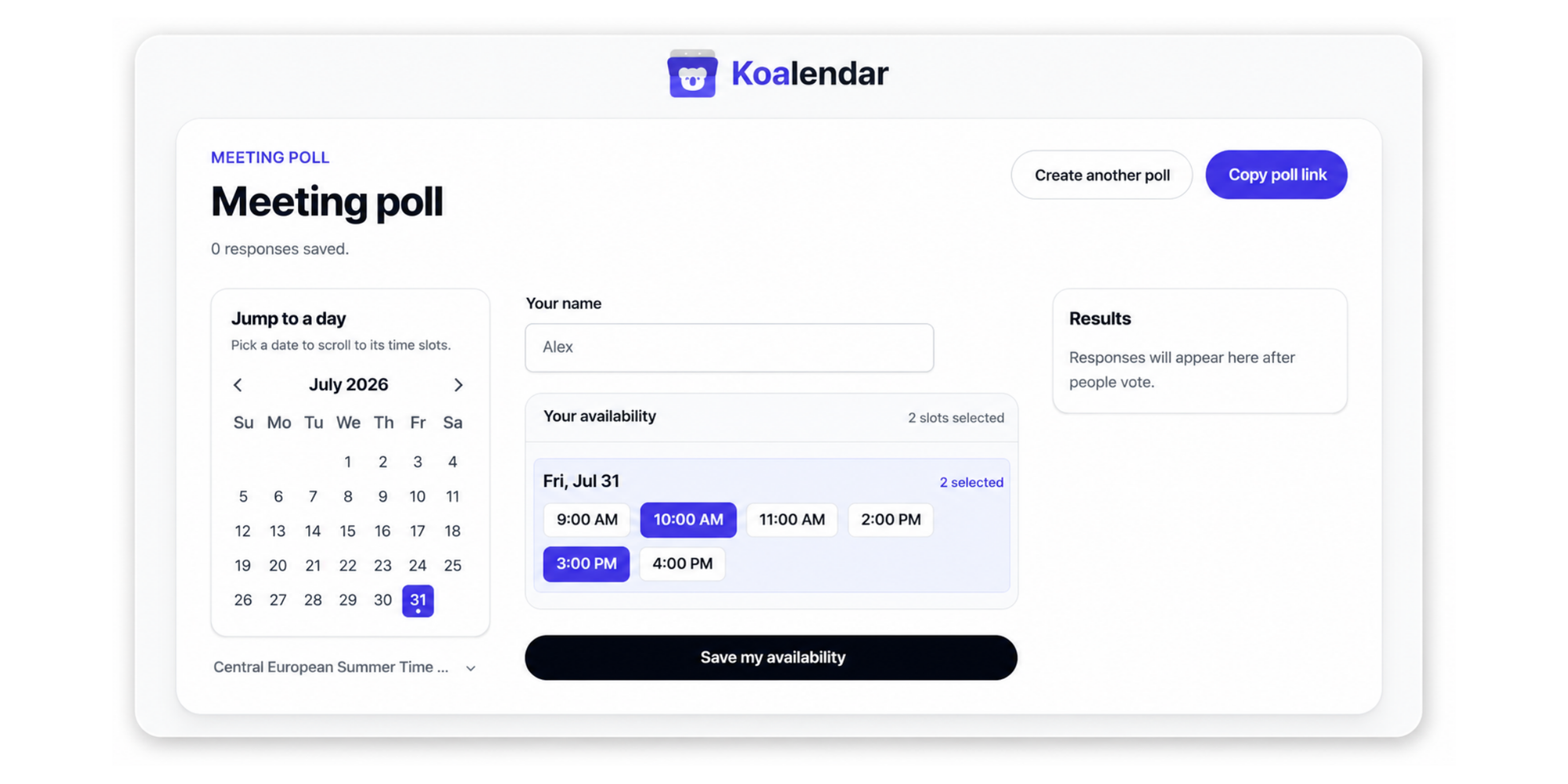
Koalendar’s free meeting poll lets you add candidate times, share one link and see which options work for the group as responses arrive. There’s no account required to create the poll or vote in one.
Add the times that could work
Choose your possible dates, add the available times and set the time zone.
No survey questions to build around them.
Share one meeting poll
Send the same poll link to everyone who needs to weigh in.
Let everyone add their availability
Participants enter their name and mark the options they can attend.
Their answers appear together, making it easier to compare the group.
See which time works best
As responses arrive, you can see which options have the strongest overlap.
That makes a meeting poll particularly useful when the organiser can’t access or connect everyone’s calendars.
Maybe you’re coordinating several external stakeholders. Maybe it’s a temporary project group. Or perhaps people simply want a say between a shortlist of dates.
In those cases, voting is useful.
Google Forms vs Koalendar Meeting poll
Both can collect availability manually, but they’re built for different jobs.
| Google Forms | Koalendar meeting poll | |
| Propose meeting times | ✅ | ✅ |
| Collect everyone’s availability | ✅ | ✅ |
| Share one link | ✅ | ✅ |
| Built specifically for meeting polls | ❌ | ✅ |
| Quickly compare group availability | More manual | ✅ |
| Add custom survey questions | ✅ | ❌ |
| Account needed to create the poll | Google account | ❌ |
| Best for | Surveys that include dates | Finding a time for a group |
Use Google Forms when scheduling is part of a broader survey.
Maybe you need to ask about dates and locations, catering, session topics or other preferences.
One thing to consider: if you need to collect extra information every time someone schedules with you, adding questions directly to a booking page can be a more scalable option than creating a new Google Form for each meeting. You can collect the details you need as part of the scheduling flow, without adding another separate form to manage.
Use a dedicated date poll when the only question you need answered is: When can everyone make it?
But do you actually need a scheduling poll?
A meeting with several attendees doesn’t necessarily need a poll. If their calendars can be checked automatically, you can find shared availability without asking everyone to vote first.
Imagine you need to schedule a client call with three people from your team.
One approach looks like this:
Propose five times → ask your three colleagues when they’re free → compare their answers → send the available options to the client → schedule the meeting.
But your colleagues already keep their calendars updated.
If those calendars are connected to the scheduling tool, why ask everyone to report the same information again?
Koalendar’s Collective scheduling is designed for meetings where multiple hosts all need to attend. It checks their synced calendars and shows booking times only when every required host is available. Once someone books, the meeting is added to each host’s calendar.
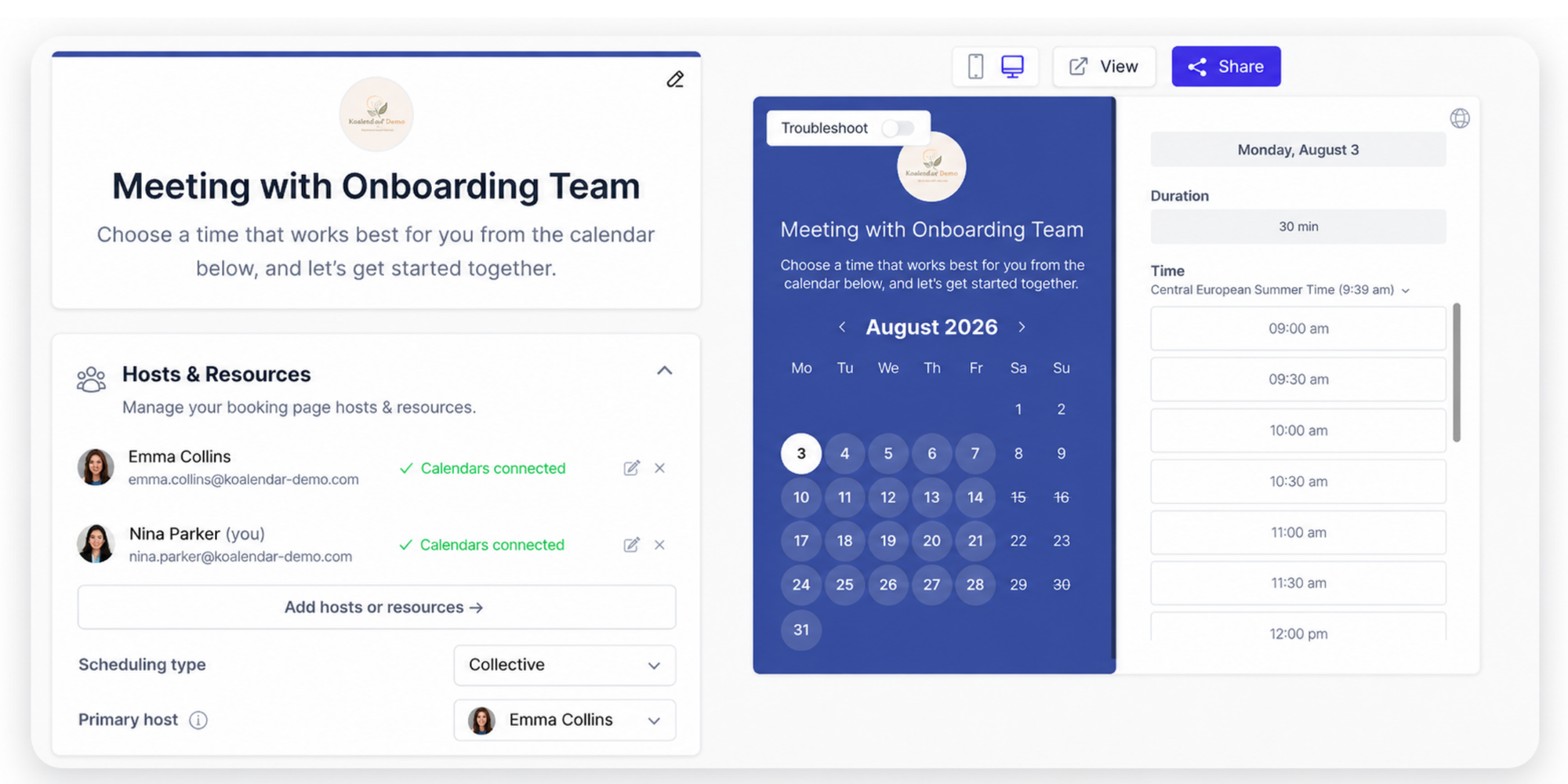
Your client still chooses a convenient time. Your team just doesn’t need to vote first.
That changes the real question from: “Do several people need to attend?” to: “Do people need to manually share their availability, or can their calendars provide it?”
Skip the poll when calendars can find the overlap
When the calendars involved can be connected, Koalendar can calculate availability before the invitee ever sees the scheduling page.
The workflow becomes:
Connect calendars → define who needs to attend → share your scheduling page → show mutually available times → invitee chooses → meeting is scheduled.
That works for a 1:1 meeting, but it can also work when several hosts need to be present.
Show shared availability instead of proposing dates
Say a recruiter and two hiring managers all need to attend a panel interview.
Instead of suggesting dates and polling the three interviewers, connect their calendars to a Collective booking page.
Koalendar then shows the candidate the time slots when all required hosts are free.
The candidate gets a choice without seeing the team’s calendar details.
The internal team gets a meeting time without another availability round.
“Koalendar allows us to schedule more quickly for the recruiting team and also for hiring managers. It’s all thanks to its shared dashboard, customisable pre-interview screening questions, and self-service booking pages.”
Hiring Manager
Read the full story of how this hiring team saved hours every week by automating interview scheduling with Koalendar.
Keep availability connected to the calendars that matter
Calendar-based scheduling also addresses the stale-response problem.
Koalendar can check connected Google, Outlook and Apple calendars to prevent conflicting bookings, while team scheduling can use synced teammate calendars when calculating availability.
So availability is based on the calendars themselves rather than a poll response submitted yesterday.
Let the invitee choose from times that already work
Once the shared availability has been calculated, the invitee only sees suitable options.
There’s no need for:
Can everyone do Tuesday?
Not at 10.
What about Wednesday afternoon?
Let me check with James.
The scheduling page has already done that availability check.
“Finding a good time to meet is very difficult, so the benefit of Koalendar is having a shared calendar, with the right availability, where people can choose their preferred date and time from."

Sabri Karagönen
Co-founder at Bruin
Read how Sabri and his co-founder use Koalendar to simplify multi-calendar scheduling.
Handle different types of team scheduling
Not every team meeting needs everyone present.
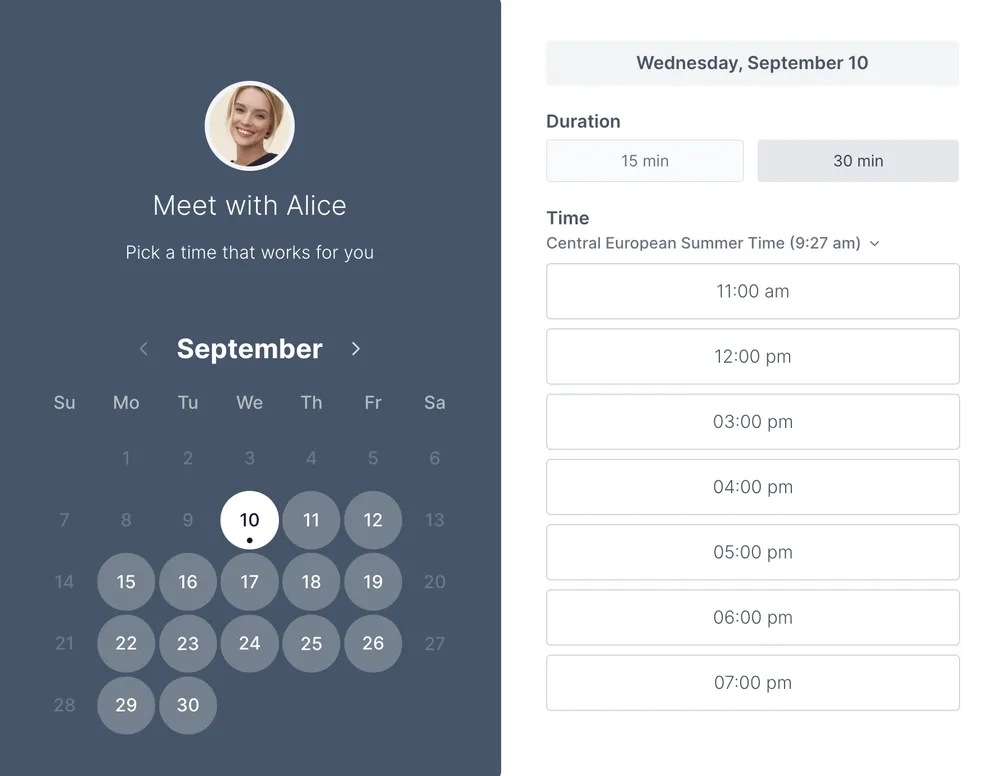
For meetings where any one team member can attend, Koalendar also supports Round Robin scheduling. It can show times when at least one host is available and assign the booking to an available team member based on the configured scheduling rules.
That can suit sales calls, consultations and other meetings where the goal is finding someone available, rather than a time when the whole team is free.
Turn availability into a booked meeting
The final difference is what happens after a time is chosen.
Rather than finding the overlap and then starting another scheduling step, a booking page turns the selected time into the meeting.
Koalendar includes calendar sync, booking pages and team scheduling, alongside features such as meeting integrations and reminders.
You can also explore Koalendar’s free scheduling tools, or see how to schedule a Zoom meeting and invite others when your meeting needs a video link.
Meeting poll vs calendar-based scheduling: which should you use?
Use a poll when availability needs to be collected from people. Use calendar-based scheduling when connected calendars can determine the availability you need automatically.
| Situation | Best approach |
| Several external stakeholders need to share when they’re free to attend the same meeting | Meeting poll |
| Friends or colleagues want to vote between proposed dates | Meeting poll |
| A client needs to meet with you and two colleagues | Booking page with Collective scheduling |
| A candidate needs to meet an interview panel | Booking page with Collective scheduling |
| A prospect can speak to any available sales rep | Booking page with Round Robin scheduling |
| Your regular project team all needs to attend | Collective scheduling |
| You know your own availability and someone needs to choose | Simple scheduling page |
The distinction is manual availability versus connected availability, not group versus individual.
A scheduling poll asks people to tell you when they’re free.
Calendar-based scheduling checks the calendars that matter and offers times based on what it finds.
Google Calendar’s appointment schedules use the same general principle for booking against calendar availability: Google creates a booking page, blocks times when the calendar is unavailable and adds booked appointments to the calendar.
However, it has some limitations for businesses. Because it’s a built-in Calendar feature rather than a dedicated scheduling platform, customization, automation, team workflows, client management, and reporting are relatively limited. You can create a functional booking page, but businesses that need stronger branding, custom intake questions, SMS reminders, follow-up automation, round-robin scheduling, client history, or detailed booking analytics may need a more specialized scheduling tool.
Find the right meeting time with less back-and-forth
A Google schedule poll can work well when you need people to manually share which dates and times suit them. Google Forms gives you a flexible way to build one, especially when availability is only one part of a wider survey.
When you simply want a group to vote on proposed times, Koalendar’s free meeting poll gives you a tool built for exactly that.
But don’t assume a poll is necessary just because several people need to attend.
When the relevant calendars can be connected, Koalendar can check shared calendar availability, show the invitee the times that already work and turn their choice into a scheduled meeting.
Poll when you need people to provide availability. Let the calendars do the work when they already contain the answer.